Retouching and Transforming
This chapter covers the menu (without the AI commands) and the commands in the menu that change the size and orientation of an image: undoing steps, filling, removing distracting objects, scaling, rotating and warping layers, and adjusting image size and canvas size.
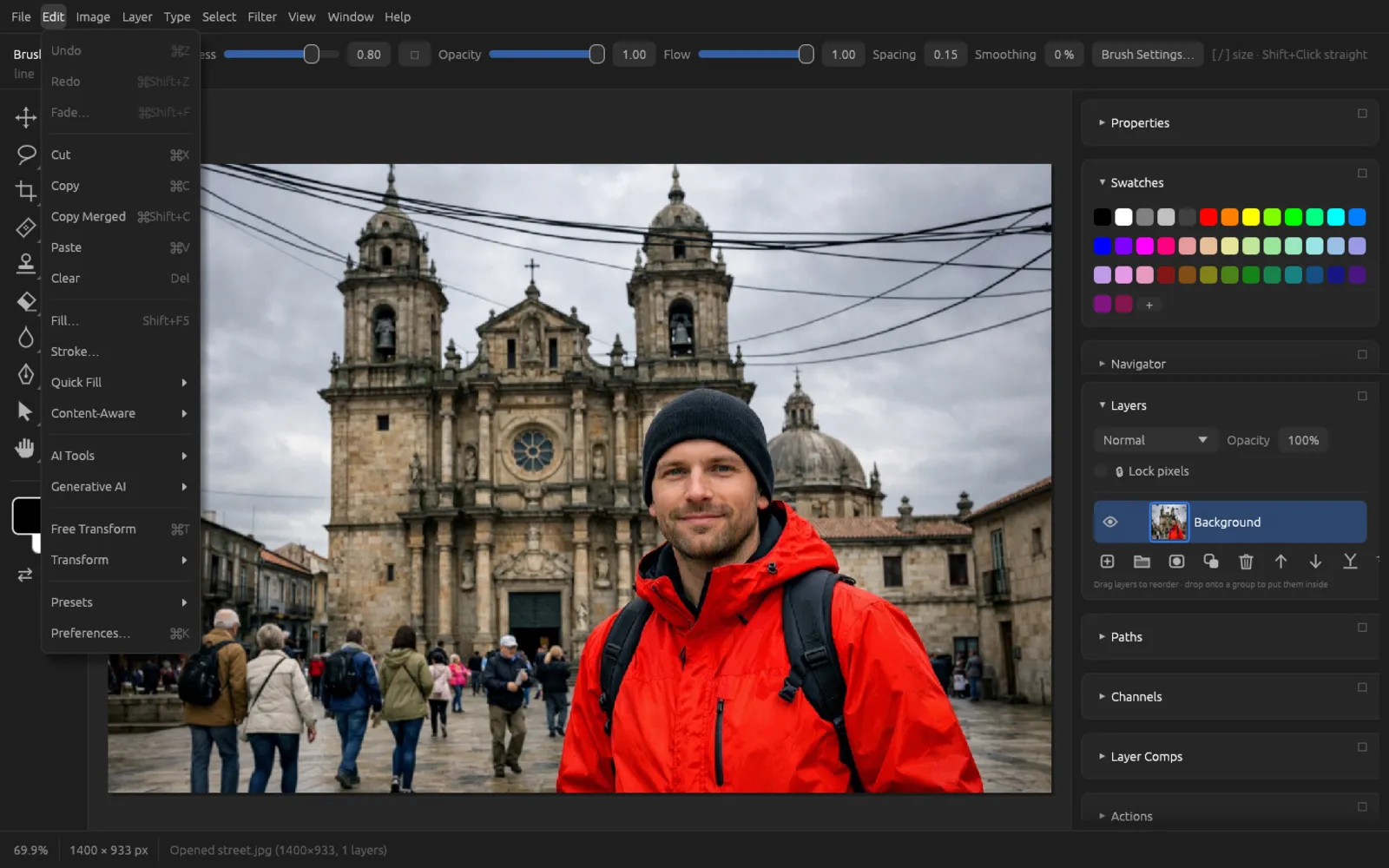
Undo and History
Undo and Redo
- (⌘ Z) takes back the last step. Pressing it repeatedly goes back further, step by step.
- (⇧ ⌘ Z) restores a step you undid.
By default, each document remembers 60 steps. You set the number under in the Performance section at History States (2 to 1000). More steps need more memory.
The History panel
The History panel () lists all steps of the current document, from opening it to the last command.
- Click a step to jump back to that state. The later steps appear faded and can be restored with a click – until you do something new: then they are discarded.
- New Snapshot saves the current state. Snapshots sit at the top of the list and are kept even when older steps drop out of the history. A click restores the snapshot; a right-click offers Delete Snapshot.
- The box to the left of a step or snapshot sets the source for the History Brush. With the History Brush (Y) you then paint this earlier state back into parts of the image (see Tools).
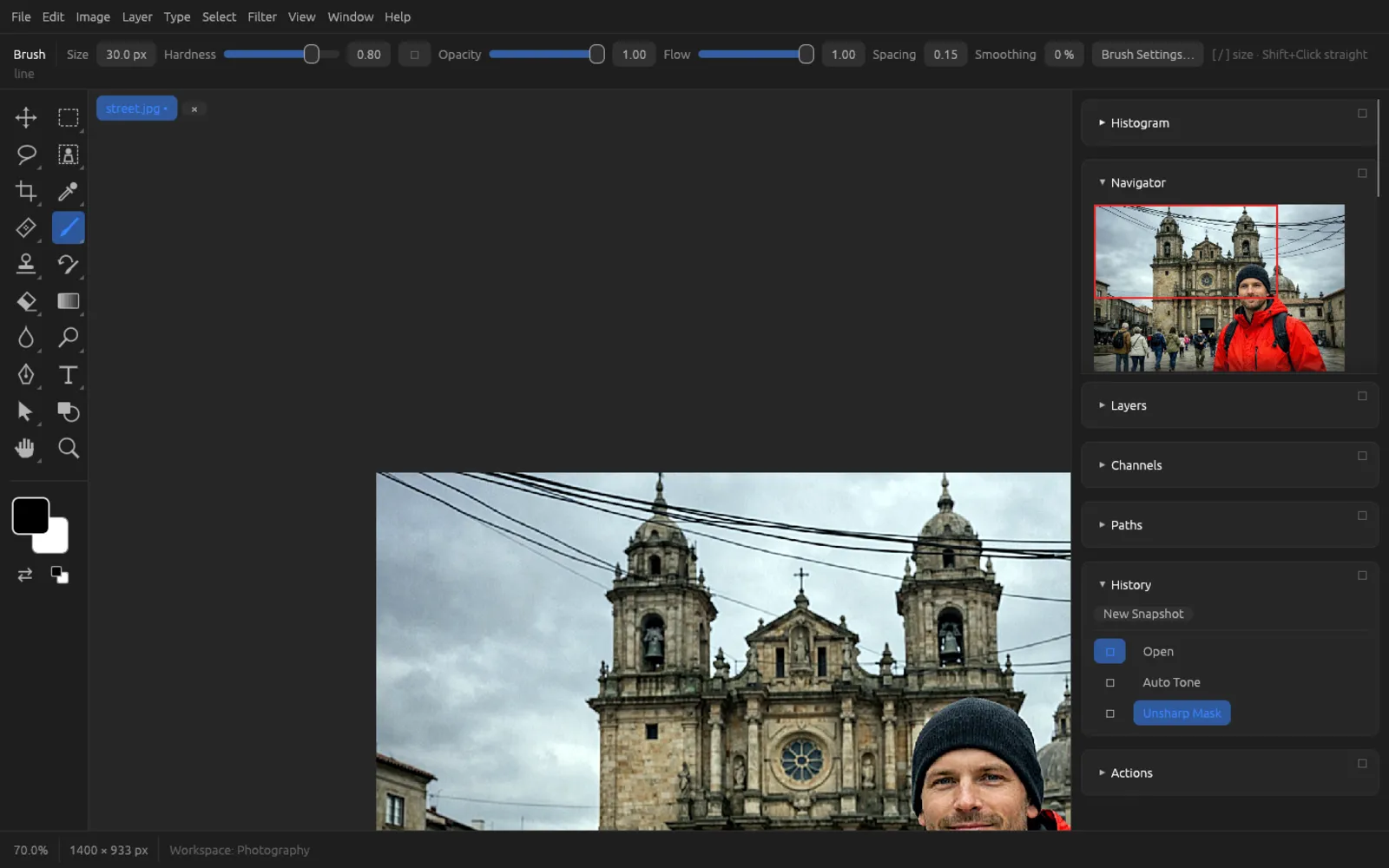
Create a snapshot before a bigger experiment. Then you can get back to your starting point with a single click at any time.
Fade
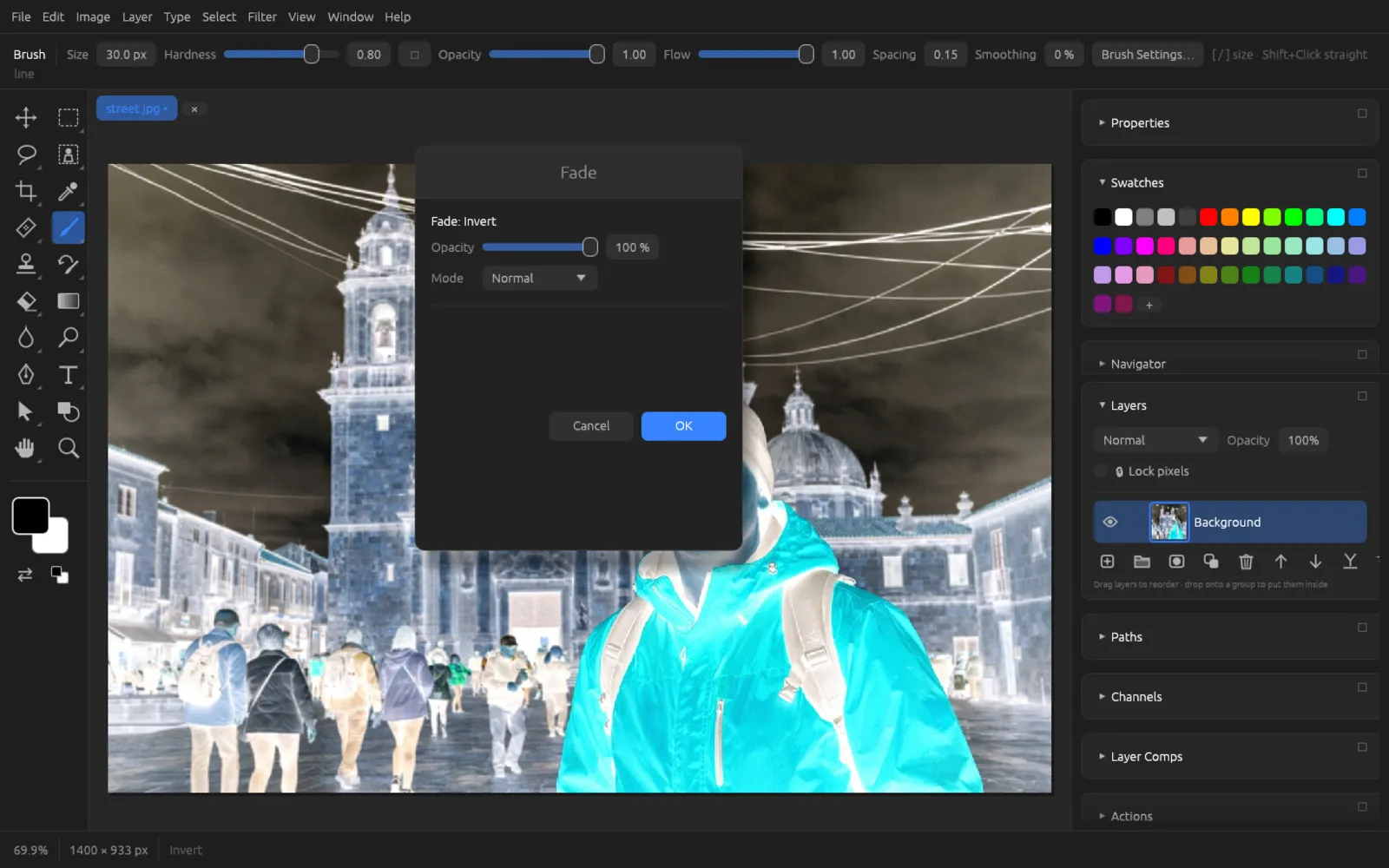
(⇧ ⌘ F) blends the result of the last filter, the last adjustment or the last paint stroke with the state before it.
- Opacity: 100 % is the full effect, 0 % the state before the step.
- Mode: combines the result using a blend mode, for example Luminosity, so that sharpening doesn't create color fringes.
Fade only works directly after such a step on a layer. Otherwise, the status bar tells you that Fade isn't possible right now.
Cut, Copy and Paste
| Command | Shortcut | Effect |
|---|---|---|
| Cut | ⌘ X | Copies the selection of the active layer to the clipboard and removes it from the layer. |
| Copy | ⌘ C | Copies the selection of the active layer. Without a selection, the whole layer is copied. |
| Copy Merged | ⇧ ⌘ C | Copies what you see: all visible layers combined. |
| Paste | ⌘ V | Pastes the clipboard contents as a new layer – at the original position if it fits, otherwise in the center. If no document is open, a new one is created. |
| Clear | ⌫ | Removes the contents of the selection; the pixels become transparent. On a layer mask, the area turns black (hidden). |
The clipboard is the operating system's clipboard: you can exchange images between Chromatelier and other programs. Within Chromatelier, 16-bit data and the color profile are kept.
For a copy on its own layer in the same document, use (⌘ J) – see Layers.
Fill and Stroke
Fill
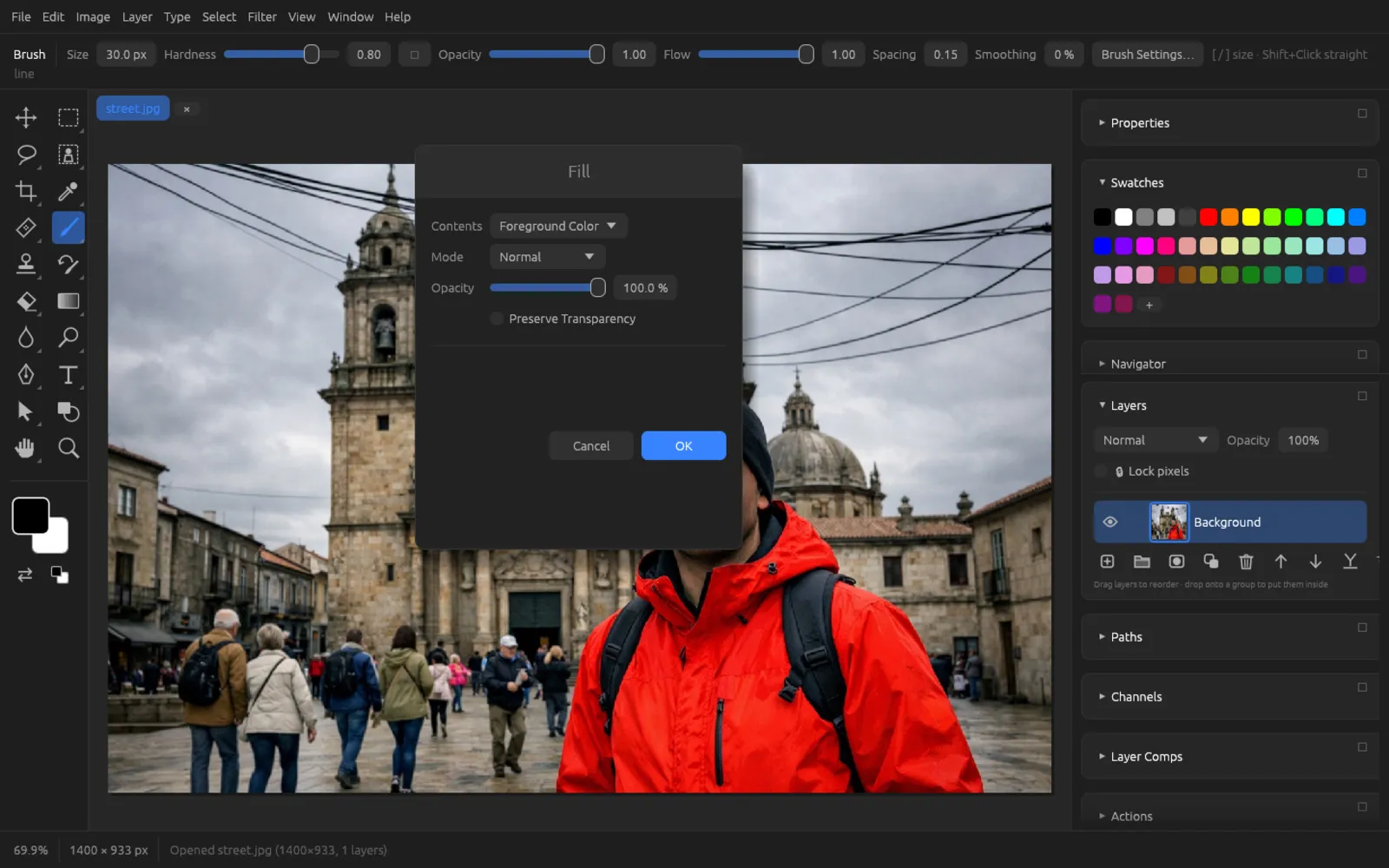
(⇧ F5) fills the selection – or, without a selection, the whole layer.
| Field | Meaning |
|---|---|
| Contents | Foreground Color, Background Color, Color… (pick your own color), Pattern, Content-Aware, Black, 50% Gray or White. |
| Pattern | Only with Contents “Pattern”: one of the available patterns or one you defined yourself. |
| Mode, Opacity | Blend mode and strength of the fill. |
| Preserve Transparency | Fills only pixels that already contain something; transparent areas stay empty. |
With Contents Content-Aware, Chromatelier fills the selection from its surroundings – like Content-Aware Fill without further options.
Stroke
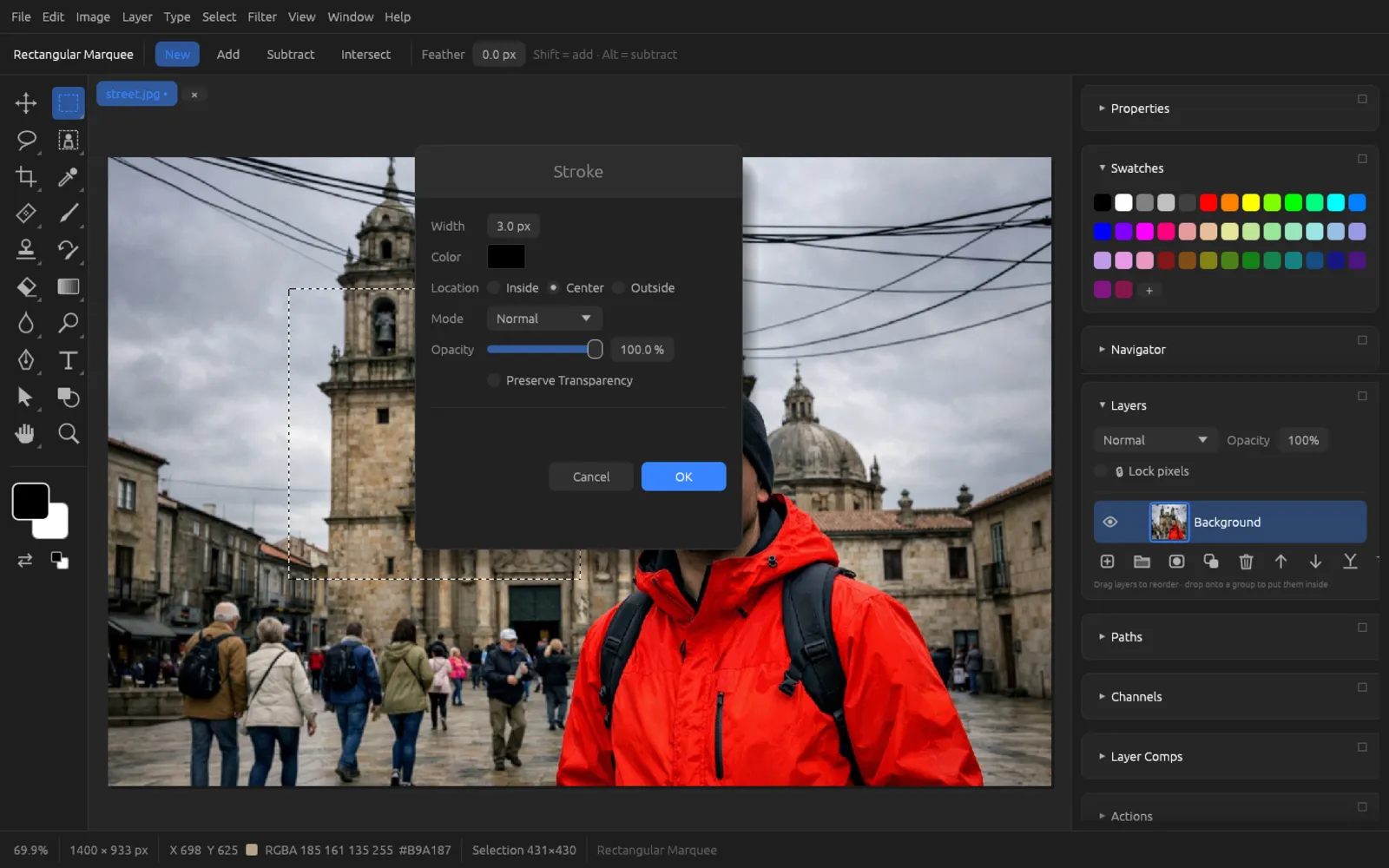
draws a line along the edge of the selection. You need a selection for this.
- Width: thickness of the line in pixels.
- Color: click the color swatch to choose it.
- Location: Inside, Center or Outside – whether the line lies inside, on or outside the selection edge.
- Mode, Opacity, Preserve Transparency: as with Fill.
Quick Fill
and fill the selection (or the whole layer) at full opacity without a dialog. On a layer mask, the gray value of the color is used.
Content-aware fill and scale
Content-Aware Fill
Content-Aware Fill replaces a selection with matching parts of the image from its surroundings. Use it to remove distracting objects such as people, signs or blemishes. There are two commands:
- (⇧ ⌫) fills immediately with the default settings.
- opens a dialog with options and a preview.
| Setting | Meaning |
|---|---|
| Sampling Area | Where the fill takes its image parts from. Auto searches the surroundings of the selection, Rectangular takes a rectangle around the selection. If you have stored selections with , they appear here too – that way you set the sampling area yourself. |
| Show Sampling Area | Tints the sampling area green in the image. |
| Color Adaptation | None, Default, High or Very High: how strongly the brightness and color of the inserted parts are matched to the surroundings. Higher levels help with gradients, for example in the sky. |
| Output To | Current Layer, New Layer (only the fill, on its own layer) or Duplicate Layer (a filled copy). |
| Preview | Calculates the result and shows it in the dialog. |
| New Result | Another attempt with a different random start – helpful if the first result shows repetitions. |
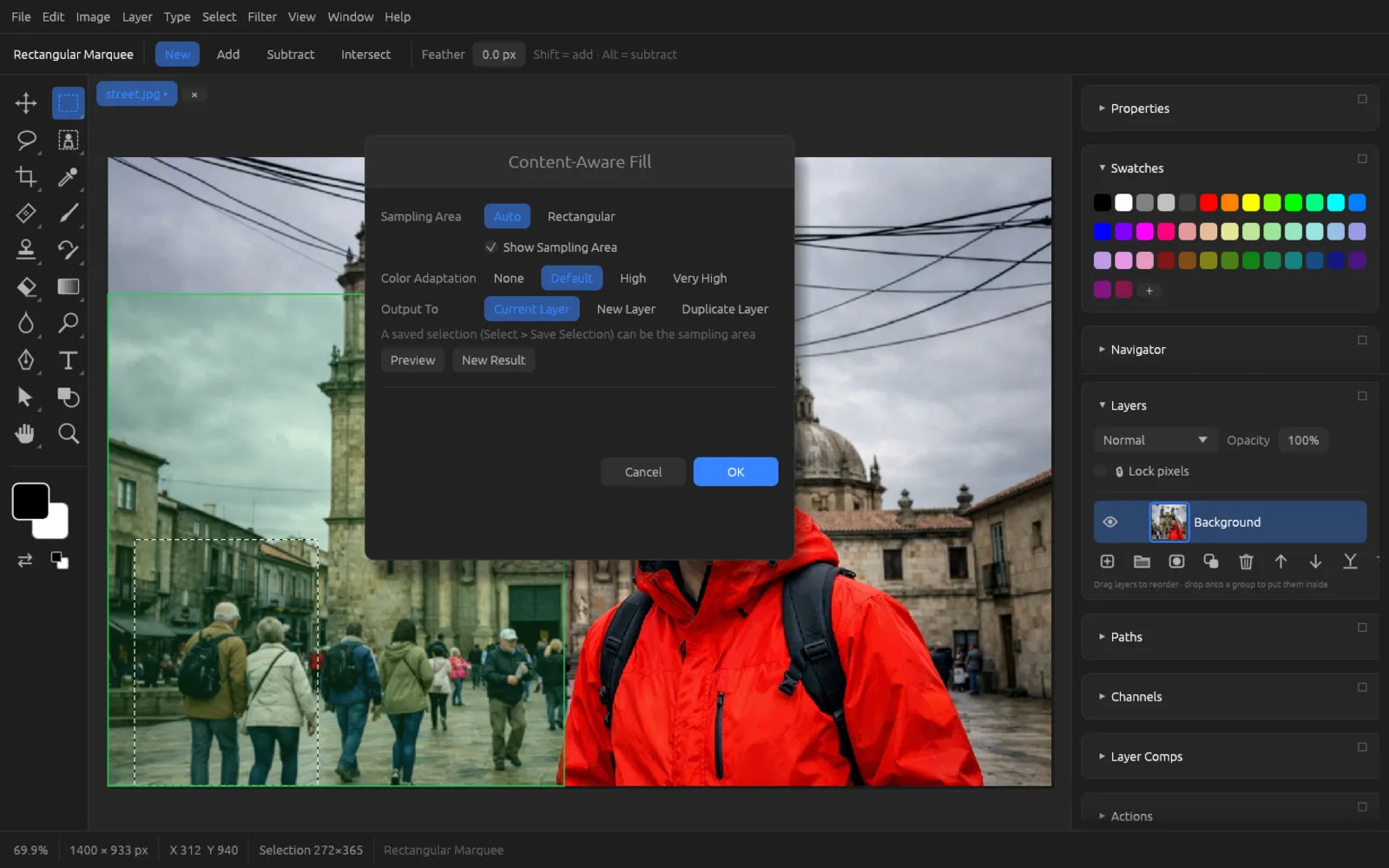
Remove a distracting object with Content-Aware Fill
- Select the object generously, for example with the Lasso (L) or the Rectangular Marquee (M). Leave a narrow margin around the object; shadows belong in the selection too.
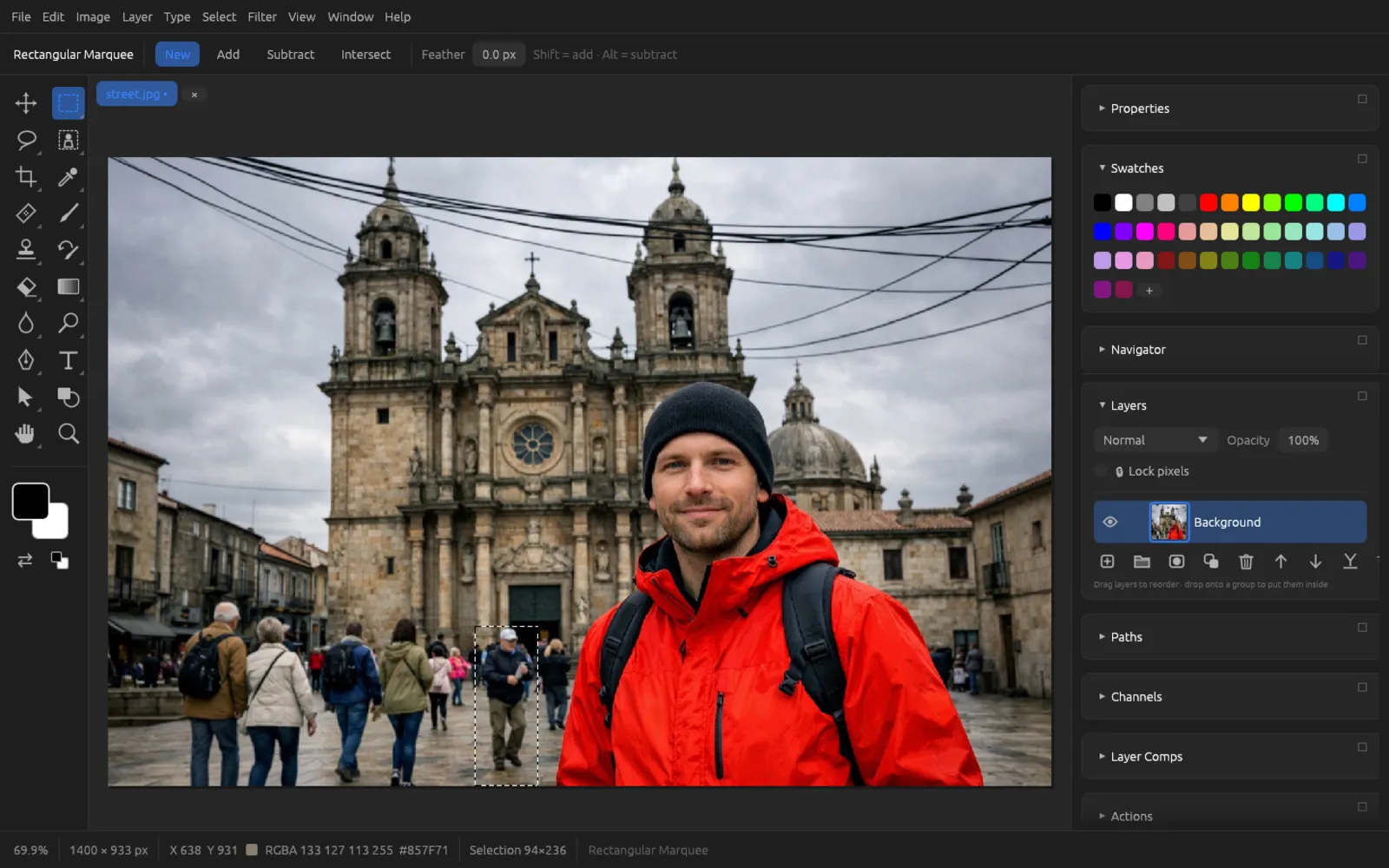
The person on the right is selected. - Choose .
- Leave Sampling Area at Auto and choose New Layer for Output To. That way the original stays unchanged.
- Click Preview. If you don't like the result, click New Result or change the Color Adaptation.
- Click OK and deselect with ⌘ D.
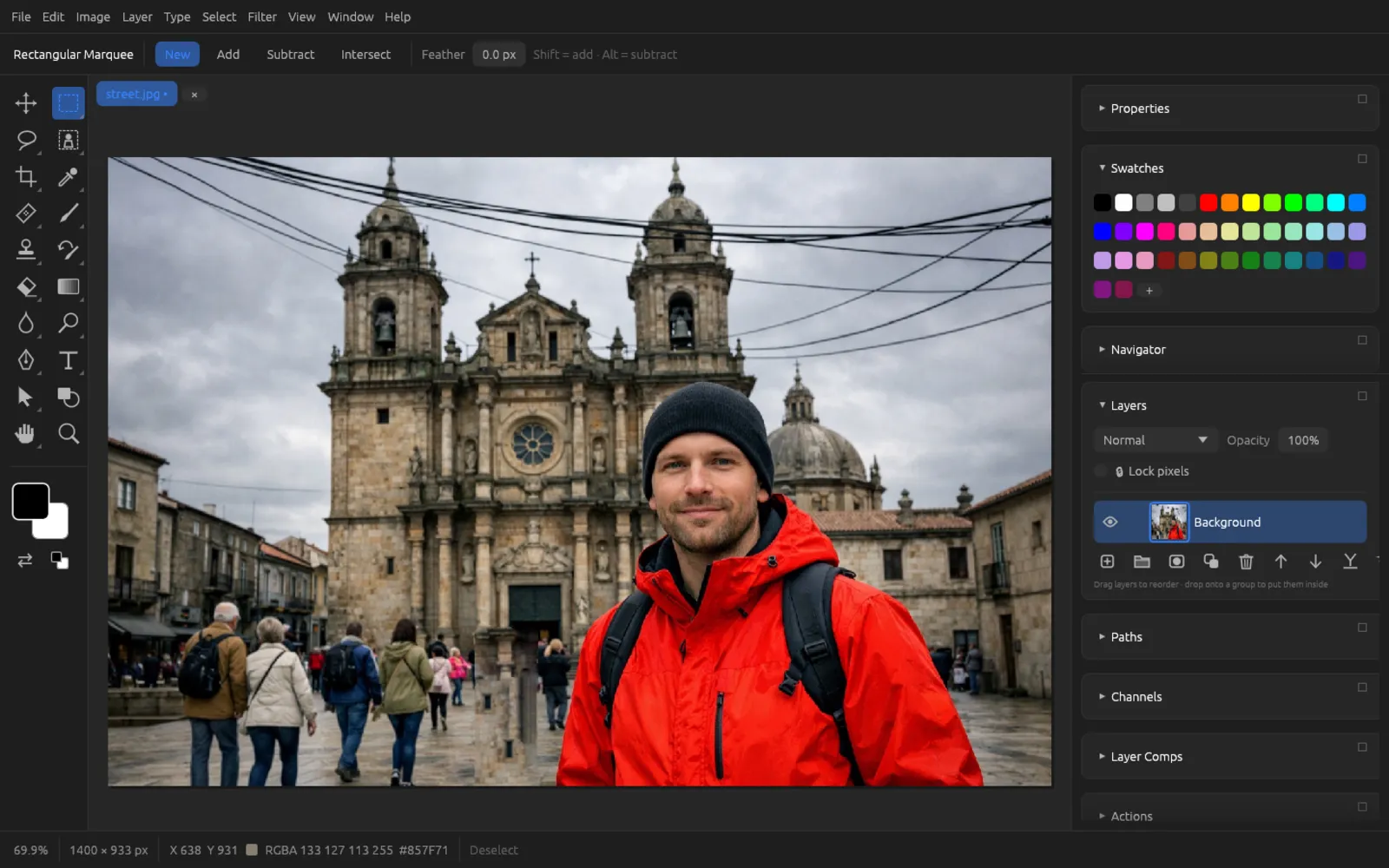
The person is gone. Small irregularities on the facade can be touched up. - Touch up any remaining irregularities with the Spot Healing Brush (J) or the Clone Stamp (S). To do this, first select the image layer again, or combine the layers with .
For objects in front of a busy background, often gives a better result (see AI on Your Computer).
Content-Aware Scale
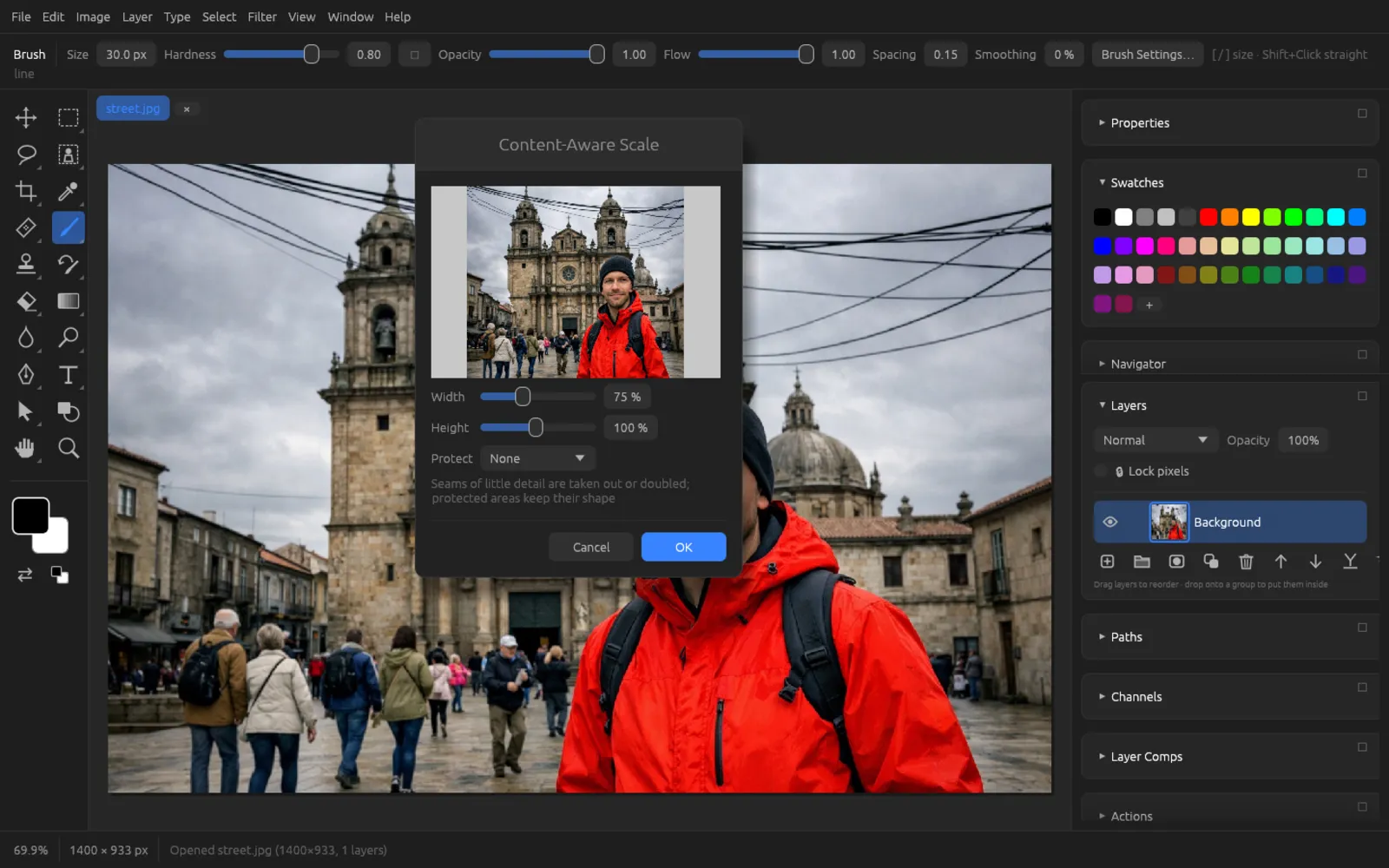
(⌥ ⇧ ⌘ C) changes the width or height of a pixel layer without distorting important subjects. To do this, “seams” with little detail are removed or doubled, for example in the sky or on a meadow.
- Width and Height: 10 to 200 % of the original size. The preview at the top shows the result.
- Protect: None, Skin Tones (people stay undistorted) or a saved selection whose area keeps its shape.
Transforming
Free Transform
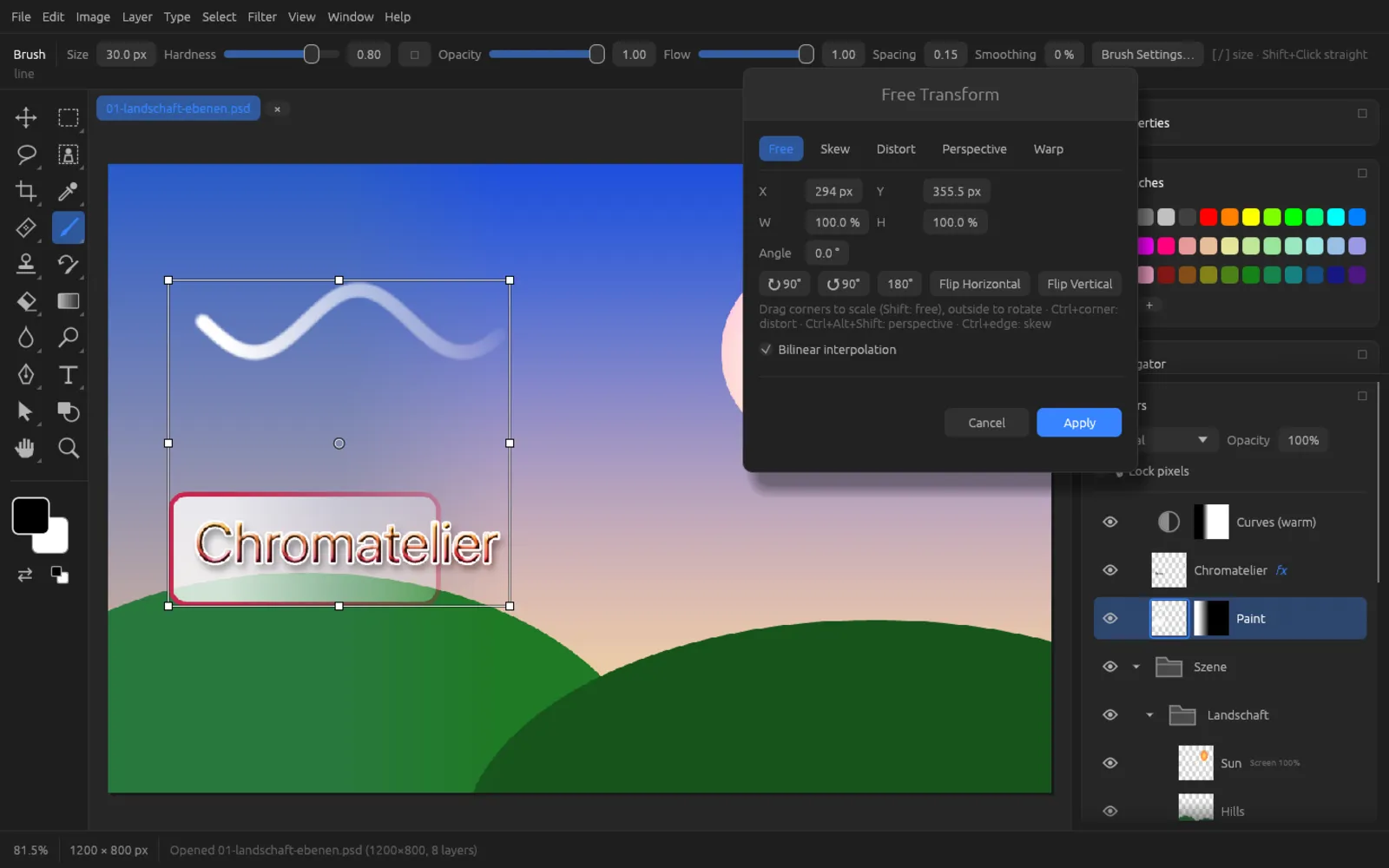
(⌘ T) places a frame with handles around the contents of the active layer (or around the selection on it). At the same time, the Free Transform window opens.
- Dragging a corner scales proportionally; with ⇧, freely.
- Dragging outside the frame rotates around the reference point in the center.
- ⌘ + dragging a corner distorts, ⌘ + dragging an edge skews, ⌘ ⌥ ⇧ + dragging a corner changes the perspective.
- In the window you set exact values: position X/Y in pixels, width W and height H in percent, Angle in degrees.
- The buttons ↻ 90°, ↺ 90° and 180° rotate; Flip Horizontal and Flip Vertical flip.
- At the top you switch the type: Free, Skew, Distort, Perspective or Warp. The submenu starts directly in the respective type.
- Bilinear interpolation smooths the result. Turn it off for pixel graphics that should keep hard edges.
- Apply (Enter) commits the transformation, Cancel discards it.
Free-transform a layer
- In the Layers panel, select the layer you want to change. Type, shape and smart object layers can also be scaled and rotated; you can only distort and warp type after rasterizing it.
- Press ⌘ T. The transform frame appears around the contents.
- Drag a corner to make the layer bigger or smaller. The aspect ratio is kept.
- Move the mouse slightly outside a corner and drag to rotate the layer. For exact values, type an Angle into the window.
- Drag inside the frame to move the layer.
- Press Enter or click Apply.
Convert a layer to a smart object before transforming it. Then you can shrink it and enlarge it again as often as you like without it getting blurry.
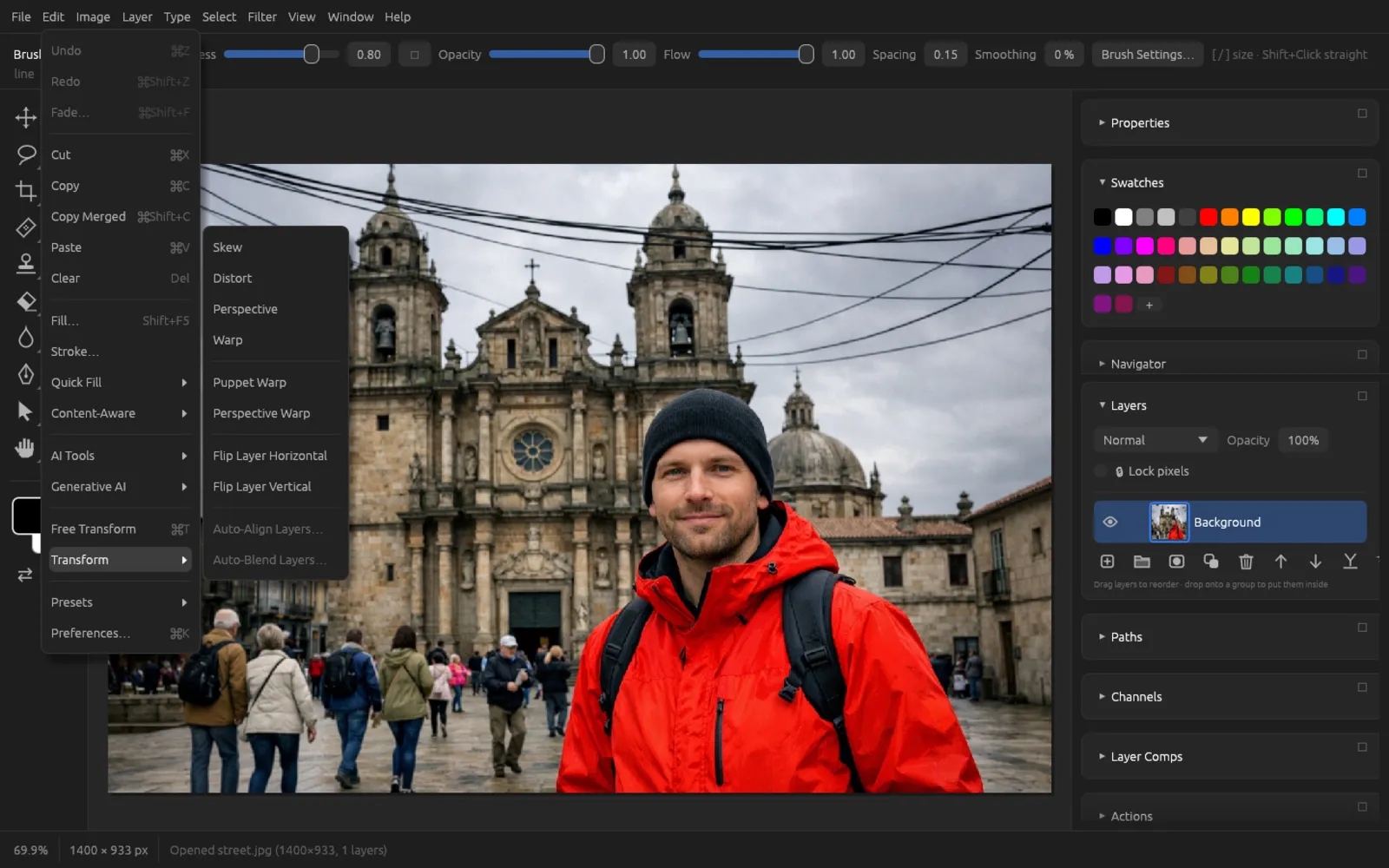
The Transform submenu
| Command | Effect |
|---|---|
| Skew | The edges are shifted in parallel – the rectangle becomes a parallelogram. |
| Distort | Each corner can be dragged freely. |
| Perspective | Drags two opposite corners symmetrically – ideal for correcting converging lines. |
| Warp | Bends the layer with a grid (see below). |
| Puppet Warp | Bends a layer at pins you place (see below). |
| Perspective Warp | Changes the perspective of an image using planes (see below). |
| Flip Layer Horizontal / Flip Layer Vertical | Flips only the active layer, without a dialog. |
| Auto-Align Layers… | Aligns several selected pixel layers to each other (see below). |
| Auto-Blend Layers… | Blends aligned layers into each other with masks (see below). |
Warp
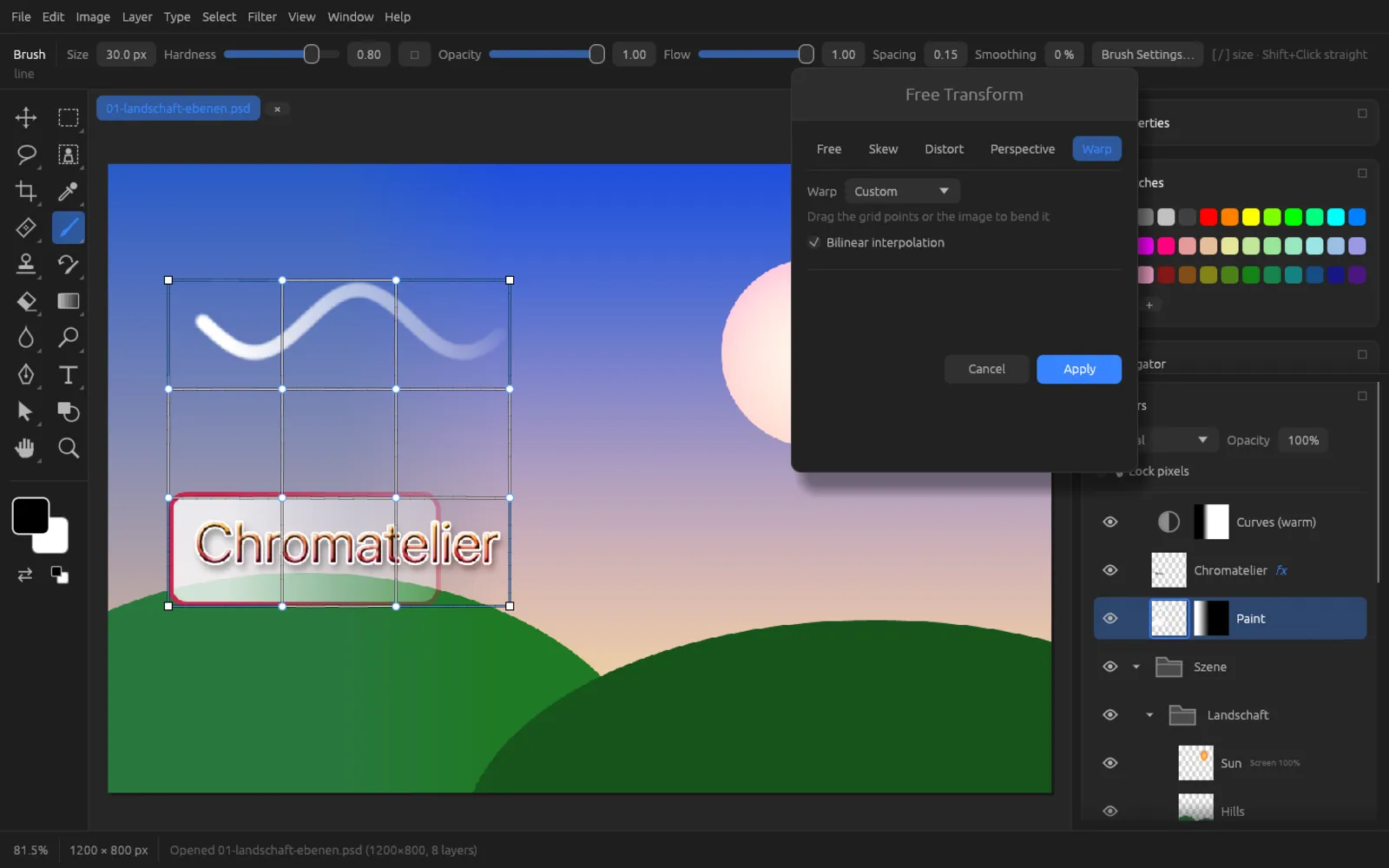
When warping, a grid of 3 × 3 cells lies over the layer. Drag the grid points, the handles or the image itself to bend it. Under Warp, instead of Custom you can also choose a ready-made shape: Arc, Arc Lower, Arc Upper, Arch, Bulge, Shell Lower, Shell Upper, Flag, Wave, Fish, Rise, Fisheye, Inflate, Squeeze or Twist. Bend % (−100 … 100) then sets the strength.
Puppet Warp
places a triangle mesh over the contents of a pixel layer. You place pins like thumbtacks: pins you don't move hold the image in place, while pins you drag bend it naturally – an arm, a branch or a strand of hair, for example.
| Setting | Meaning |
|---|---|
| Density | Fewer Points, Normal or More Points: a finer mesh for more precise but slower warping. |
| Expansion | How far the mesh extends beyond the edge of the contents (0 … 50 px). |
| Show Mesh | Shows or hides the mesh. |
| Bilinear interpolation | Smooths the result. |
| Remove All Pins | Resets everything. |
Use Puppet Warp
- Select a pixel layer. A cut-out object on its own layer works best; smart objects work too.
- Choose . The mesh appears over the contents.
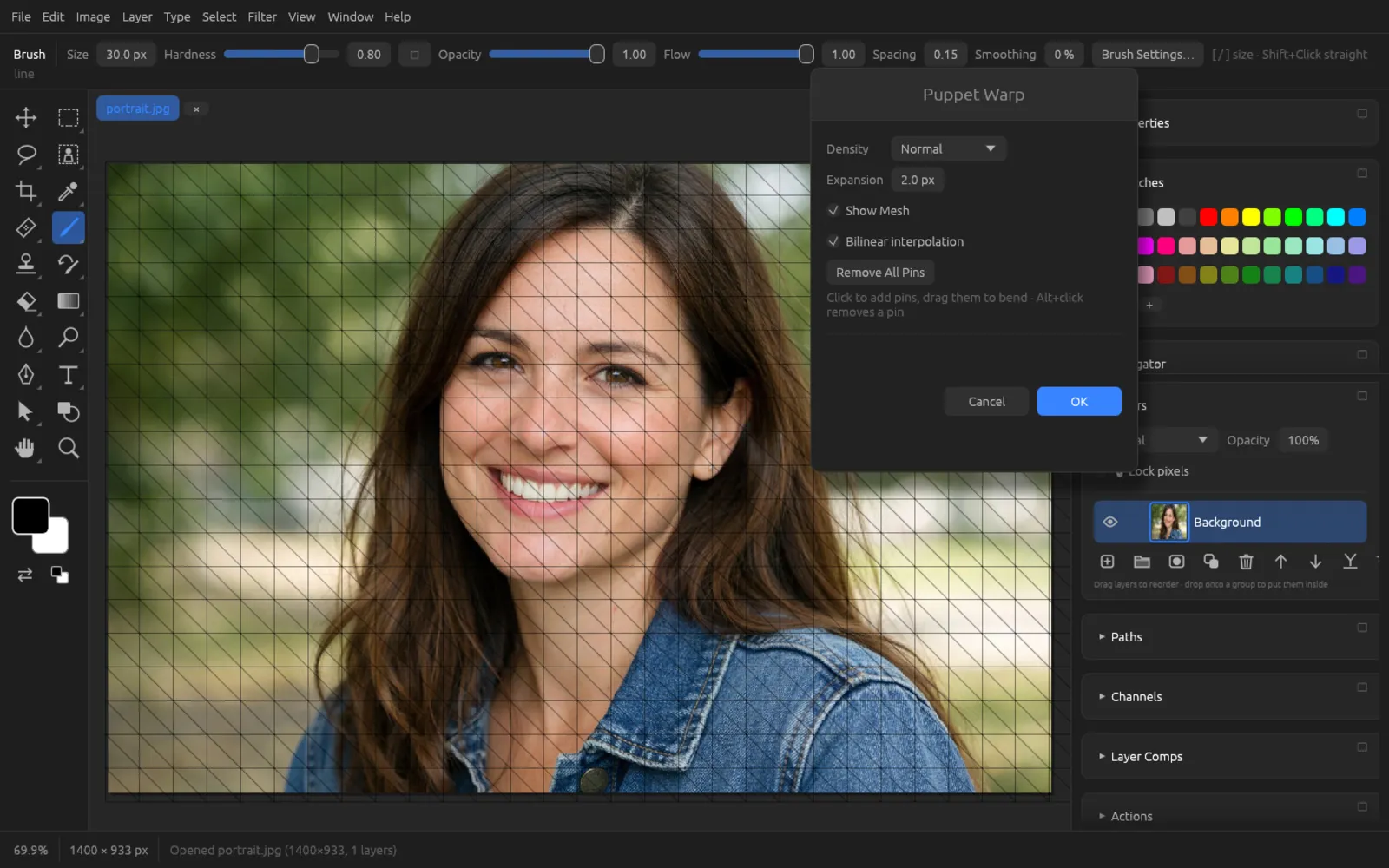
The Puppet Warp mesh over the layer. - Click the spots that should not move – here the shoulders and the neck. Each click places a pin.
- Place a pin at the spot you want to move and drag it. The image bends while the other pins hold it in place.
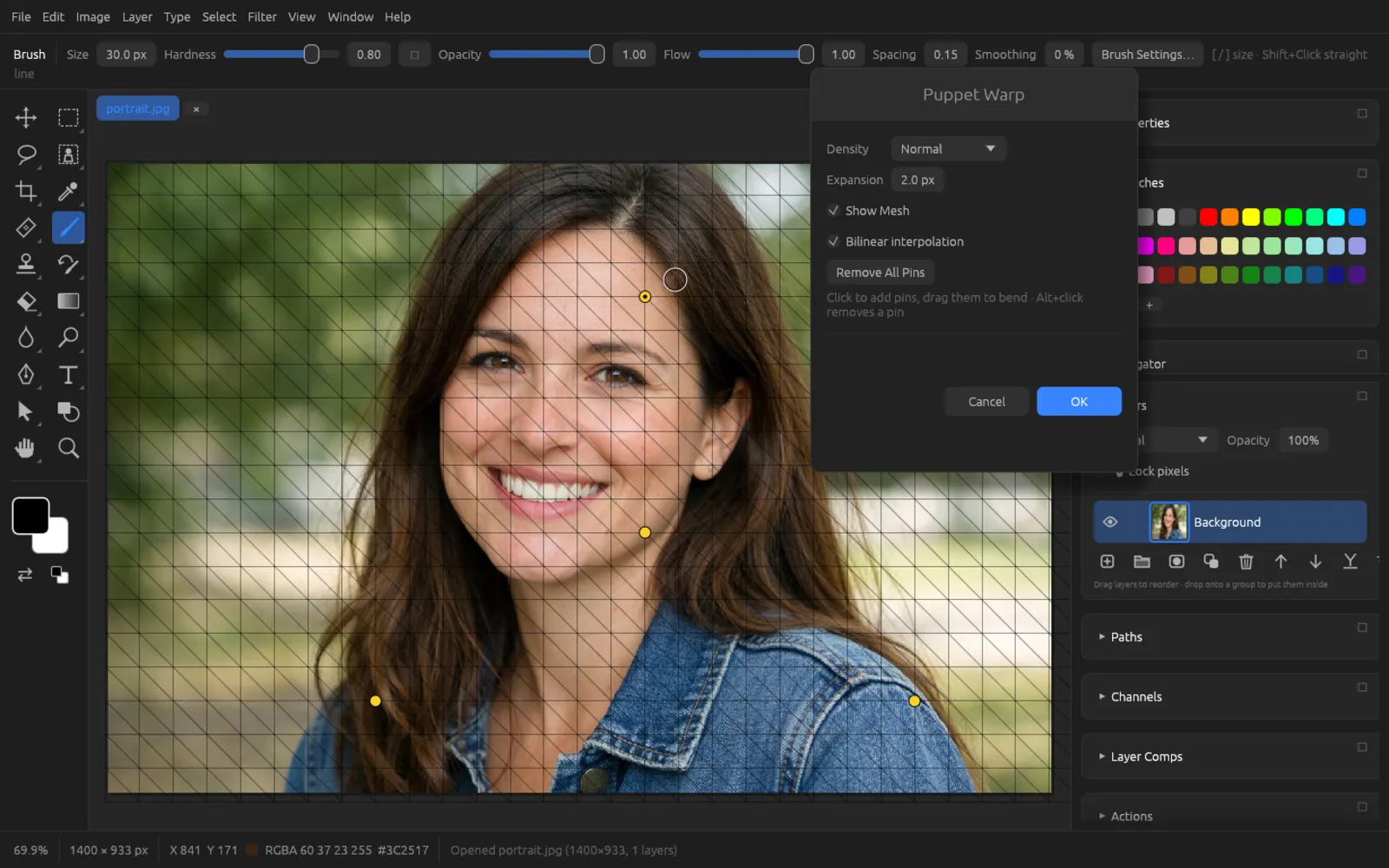
Three pins hold the image in place; the top pin tilts the head slightly. - A pin in the wrong place? ⌥-click it to remove it.
- Click OK.
Perspective Warp
With you change the perspective of a photo after the fact, for example to show a building more head-on. The options bar shows two phases:
- Layout: drag the corners of the rectangle onto a plane in the image, for example onto the facade. With Add Plane you create more planes, for example for a second wall of the building.
- Warp: now drag the corners to the position you want; the image follows. Straighten Vertical and Straighten Horizontal straighten the edges of the planes automatically.
Apply (Enter) commits the result, Cancel (Esc) discards it.
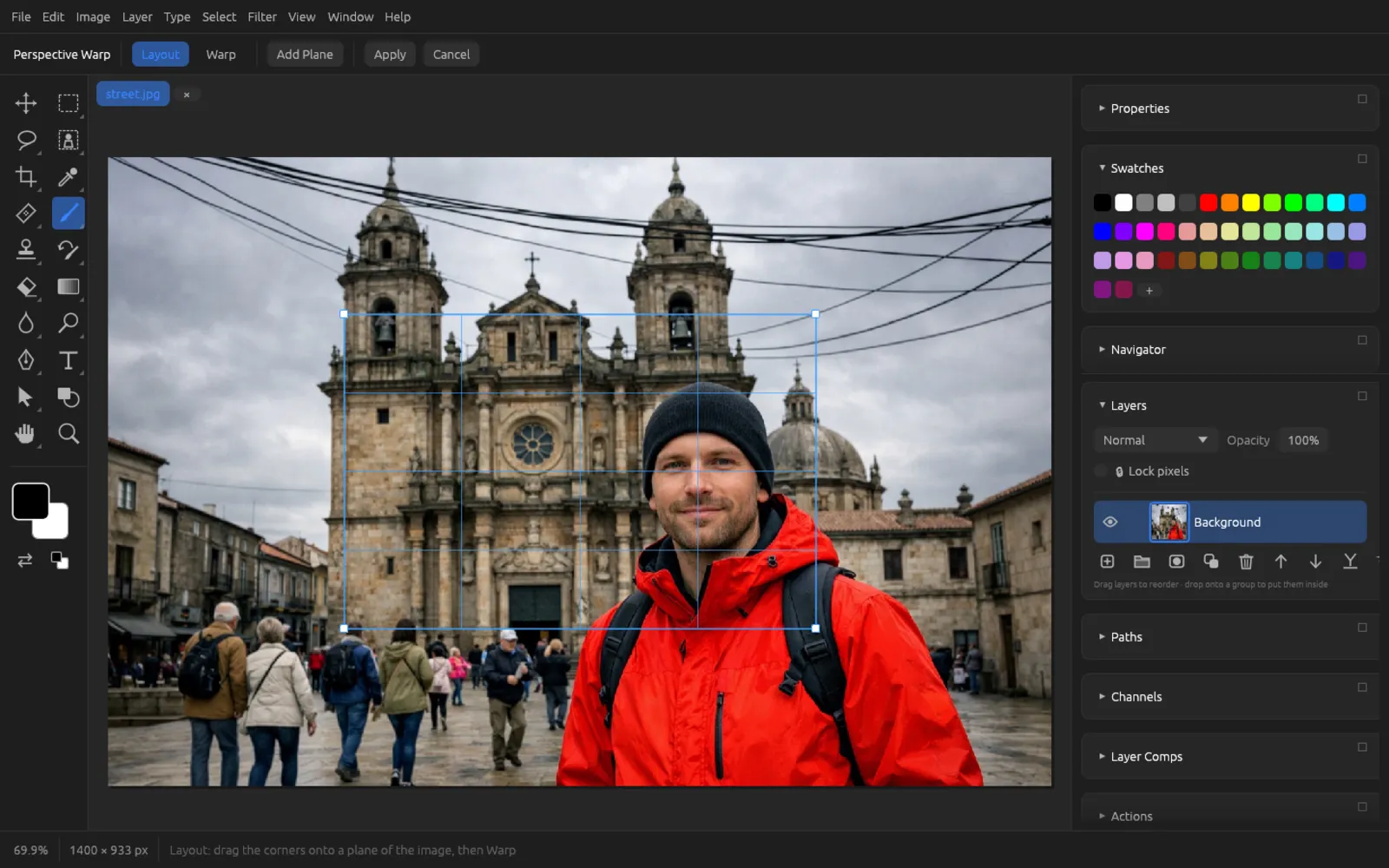
Auto-align and auto-blend layers
Both commands need at least two selected pixel layers, for example several shots of the same scene.
- : the bottom selected layer stays put, and the others are aligned to it. Under Projection you choose Auto (move and turn) or Reposition (move only).
- : creates layer masks that join the layers seamlessly. Blend Method Panorama joins shots that lie side by side, Stack Images takes the sharpest areas from each layer (focus stacking). Seamless Tones and Colors matches brightness and color to the bottom layer.
For complete panoramas from files, there is (see Color, RAW and HDR).
Presets
In the submenu you manage brushes, gradients, styles and patterns.
| Command | Effect |
|---|---|
| Define Pattern… | Turns the selected area (of all visible layers, at most 512 × 512 pixels) into a new pattern. It is then available when filling, in pattern fill layers and with the Pattern Stamp. |
| Define Brush Preset | Turns the selection (or the whole image) into a brush tip: anything darker than white paints. |
| Preset Manager… | Shows all presets sorted by type (Brushes, Gradients, Styles, Patterns). You delete your own presets here; built-in ones are marked as “built in”. |
| Load Presets… | Imports brushes (.abr), gradients (.grd), styles (.asl), patterns (.pat) or a preset set (.fpp). |
| Save Preset Set… | Saves all your own presets in one file (.fpp) – as a backup or for another computer. |
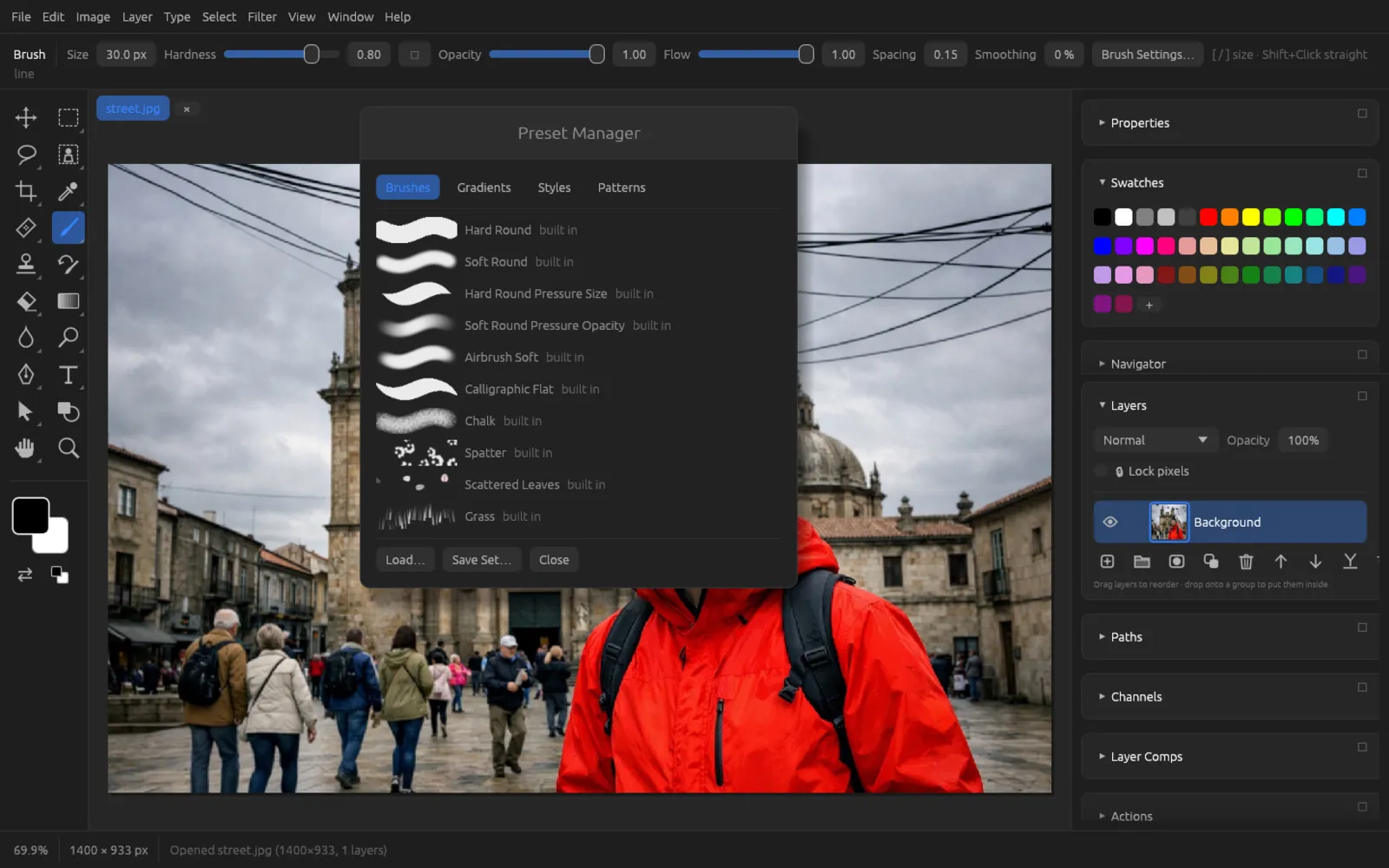
Image size, canvas size and rotation
Duplicate
opens a copy of the whole document as a new image. Under As you give it a name. With Duplicate Merged Layers Only you get a copy flattened to a single layer.
Image Size
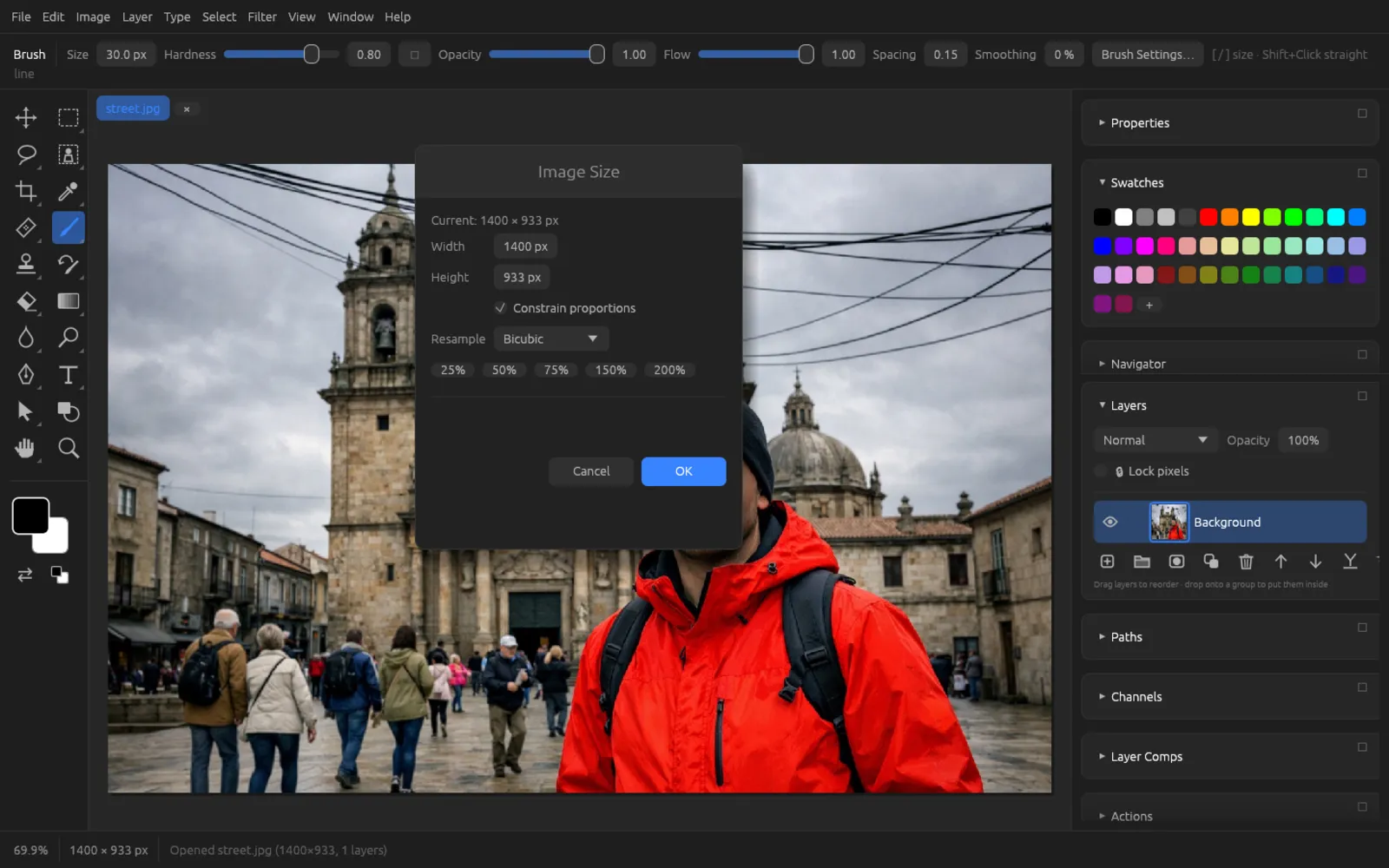
(⌥ ⌘ I) changes the pixel dimensions of the whole image with all its layers.
- The current size is shown at the top. Enter Width and Height in pixels. With Constrain proportions, the other value changes to match.
- The buttons 25%, 50%, 75%, 150% and 200% quickly set a size relative to the original.
- Resample determines how new pixels are calculated: Nearest Neighbor (hard edges, for pixel graphics), Bilinear, Bicubic (the default, a good all-rounder) or Lanczos (especially sharp, good for downsizing).
For large enlargements, use : a local AI model invents plausible details. See AI on Your Computer.
Resize an image for the web
- First save the original or work on a copy (). Downsizing can't be undone without loss once the file is closed.
- Choose (⌥ ⌘ I).
- Make sure Constrain proportions is turned on.
- Type the size you want into Width, for example 1600 px for an image on a web page. The height adjusts.
- Choose Bicubic or Lanczos for Resample and click OK.
- Sharpen the downsized image slightly, for example with (Amount 50–80 %, Radius 0.5 px) – see Filters.
- Save the result with as JPEG or WebP (see Saving, Export and Printing).
Canvas Size
(⌥ ⌘ C) changes the size of the canvas without scaling the contents. Larger values add a border, smaller ones crop.
- Width and Height in pixels.
- Anchor: the nine cells determine where the existing image sits. Center means: an even border on all sides; top left means: a border only on the right and at the bottom.
- New area on the bottom layer is filled with the background color.
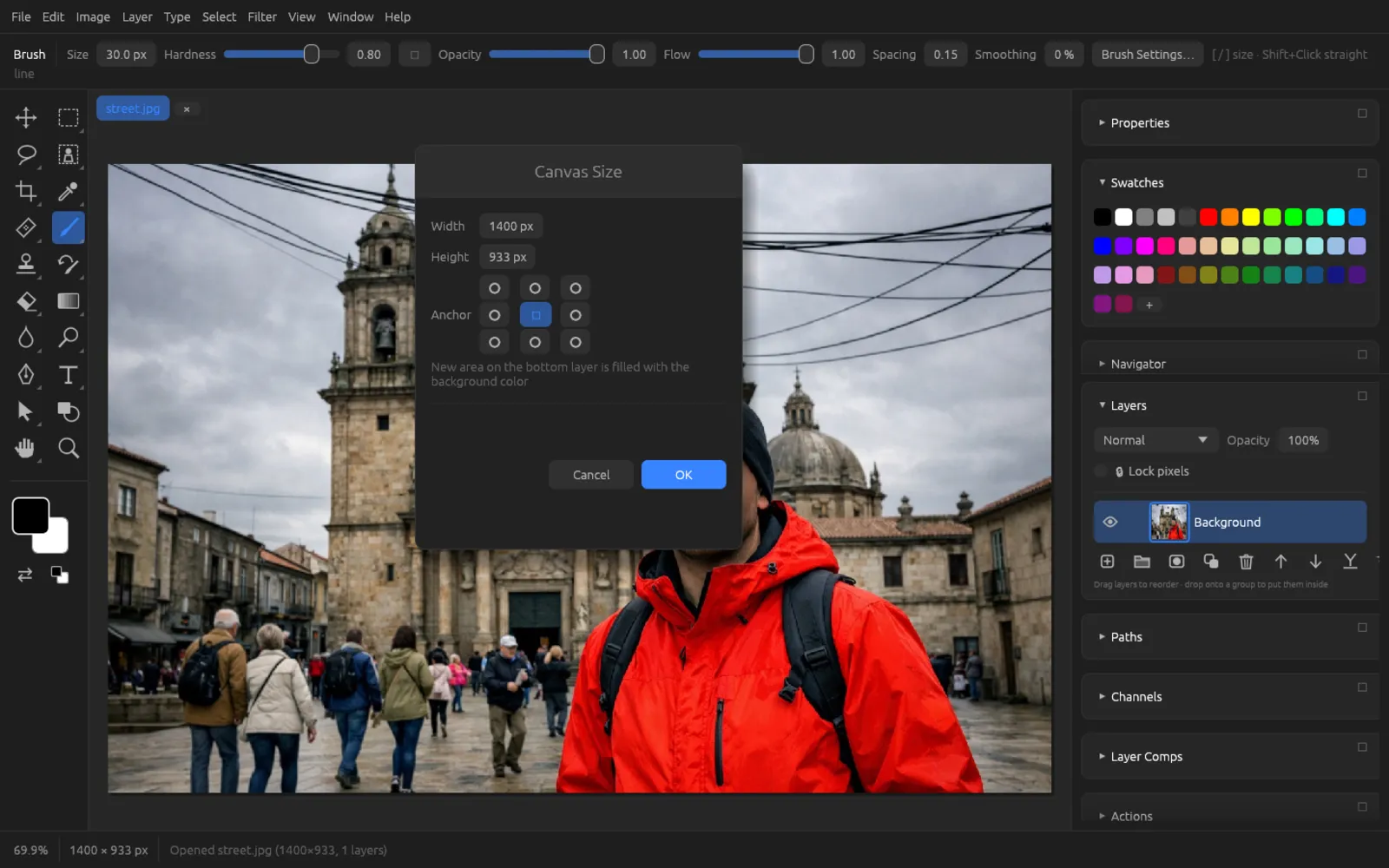
Image Rotation
The submenu rotates or flips the whole document with all its layers: 180°, 90° Clockwise, 90° Counter Clockwise, Flip Canvas Horizontal and Flip Canvas Vertical. To rotate just one layer, use Free Transform instead. You straighten a crooked photo with the Crop tool or the Ruler tool (see Tools).
Crop, trim, flatten
| Command | Effect |
|---|---|
| Crops the image to the bounding rectangle of the selection. | |
| Removes transparent borders around the visible contents. | |
| Merges all layers into a single background layer. Hidden layers are discarded, and transparent areas become white. |
How the retouching tools work together
For smaller retouching jobs you work with tools instead of menu commands. They are described in detail in the Tools chapter.
| Task | Tool | Key |
|---|---|---|
| Small spots, blemishes, dust | Spot Healing Brush | J |
| Paint objects away (with AI) | Remove (AI) | ⇧ J |
| Transfer textures from a source and blend them in | Healing Brush (⌥-click = source) | ⇧ J |
| Replace a selection with another area | Patch | ⌥ J |
| Move an object and have the gap fill in | Content-Aware Move | ⇧ J |
| Copy parts of the image exactly | Clone Stamp (⌥-click = source) | S |
| Red eyes | Red Eye | ⇧ J |
| Paint an earlier state back in | History Brush | Y |
| Lighten, darken, saturation | Dodge, Burn, Sponge | O, ⇧ O, ⌥ O |
A proven workflow: first remove large objects with Content-Aware Fill, then smooth out leftovers with the Spot Healing Brush, and continue edges or lines cleanly with the Clone Stamp. Work on a copy of the image layer (⌘ J) while you do this – that way the original stays untouched.
What's next?
- Removing objects with AI, replacing skies, Super Resolution: AI on Your Computer
- Generative fill and expand: Generative AI
- Selections for retouching and filling: Selections