AI on Your Computer
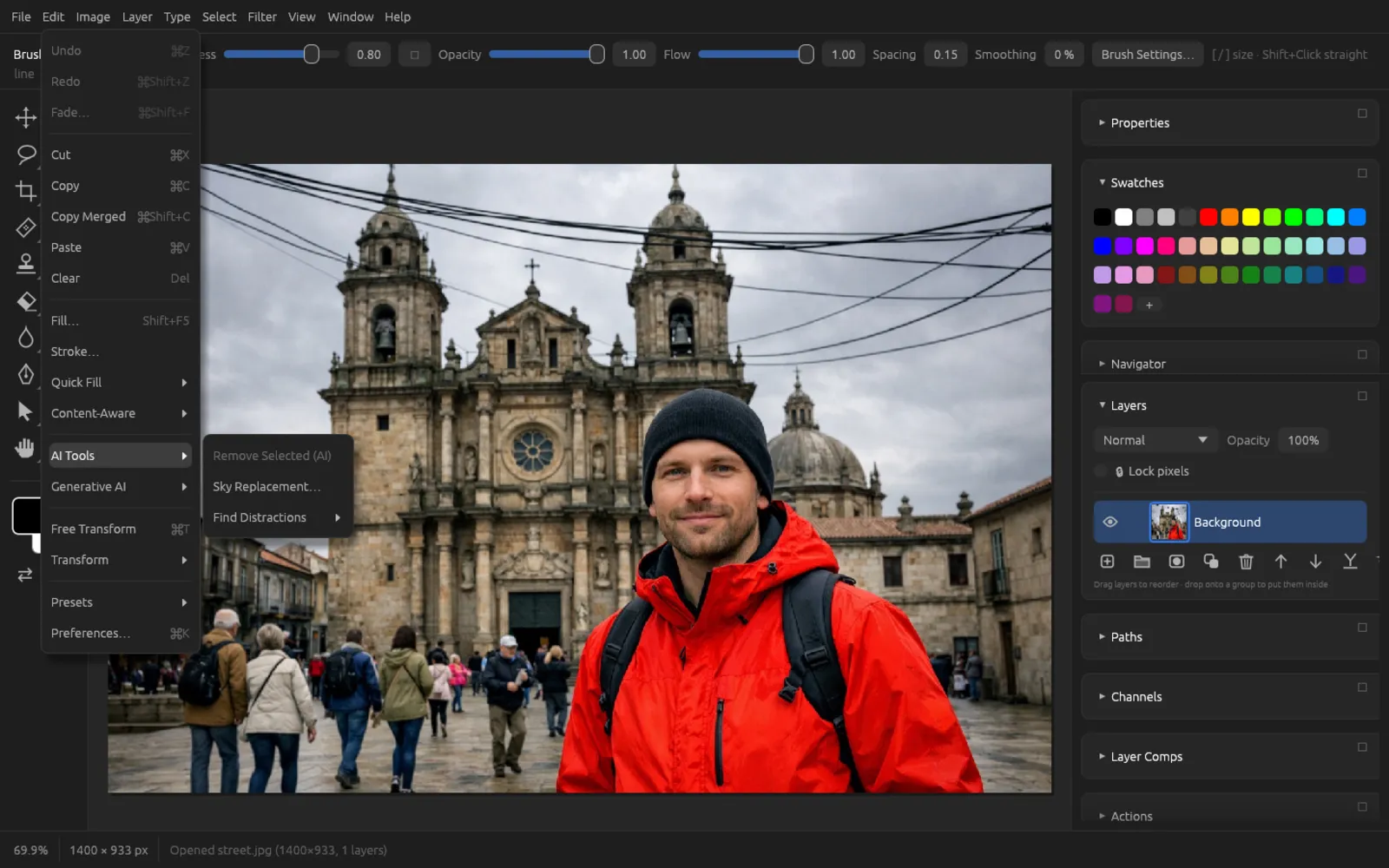
Many of Chromatelier's AI features run entirely on your computer: selecting the subject and the sky, cutting out backgrounds, removing wires and passers-by, replacing the sky, enlarging images and removing noise. You download each model once – after that everything works offline, and your images never leave your computer.
How the local AI works
The AI models are not part of the program package, so that the Chromatelier download stays small. The first time you use a feature that needs a model, Chromatelier asks whether it should download the model. Each model comes from a fixed version and is checked against its checksum after the download. After that, it stays on your computer permanently.
- Download once, then offline: once a model is installed, you no longer need an internet connection for the feature.
- Nothing leaves your computer: the models run on your processor. No image and no information about your images is sent anywhere.
- In the background: longer calculations run in the background. At the bottom of the window you see a small bar with the progress, a seconds counter and the Cancel button. Only one AI task runs at a time.
- Undoing the result: every AI feature is a normal step in the history. You take it back with ⌘ Z.
The features in this chapter are separate from the generative AI features. Those work with an OpenAI image model over the internet and need your own API key. In Neural Filters, the cloud filters are marked with a cloud icon.
Managing models
You see all models under (⌘ K) in the Local AI section. Each row shows the name, size, license and the status Installed or Not installed. With Download you fetch a model in advance, and with Remove you delete it again and free up the disk space. Below the list is the folder where the models are stored.
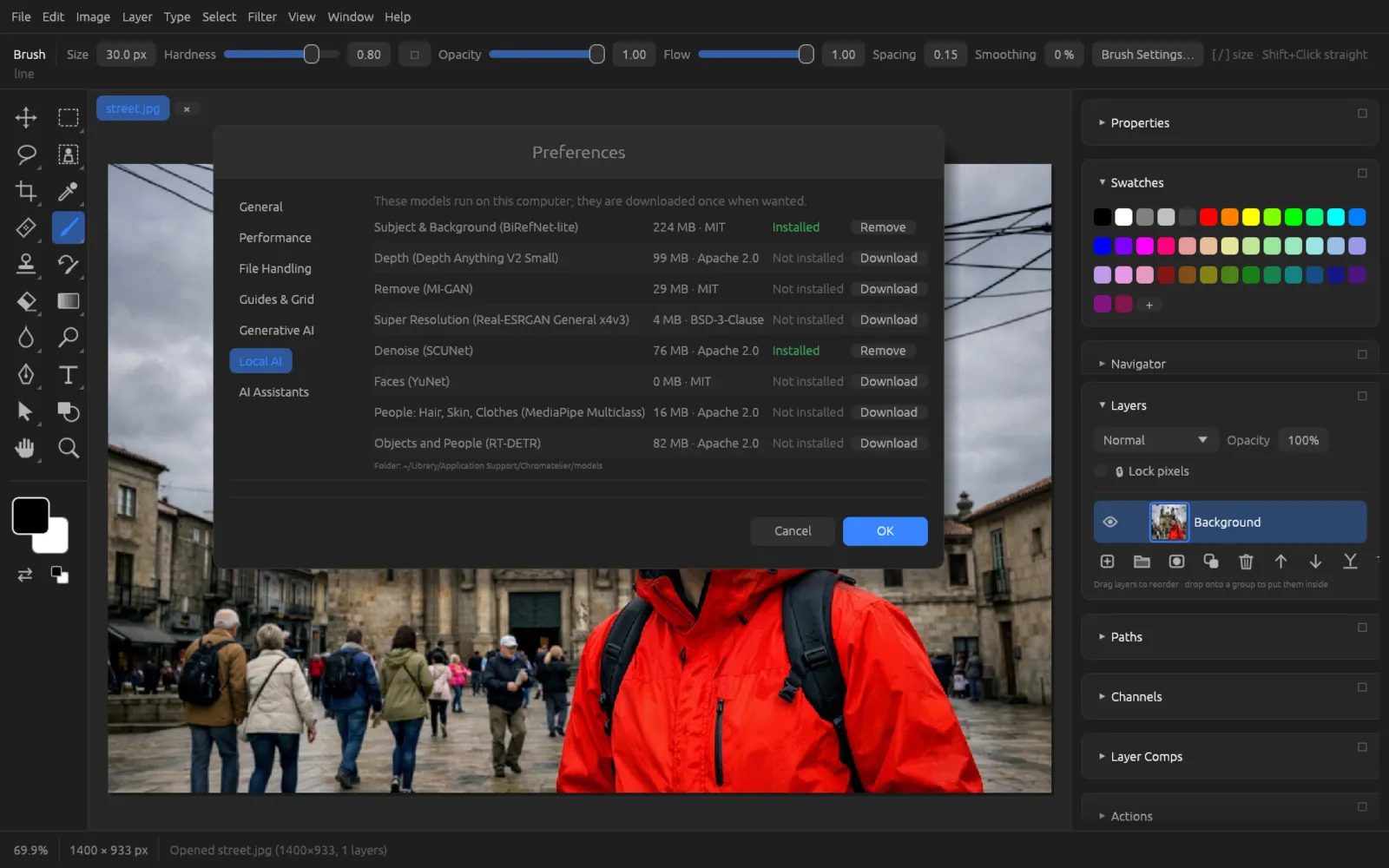
| Model | Size · License | Used for |
|---|---|---|
| Subject & Background (BiRefNet-lite) | 224 MB · MIT | Select Subject, Remove Background |
| Depth (Depth Anything V2 Small) | 99 MB · Apache 2.0 | selecting the sky, Sky Replacement, finding wires and cables, the AI depth map of Lens Blur, the sky mask in Camera RAW |
| Remove (MI-GAN) | 29 MB · MIT | Remove tool, Remove Selected (AI), scratches in Photo Restoration |
| Super Resolution (Real-ESRGAN General x4v3) | 4 MB · BSD-3-Clause | Super Resolution |
| Denoise (SCUNet) | 76 MB · Apache 2.0 | AI Denoise, JPEG Artifact Removal, noise reduction in Photo Restoration |
| Faces (YuNet) | 0.2 MB · MIT | Face-Aware Liquify, Skin Smoothing, faces for Smart Portrait and Makeup Transfer |
| People: Hair, Skin, Clothes (MediaPipe Multiclass) | 16 MB · Apache 2.0 | Select People, Skin Smoothing, finding distracting people |
| Objects and People (RT-DETR) | 82 MB · Apache 2.0 | Object Finder of the Object Selection tool, Select People, finding distracting people |
The download dialog
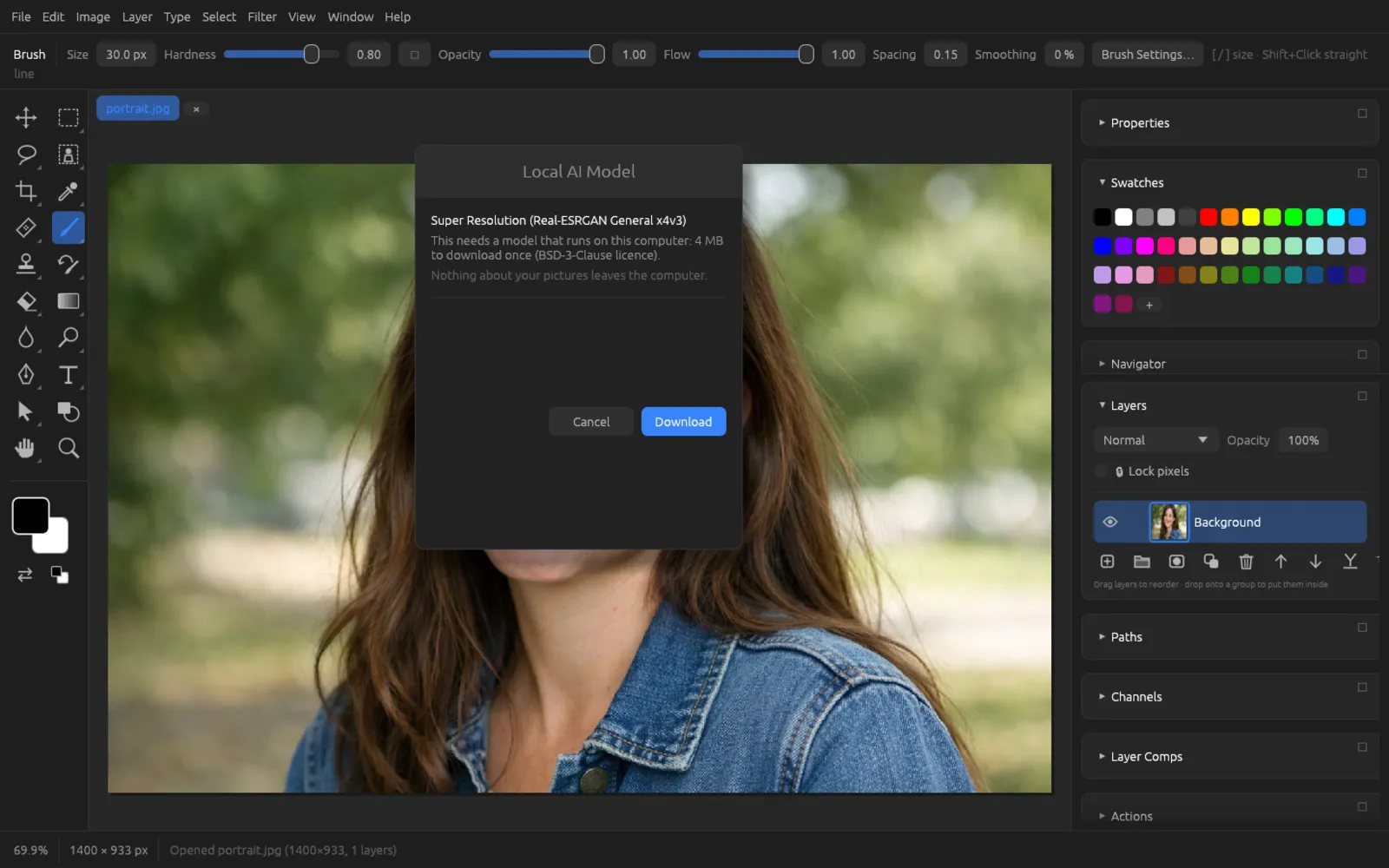
If a feature is missing its model, the Local AI Model dialog opens. It names the model, the download size and the license, and reminds you that nothing from your images leaves your computer. If you click Download, Chromatelier downloads the model in the background and then starts the feature you wanted automatically. With Cancel, nothing happens.
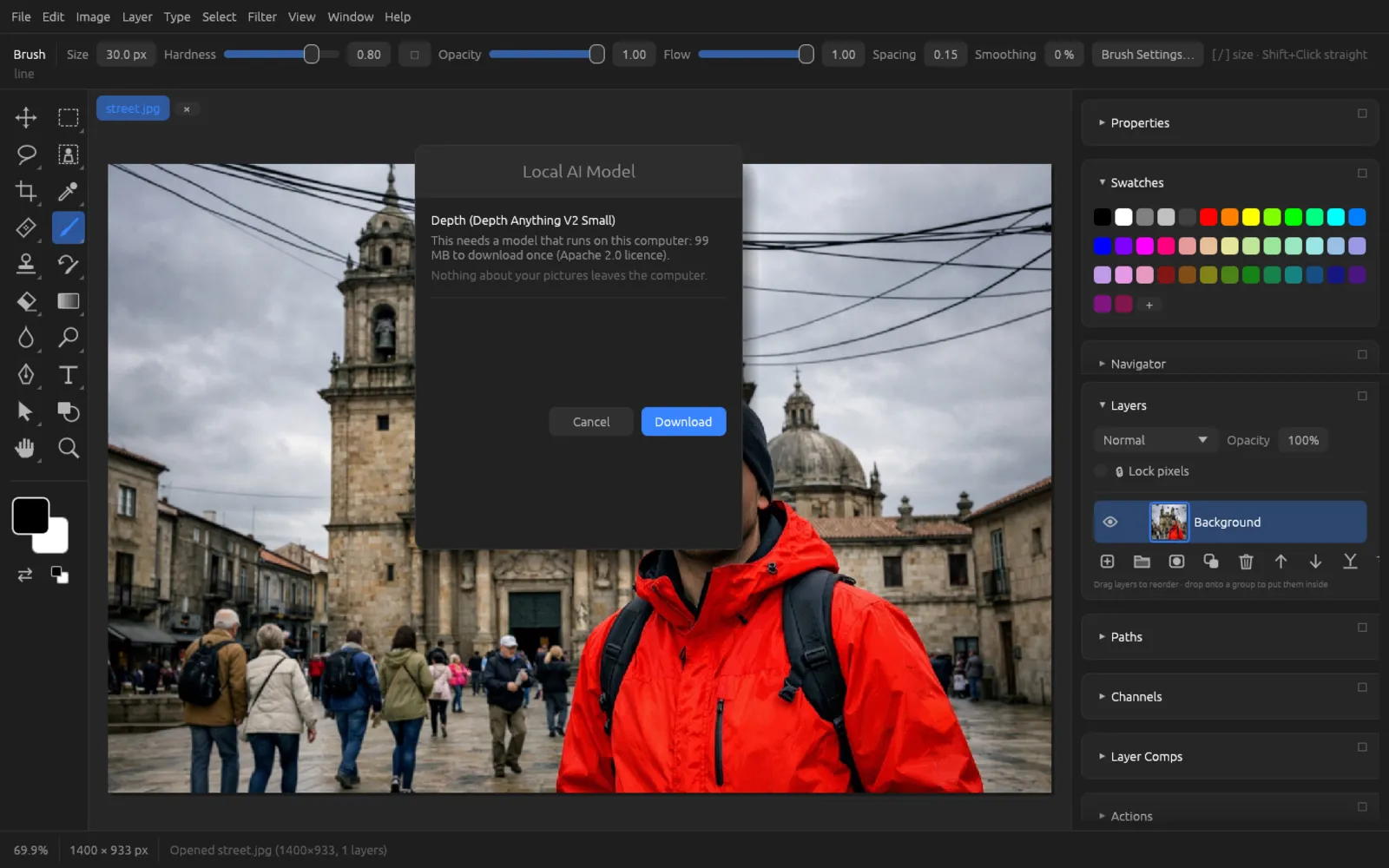
Going somewhere without internet? Download the models you use often in the preferences beforehand.
Selecting with AI
Selecting the subject
selects the main subject of the image – usually a person, an animal or an object in the foreground. If the “Subject & Background” model is installed, it recognizes the subject with fine edges, even with hair. Without the model, the command uses a classic method without AI; the result is then coarser. The selection applies to the whole visible image, not just the active layer.
You can continue working with all the commands from the Selections chapter, for example with “Select and Mask…” for even finer hair edges.
Selecting the sky
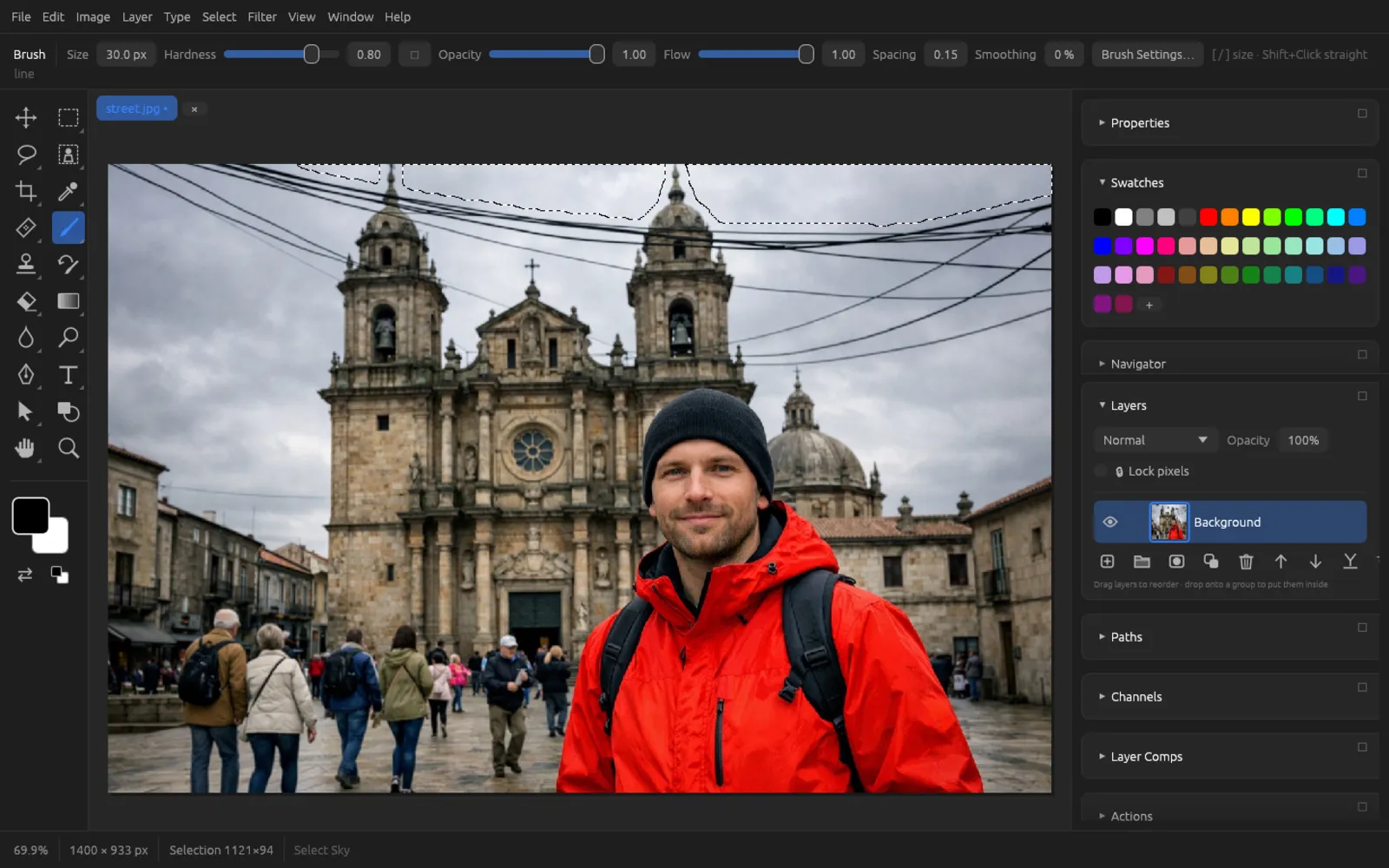
selects the sky. With the depth model, Chromatelier looks for the most distant parts of the image that are connected to the top edge and combines them with a color analysis. That way towers, trees and wires are cleanly left out. Without the depth model, the command selects the sky based on colors only.
Selecting people: hair, skin, clothes
finds all the people in the image and selects specific parts of them. The command needs two models: “Objects and People” for finding and “People: Hair, Skin, Clothes” for breaking them down into parts. In the Select People dialog you check what should go into the selection:
| Option | Selects |
|---|---|
| Hair | head and facial hair |
| Facial Skin | the skin of the face |
| Body Skin | neck, arms, hands and other visible skin |
| Clothes | items of clothing |
| Accessories | glasses, jewelry, bags and the like |
| Only the main person | limits the selection to the largest person in the image |
Typical uses: select only the hair and recolor it with an adjustment layer, only the skin for retouching, only the clothes for a color change. If the model finds no person, the status bar reports “No people found”.
Object Selection with Object Finder
The Object Selection tool (in the group with the Magic Wand, key W, cycle through the group with ⇧ W) has the Object Finder switch in the options bar. If it's on and the “Objects and People” model is installed, Chromatelier analyzes the image in the background. When you then move the pointer over the image, it outlines the object underneath in blue and shows its name, for example “person” or “car”.
- Clicking an outlined object selects it. For people, Chromatelier also uses the people model for a precise outline.
- Dragging a rectangle selects the object in the rectangle as usual – this works without the model too.
- The buttons New, Add, Subtract and Intersect as well as Sample All Layers work as they do with the other selection tools.
If the model is missing, the options bar shows the note “Object Finder: install the model in Preferences > Local AI”.
Remove Background
cuts out the subject of the active layer. Chromatelier doesn't delete any pixels: it creates a layer mask that hides the background. So you can touch up the mask with the brush, disable it or delete it at any time. The command needs the “Subject & Background” model and a pixel layer.
When there is no selection, the Contextual Task Bar below the image also offers the buttons “Select Subject” and “Remove Background” (show and hide it from the View menu).
Remove the background of a portrait
- Open the portrait and select the layer with the photo in the Layers panel.
- Choose . The first time, download the “Subject & Background” model (224 MB) in the dialog with Download.
- Wait until the “Removing the background…” bar at the bottom disappears. Depending on the image size and your computer, this takes a few seconds.
- The background is now transparent (checkerboard pattern). In the Layers panel you see the new mask next to the thumbnail: white shows the subject, black hides.

Before 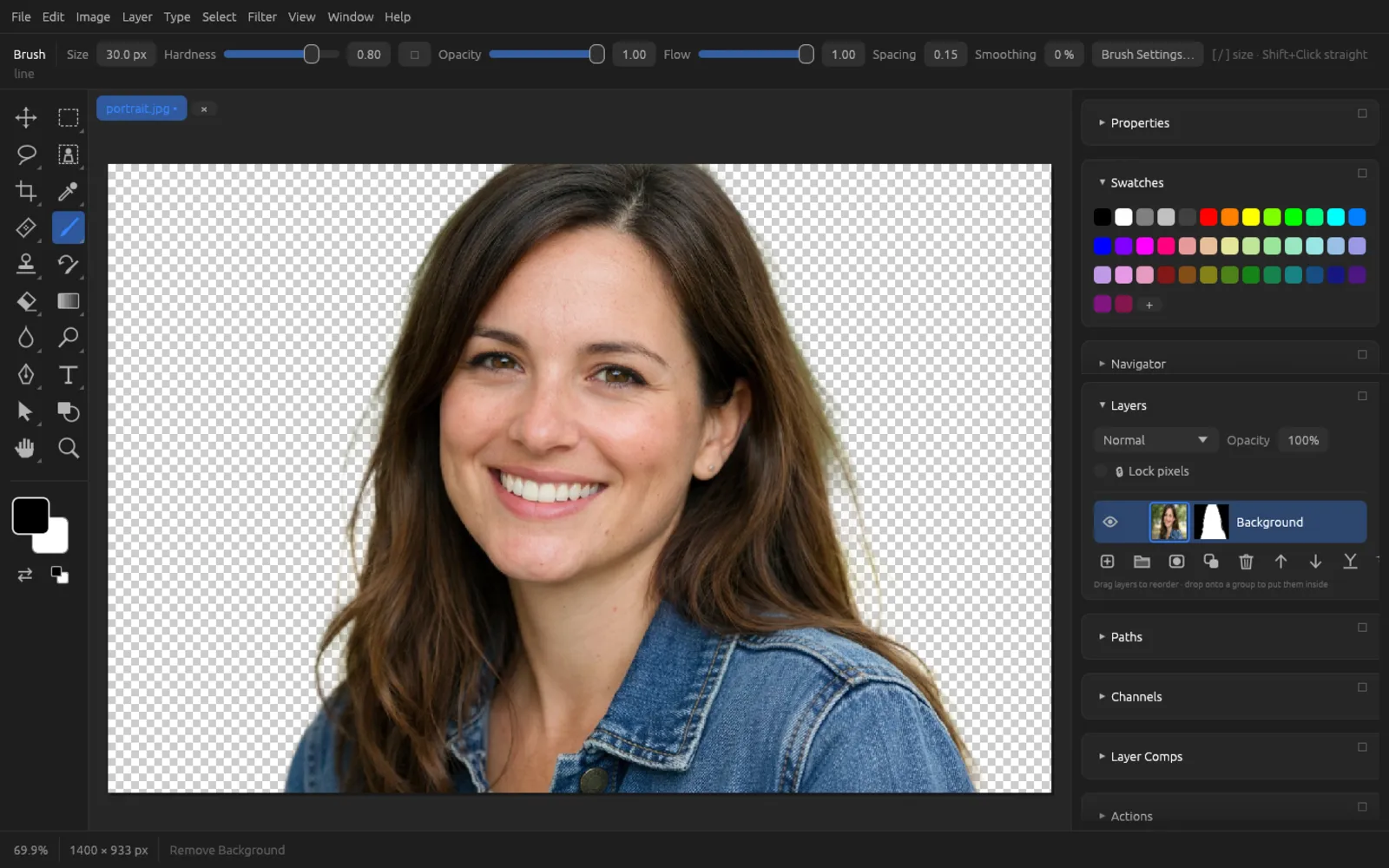
After: the background is hidden by a layer mask. - Touch up if needed: click the mask thumbnail and paint areas back in with a white brush or away with a black brush.
- For a new background, create a layer below it, for example a fill layer or another photo.
Removing distractions
The Remove tool
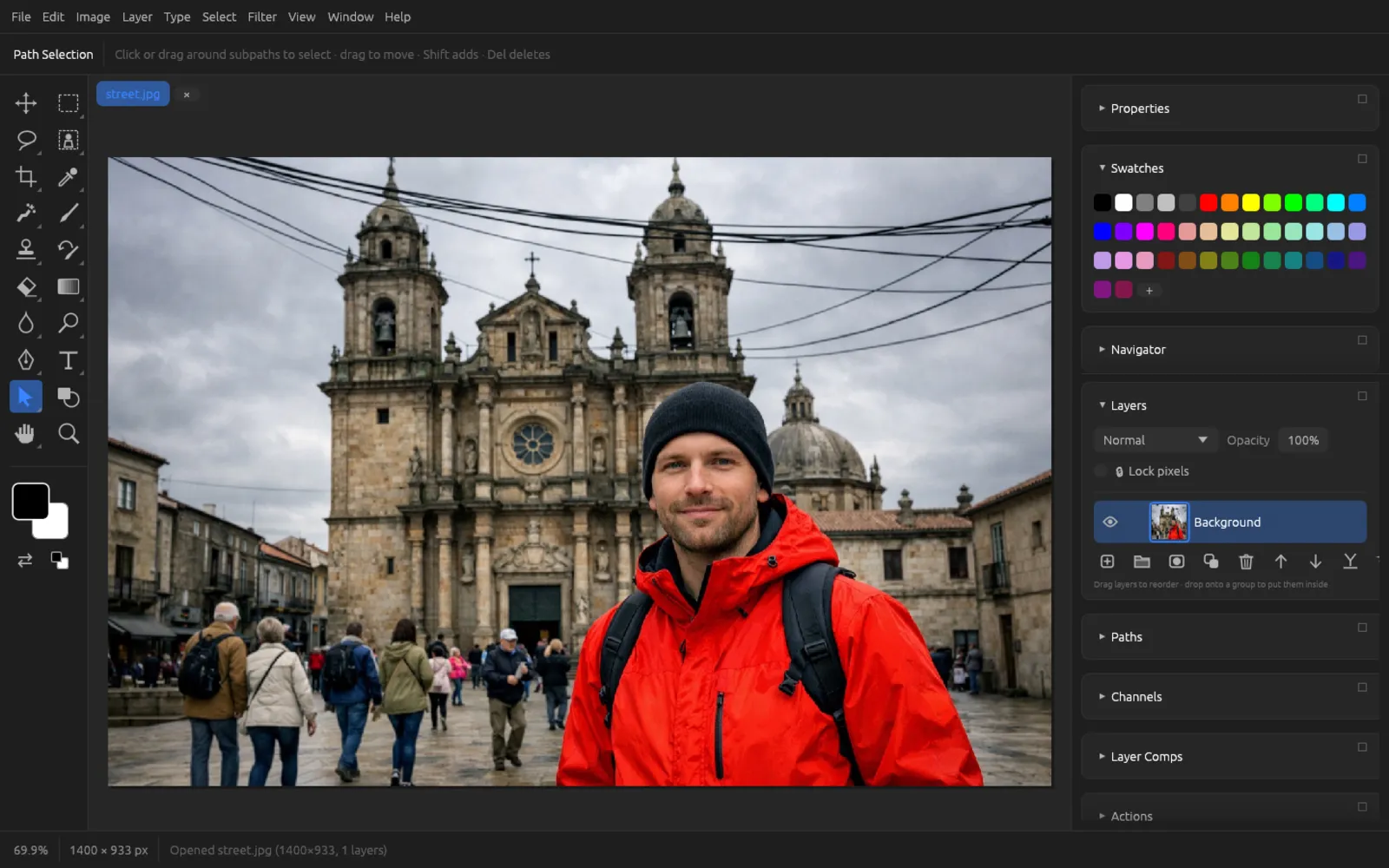
The Remove (AI) tool is in the group with the Spot Healing Brush (key J, cycle through the group with ⇧ J). You paint over what should disappear – a passer-by, a sign, a stain. When you let go, the “Remove (MI-GAN)” model repaints the spot to match its surroundings. If several painted-over spots are far apart, it processes each one separately at full quality. An active selection limits the area.
If the model isn't installed, the options bar shows the Install the AI model… button. Without the model, the tool works like the Spot Healing Brush. You set the size, hardness and the other brush options as with any brush (see Tools).
Remove Selected (AI)
does the same for a selection: everything that is selected is repainted on the active layer. This is handy if you have already outlined the spot precisely with a selection tool, or if “Find Distractions” selected it for you.
Make the selection a little larger than the object so that shadows and edges disappear too ().
Find Distractions
Under there are two commands that automatically select typical troublemakers. You then remove them with “Remove Selected (AI)” – that way you can check and correct the selection first.
| Command | What it finds | Models |
|---|---|---|
| People | people in the background behind the main subject, with a bit of margin | Objects and People, People |
| Wires and Cables | power and telephone lines, cables against the sky | Depth |
If something is found, the status bar reports “Distractions selected: Edit > Remove Selected (AI) removes them”. If the command finds nothing, it shows something like “No wires or cables found”.
Remove wires from the sky
- Open the photo and select the layer with the image.
- Choose . The first time, download the depth model.
- Check the selection: the dashed line should enclose the wires. If a piece is missing, add it with a selection tool while holding down ⇧.
- Choose . The first time, download the “Remove (MI-GAN)” model (29 MB).
- Deselect with ⌘ D and check the result at 100 % view. Paint over small leftovers with the Remove tool.

Before: wires stretch across the sky. 
After: wires removed (here the people in the background were removed as well).
You proceed the same way with People. The main subject – the largest person in the foreground – stays untouched.

Sky Replacement
replaces the sky with a different one and adapts the foreground to the new light. The command works with documents in RGB Color mode and needs the depth model. After the dialog opens, Chromatelier first looks for the sky (“Finding the sky…”); after that you see every change immediately in the image.
Clicking OK creates a Sky Replacement Group with three layers: Sky (the new sky, limited to the sky area by a mask), Foreground Color and Foreground Lighting (they tint the rest of the image to match the new sky). All layers stay individually editable.
| Setting | Range | Effect |
|---|---|---|
| Sky | list | Built-in skies: Blue Sky, Fair-Weather Clouds, Sunset, Golden Hour, Dusk, Starry Night. With Load… you use your own sky photo (JPEG, PNG, TIFF, WebP, HEIC). |
| Shift Edge | −100 … 100 | moves the boundary between sky and foreground |
| Fade Edge | 0 … 100 | makes the transition softer (default 20) |
| Brightness | −100 … 100 | brightens or darkens the new sky |
| Temperature | −100 … 100 | makes the sky cooler or warmer |
| Scale | 25 … 400 | size of the sky image in percent |
| Horizontal Position, Vertical Position | −50 … 50 | move the sky image |
| Flip | on/off | flips the sky horizontally |
| Lighting Mode | list | blend mode of the foreground lighting: Multiply, Screen, Soft Light |
| Lighting Adjustment | 0 … 100 | how strongly the light of the new sky affects the foreground (default 30) |
| Color Adjustment | 0 … 100 | how strongly the foreground takes on the colors of the sky (default 40) |
Replace the sky
- Open a photo with visible sky. If it isn't an RGB document, convert it first via .
- Choose . The first time, download the depth model; the dialog then opens on its own.
- Wait until “Finding the sky…” disappears. Then choose a sky under Sky, for example “Sunset”, or load your own sky photo with Load….
- Use Scale and the position sliders to adjust which part of the sky is visible.
- If the transition at roofs or trees looks harsh, increase Fade Edge or shift the edge.
- Fine-tune the foreground: with a warm evening sky, higher values for Color Adjustment and Lighting Adjustment help.
- Click OK. The Sky Replacement Group appears in the Layers panel.
Before: gray sky. 
After: the “Sunset” sky, with the foreground tinted warmer.
Face-Aware Liquify
The dialog (⌘ ⇧ X) has the collapsible Face-Aware Liquify section. It finds faces with the small “Faces (YuNet)” model (0.2 MB). If it isn't installed yet, you download it there with Download the Face Model. The other tools of the dialog are described in the Filters chapter.
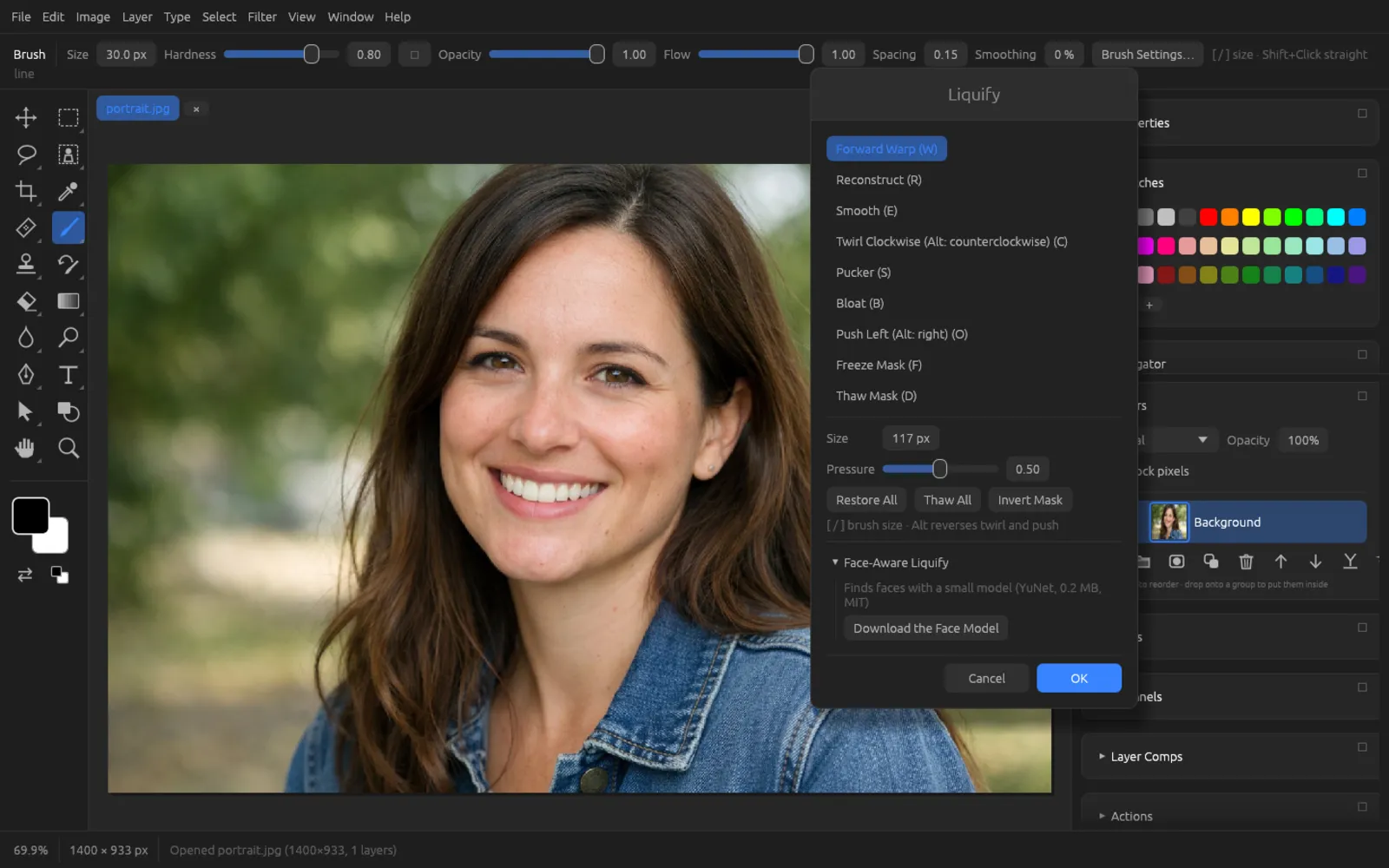
Once faces are found, if there are several people you choose “Face #1”, “Face #2” … (from left to right) in a list. For each face there are 16 sliders from −100 to 100:
| Group | Sliders |
|---|---|
| Eyes | Eye Size, Eye Height, Eye Width, Eye Tilt, Eye Distance |
| Nose | Nose Height, Nose Width |
| Mouth | Smile, Upper Lip, Lower Lip, Mouth Width, Mouth Height |
| Face Shape | Forehead, Chin Height, Jawline, Face Width |
Reset Face sets all sliders of the selected face to 0. You can combine the sliders with the dialog's brush tools.


Super Resolution
enlarges the image with the Real-ESRGAN model (4 MB) and invents fine details and clear edges in the process, instead of just upscaling pixels. In the dialog you choose the Factor 2× or 4×; the new size in pixels is shown below. The result opens as a new document with “enhanced” added to its name; your original stays unchanged. It works from the whole visible image.
The command refuses very large results (over 200 megapixels) with “Too large for Super Resolution”. With large images the calculation takes a while; the progress is shown at the bottom of the window.
AI Denoise
removes image noise from the active pixel layer with the SCUNet model. It smooths color and luminance noise but preserves edges and textures better than classic noise filters. The only slider, Amount (0–100 %, default 80 %), blends the denoised result with the original.
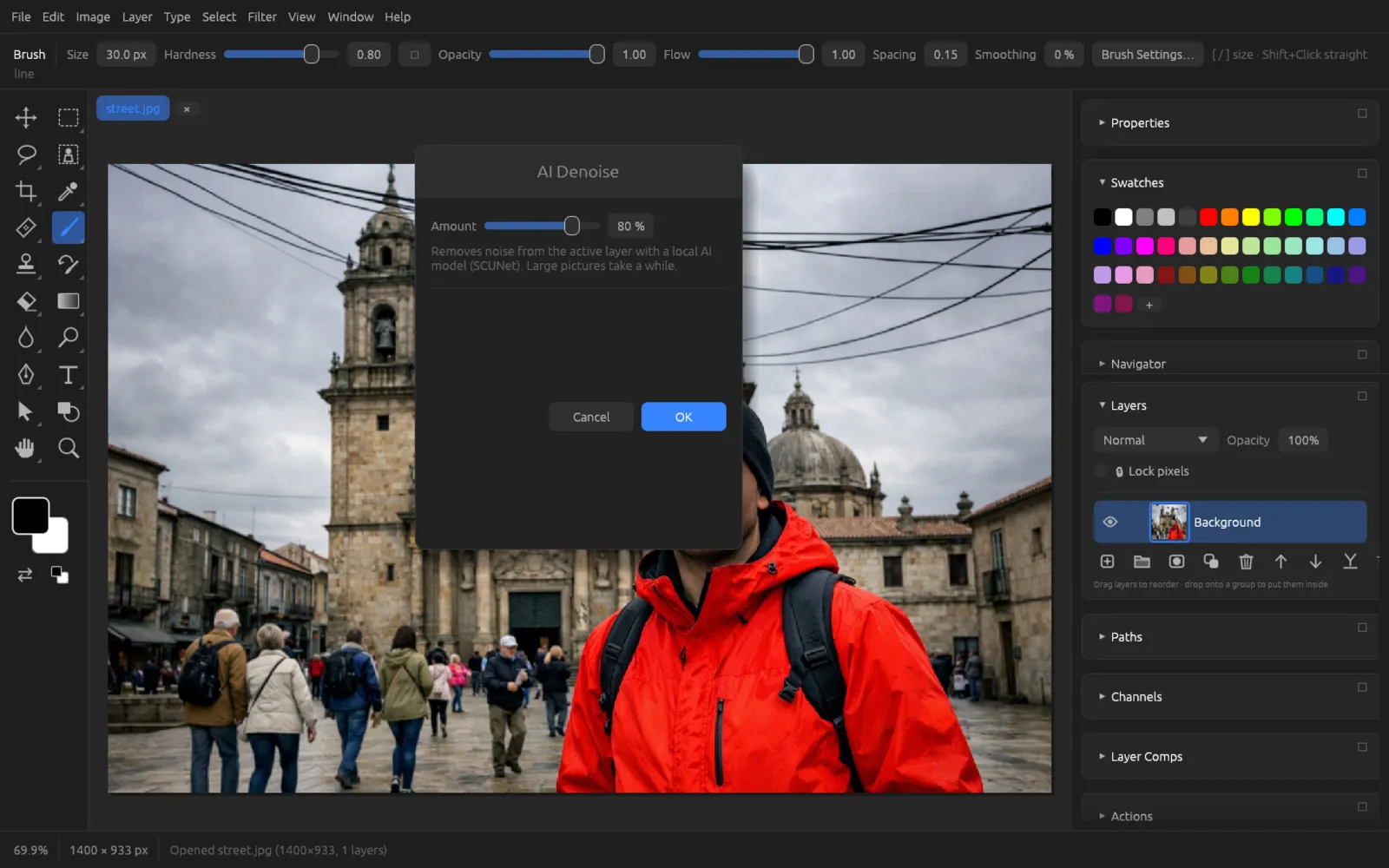
If you want to adjust the effect later, duplicate the layer first (⌘ J) and denoise the copy. You can then fine-tune the strength with the copy's opacity.
Depth blur with an AI depth map
The filter simulates a shallow depth of field. If you set Depth Map to AI Depth Map there, the depth model estimates for each pixel how far away it is. With Blur Focal Distance you set which distance stays sharp; everything in front of and behind it becomes blurry according to the Radius. Invert swaps near and far. The depth map is calculated once per layer state and then reused.
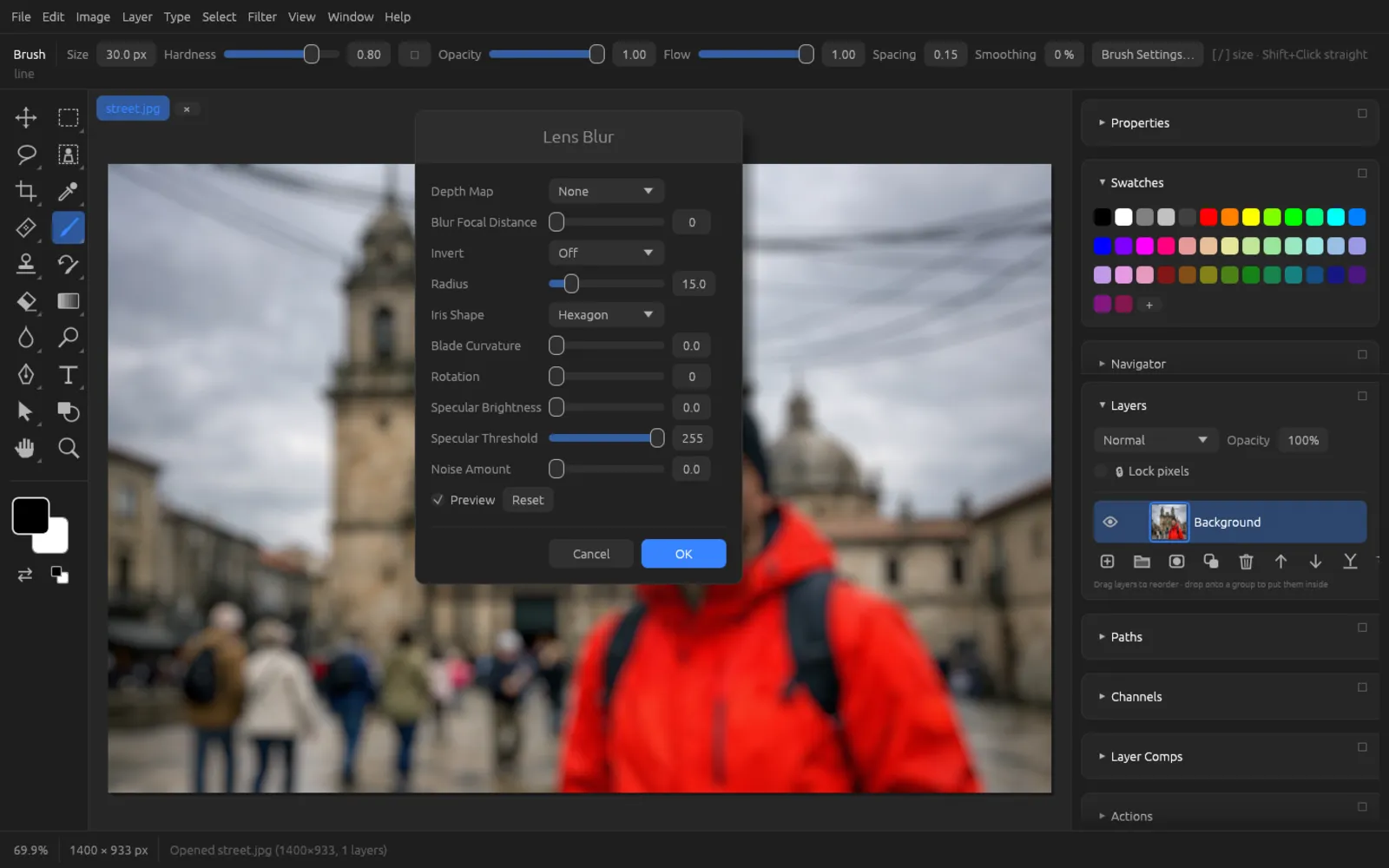
The filter's iris shape, highlights and noise are described in the Filters chapter. The Depth Blur entry in Neural Filters leads directly to this filter.
Neural Filters
brings the AI filters together in one dialog. On the left you choose the filter, on the right you set it up. Filters with a cloud icon send the image to OpenAI and need an API key – they are described in the Generative AI chapter. All the others work locally. The dialog remembers the settings from last time.
Neural Filters work with RGB and grayscale documents on a pixel layer. At the bottom of the dialog you choose the Output for each filter: New Layer (the default – the original is kept) or Current Layer. If a model is missing, the dialog shows “Needs …” in orange with the Install button.
| Filter | Where it runs | Settings | Effect |
|---|---|---|---|
| Skin Smoothing | local | Blur 0–100, Smoothness −50–50 | finds faces and skin and smooths only there; fine pores are partly kept |
| Color Transfer | local | Reference (load an image), Strength, Preserve Luminosity | transfers the color mood and light of a reference image |
| Harmonization | local | Strength, Preserve Luminosity | matches the colors and light of the active layer to what lies below it |
| JPEG Artifact Removal | local | Strength: Low, Medium, High | removes the block patterns and fringes of heavily compressed JPEGs |
| Photo Restoration | local | Photo Enhancement, Scratch Reduction, Noise Reduction (each 0–100) | for old photos: improve contrast, paint over scratches and dust, reduce noise |
| Super Zoom | local | “Open Super Resolution” button | leads to Super Resolution |
| Depth Blur | local | “Open Lens Blur” button | leads to Lens Blur with an AI depth map |
| Smart Portrait, Makeup Transfer, Style Transfer, Colorize, Landscape Mixer | cloud (OpenAI) | see Generative AI | |
Skin Smoothing
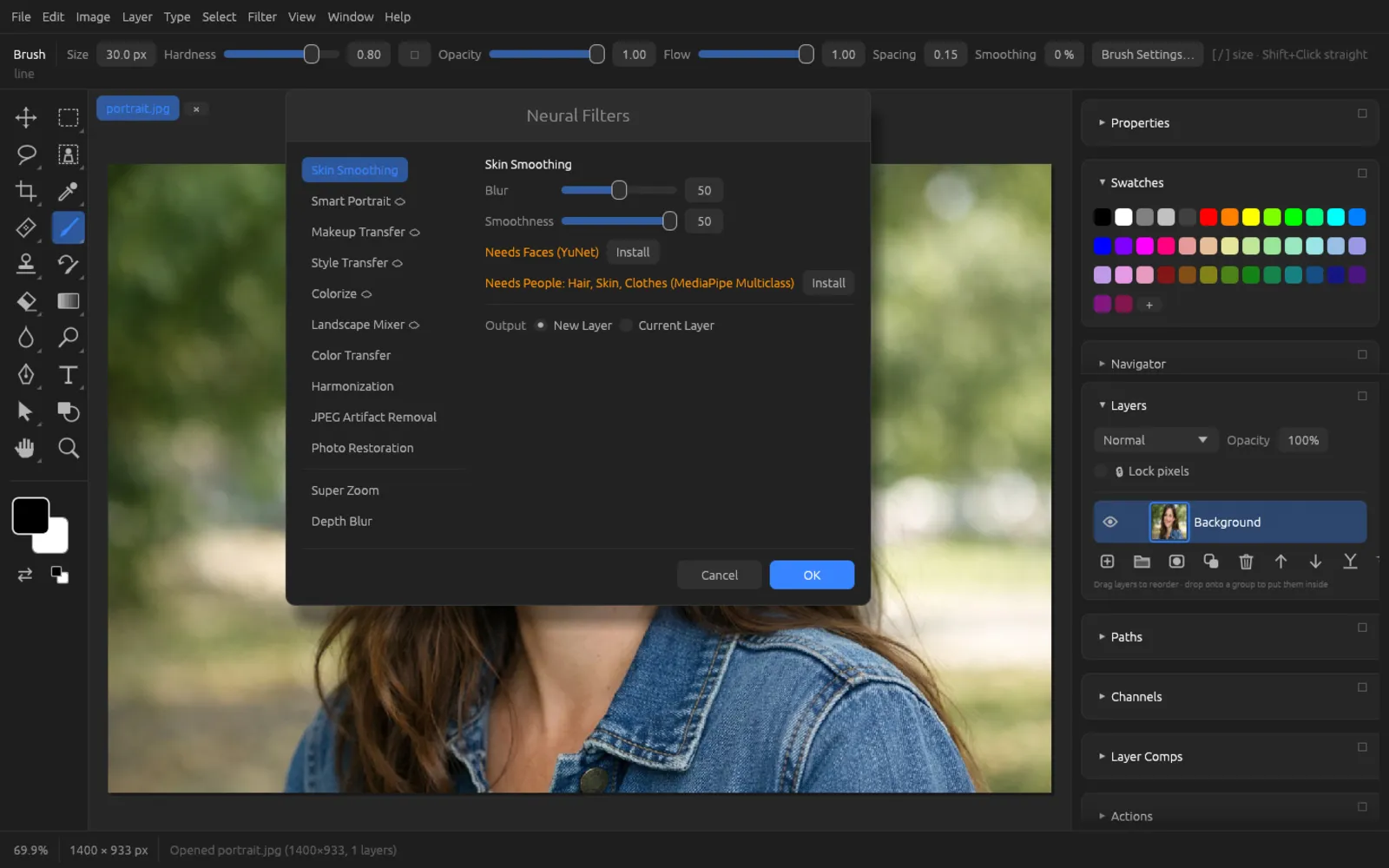
Skin Smoothing needs the “Faces” and “People” models. It first looks for all faces, determines the skin around them and smooths only those areas – eyes, eyebrows, lips and hair stay sharp. Blur (default 50) determines how strongly and over how large an area it smooths; Smoothness (default 0) makes the skin flatter or leaves more texture. If the filter finds no face, it reports “No faces found”.
Smooth skin
- Open the portrait and select the pixel layer with the face.
- Choose and click Skin Smoothing on the left.
- If orange notes “Needs Faces (YuNet)” or “Needs People: Hair, Skin, Clothes” appear on the right, click Install for each and wait until the download is finished.
- Set Blur and Smoothness. For a natural result, the default values are often enough.
- Leave Output at New Layer and click OK. The calculation runs in the background.
- The smoothed skin now sits as a “Skin Smoothing” layer above the original. If the effect is too strong for you, lower the opacity of this layer.
Before 
After: Skin Smoothing with the default values.
Photo Restoration and JPEG artifacts
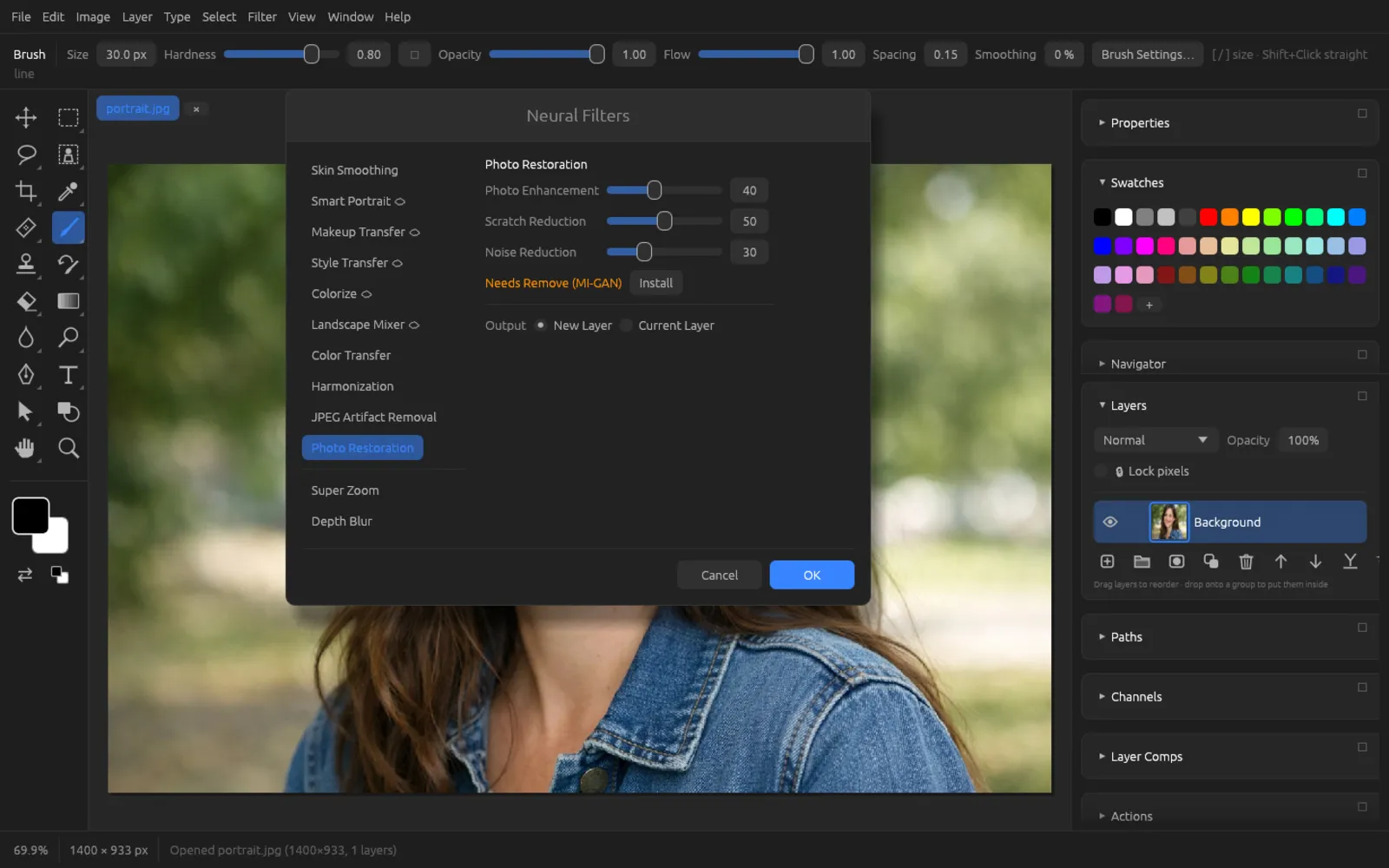
Photo Restoration combines three steps, each of which you can turn off by setting it to 0: Scratch Reduction (default 50) looks for fine scratches and dust spots and has the “Remove” model paint over them, Noise Reduction (default 30) denoises with SCUNet, and Photo Enhancement (default 40) improves the contrast automatically. Which models are needed depends on which sliders are above 0.
JPEG Artifact Removal also uses the denoising model. Choose the Strength to match the compression: Low for light artifacts, High for very strong ones.
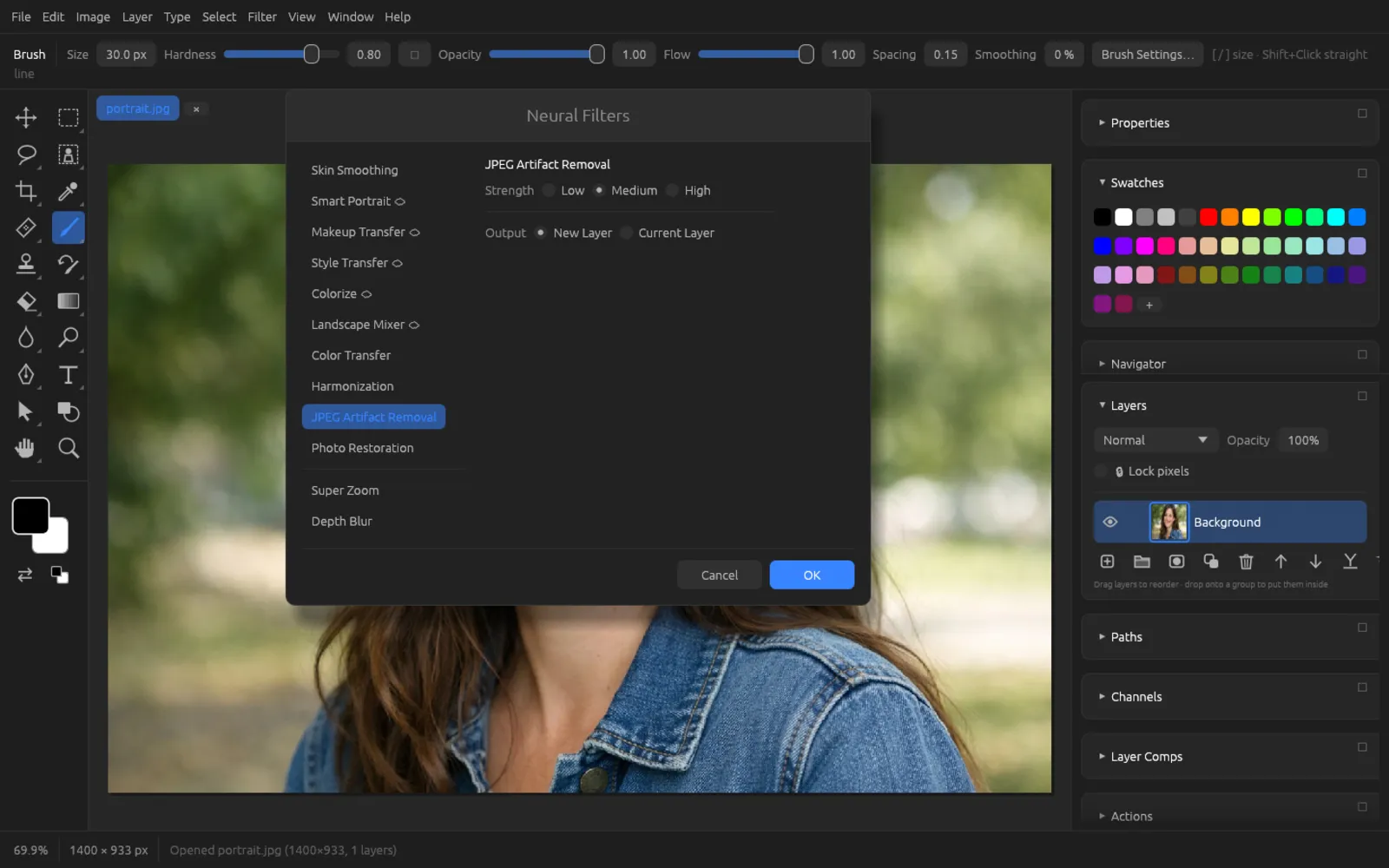
Color Transfer and Harmonization
Both filters run directly in Chromatelier without a model. With Color Transfer, you load an image under Reference with Load… whose color mood you want to adopt. Harmonization takes everything below the active layer as its model – ideal when you have placed a cut-out object into another photo. That's why it only works with a layer that lies above an image. For both, you control the Strength; with Preserve Luminosity only the colors change, not the brightness.
Tips and error messages
| Message | What to do |
|---|---|
| Wait for the running AI task (or cancel it) | An AI calculation is already running. Wait until it's finished, or click Cancel at the bottom. |
| Choose a pixel layer | The active layer is a type, shape or adjustment layer. Choose a layer with pixels. |
| Make a selection first | “Remove Selected (AI)” needs a selection. |
| The model … is not installed (Preferences > Local AI) | Download the model in the dialog or in the preferences. |
| Sky Replacement works in RGB Color | Convert the document to RGB under . |
- The models run on the processor. Large images therefore take time; Super Resolution and denoising split the image into tiles and show a progress bar.
- Wherever the AI has changed pixels (for example Remove, Denoise, Skin Smoothing), Chromatelier records this in the document's Content Credentials. More on this in the chapter Saving, Export & Printing.