Interface and Workspaces
This chapter shows you how the main window is laid out, how to set up panels and workspaces the way you like, how to move around in the image, and where to change keyboard shortcuts and preferences.
The menu bar
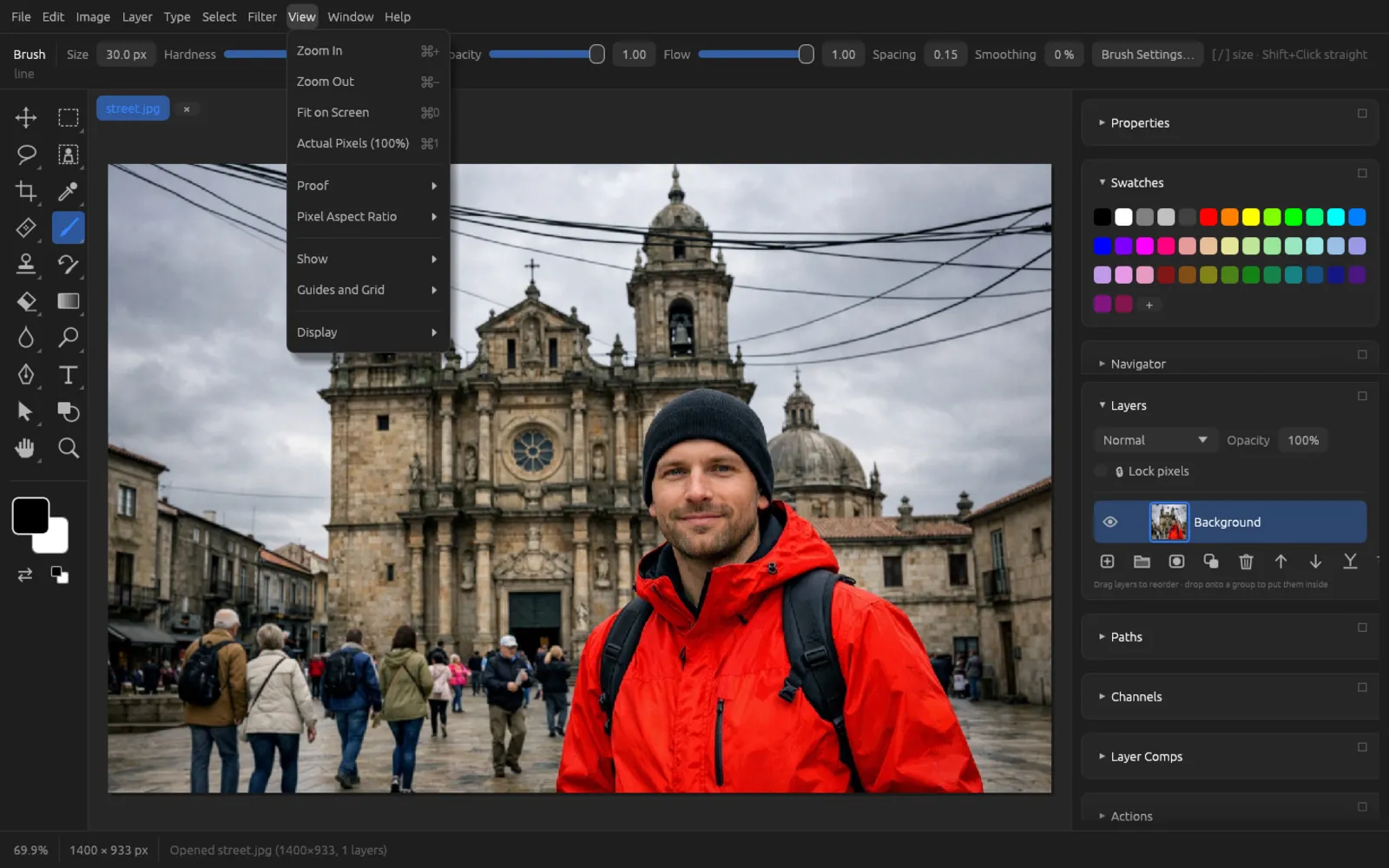
You will find all commands in ten menus. Many entries show their keyboard shortcut on the right; a triangle ▸ opens a submenu, a check mark ✔ shows options that are turned on. Grayed-out entries don't apply at the moment – Deselect, for example, when nothing is selected.
| Menu | Contents | Covered in detail in |
|---|---|---|
| New, Open, Place, Save, Export, File Info, Content Credentials, Print, Automate, Scripts | Getting Started, Export, Automation | |
| Undo, clipboard, Fill, Content-Aware, AI Tools, Generative AI, Transform, Presets, Preferences | Retouching, AI on Your Computer, Generative AI | |
| Adjustments, Mode, Color Profile, Image Size, Canvas Size, Image Rotation, Calculations, Variables, Analysis | Adjustments, Color, Retouching | |
| New layers, adjustment and fill layers, Smart Objects, Frames, Layer Style, masks, Arrange, Align | Layers | |
| Type panels, orientation, OpenType, Warp Text, Match Font | Type, Shapes & Paths | |
| All, Subject, Sky, Color Range, Select and Mask, Modify, saving and loading selections | Selections | |
| Filter Gallery, Neural Filters, Liquify, Vanishing Point and all filter groups | Filters | |
| Zoom, Proof, Pixel Aspect Ratio, Show, Guides and Grid, Display | this chapter | |
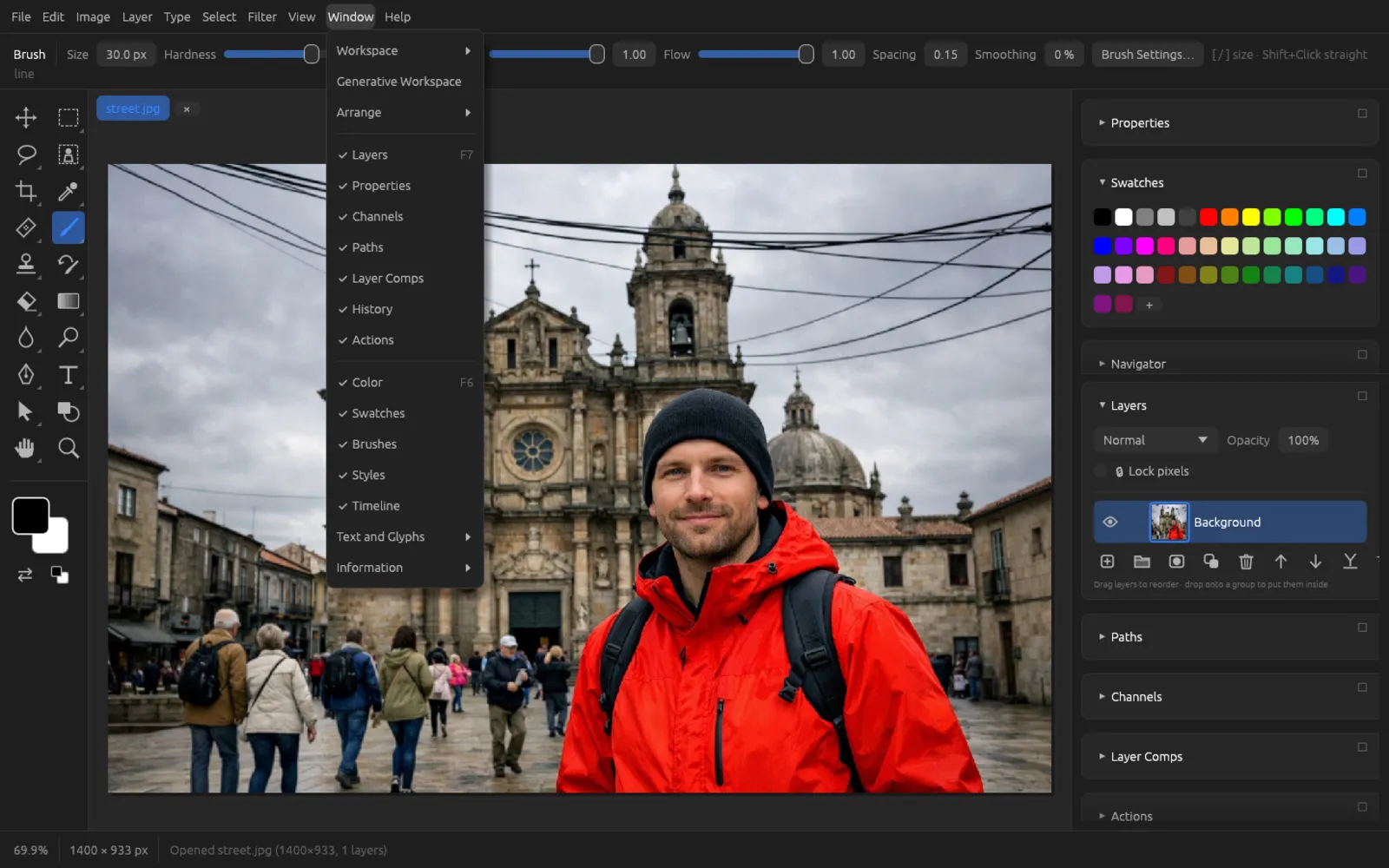
| Workspaces, Arrange, all panels | this chapter | |
| Keyboard Shortcuts, Third-Party Licenses, About Chromatelier | this chapter |
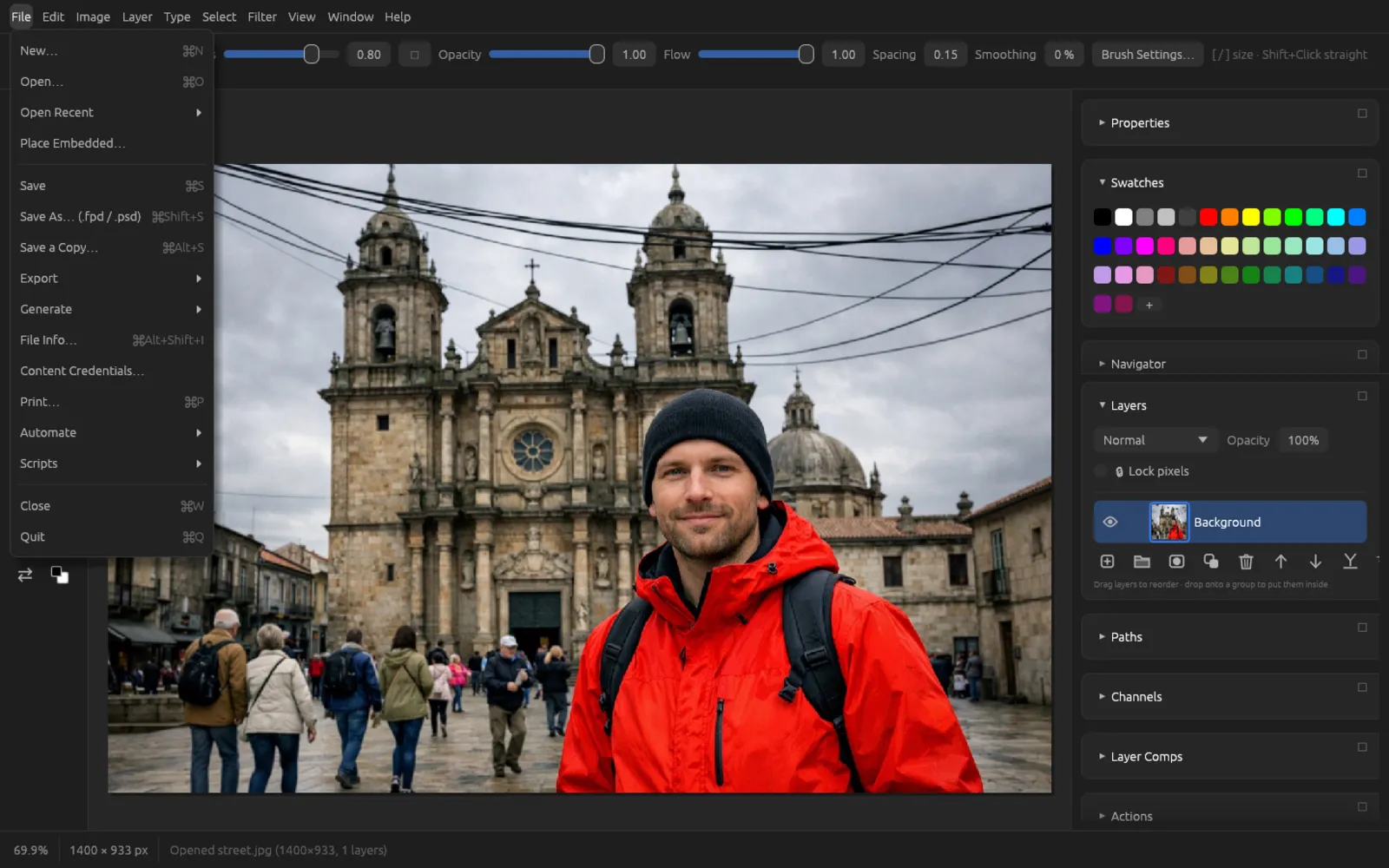
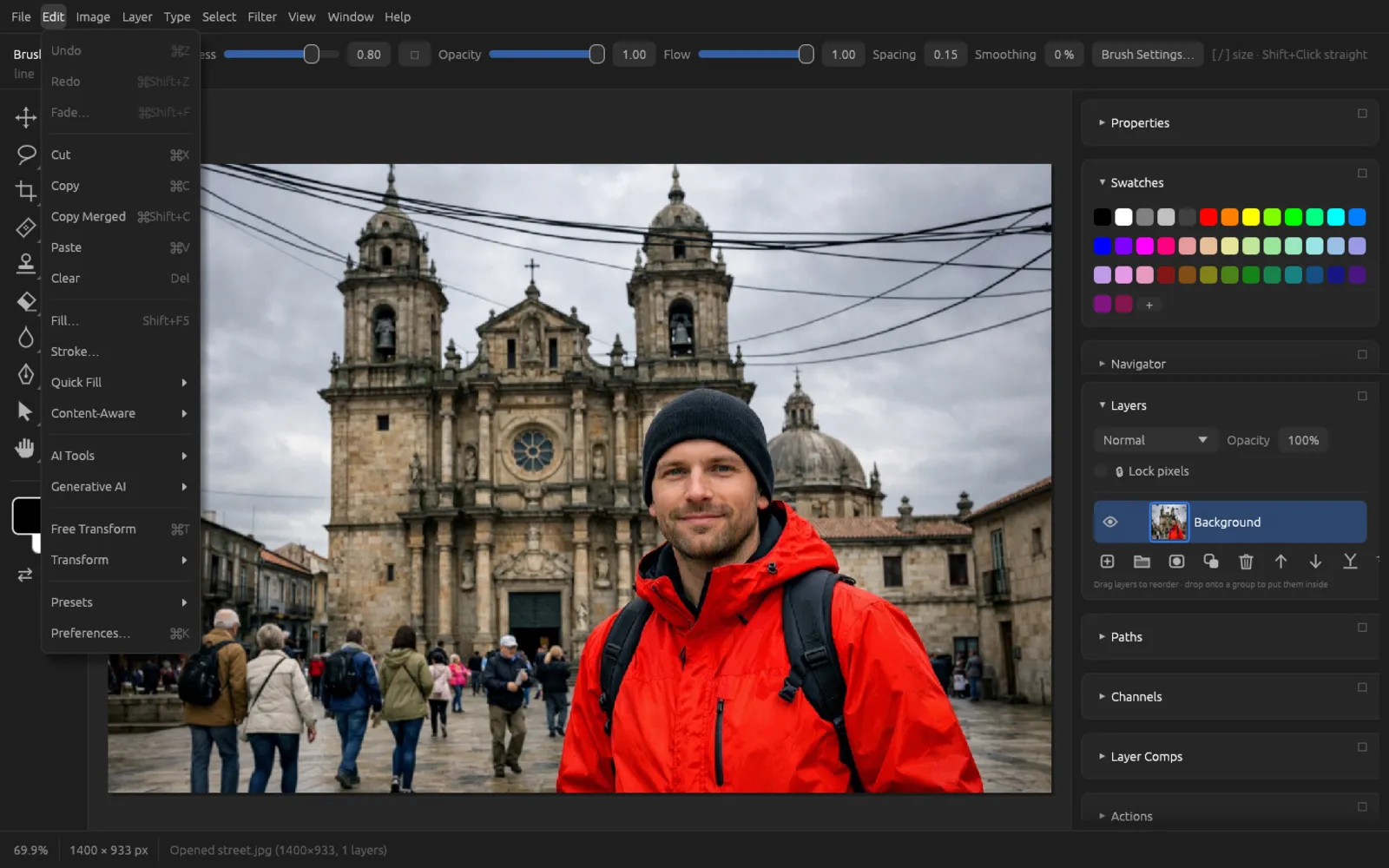
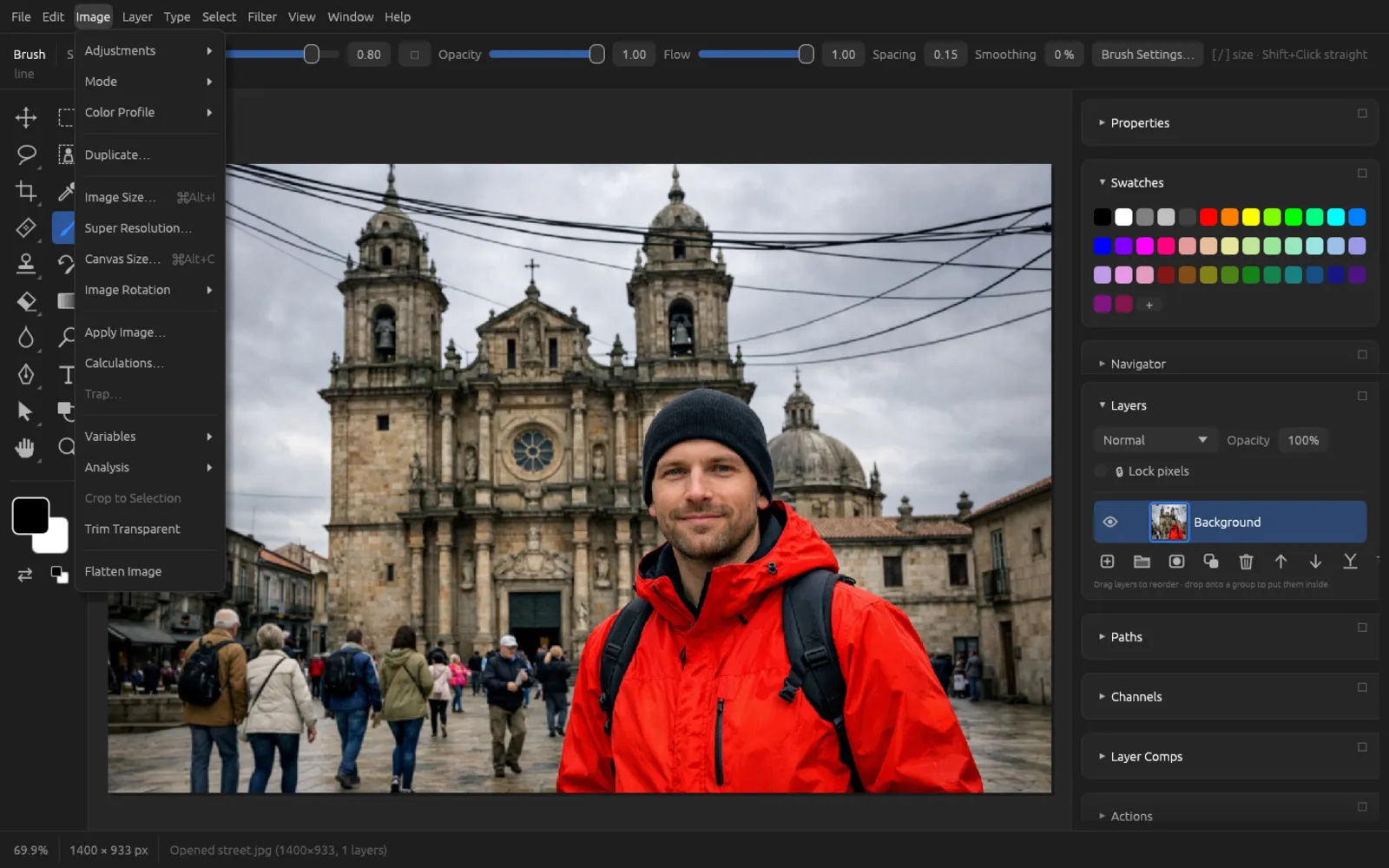
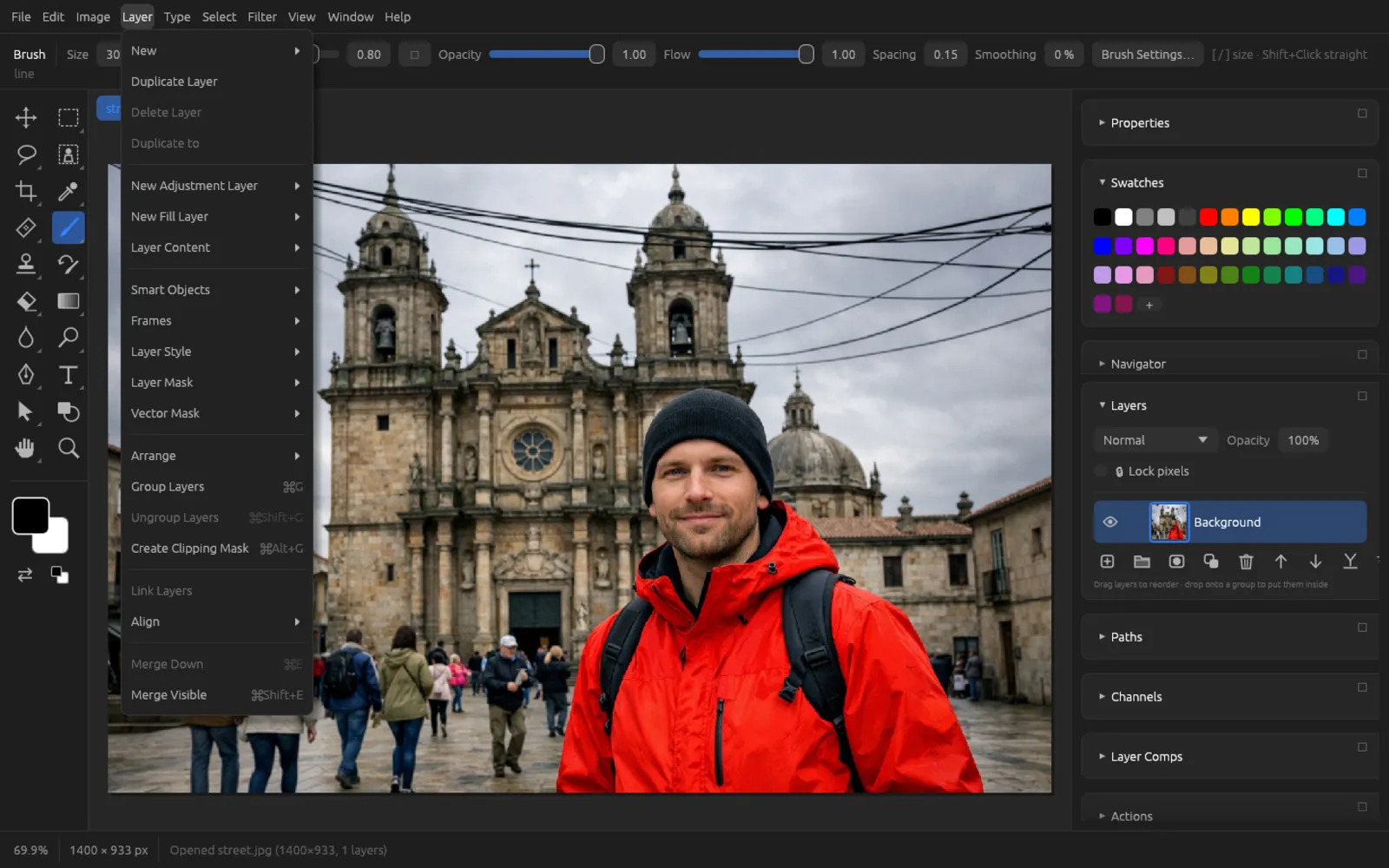
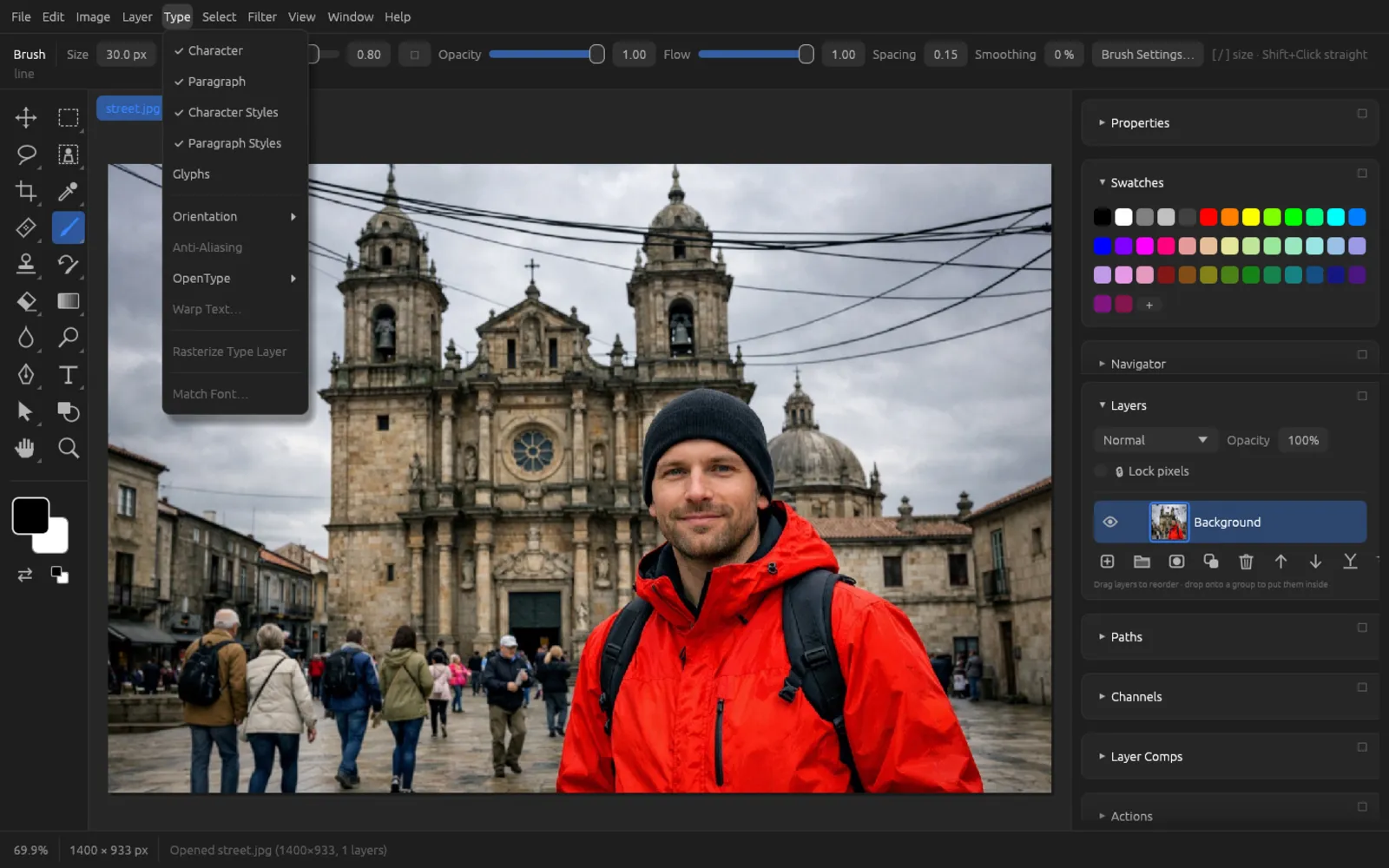
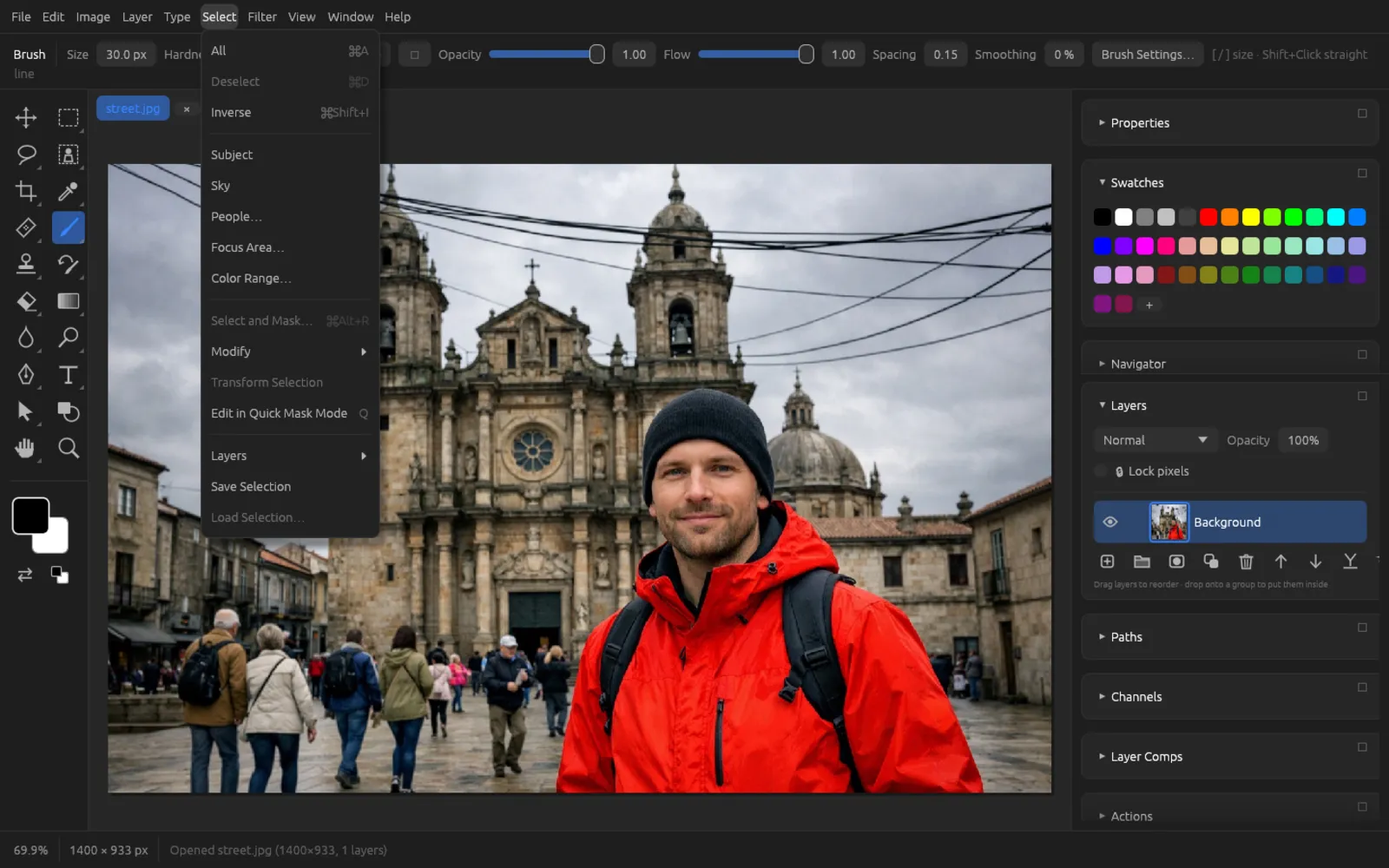
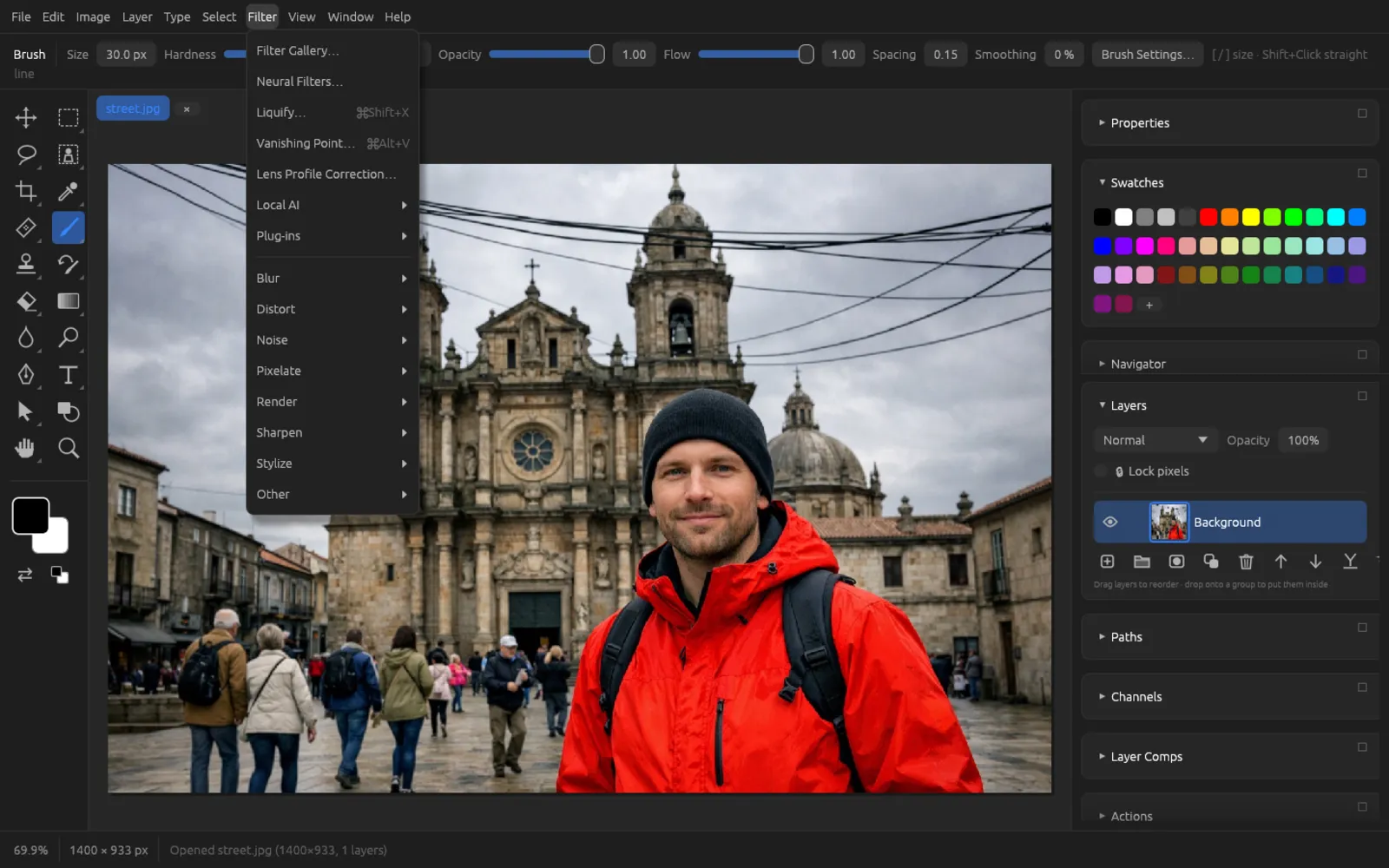
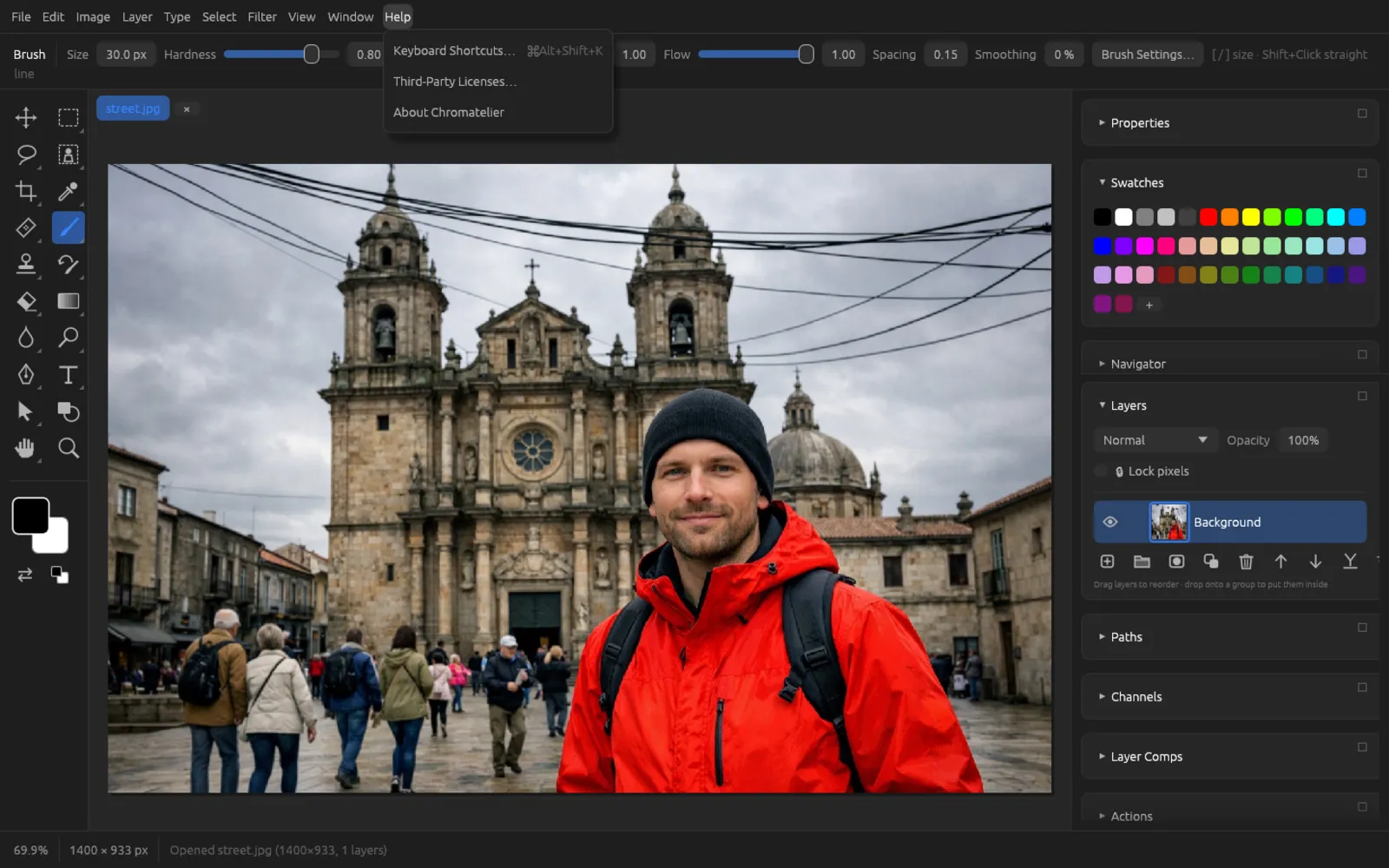
You can also run the command of any menu entry with a keyboard shortcut you define yourself – see Keyboard shortcuts.
The options bar
Below the menu bar, the options bar shows the name of the active tool on the left, followed by its settings – for the Brush, for example, Size, Hardness, Opacity, Flow, Spacing, Smoothing and Brush Settings…. The second line holds a short usage hint, for example “Shift+Click straight line”. The bar changes with every tool; the chapter Tools describes what the individual fields do.
Toolbar and tool groups
The toolbar on the left contains 20 buttons. Many of them are groups of several related tools; you can recognize them by the small triangle in the lower right corner. When you hover the mouse over a button, a tooltip shows its name and shortcut.
- A click selects the tool the group is currently showing.
- A right-click opens the list of all tools in the group with their shortcuts. The tool you choose then stays visible as the group's representative.
- Shortcuts such as B (Brush) or V (Move) select a tool directly; with ⇧ you often get the next tool in the group, for example ⇧ M for the Elliptical Marquee.
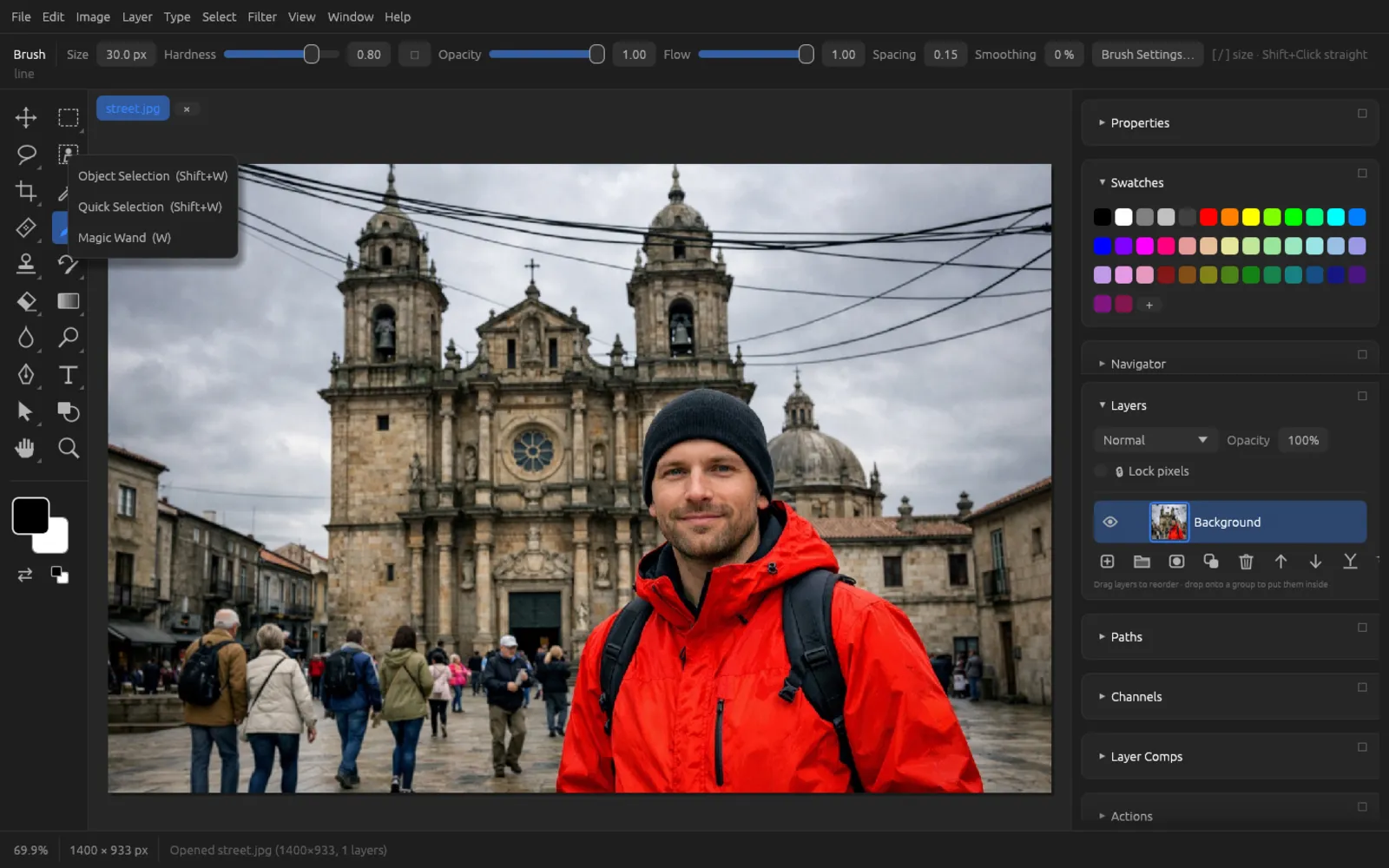
The chapter Tools describes all 58 tools and their options.
Foreground and background color
Below the tools are two color swatches: at the top left the foreground color (used by the Brush, text and shapes), behind it the background color (used, for example, by the Eraser on the background layer). Clicking a swatch opens a color picker. Below them, the double arrow swaps the two colors (X), and the small icon next to it resets them to black and white (D). To pick colors from the image, use the Eyedropper (I).
Panels
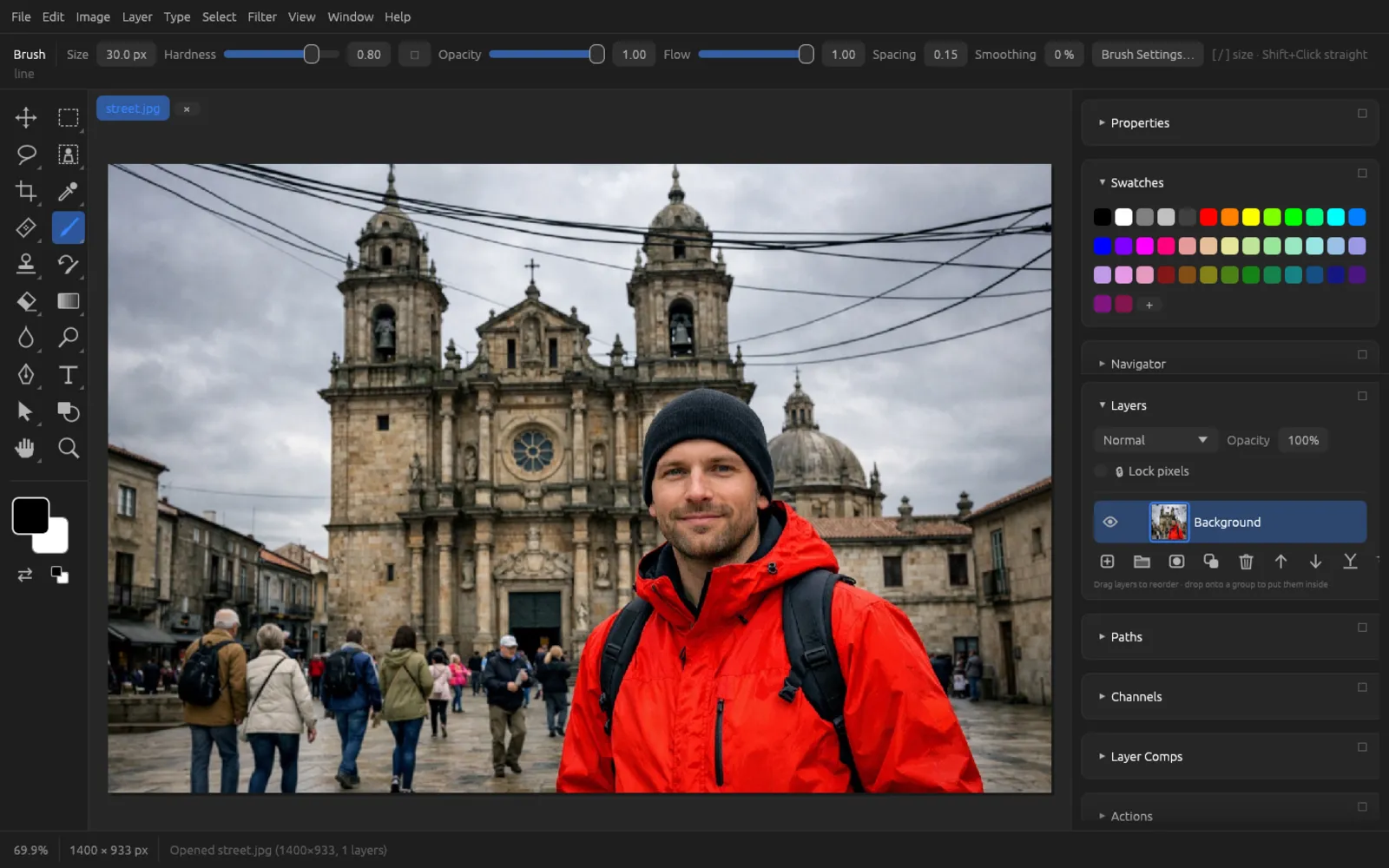
The right-hand column contains the panels. Each one is a card with a header: clicking the name expands or collapses the panel. In the menu you show or hide each panel; a check mark shows which ones are currently there. The common ones are directly in the menu, the type and information panels in the submenus and .
| Panel | Shortcut | What it's for |
|---|---|---|
| Layers | F7 | Creating, ordering, showing and hiding layers and groups, blend mode and opacity, masks. See Layers. |
| Properties | The settings of whatever is selected: the sliders of an adjustment layer, mask density and feather, Smart Object, shape layer, frame. | |
| Channels | Color channels, saved selections (alpha channels) and spot channels. See Selections and Color. | |
| Paths | The work path and saved paths, loading a path as a selection, fill, stroke. See Type, Shapes & Paths. | |
| Layer Comps | Remembering the visibility, position and style of layers as named variants and switching between them. See Layers. | |
| History | All the steps you took, jumping back, snapshots (New Snapshot) and the source of the History Brush. See Retouching. | |
| Actions | Recording and playing back steps. See Automation. | |
| Color | F6 | The foreground color in a color picker, with hex input. |
| Swatches | Saved colors. Click = foreground, ⌥-click = background, right-click = remove; + adds the foreground color. | |
| Brushes | Choosing, creating and loading brush presets (including .abr). See Tools. | |
| Styles | Applying saved layer styles with one click (including .asl). See Layers. | |
| Timeline | Frame animation and video timeline with keyframes. See Video & Animation. | |
| Character, Paragraph | Font, size, spacing, alignment and indents of the type layer. | |
| Character Styles, Paragraph Styles | Named text styles for consistent typography. | |
| Glyphs | All the characters of a font, inserted with a click. Type panels: see Type, Shapes & Paths. | |
| Info | F8 | The color under the pointer (R, G, B, H, S, brightness, opacity), position X/Y, width and height of the selection, size, mode and bit depth of the document. |
| Histogram | The tonal distribution of the image for red, green and blue, continuously updated. | |
| Navigator | A thumbnail of the image; the red rectangle shows the visible area. Clicking or dragging moves the visible area; the slider zooms (2 to 3200%). | |
| Measurement Log | ⌘ ⇧ M records | Saved measurements, with Record Measurements, Export… and Clear. See Retouching. |
| Notes | The notes you placed in the image with the Note tool: read, edit, browse and delete them. |
Moving, docking and floating panels
The right-hand column has an upper and a lower area (the lower one holds, for example, Layers, Paths, Channels and History). This is how you rearrange the panels:
- Dragging: Each header has a handle at the top right (“Drag to move the panel”). Drag it onto another panel to insert it in front of that panel – a line shows the spot. If you drop it over the canvas, it opens there in its own floating window.
- Context menu: Right-clicking the header offers Move Up, Move Down, Move to the Lower Area or Move to the Upper Area, Float in a Window and Close.
- Docking: A floating panel has a Dock button at the top; it puts the panel back into the right-hand column. The cross in the title bar hides it.
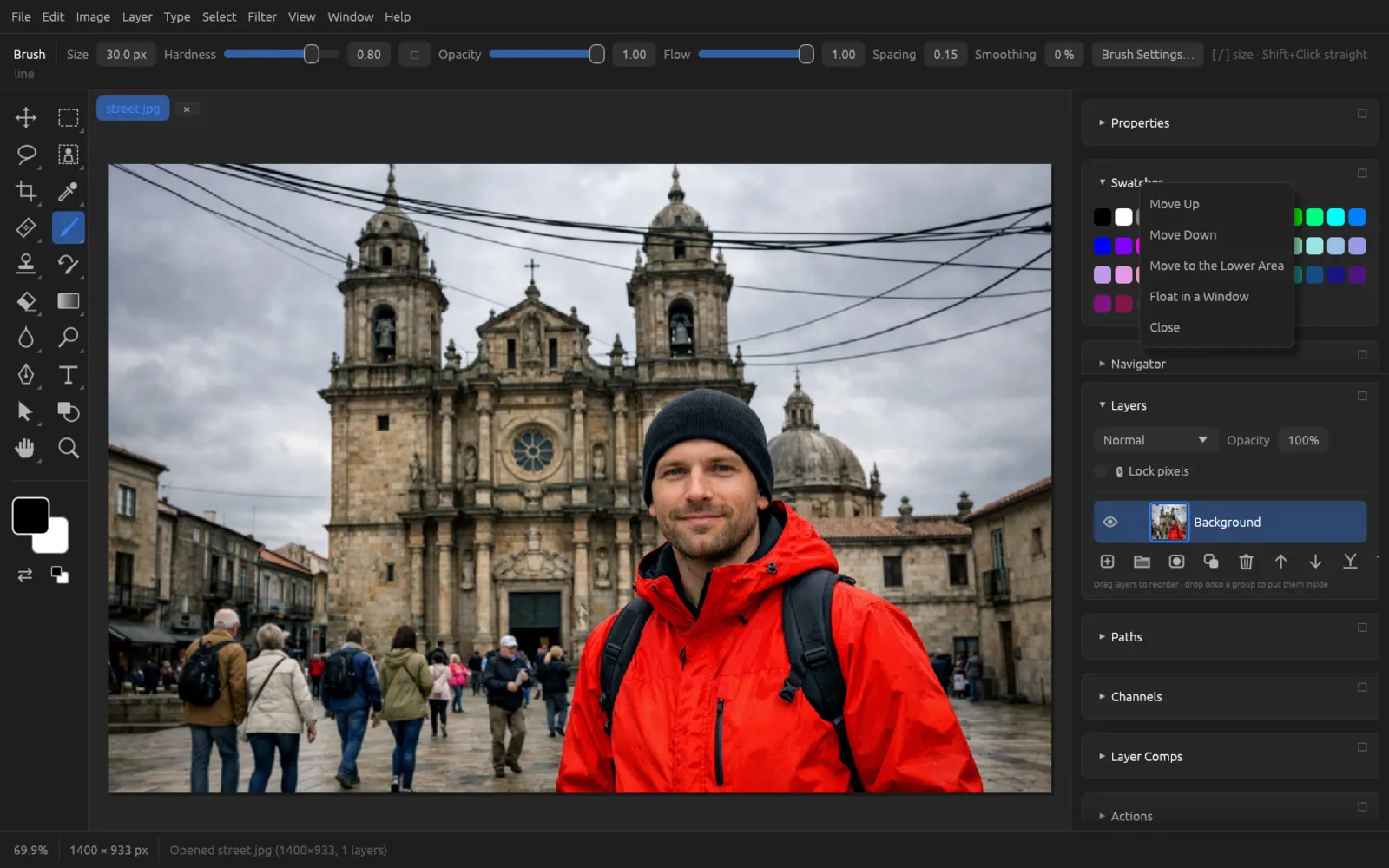
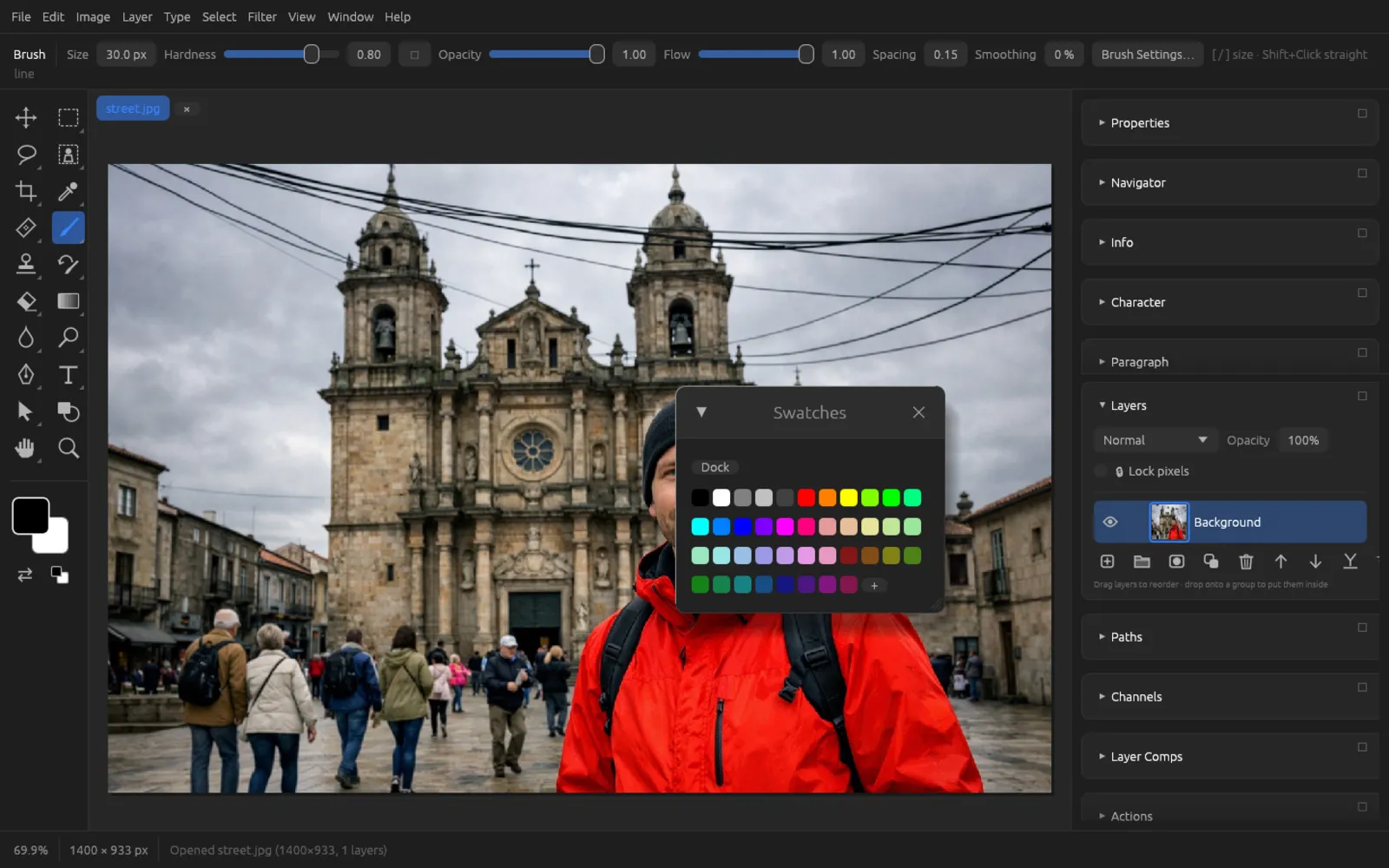
Placing a panel in its own window next to the image
- Find the panel in the right-hand column, for example Swatches. If it isn't there, show it via .
- Grab the handle at the top right of the header and drag it onto the canvas. Release the mouse button – the panel opens at that spot in its own window.
- Move the window by its title bar to wherever it doesn't get in your way.
- To bring it back into the column, click Dock in the window.
Workspaces
A workspace defines which panels are where and which ones are expanded. Under you choose one of the five built-in ones:
| Workspace | Shortcut | Panels |
|---|---|---|
| Essentials | ⌘ ⌥ ⇧ 1 | All panels; Color, Swatches, Layers and History expanded. The default. |
| Photography | ⌘ ⌥ ⇧ 2 | Histogram, Navigator, Info, Properties, Color; below them Layers, Channels, Paths, History, Actions. |
| Painting | ⌘ ⌥ ⇧ 3 | Color, Swatches, Brushes, Navigator, Properties; below them Layers and History. |
| Typography | ⌘ ⌥ ⇧ 4 | Character, Paragraph, Character and Paragraph Styles, Properties, Color, Swatches; below them Layers and History. |
| Motion | ⌘ ⌥ ⇧ 5 | Timeline, Properties, Color, Navigator; below them Layers and History. |
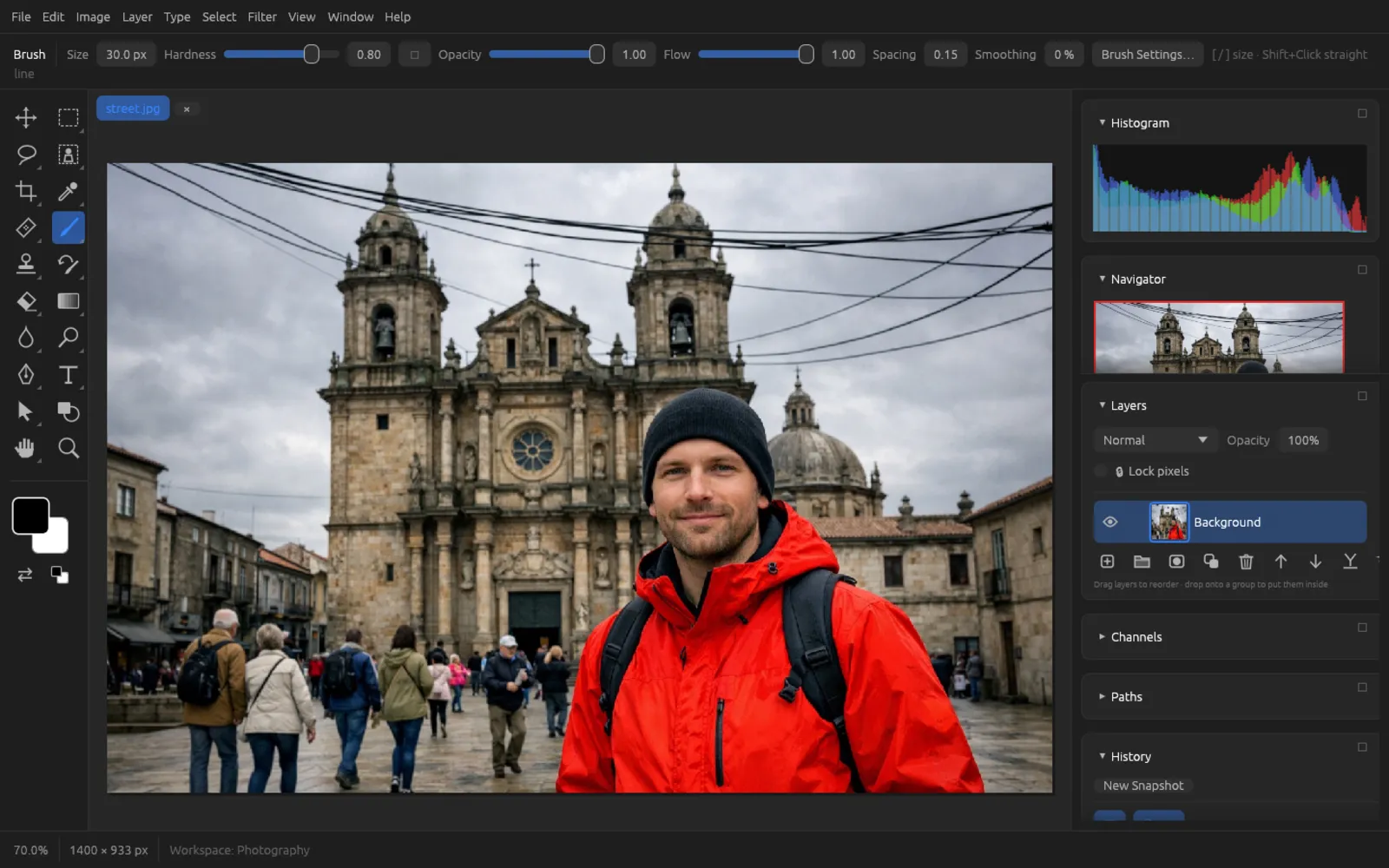
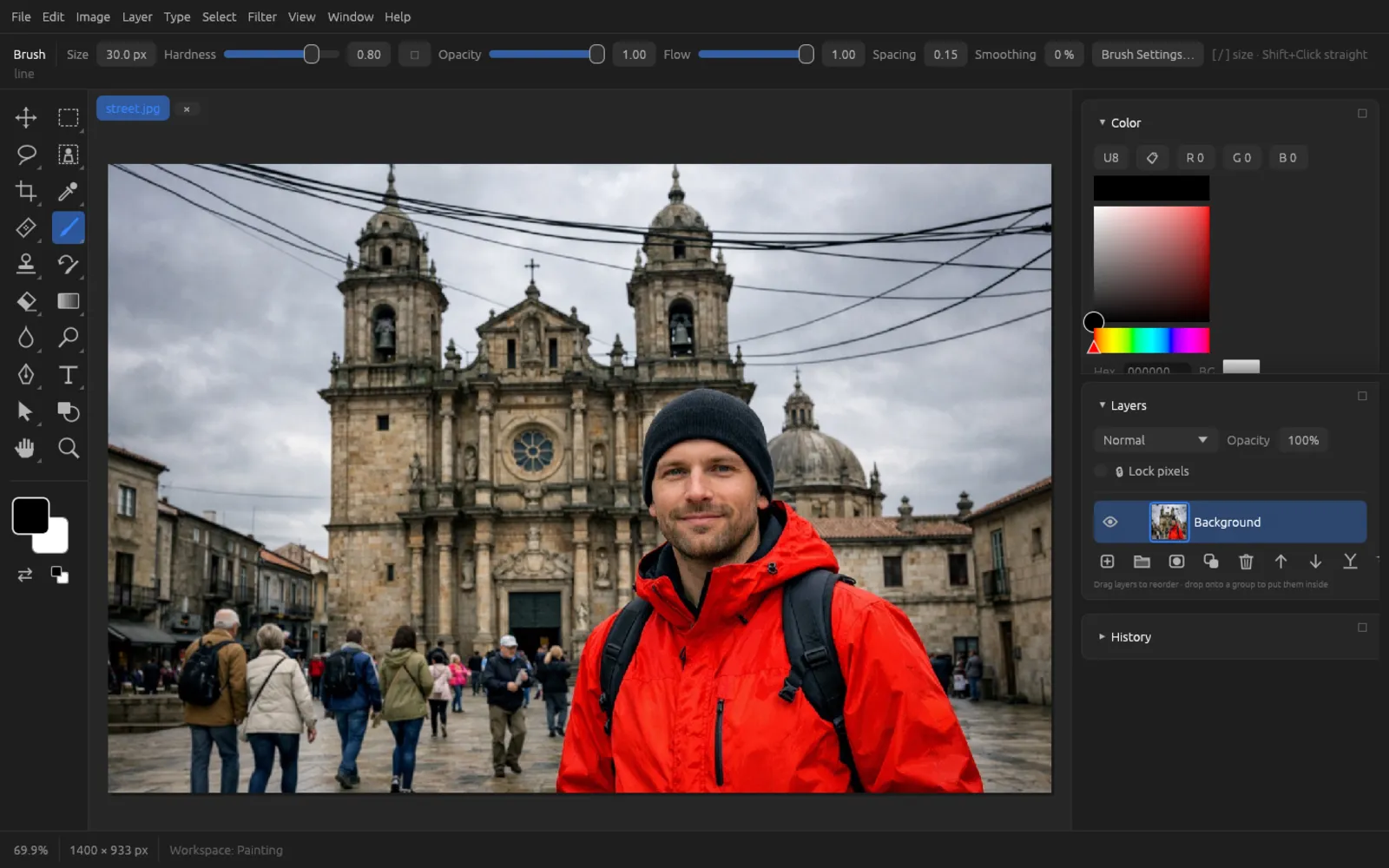
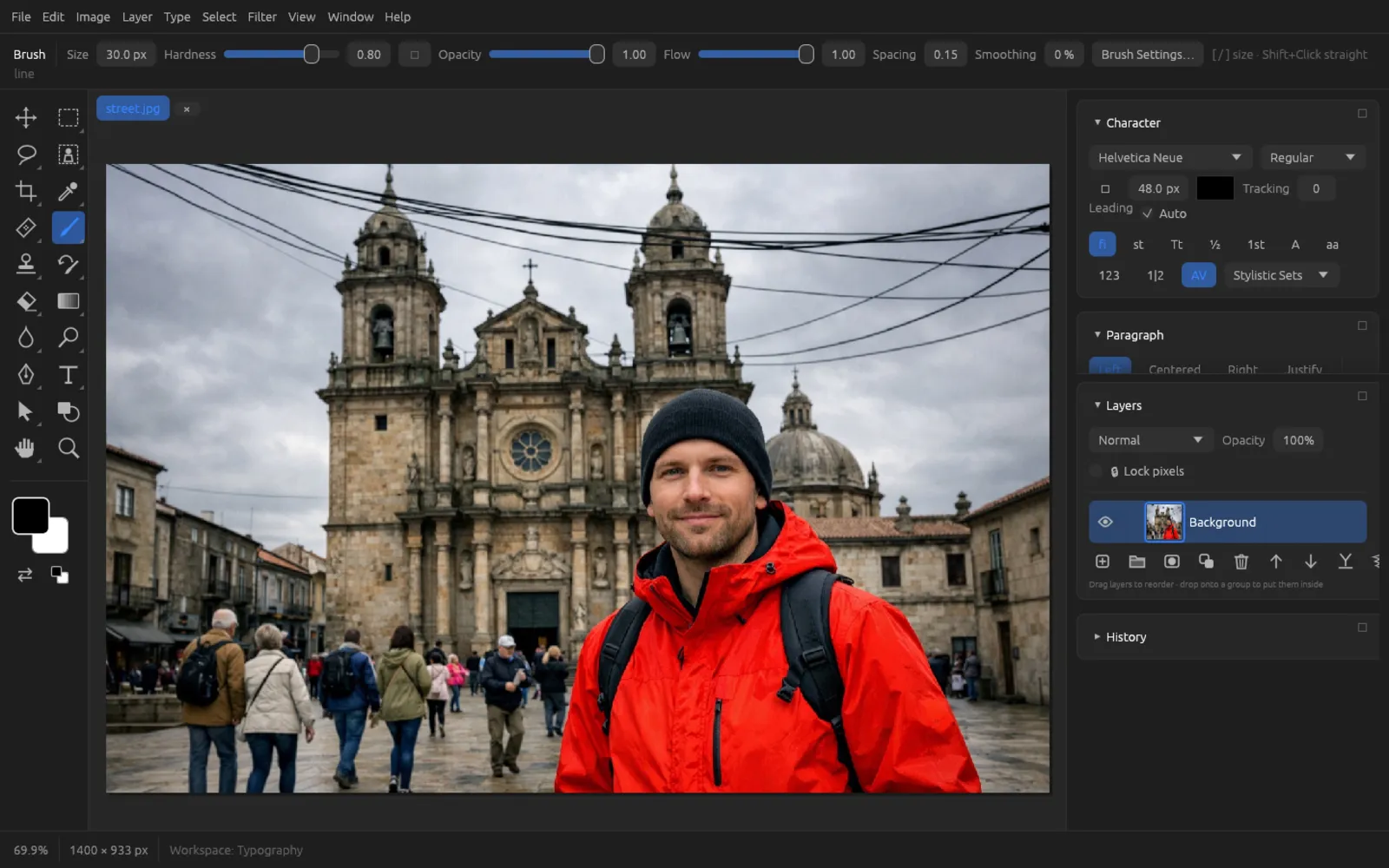
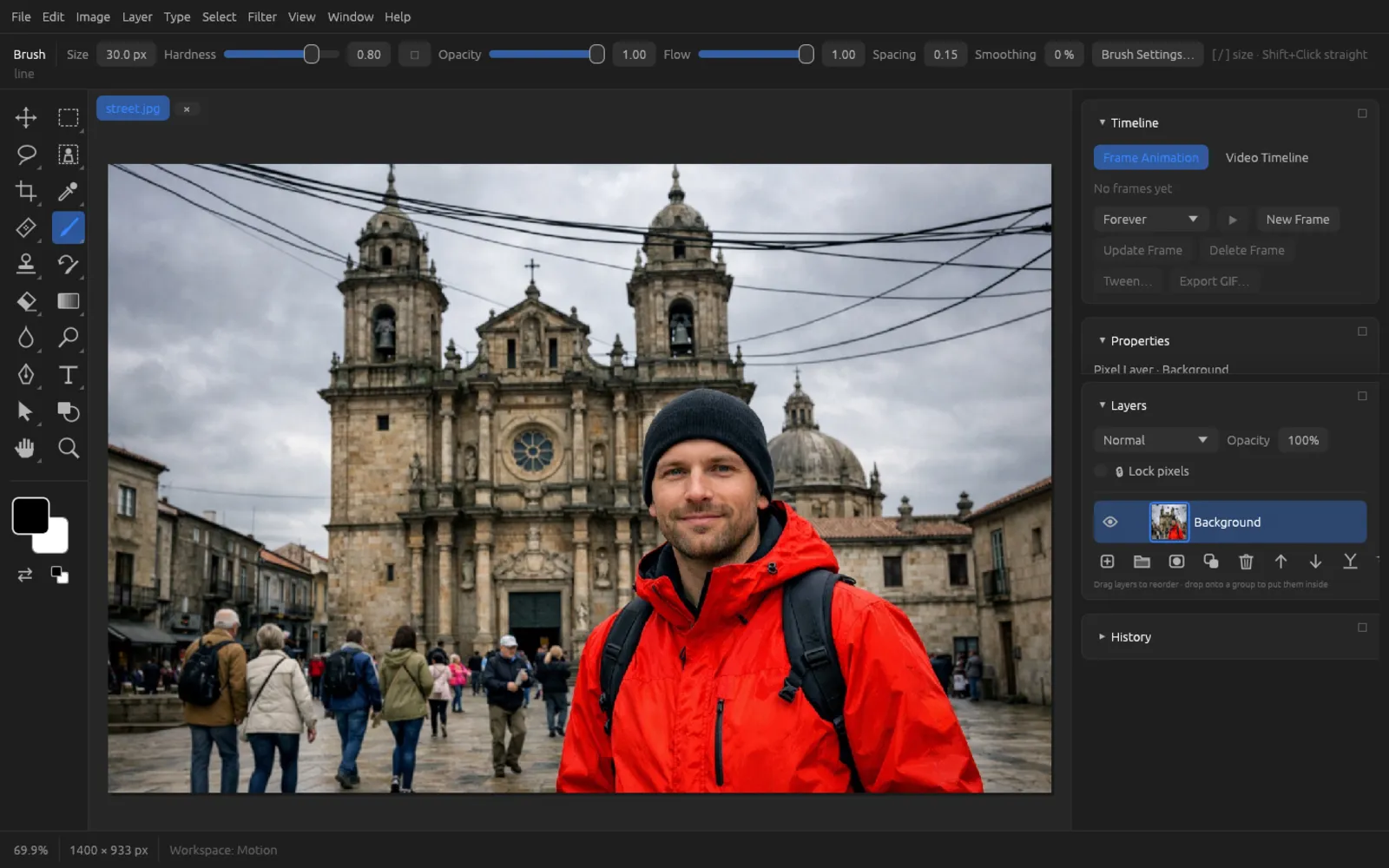
Other commands in the same submenu:
- Reset … (e.g. ) restores the current workspace to the way it was saved.
- New Workspace saves the current arrangement as a workspace of your own (“Workspace 1”, “Workspace 2” …). It appears in the list below the built-in ones; it remembers any changes you make in it automatically.
- Delete Workspace removes the current workspace of your own and switches to Essentials. Built-in workspaces can't be deleted.
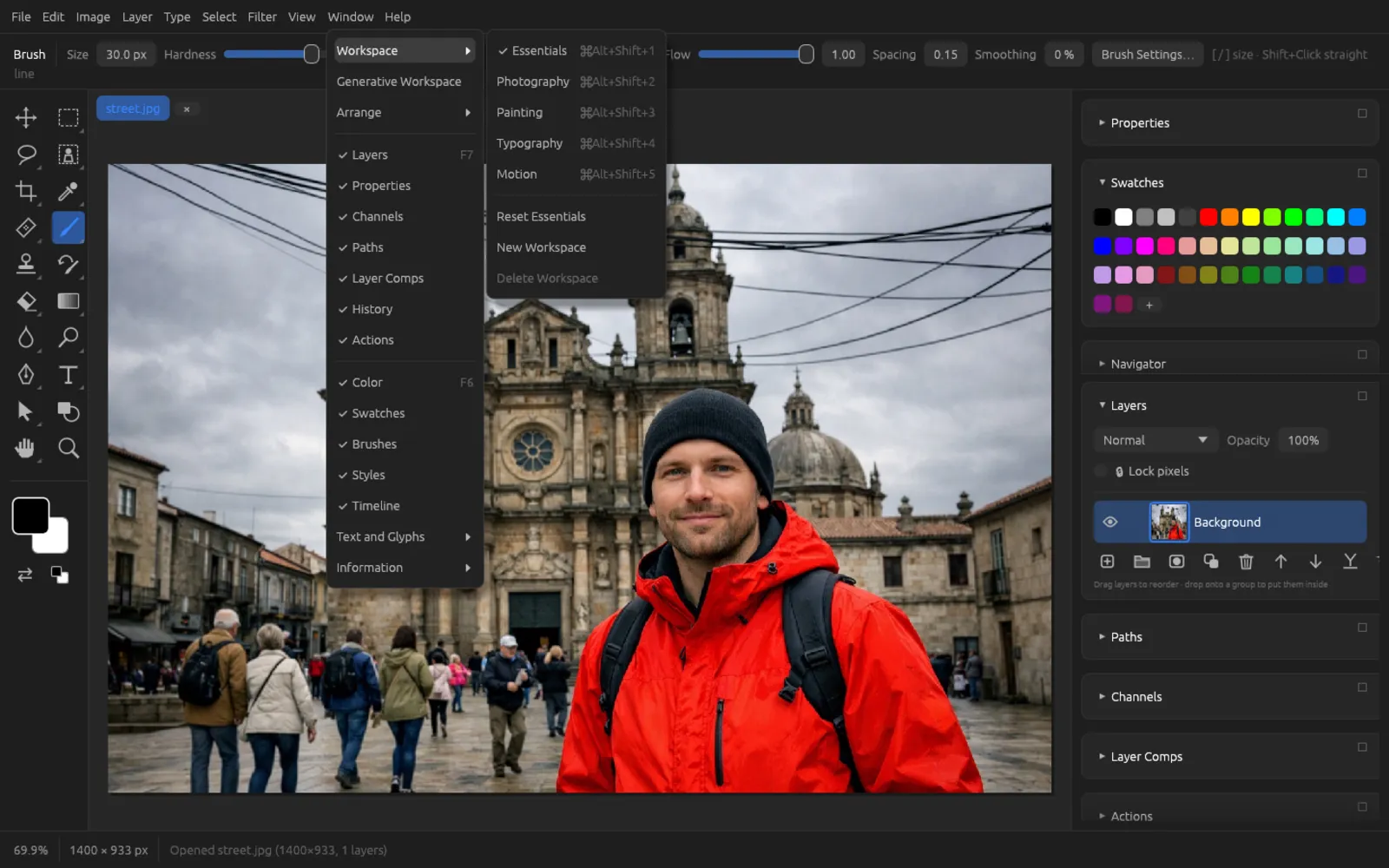
is a separate area for creating images from text; it is described in the chapter Generative AI.
Creating a workspace of your own
- As a starting point, choose a suitable workspace, for example .
- Use the menu to hide what you don't need and show what's missing. Arrange the panels with their handles or the context menu and expand the ones you want.
- Choose . The status bar reports the name it was saved under.
- From now on you can bring the arrangement back at any time via .
Arranging several documents
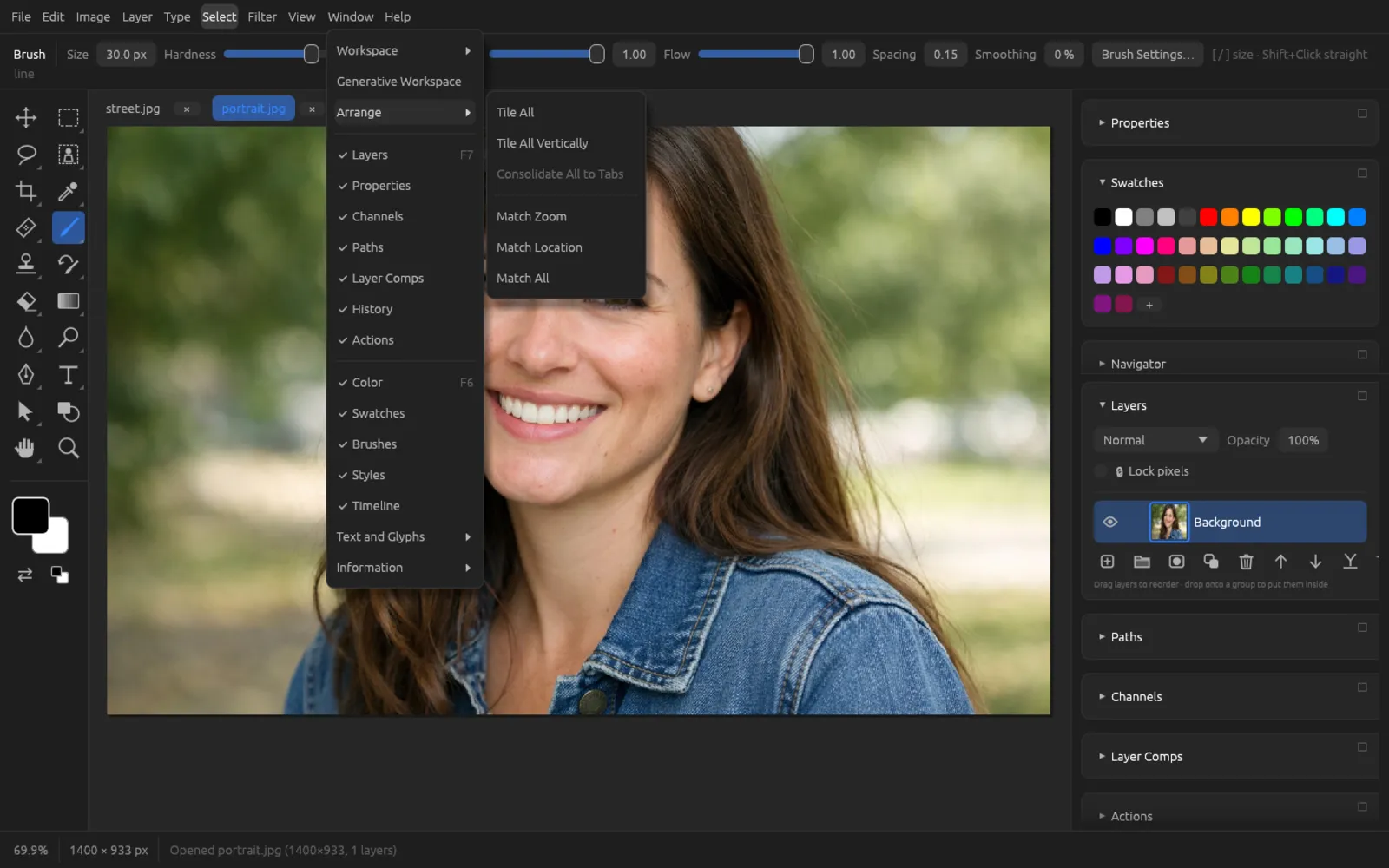
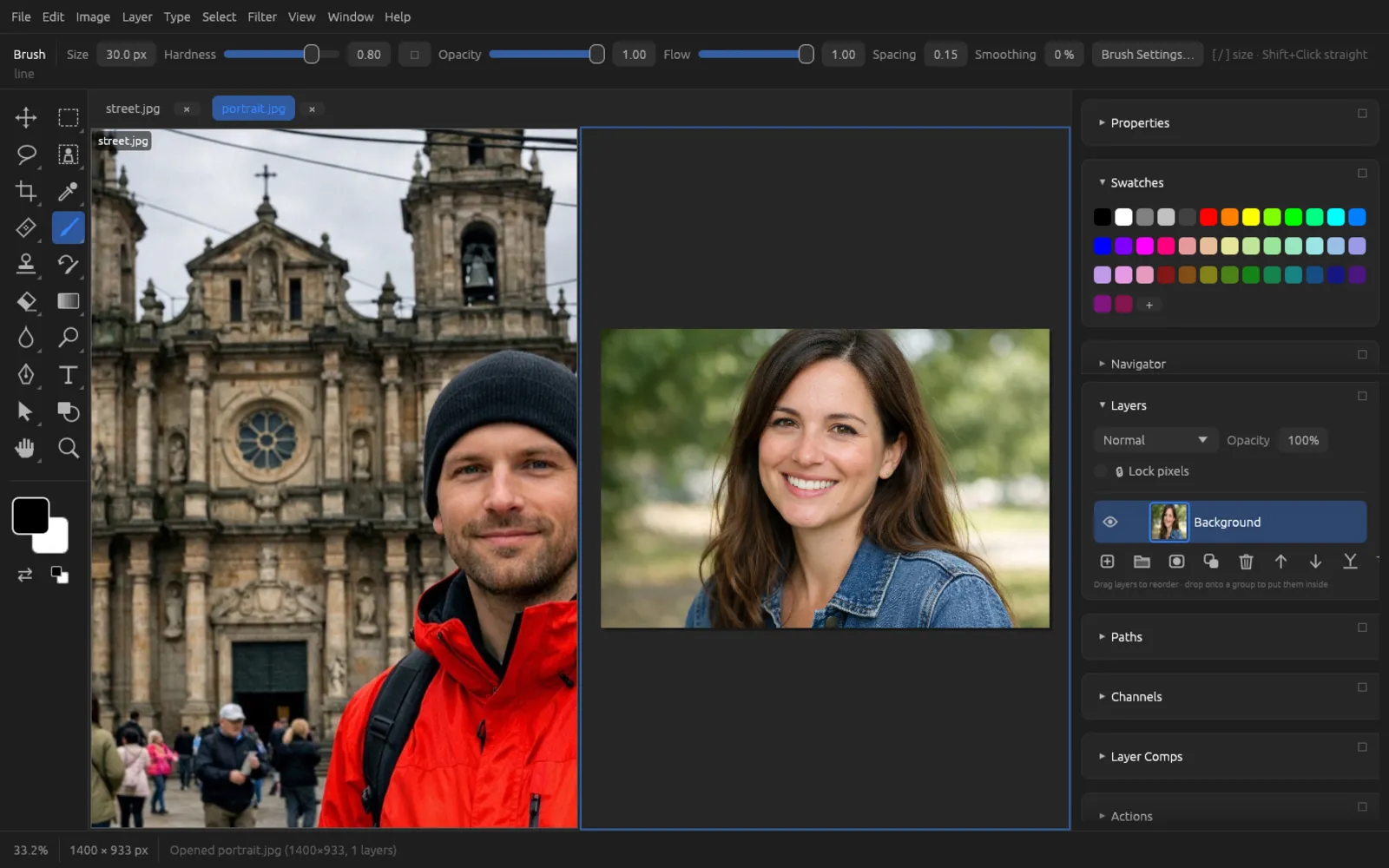
Normally, documents lie on top of each other in tabs. shows them side by side:
| Command | Effect |
|---|---|
| Tile All | All documents as tiles in a grid. |
| Tile All Vertically | Each document in its own column. |
| Consolidate All to Tabs | Back to tabs. |
| Match Zoom | All tiles get the zoom level of the active document. |
| Match Location | All of them show the same part of the image as the active one. |
| Match All | Zoom level and location at once. |
You always edit the active document in its tile; clicking another tile makes that one active. If you drag a layer onto another tile with the Move tool, it is copied into that document.
Status bar and Contextual Task Bar
The status bar at the bottom edge of the window shows, from the left: the zoom level, the image size in pixels, the pointer position with the color beneath it (RGBA and hex), the size of a selection and the latest message, such as “Opened street.jpg (1400×933, 1 layers)” or the name of the last step. Colored notices warn you when you are currently editing a mask, a channel, the Quick Mask view or the contents of a Smart Object.
The Contextual Task Bar is a small floating bar on the canvas with the most likely next steps. Without a selection it offers Select Subject, Remove Background and Generate Image. When there is a selection, it sits below the selection and offers an input field for Generative Fill… with Generate, as well as Mask, Invert, Select and Mask, Fill (content-aware) and Deselect. The ✕ hides it; you can show it again under .
Navigation: zooming, panning, rotating
| What | How |
|---|---|
| Zoom In / Zoom Out | (⌘ +) and (⌘ -); ⌘ + mouse wheel or a two-finger pinch on the trackpad zooms at the pointer position. |
| Fit on Screen | (⌘ 0) fits the image into the window. |
| Actual Pixels | (⌘ 1): one image pixel per screen pixel. |
| Zoom tool | Z: a click zooms in, with ⌥ it zooms out. |
| Panning | Mouse wheel or two-finger swipe; the Hand tool (H); or, with any tool, hold down the Space bar and drag. The Navigator also moves the visible area. |
| Rotating the view | The Rotate View tool (⇧ H, in the Hand group): dragging rotates the view, with ⇧ in 15° steps. In the options bar you set the exact Rotation Angle; Reset View or Esc straightens it again. The image itself stays unchanged. |
Pixel aspect ratio
Video footage sometimes has non-square pixels. Under you choose Square Pixels or a video standard (D1/DV NTSC and PAL, each also widescreen, HDV 1080 / DVCPRO HD 720, DVCPRO HD 1080, Anamorphic 2:1), or you enter a value under Custom. With Pixel Aspect Ratio Correction the canvas shows the pixels as wide as they are meant to be. The image data doesn't change.
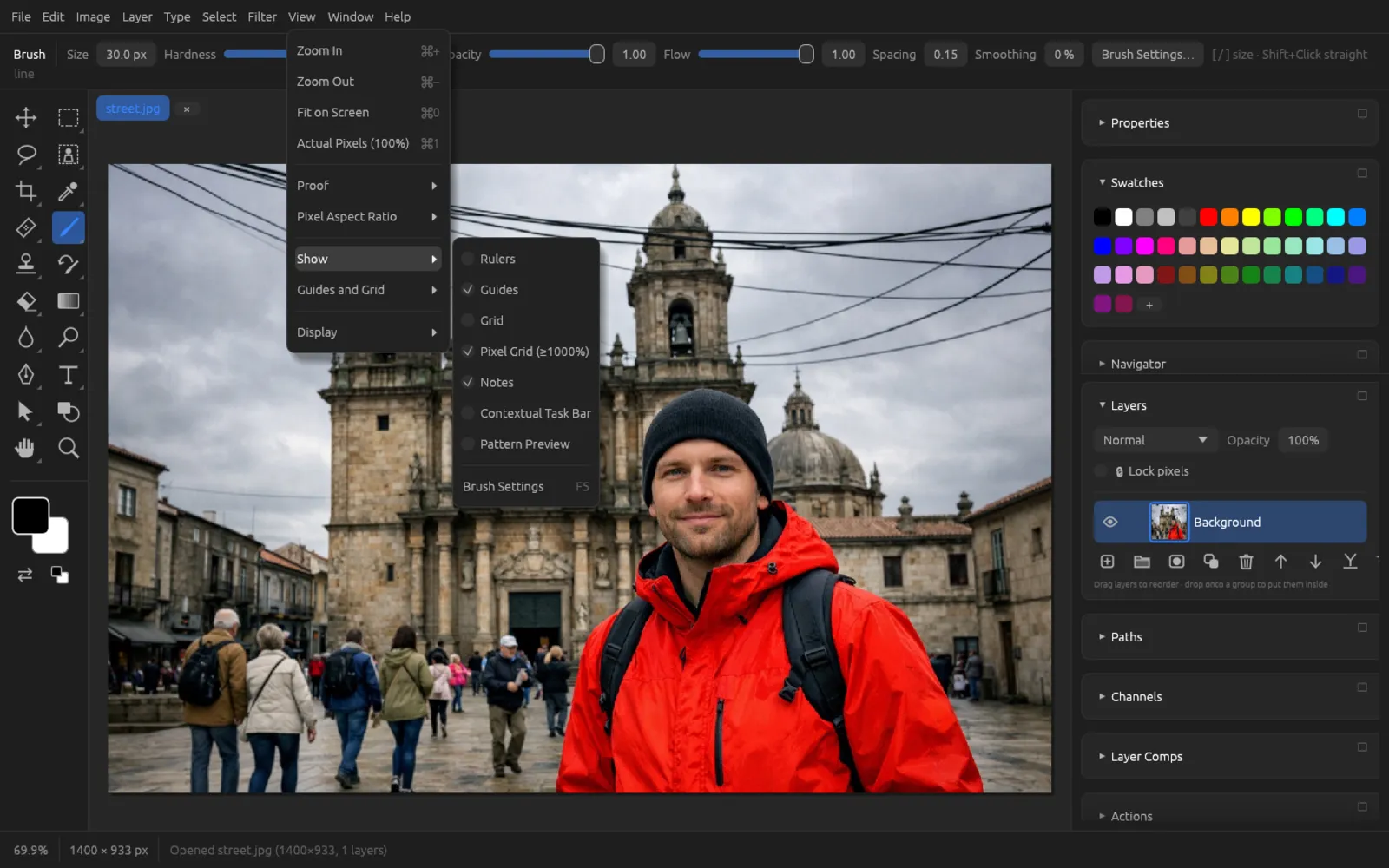
View › Show
Here you turn the canvas aids on and off: Rulers (⌘ R), Guides (⌘ ;), Grid (⌘ '), Pixel Grid (≥1000%), Notes, Contextual Task Bar, Pattern Preview (the image repeats all around, and painting continues across the edges – handy for seamless patterns) and Brush Settings (F5).
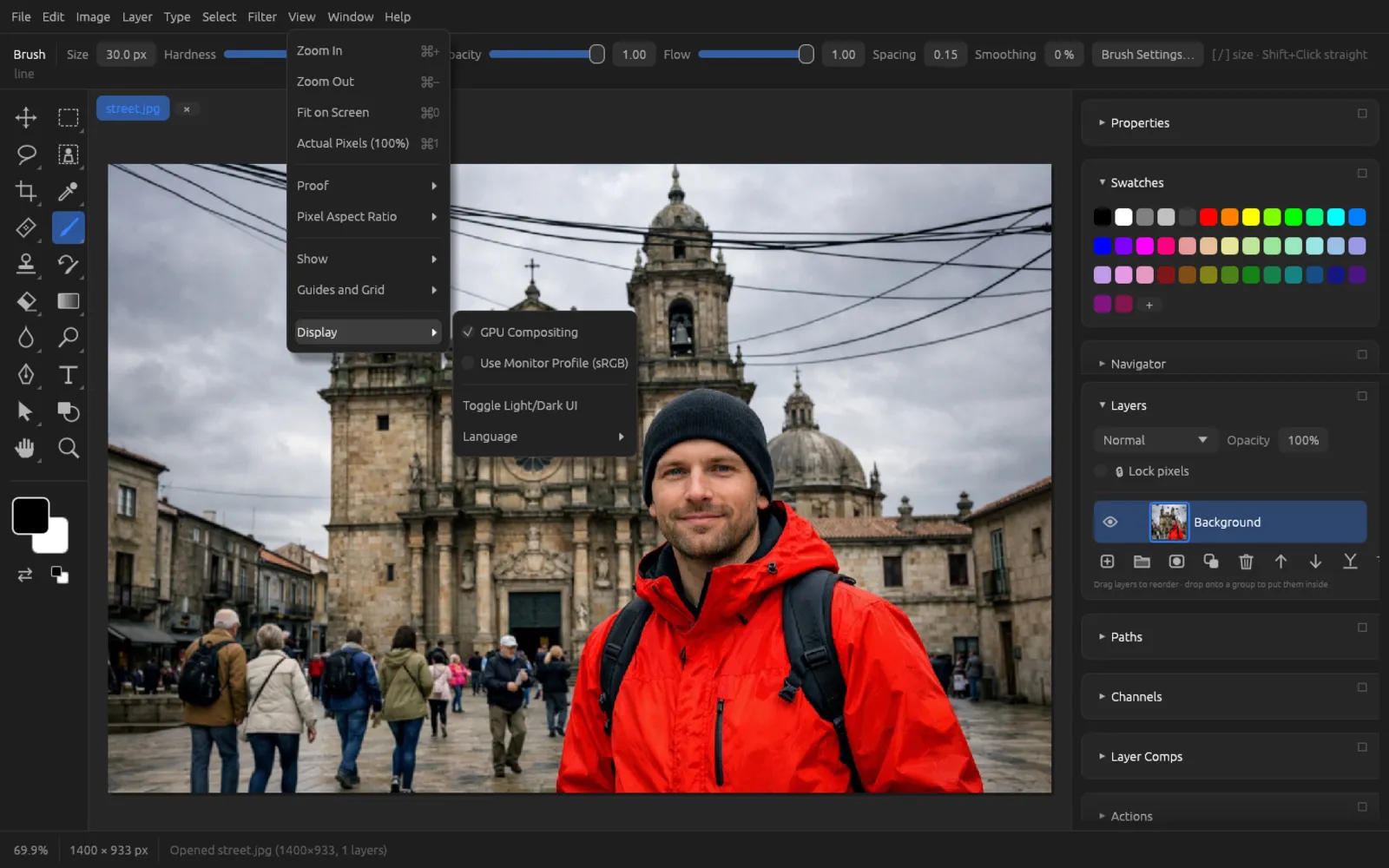
View › Display
GPU Compositing composites the canvas display on the graphics card (faster with many layers; if no suitable GPU is available, the entry is disabled and the CPU takes over). Use Monitor Profile shows the canvas in the colors of the monitor profile – the profile that was detected is shown in parentheses. You will also find Toggle Light/Dark UI and the Language here. The item belongs to color management and is described in the chapter Color, RAW & HDR.
Rulers, guides and grid
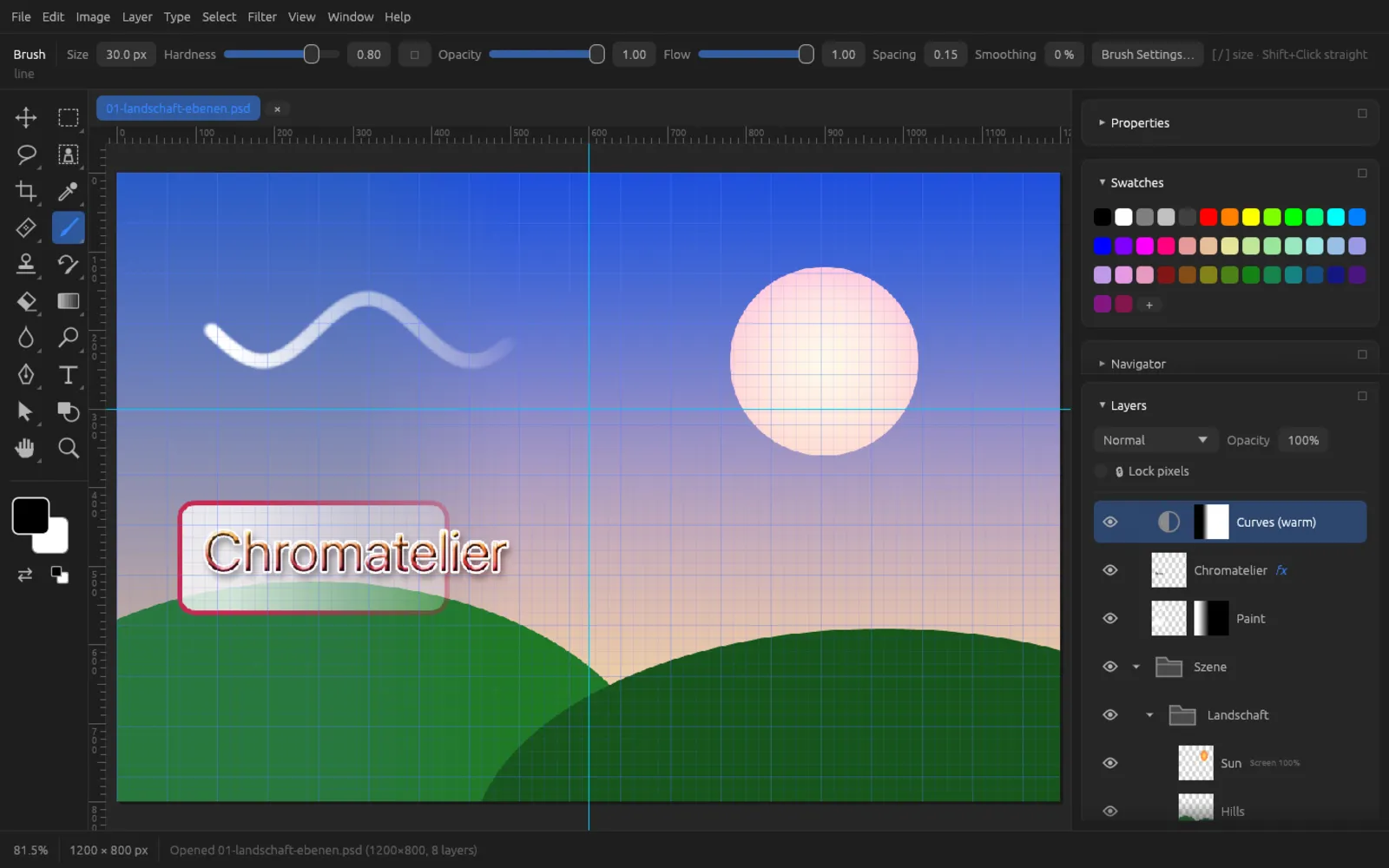
Rulers (⌘ R) appear along the top and left of the canvas and show pixel coordinates.
Guides are non-printing lines for aligning things:
- Drag a horizontal guide into the image from the top ruler, a vertical one from the left ruler.
- With the Move tool (V) you move an existing guide; if you drag it back onto a ruler, it is deleted.
- places a guide precisely: Horizontal or Vertical and the Position in pixels.
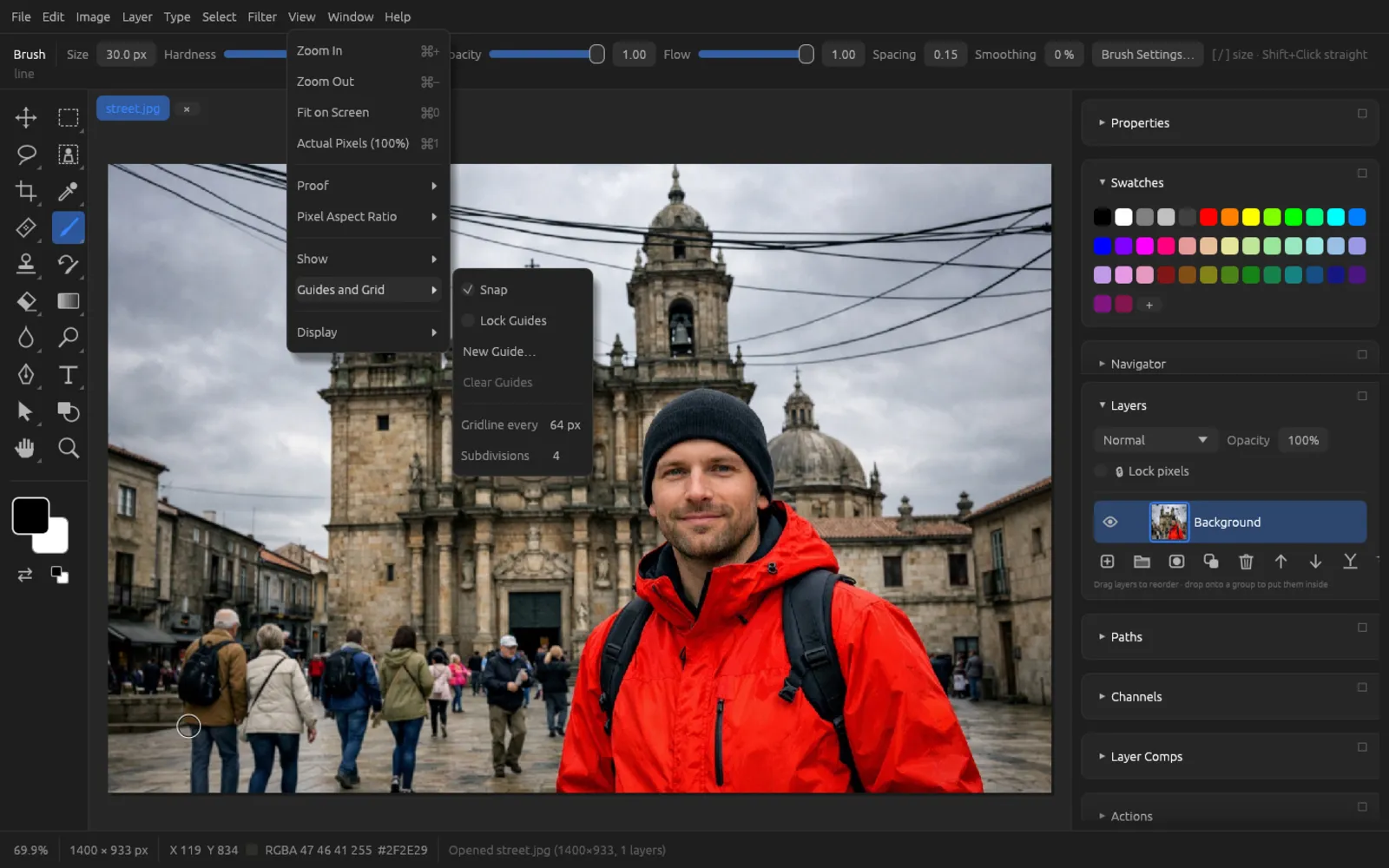
- Lock Guides (⌘ ⌥ ;) protects them from being moved accidentally, Clear Guides removes them all.
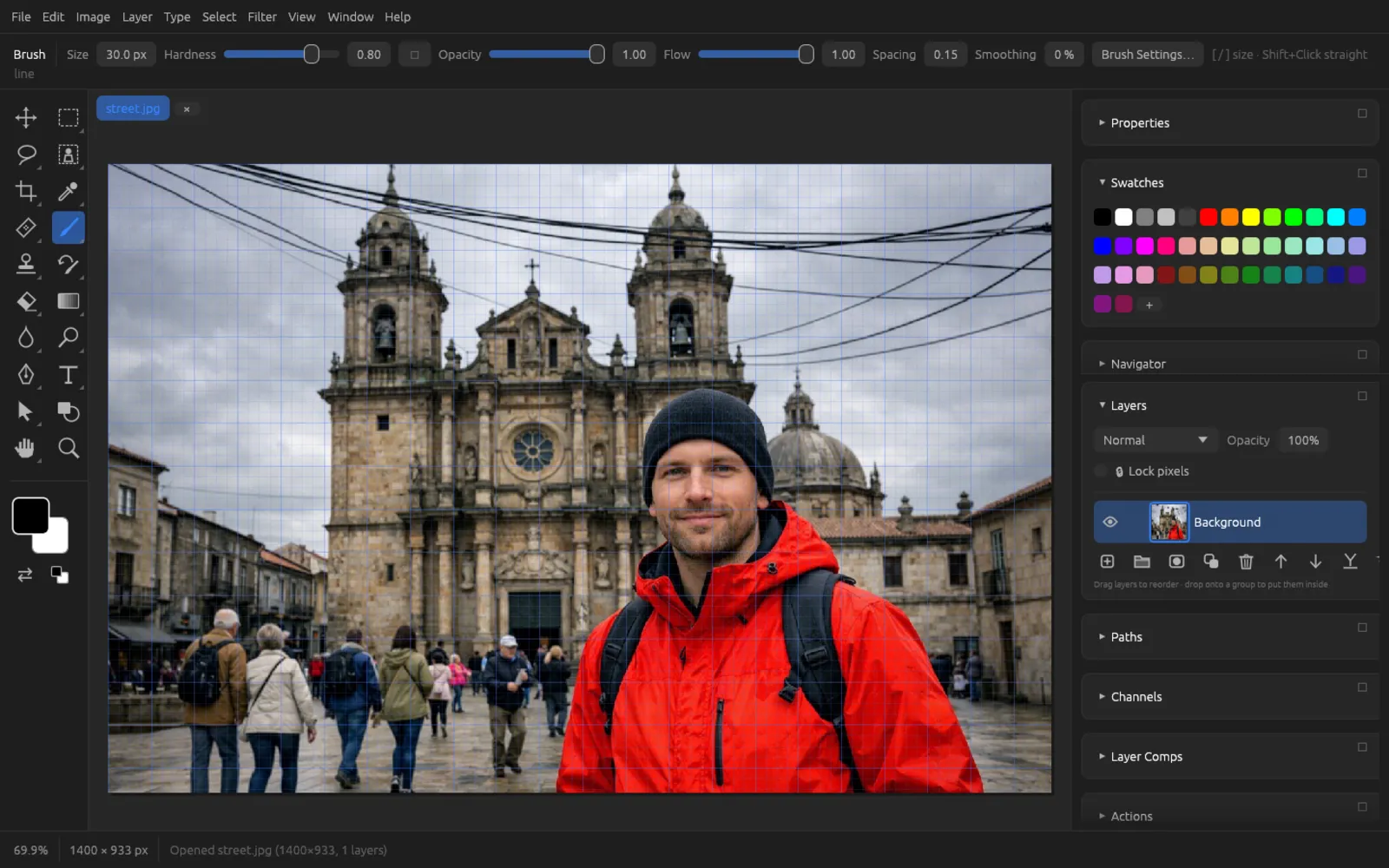
The grid (⌘ ') lays a grid over the image. You set the spacing of the main lines (Gridline every, 2 to 2000 px, default 64 px) and the Subdivisions (1 to 16, default 4) directly in the submenu or in the Preferences.
Snap (⌘ ⇧ ;) makes selections, layers, shapes and guides snap to guides, visible grid lines and the edges and center of the canvas while you drag. Hold down ⌘ while dragging to suspend snapping briefly.
For precise measuring there are the Ruler tool and the measurement scale – see Tools.
Keyboard shortcuts
(⌘ ⌥ ⇧ K) lists every menu command with its path and its shortcut. The Search field helps you find a command quickly. Under Tools and other keys you'll find the fixed shortcuts for tools, brush size and so on.
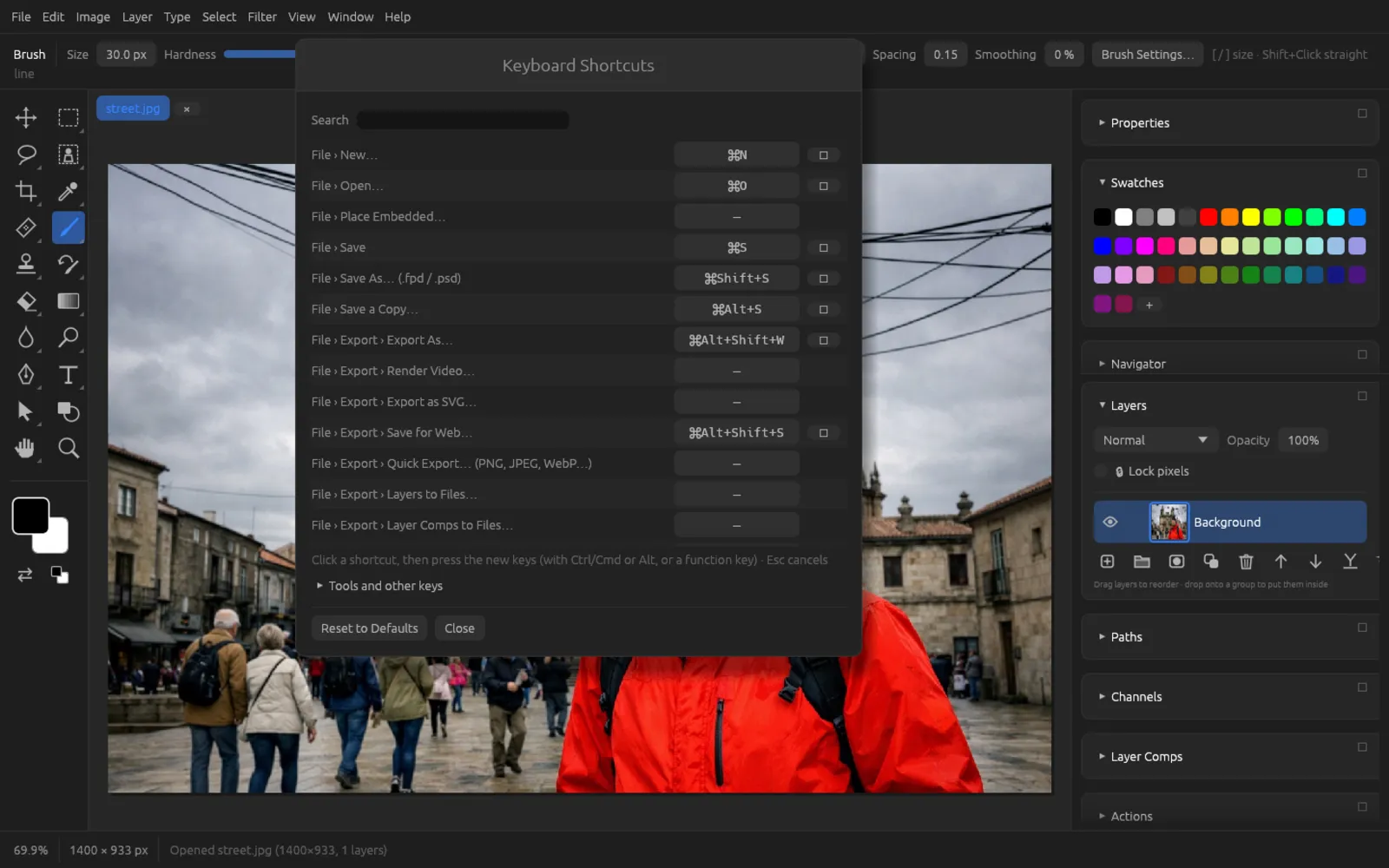
Assigning a shortcut of your own
- Open .
- Type part of the command name into Search, for example “Gaussian”.
- In the command's row, click the shortcut field (a dash “—” means: no shortcut yet). It shows Press keys….
- Press the new combination. It must contain ⌘ or ⌥, or be a function key (F1–F12). Esc cancels.
- If the combination was already assigned, Chromatelier takes it away from the other command and reports this below the list (“… was taken from …”).
- The ✕ after a shortcut removes it. Reset to Defaults restores all shortcuts. Close closes the dialog; your changes stay saved.
The most important shortcuts
| Shortcut | Command |
|---|---|
| ⌘ N / O / S / W | New / Open / Save / Close |
| ⌘ ⇧ S · ⌘ ⌥ S | Save As · Save a Copy |
| ⌘ ⌥ ⇧ W · ⌘ ⌥ ⇧ S | Export As · Save for Web |
| ⌘ Z · ⌘ ⇧ Z | Undo · Redo |
| ⌘ K | Preferences |
| ⌘ + / - / 0 / 1 | Zoom In / Zoom Out / Fit on Screen / 100% |
| ⌘ R · ⌘ ; · ⌘ ' | Rulers · Guides · Grid |
| F5 · F6 · F7 · F8 | Brush Settings · Color · Layers · Info |
| [ / ] | Decrease / increase brush size |
| 1 … 0 | Tool opacity 10 … 100% |
| D · X | Default colors · Swap colors |
| Hold Space | Temporarily the Hand tool |
Preferences
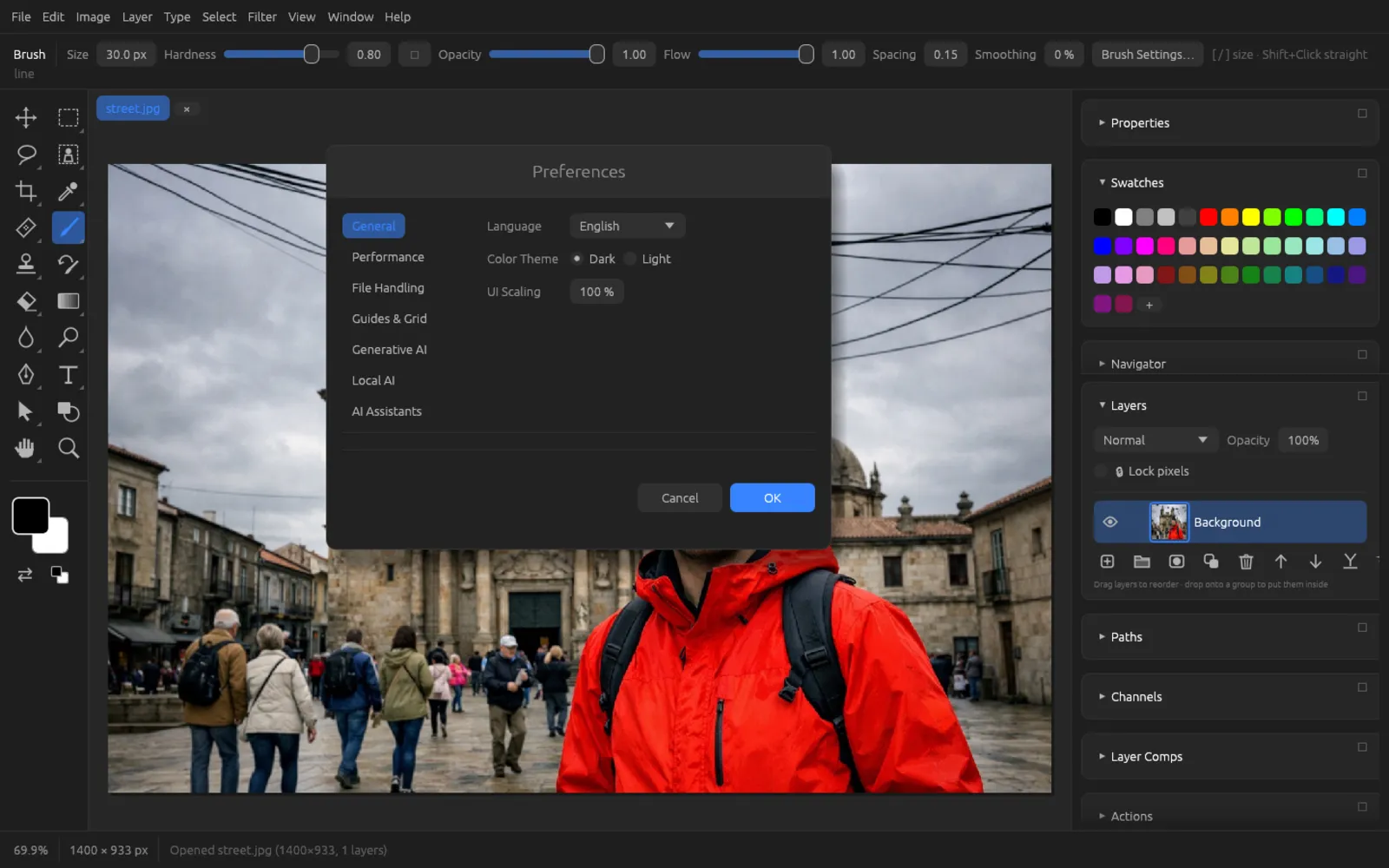
(⌘ K) opens the program's settings. On the left you choose one of seven tabs; changes take effect after OK and stay saved for future starts. Cancel discards them.
General
- Language: Deutsch, English, Français or Español.
- Color Theme: Dark or Light.
- UI Scaling: 50 to 300%.
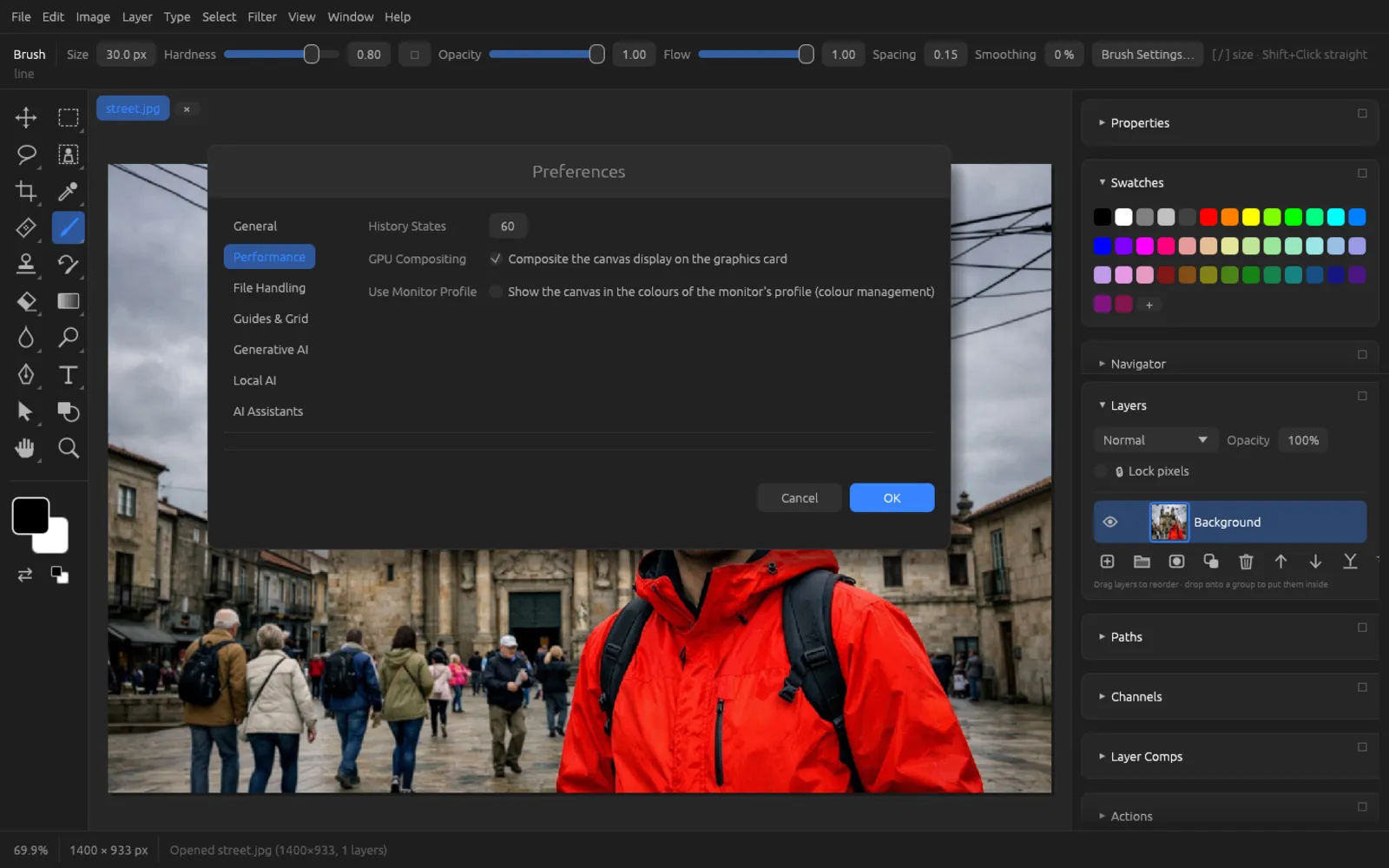
Performance
- History States: how many steps Undo remembers (2 to 1000, default 60). More steps need more memory.
- GPU Compositing: composite the canvas display on the graphics card.
- Use Monitor Profile: show the canvas in the colors of the monitor profile (color management for the display).
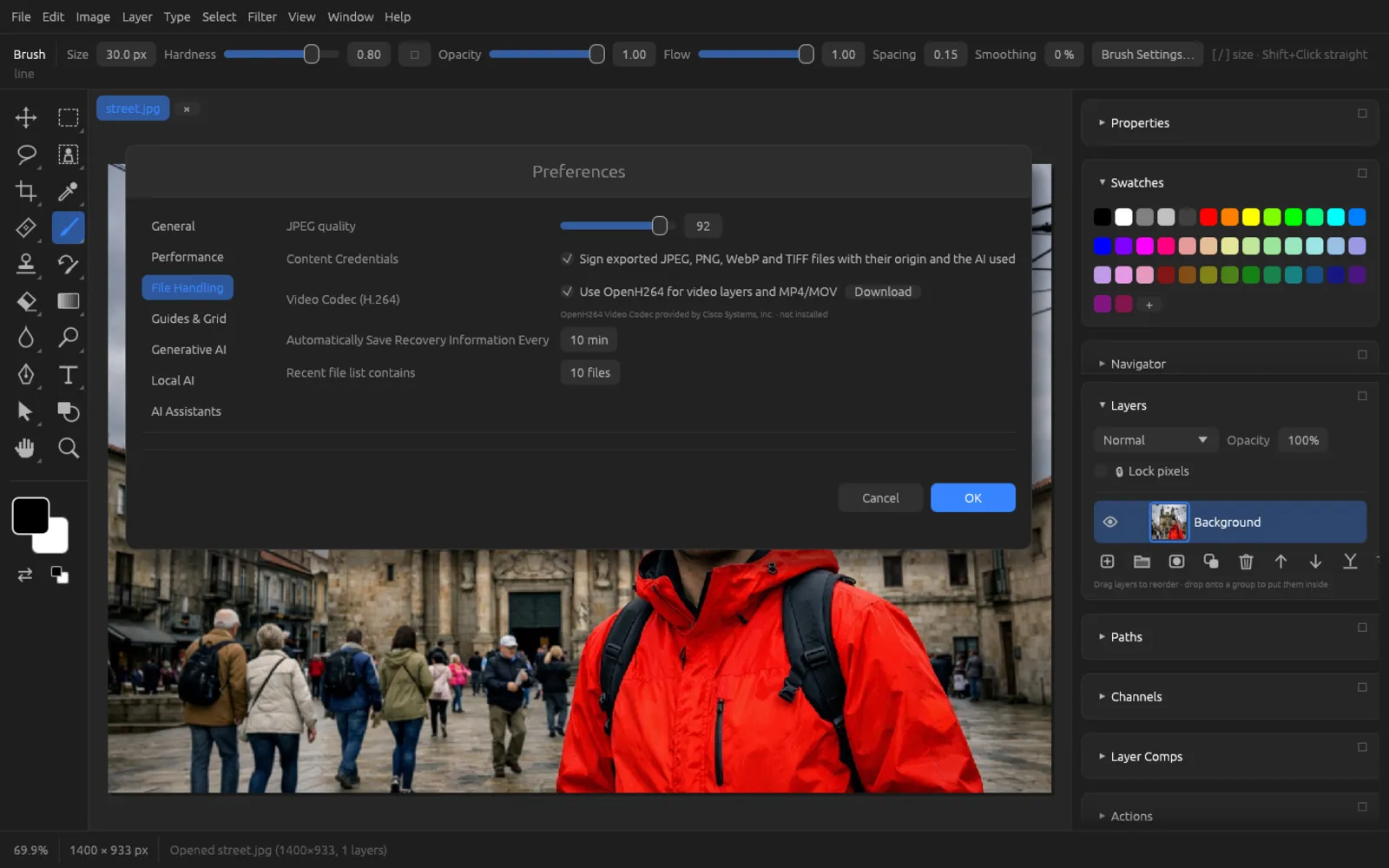
File Handling
- JPEG quality (10 to 100): the quality for Quick Export and for saving as JPEG. The same slider is also under .
- Content Credentials: sign exported JPEG, PNG, WebP and TIFF files with their origin and the AI that was used (see Content Credentials).
- Video Codec (H.264): use OpenH264 for video layers and MP4/MOV. The codec is downloaded from Cisco when needed; the Download and Remove buttons control this, and below them you can see whether it is installed.
- Automatically Save Recovery Information Every: 0 to 120 minutes (0 = off), see Getting Started.
- Recent file list contains: 0 to 30 files.
Guides & Grid
- Gridline every (2 to 2000 px) and Subdivisions (1 to 16).
- Snap: turn snapping to guides, grid and edges on or off.
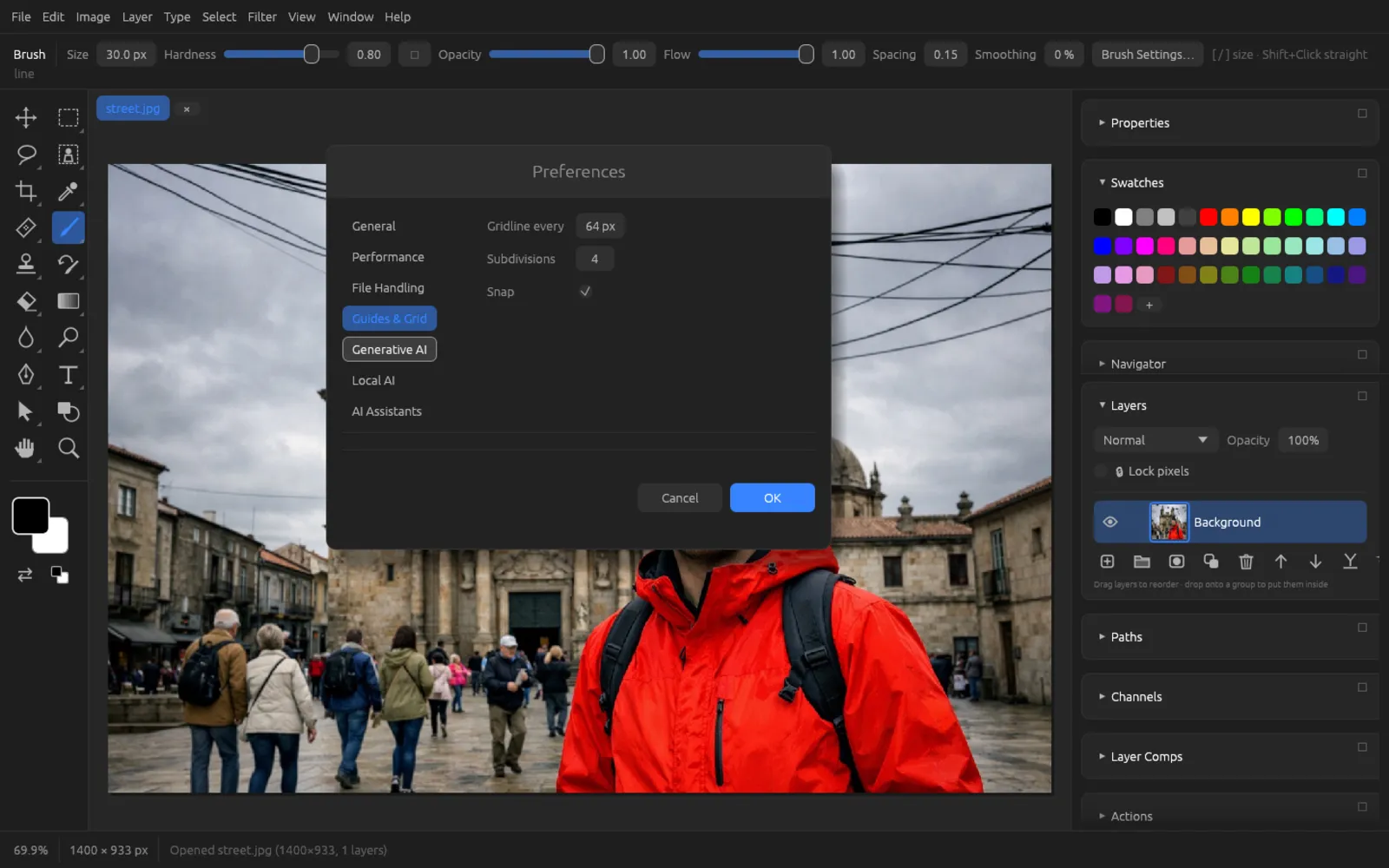
Generative AI, Local AI and AI Assistants
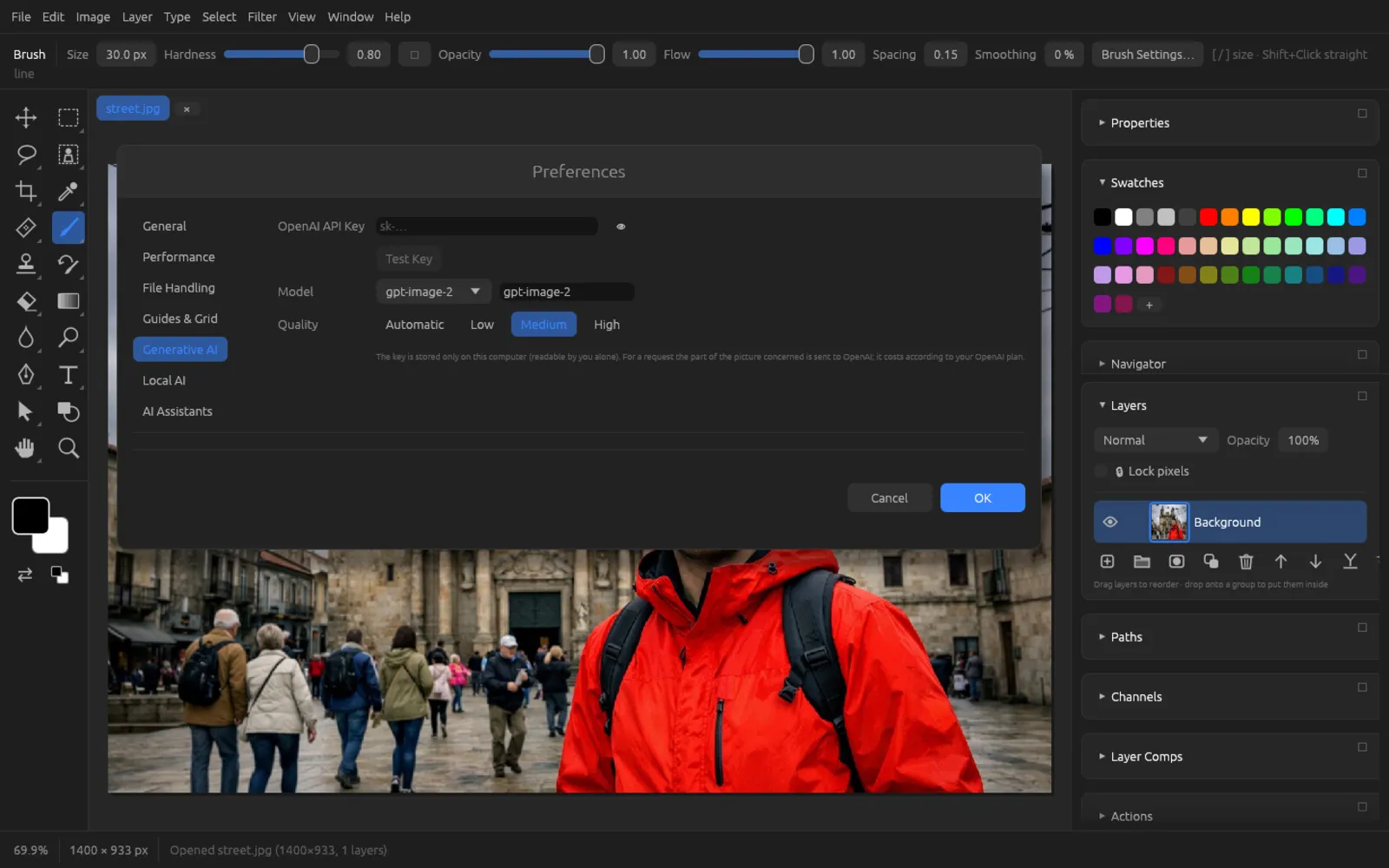
- Generative AI: your OpenAI API key (stored only on this computer, with Test Key), the Model and the Quality (Automatic, Low, Medium, High). Covered in detail in the chapter Generative AI.
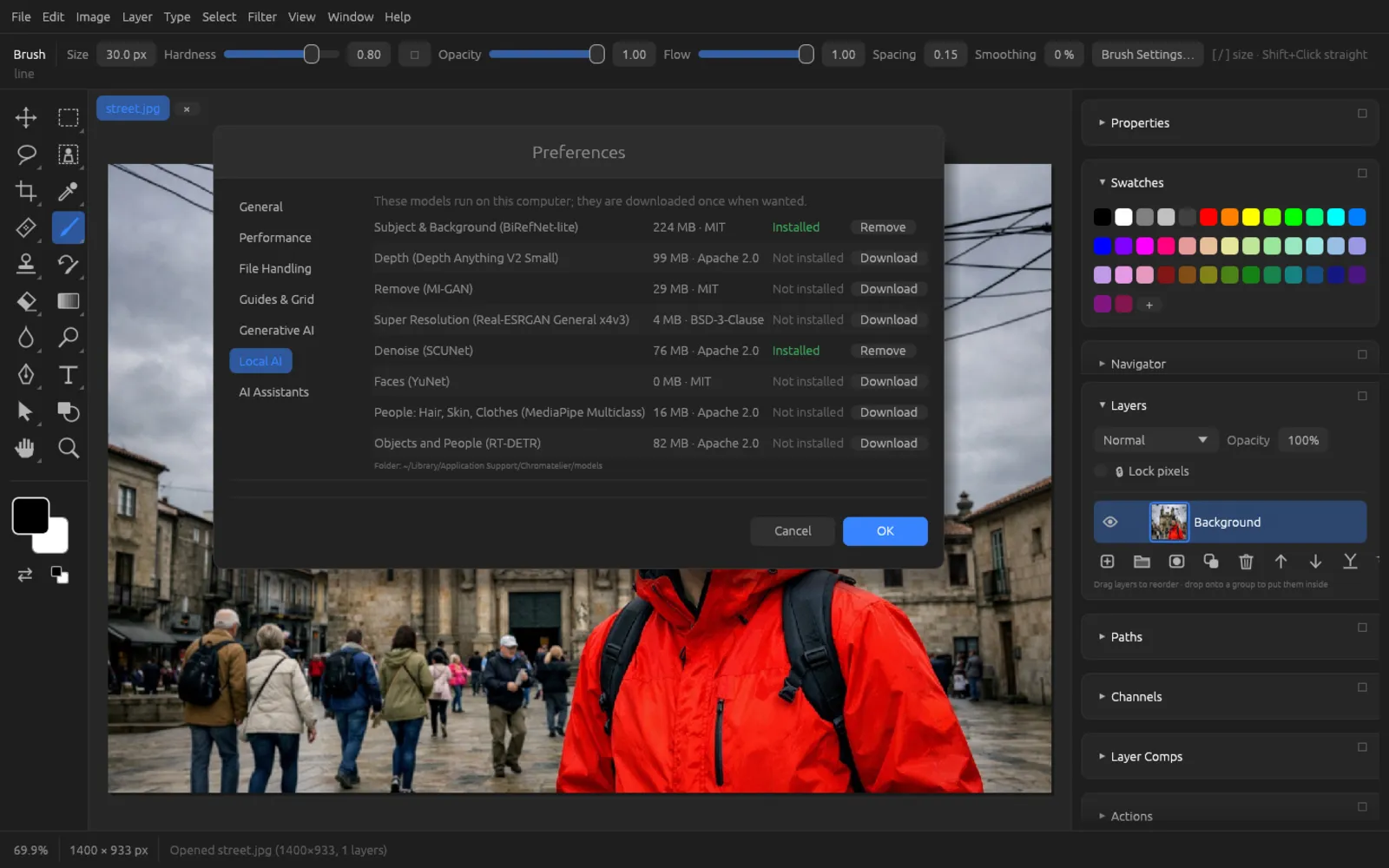
- Local AI: the AI models that run on your computer, with size, license and status; Download or Remove them one by one. See AI on Your Computer.
- AI Assistants: the MCP server through which AI assistants are allowed to control Chromatelier, with port and access token. See Automation.