Tools
The toolbar on the left contains 58 tools in 20 groups. Here you'll learn what each tool is for, which options the options bar shows for it, and how to use it with clicks, drags and modifier keys.
Choosing and setting up tools
Each button in the toolbar stands for a group of related tools. A click selects the tool of the group you used last. You reach the other tools with a right-click on the button: a list with all the tools in the group and their shortcuts drops down.
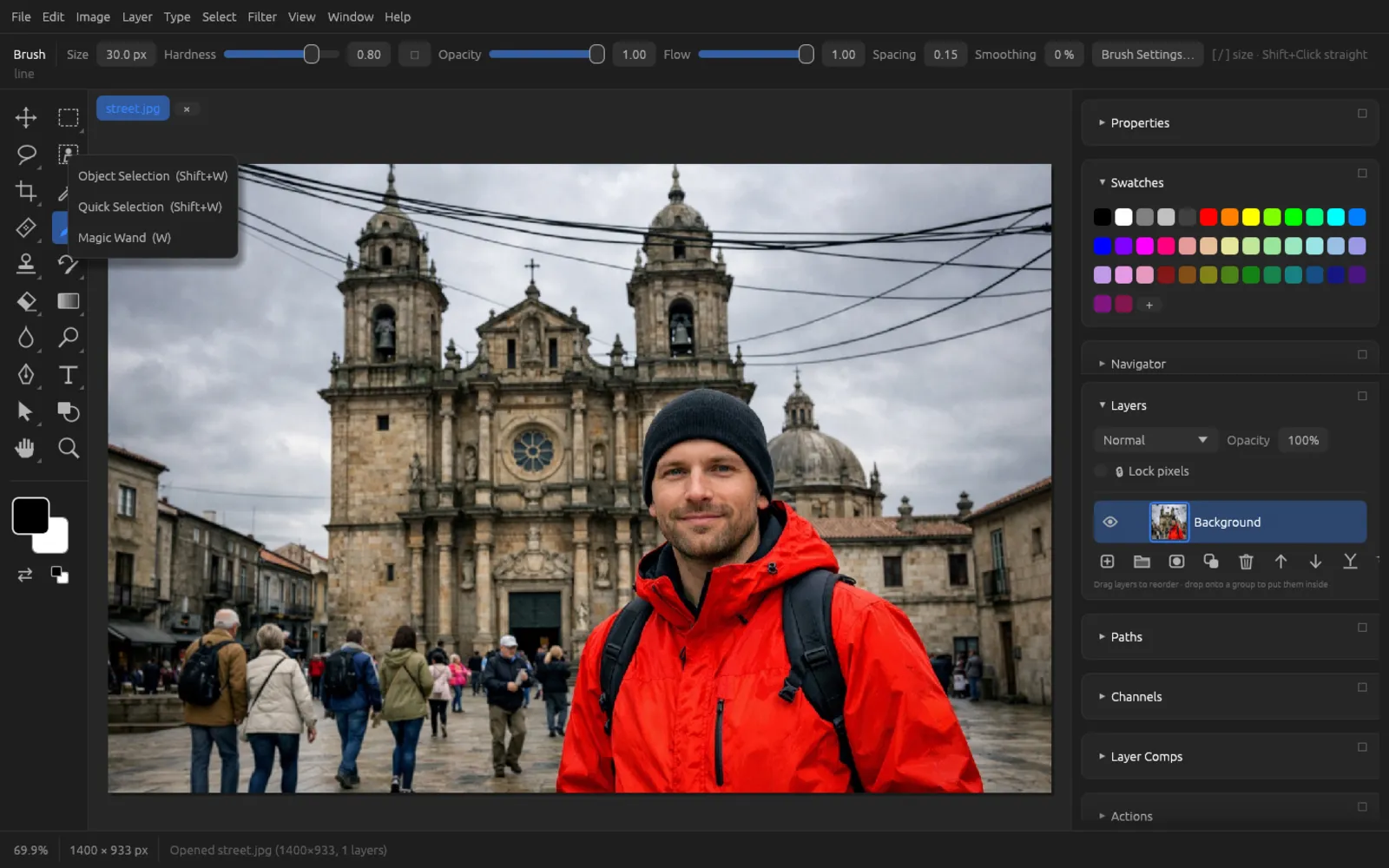
Above the canvas is the options bar. It shows the name of the active tool on the left, followed by its settings. To the right of these, a short usage hint appears in gray text – it's worth a look when you use a tool for the first time.
Keyboard shortcuts
- A letter selects the main tool of its group, e.g. B the Brush.
- ⇧ + letter selects the second tool in the group; if a tool of the group is already active, it cycles to the next one (e.g. ⇧ M through all the marquees).
- ⌥ J selects the Patch tool directly, ⌥ O the Sponge.
- [ and ] make the tool tip smaller and larger.
- The number keys 1 … 9 set the opacity to 10 … 90%, 0 to 100%.
- D resets the foreground and background colors to black and white, X swaps them, Q turns the Quick Mask view on and off (see Selections).
- Holding down the Space bar lets you pan the view with any tool.
All tools at a glance
| Group | Tools | Shortcut |
|---|---|---|
| Move | Move | V |
| Marquees | Rectangular Marquee, Elliptical Marquee, Single Row Marquee, Single Column Marquee | M, ⇧ M |
| Lasso | Lasso, Polygonal Lasso, Magnetic Lasso | L, ⇧ L |
| Selection by content | Object Selection, Quick Selection, Magic Wand | W, ⇧ W |
| Crop | Crop, Perspective Crop, Slice; plus Frame | C, ⇧ C; Frame K |
| Measuring | Eyedropper, Ruler, Count, Note | I, ⇧ I |
| Healing | Spot Healing Brush, Remove (AI), Healing Brush, Patch, Content-Aware Move, Red Eye | J, ⇧ J, ⌥ J |
| Painting | Brush, Pencil, Color Replacement, Mixer Brush, Adjustment Brush | B, ⇧ B; Pencil N |
| Stamps | Clone Stamp, Pattern Stamp | S, ⇧ S |
| History | History Brush, Art History Brush | Y, ⇧ Y |
| Erasers | Eraser, Background Eraser, Magic Eraser | E, ⇧ E |
| Fill | Gradient, Paint Bucket | Paint Bucket G, Gradient ⇧ G |
| Sharpness | Blur Brush, Sharpen, Smudge | R, ⇧ R |
| Exposure | Dodge, Burn, Sponge | O, ⇧ O, ⌥ O |
| Pens | Pen, Freeform Pen, Curvature Pen | P, ⇧ P |
| Type | Type, Vertical Type, Horizontal and Vertical Type Mask | T, ⇧ T |
| Path selection | Path Selection, Direct Selection | A, ⇧ A |
| Shape | Shape (rectangle, rounded rectangle, ellipse, polygon/star, line) | U |
| View | Hand, Rotate View | H, ⇧ H |
| Zoom | Zoom | Z |
Move
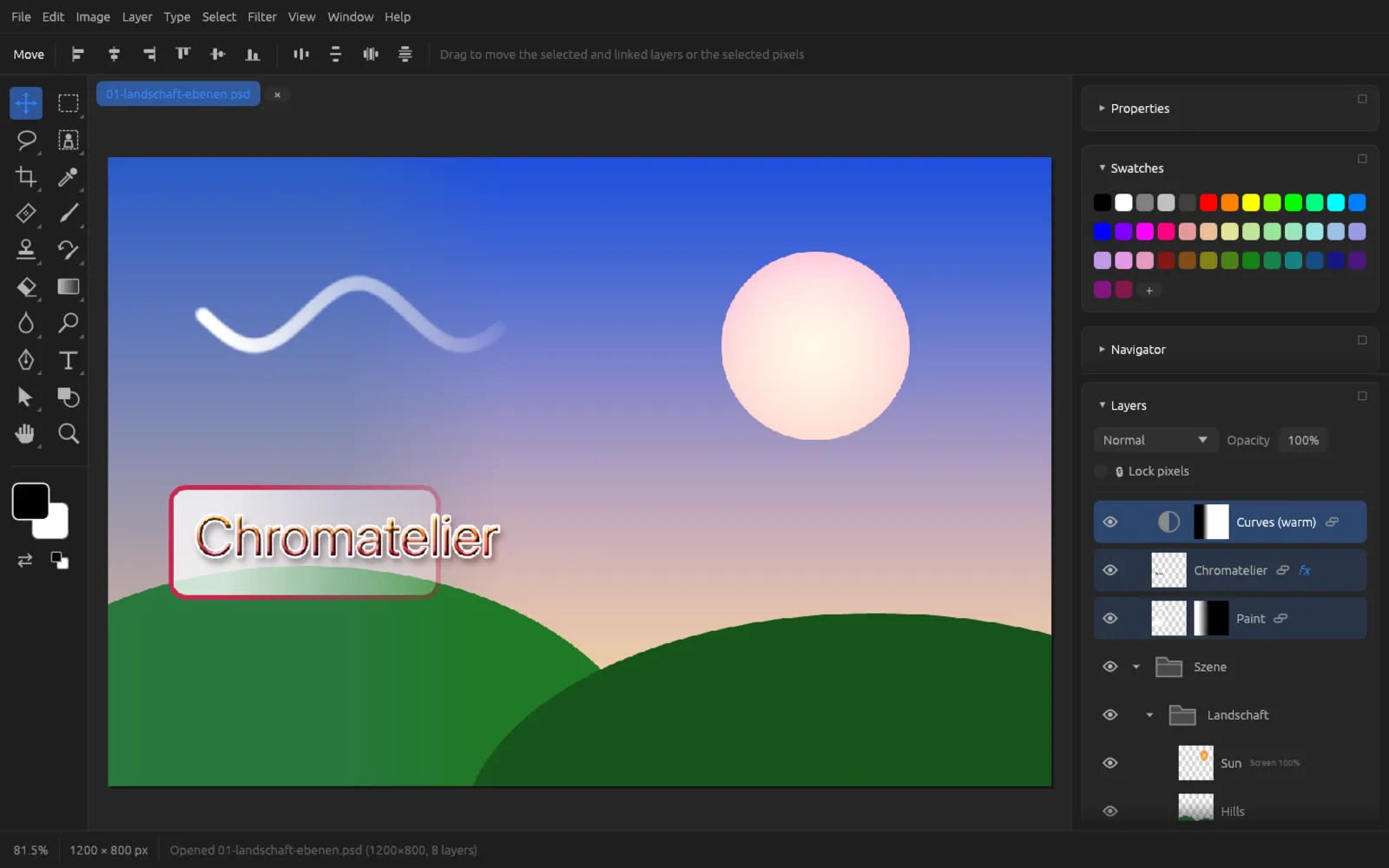
The Move tool (V) moves the selected and linked layers. If there is a selection, it moves only the selected pixels. Layer masks move along with their layers, and a selected group moves all its layers. Type, shape and Smart Object layers are always moved as a whole.
- Dragging moves; holding ⇧ while dragging keeps the movement horizontal or vertical.
- Holding ⌥ while dragging (without a selection) moves copies of the layers; the originals stay where they are.
- If guides are shown and not locked, you move them with this tool.
The options bar contains buttons for aligning the selected layers (left, center, right, top, middle, bottom) and for distributing them (horizontal and vertical centers, horizontal and vertical spacing). More on this in the chapter Layers.
Selection tools
The selection tools are explained in detail in the chapter Selections. Here is a summary of how to use them.
All marquee, lasso and Magic Wand tools have the buttons New, Add, Subtract and Intersect in the options bar, plus the Feather field (0–250 px). Instead of using the buttons, you can also hold keys: ⇧ adds, ⌥ subtracts.
Rectangular Marquee and Elliptical Marquee
Drag out a rectangle or an ellipse. The Single Row and Single Column tools select, with one click, a row one pixel high or a column one pixel wide across the whole image.
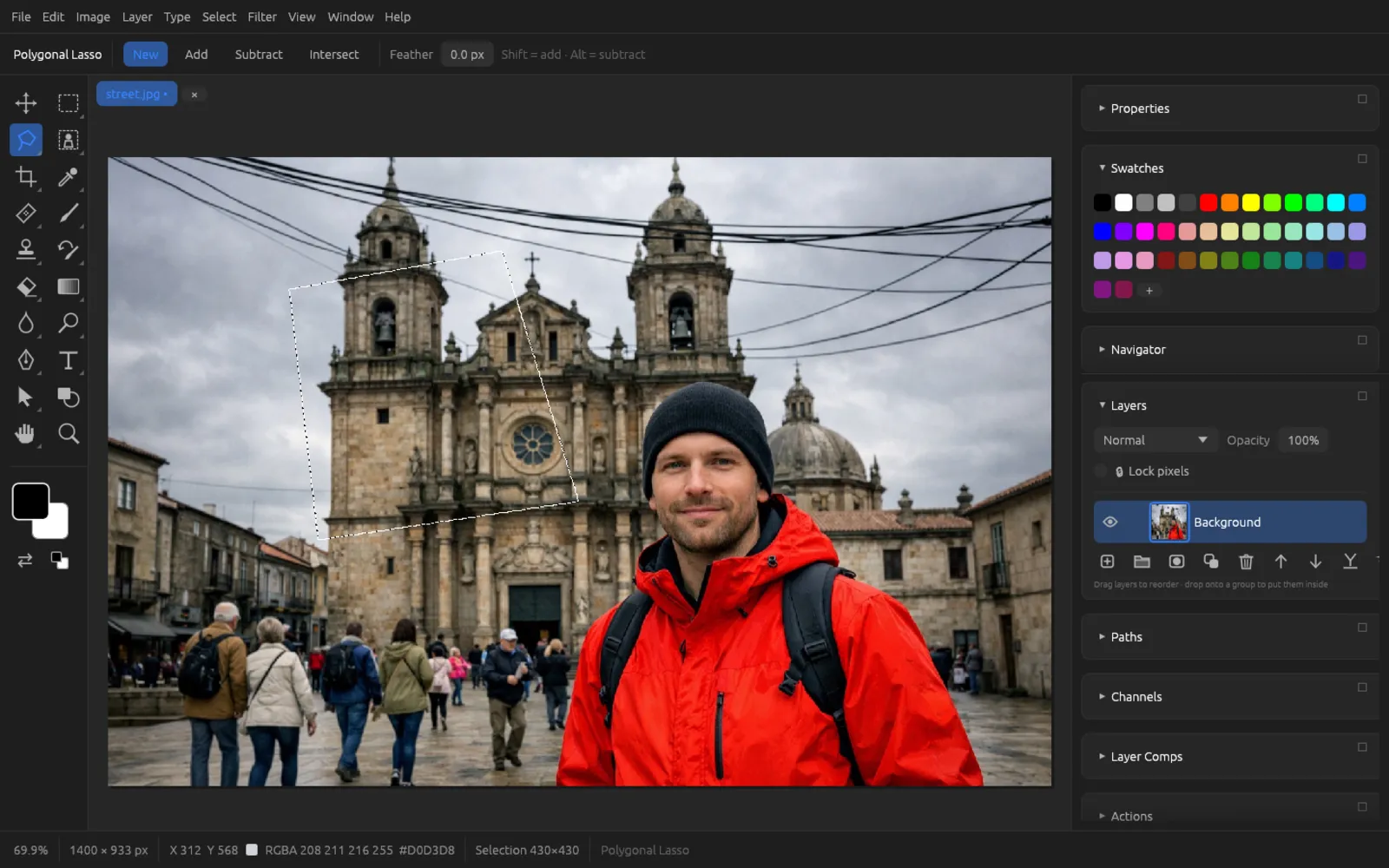
Lasso, Polygonal Lasso and Magnetic Lasso
- Lasso: Drag freely around the area you want; when you release, the shape closes.
- Polygonal Lasso: Each click sets a corner; the edges between them are straight.
- Magnetic Lasso: Click on the edge of an object and guide the pointer along it; the line follows the strongest edge nearby.
With the Polygonal and Magnetic Lasso, Return closes the shape, ⌫ takes back the last corner and Esc discards the outline.
Object Selection, Quick Selection and Magic Wand
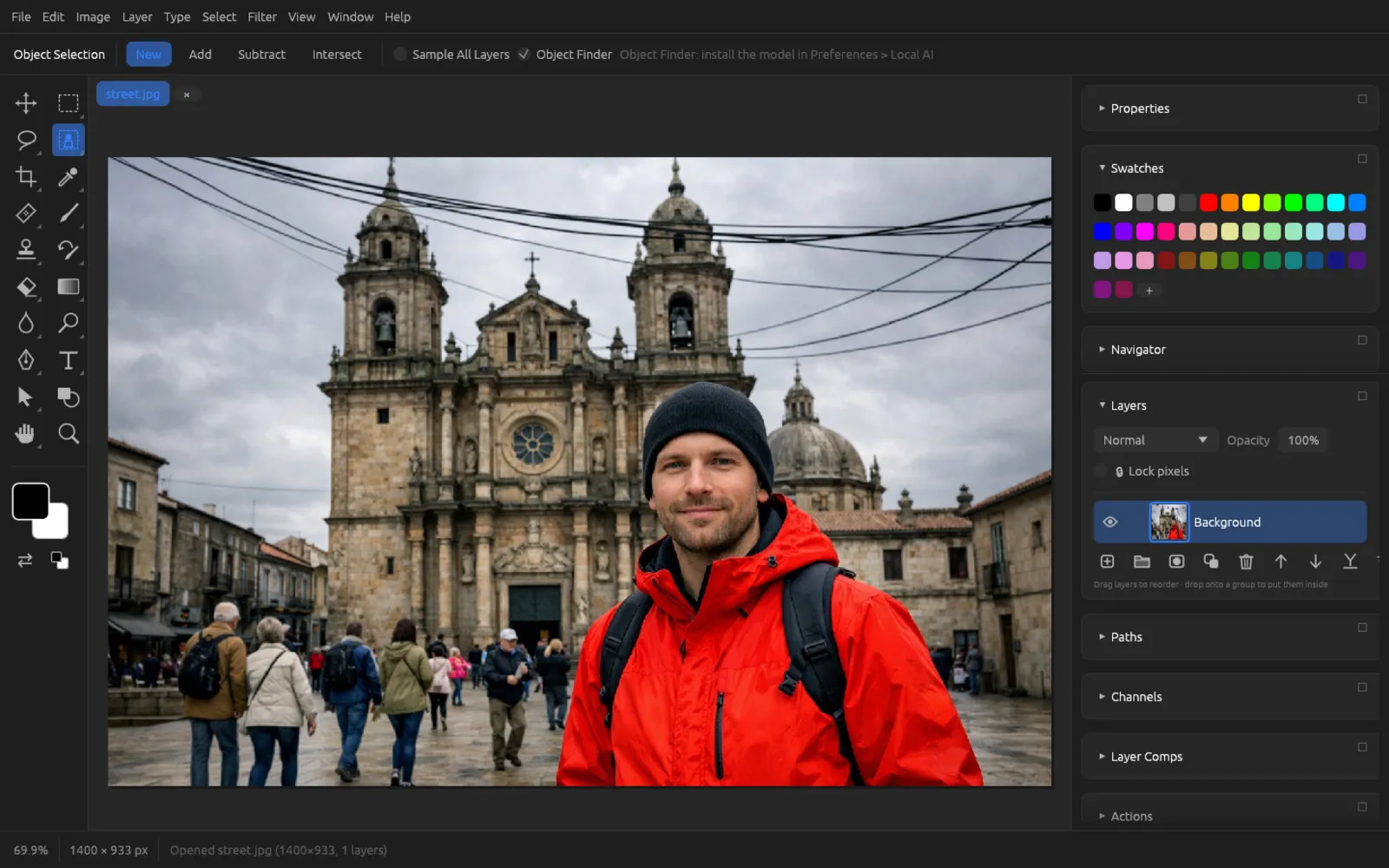
- Object Selection: Drag a rectangle around an object; Chromatelier selects the object inside it. With the Object Finder option, a local AI model outlines the objects it recognizes, and a click selects one of them (you install the model under Preferences › Local AI, see AI on Your Computer). Sample All Layers takes the whole image into account instead of only the active layer.
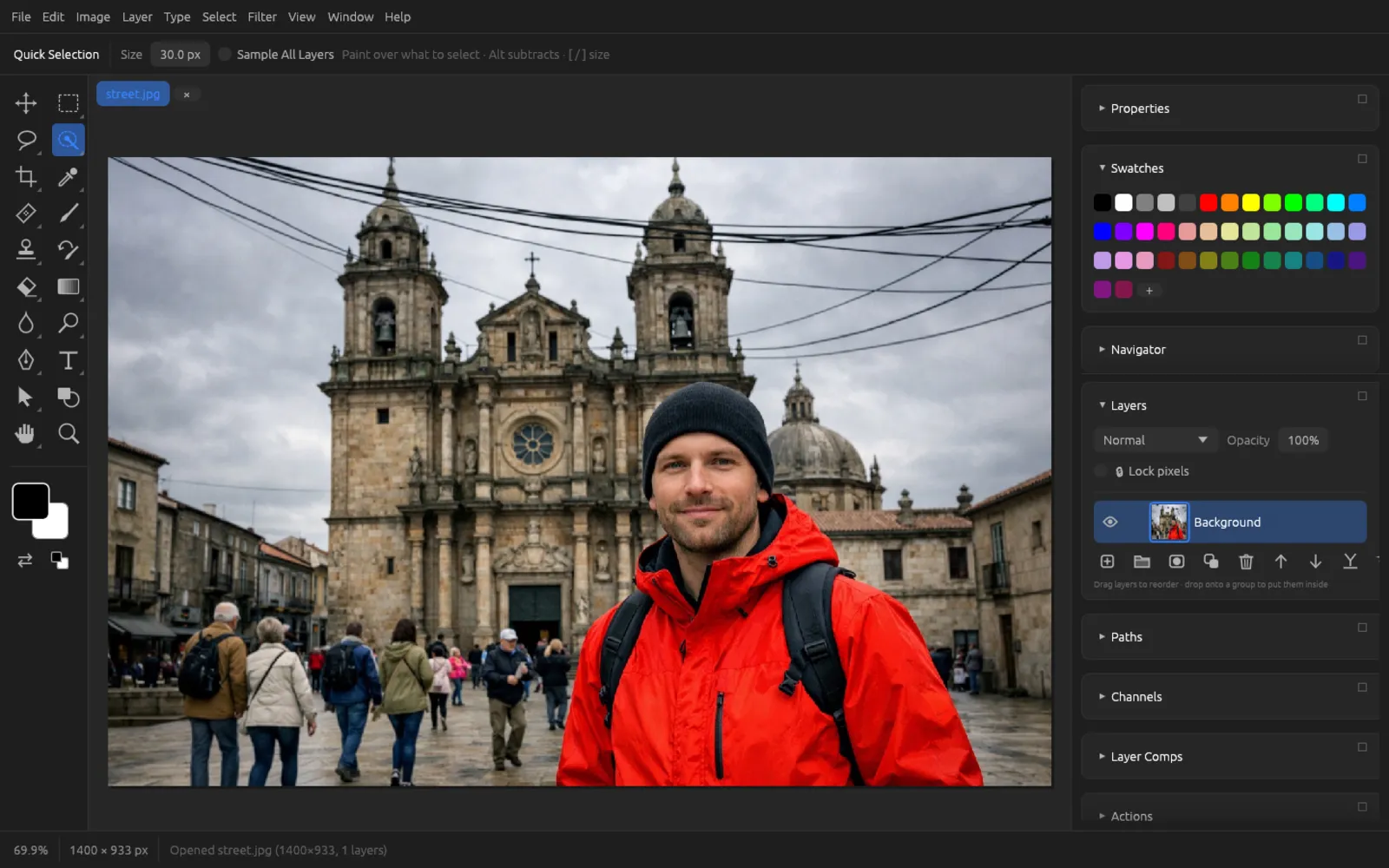
- Quick Selection: Paint over the area; the selection grows to similar colors and stops at edges. ⌥ subtracts. You set the Size in the options bar or with [ / ].
- Magic Wand: A click selects similar colors. Tolerance (0–255) determines how similar; Contiguous limits the selection to connected pixels; Sample All Layers reads the composite image.
Crop, Slice and Frame
Crop
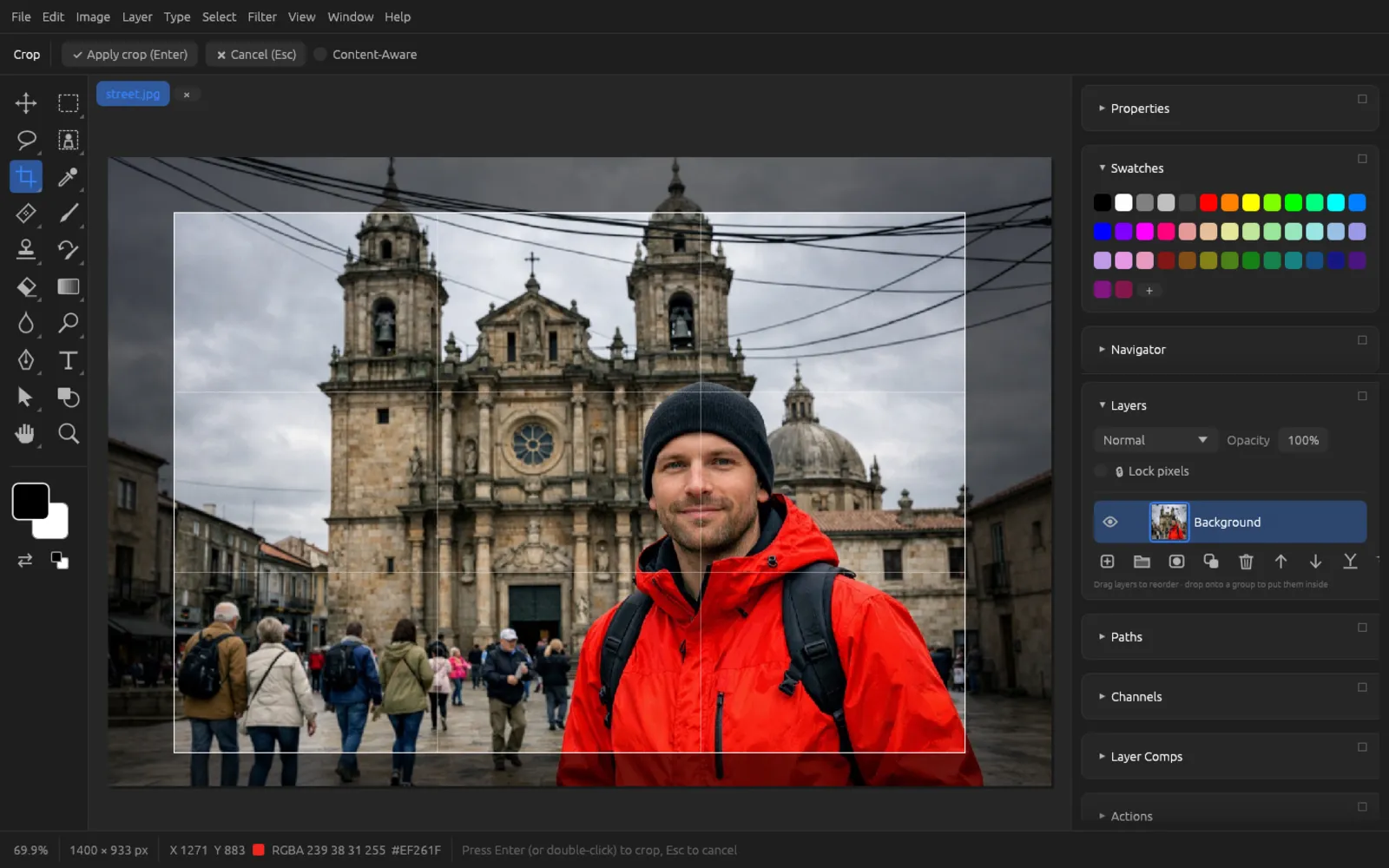
With the Crop tool (C) you drag out the area you want to keep. Outside it, the image is darkened. Holding ⇧ while dragging forces a square. You apply the crop with Return, a double-click inside the frame or the ✔ Apply crop (Enter) button; Esc or ✖ Cancel (Esc) discards it.
When Content-Aware is turned on, you may drag the frame beyond the edge of the image (up to twice the image size). The new edges are then filled in from the image.
Straightening and cropping a photo
- Choose the Ruler tool (⇧ I, or right-click the Eyedropper).
- Drag a line along an edge that should be horizontal (or vertical), such as the horizon or a cornice. The options bar shows the angle A and the length L.
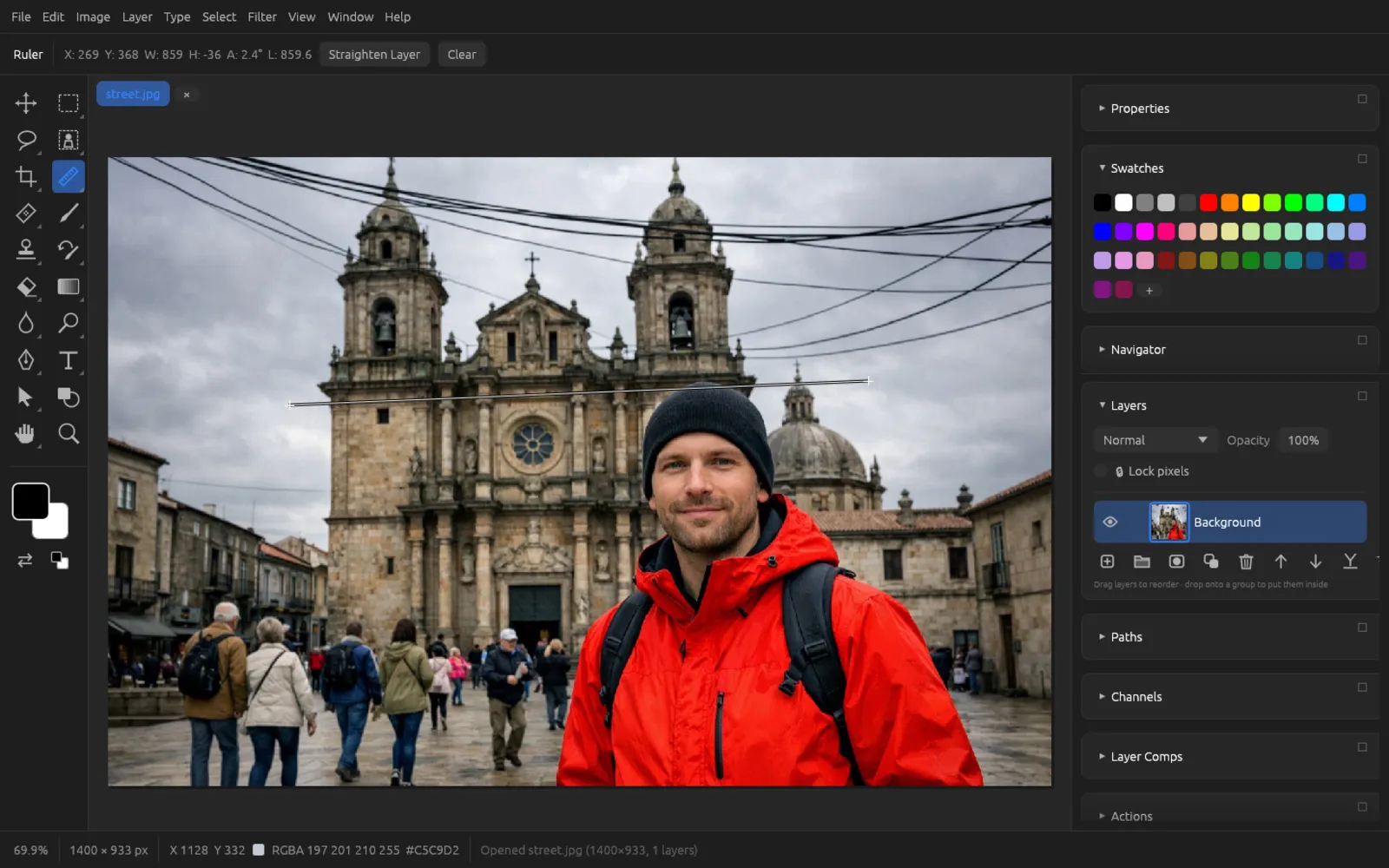
The measuring line and its values in the options bar. - Click Straighten Layer. The layer rotates so that the line is horizontal or vertical.
- Choose the Crop tool (C) and drag a frame inside the image so that no empty corners remain in it. Alternatively, turn on Content-Aware and let the corners be filled in.
- Press Return.
Perspective Crop
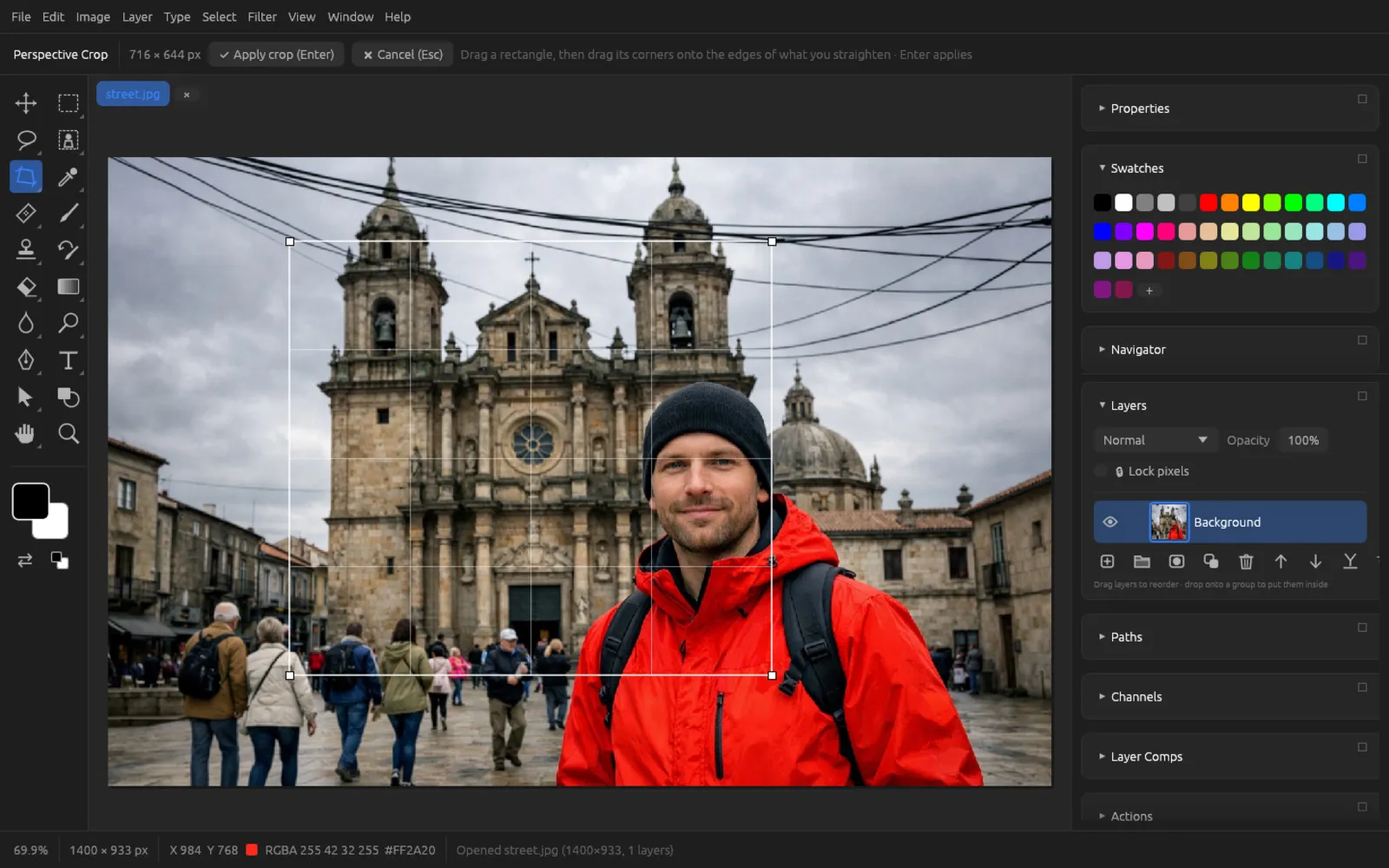
This tool straightens a rectangle photographed at an angle – a sign, a picture on the wall, a facade. First drag out a rectangle, then drag its four corners onto the corners of the object. A grid shows the perspective. The options bar gives the size of the result in pixels; Return applies, Esc cancels.
Slice
The Slice tool divides the image into pieces for the web. Drag a rectangle for each slice; ⌥-click deletes the slice under the pointer. The options bar shows the number of slices, creates a grid from the existing guides with Slices From Guides and removes all of them with Clear Slices. then writes one file per slice (see Saving, Export & Printing).
Frame
The Frame tool (K) draws placeholders that you put an image into later. In the options bar choose Rectangular Frame or Elliptical Frame and drag it out. An image goes inside when you drag a file onto the frame, or when you choose with the frame active. More commands are under (see Layers).
Eyedropper, Ruler, Count and Note
| Tool | How to use it | Options bar |
|---|---|---|
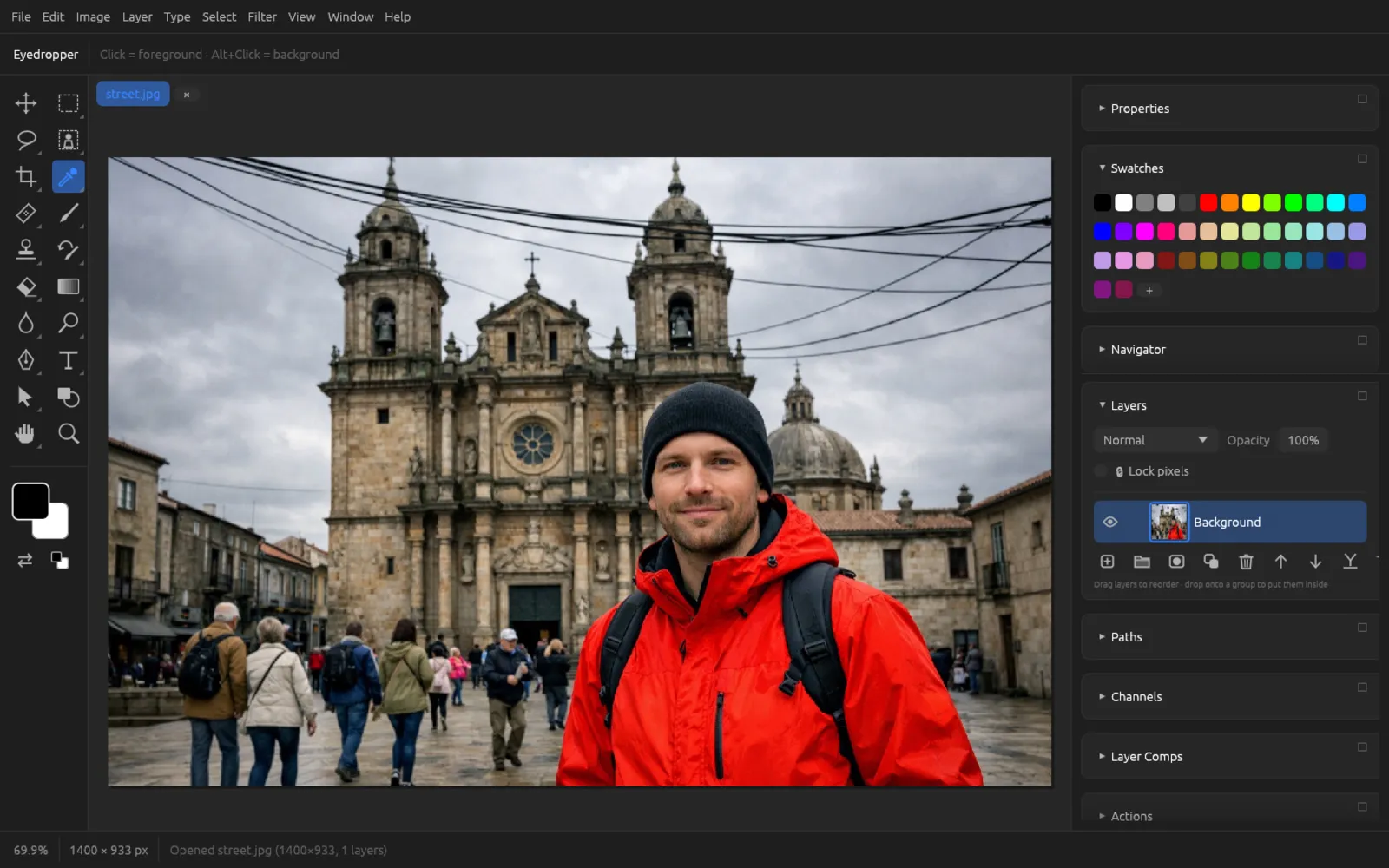
| Eyedropper | A click (or drag) picks up the foreground color, ⌥-click the background color. | only the hint |
| Ruler | Dragging measures distance and angle, with ⇧ in 45° steps. | X, Y, W, H, angle A, length L (in the scale's unit if a measurement scale is set); Straighten Layer, Clear |
| Count | Each click places a numbered marker, ⌥-click removes the nearest one. | Number of markers, Clear |
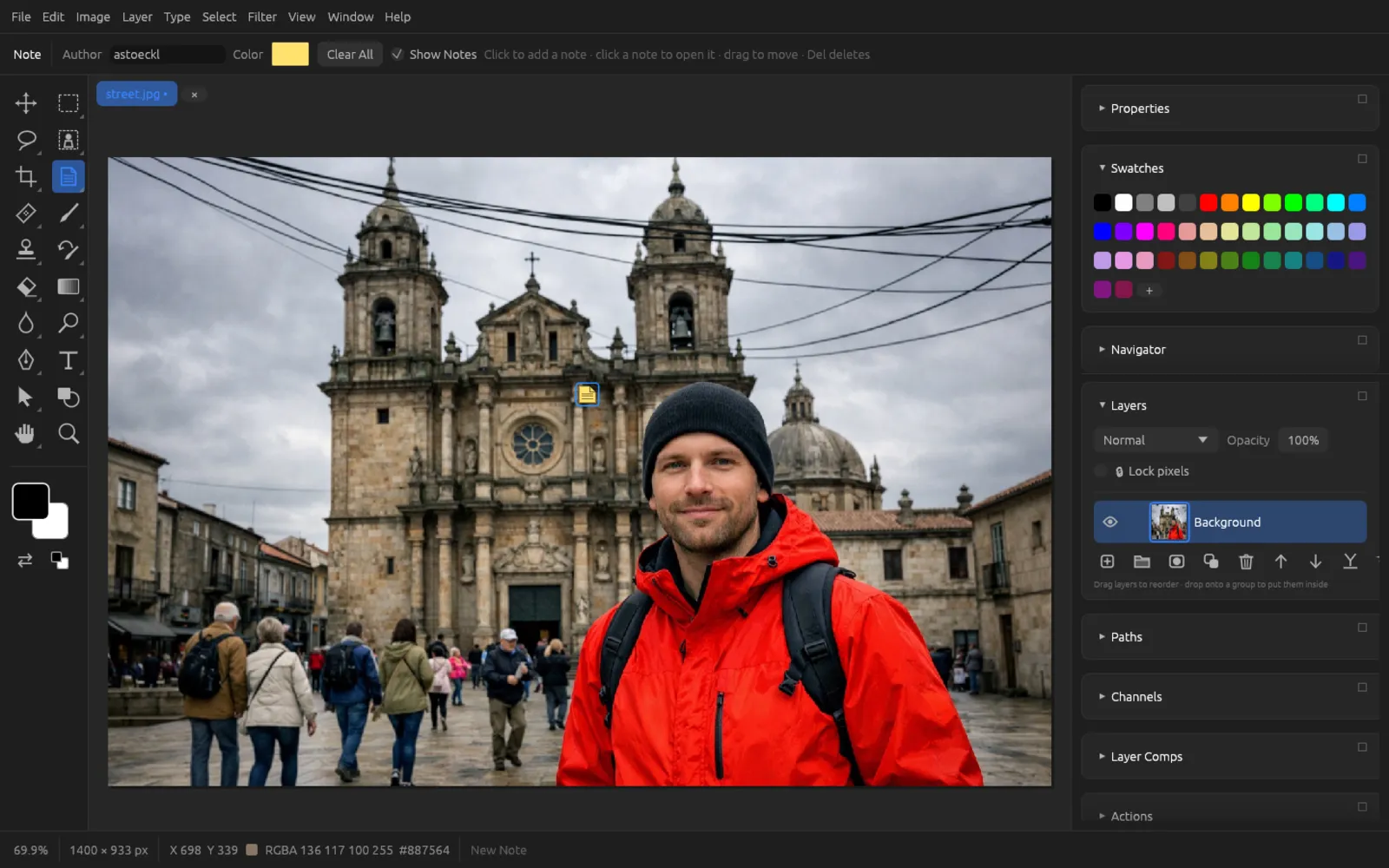
| Note | A click places a note, clicking a note opens it, dragging moves it, ⌫ deletes the open note. | Author, Color, Clear All, Show Notes |
You write the text of a note in the panel; there you can also page between the notes with ◀ and ▶. The measurement scale, scale markers and recording measurements are under .
The brush engine
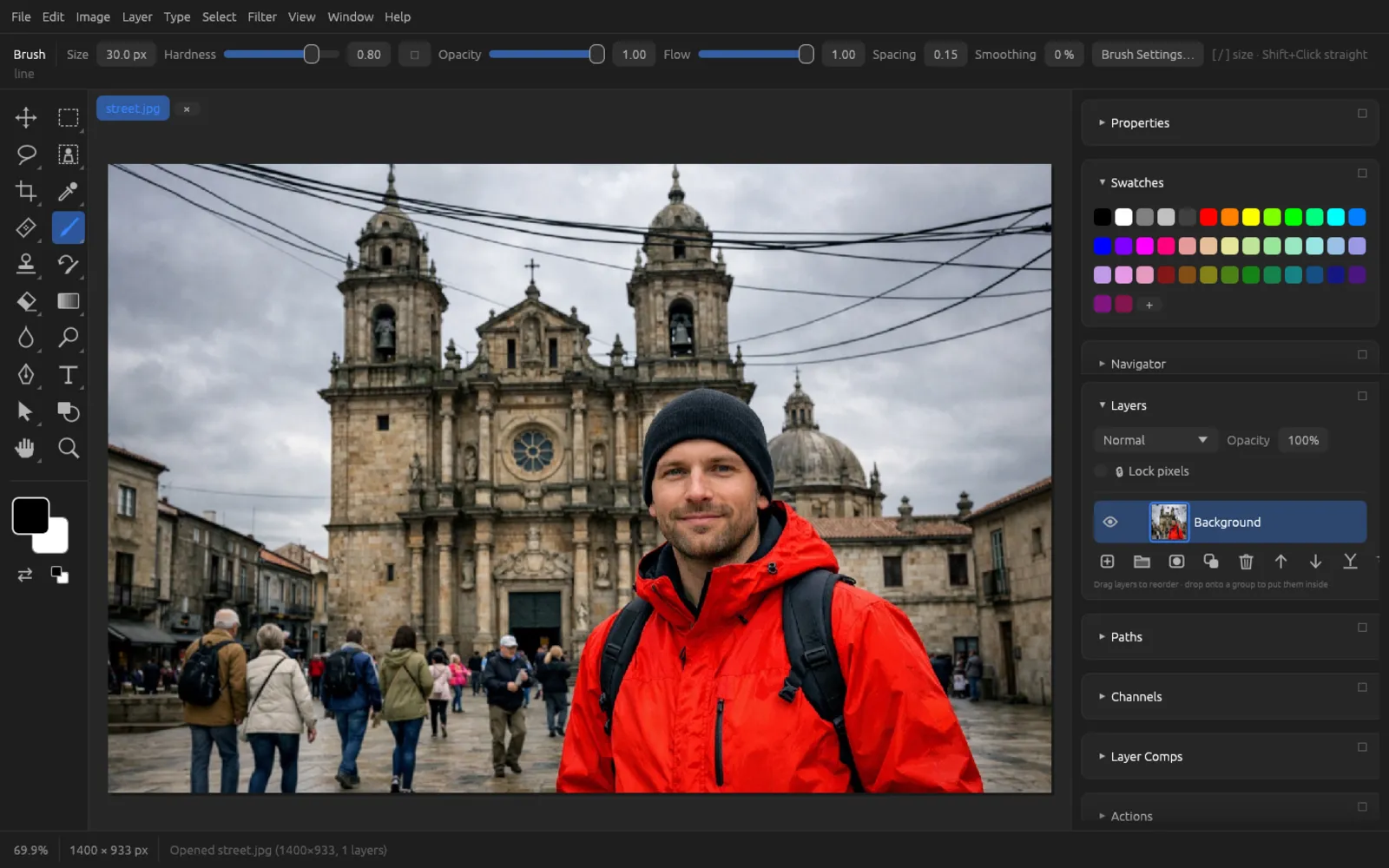
All the painting tools – Brush, Pencil, the erasers, the stamps, History Brush, the healing brushes, Blur Brush, Sharpen, Smudge, Dodge, Burn, Sponge and others – share the same brush engine and the same basic options in the options bar:
| Option | Meaning |
|---|---|
| Size | Diameter of the tip in pixels (1–2000 px). Also with [ and ]. |
| Hardness | 0 = soft edge, 1 = hard edge (not for the Pencil, which always paints hard). |
| Opacity | The maximum coverage of a stroke. Also with the number keys. |
| Flow | How much paint each dab applies; areas you paint over become denser (not for the Pencil and Smudge). |
| Spacing | The distance between dabs relative to the size. |
| Smoothing | 0–100%: steadies shaky strokes (Brush, Pencil, Eraser). |
| 🦋 Symmetry | Brush, Pencil and Eraser also paint mirrored: Off, Vertical, Horizontal, Dual Axis, Diagonal, Radial and Mandala (2–12 segments), each around the center of the image. |
| Brush Settings… | Opens the window with all the settings of the tip (F5). |
A ⇧-click connects the clicked point to the end of the last stroke with a straight line.
Brush Settings
You open the Brush Settings window with F5, the Brush Settings… button in the options bar, or via . At the bottom, a preview shows what a stroke looks like with the current settings.
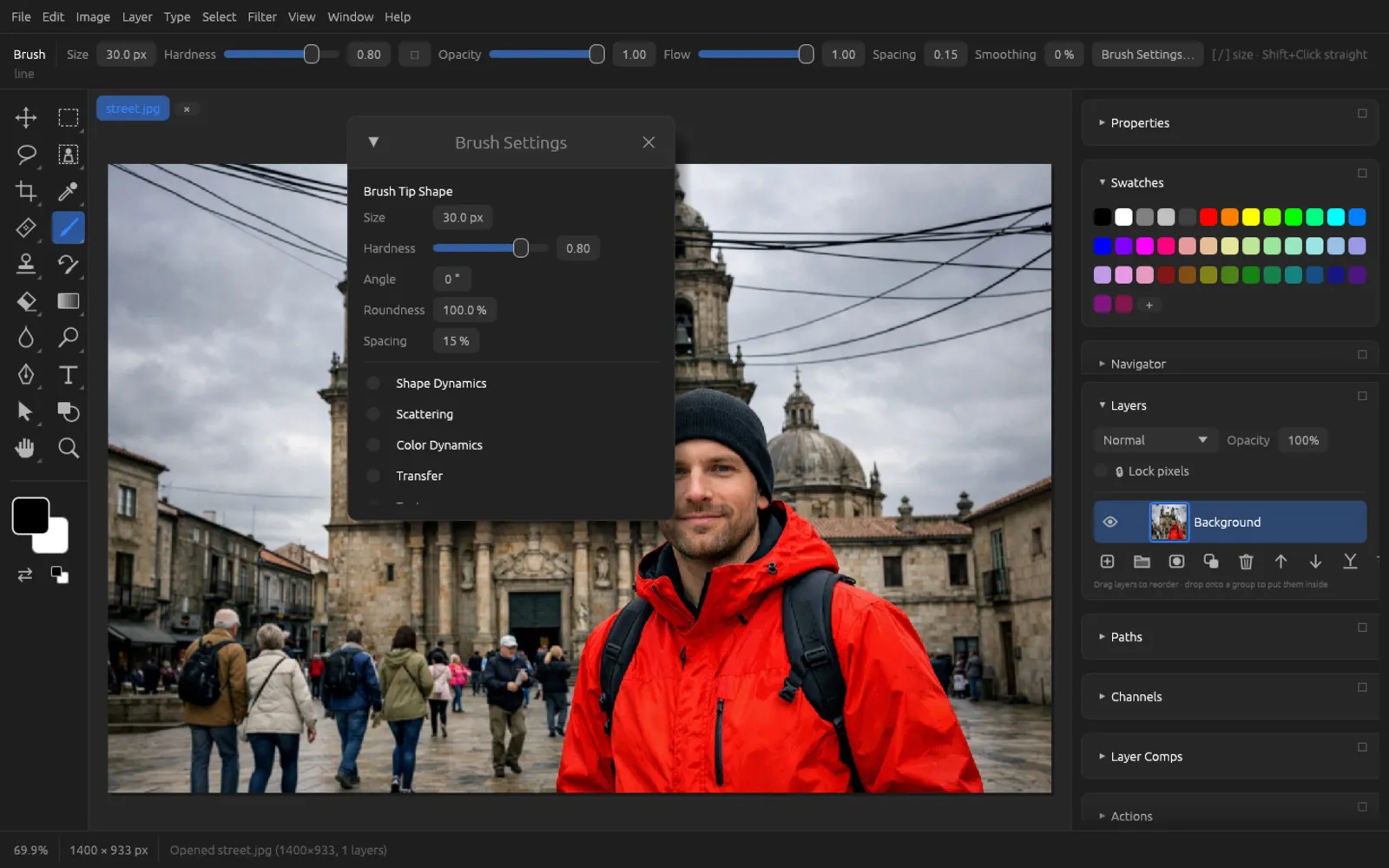
Brush Tip Shape: Size (up to 5000 px), Hardness (for a round tip), Angle (−180° to 180°), Roundness (1–100%) and Spacing (1–1000%). If a sampled tip is active, Use a round tip brings back the round one.
You switch the following sections on with the checkbox in front of their names:
| Section | Settings |
|---|---|
| Shape Dynamics | Size Jitter with Minimum Diameter, Angle Jitter, Roundness Jitter with Minimum Roundness, Flip X Jitter, Flip Y Jitter |
| Scattering | Scatter (0–1000%), Both Axes, Count (1–16), Count Jitter |
| Color Dynamics | Apply Per Tip, Foreground/Background Jitter, Hue, Saturation and Brightness Jitter |
| Transfer | Opacity Jitter, Flow Jitter |
| Texture | Pattern, Scale, Depth, Brightness, Contrast, Mode (Multiply or Subtract), Invert |
| Dual Brush | a second tip (Round or Current Tip) that masks the stroke: Size, Spacing, Scatter, Count, Both Axes |
| Wet Edges | the stroke is denser at its edges, like watercolor |
Each jitter value has a Control: Off, Pen Pressure, Fade (over a number of dabs you choose) and, for the angle, also Direction (the tip turns with the direction of the stroke).
Pressure sensitivity with a pen
With a graphics tablet or a pressure-sensitive pen, Chromatelier reads the pressure. With a mouse, every stroke paints at full pressure. You decide what the pressure controls in the Brush Settings: for Size Jitter, Opacity Jitter or Flow Jitter, set the Control to Pen Pressure. The presets Hard Round Pressure Size, Soft Round Pressure Opacity and Airbrush Soft are already set up this way.
Brush presets and ABR brushes
The panel shows the presets as stroke previews. A click makes a preset the current brush. Among the included presets are Hard Round, Soft Round, Calligraphic Flat, Chalk, Spatter, Scattered Leaves and Grass.
- New Preset saves the current brush with all its settings.
- Import… loads brushes from an
.abrfile; the status bar reports how many were added. - Settings… opens the Brush Settings.
- You delete presets of your own with a right-click › Delete Brush.
To create a brush tip of your own from the image, use : the selected area (or the whole image) becomes the tip, and dark pixels paint.
Using brushes from an ABR file
- Show the Brushes panel via .
- Click Import… and choose the
.abrfile. - The new brushes appear at the end of the list. Click one and paint with the Brush tool (B).
- If needed, adjust the size and spacing with F5 and save the result with New Preset.
Healing tools
The healing group (J) removes spots, distractions and red eyes. Other retouching commands such as Content-Aware Fill are described in the chapter Retouching & Transforming.
| Tool | Effect |
|---|---|
| Spot Healing Brush | Paint over a blemish; when you release, the stroke is filled from the surroundings. |
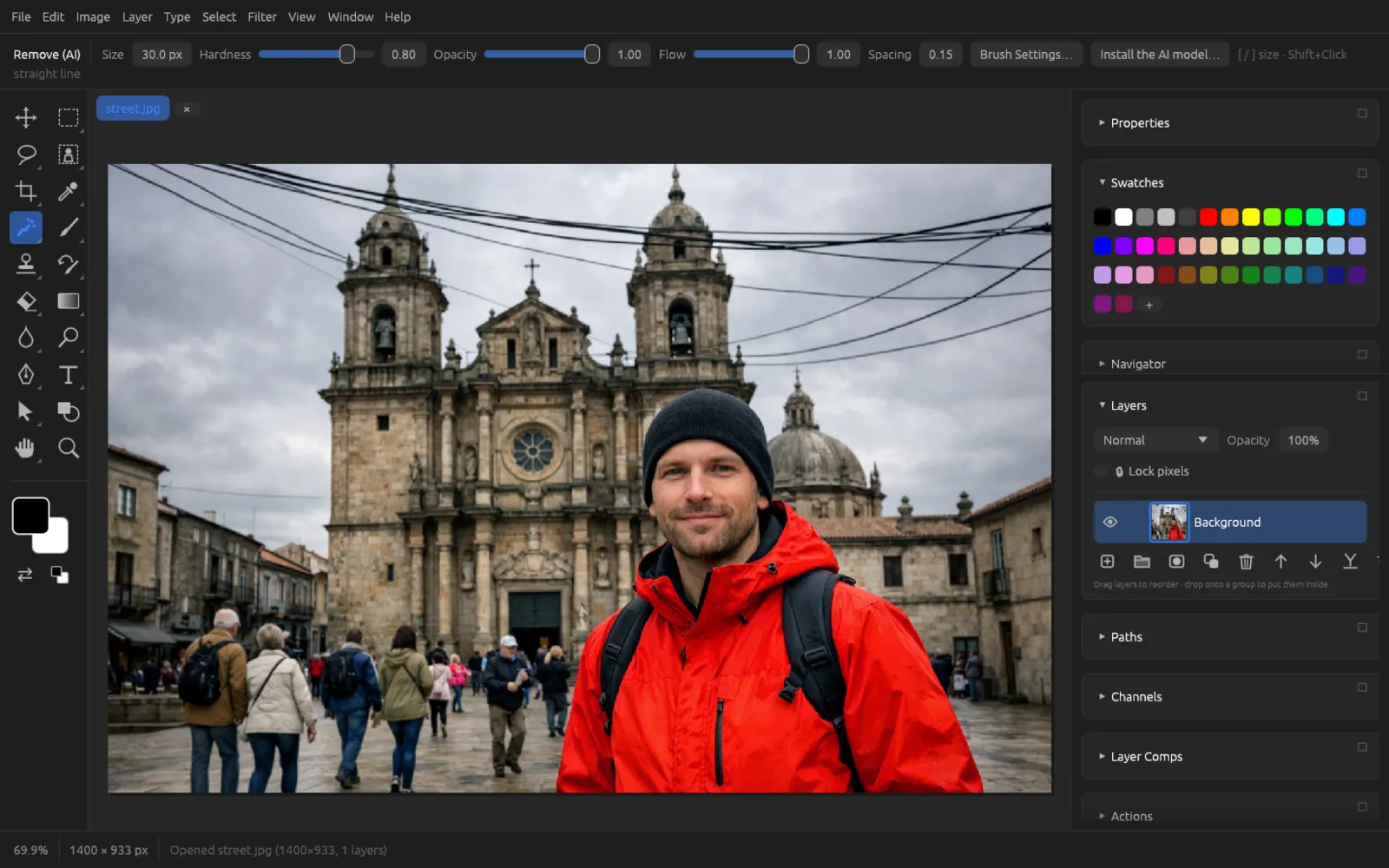
| Remove (AI) | Paint over what should disappear; a local AI model repaints the spot. Without an installed model it works like the Spot Healing Brush – the Install the AI model… button in the options bar downloads it. |
| Healing Brush | ⌥-click sets the source; after that you copy from there, and the color is matched to the target area. |
| Patch | Draw around the damaged area (the tool draws like a lasso) and drag the selection onto a clean area: the area is repaired from there. |
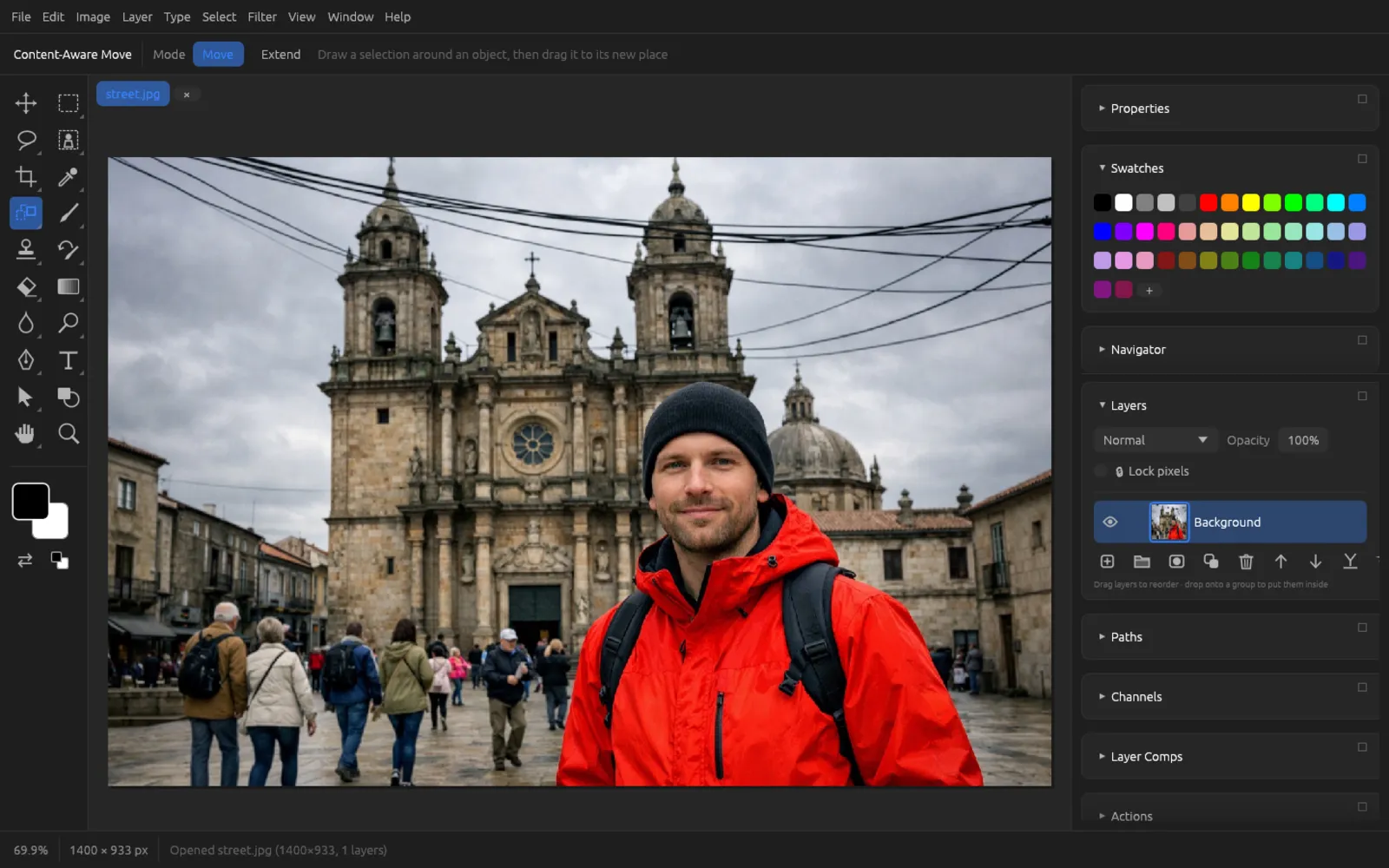
| Content-Aware Move | Draw around an object and drag it to a new place. Move mode: the old spot is filled from the surroundings. Extend mode: the original stays, and the copy is blended in. |
| Red Eye | Click into the red of the pupil. Options: Pupil Size and Darken Amount. |
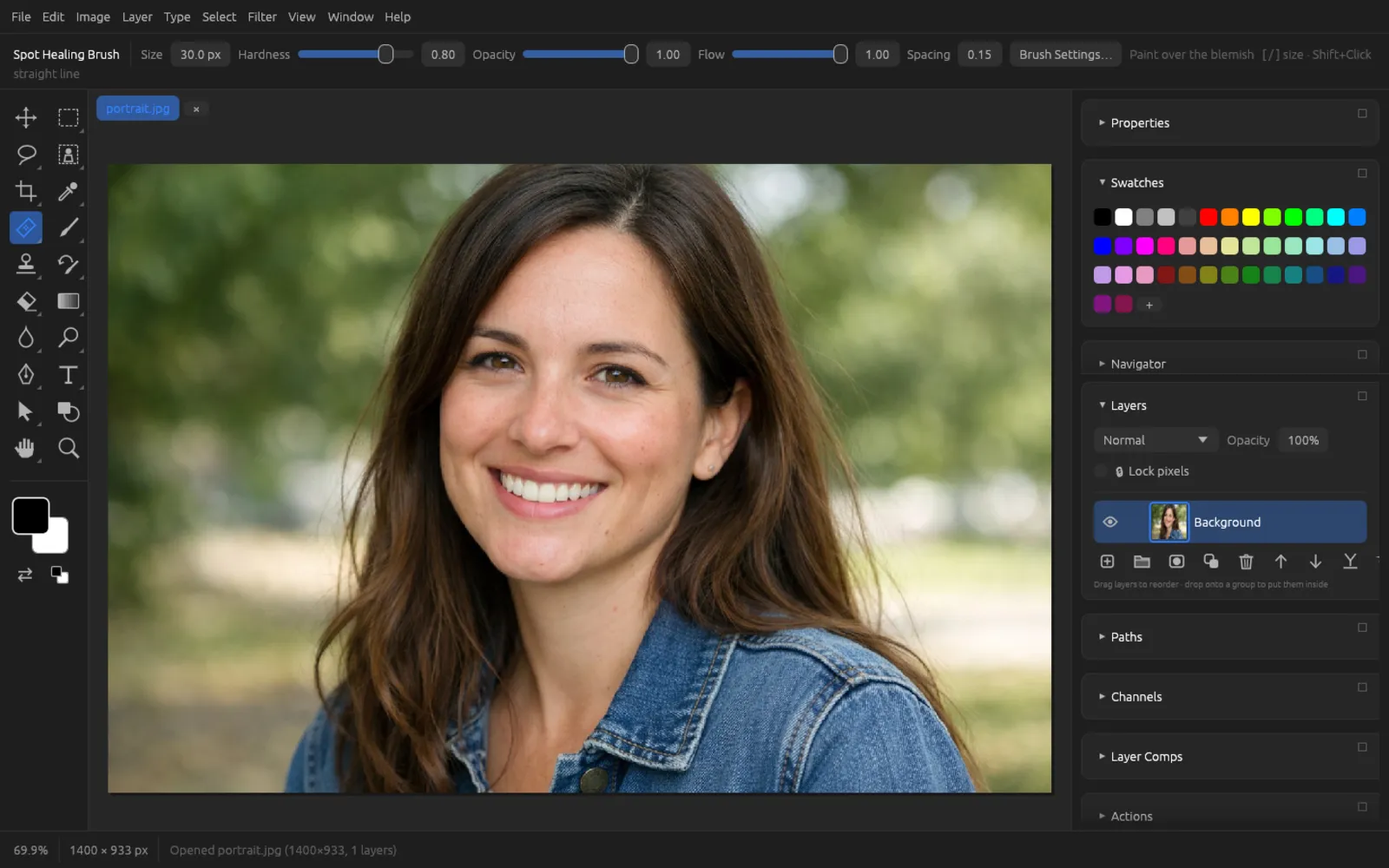
Removing a spot with the Spot Healing Brush
- Choose the Spot Healing Brush with J.
- Zoom in close to the spot (⌘ + or the Zoom tool).
- Set the size with [ and ] so that the tip is a little larger than the spot.
- Click the spot or paint over it in a short stroke. When you release, Chromatelier fills the area from its surroundings.
- If you don't like the result, take it back with ⌘ Z and try again with a smaller stroke.
Repairing a larger area with the Patch tool
- Choose Patch with ⌥ J.
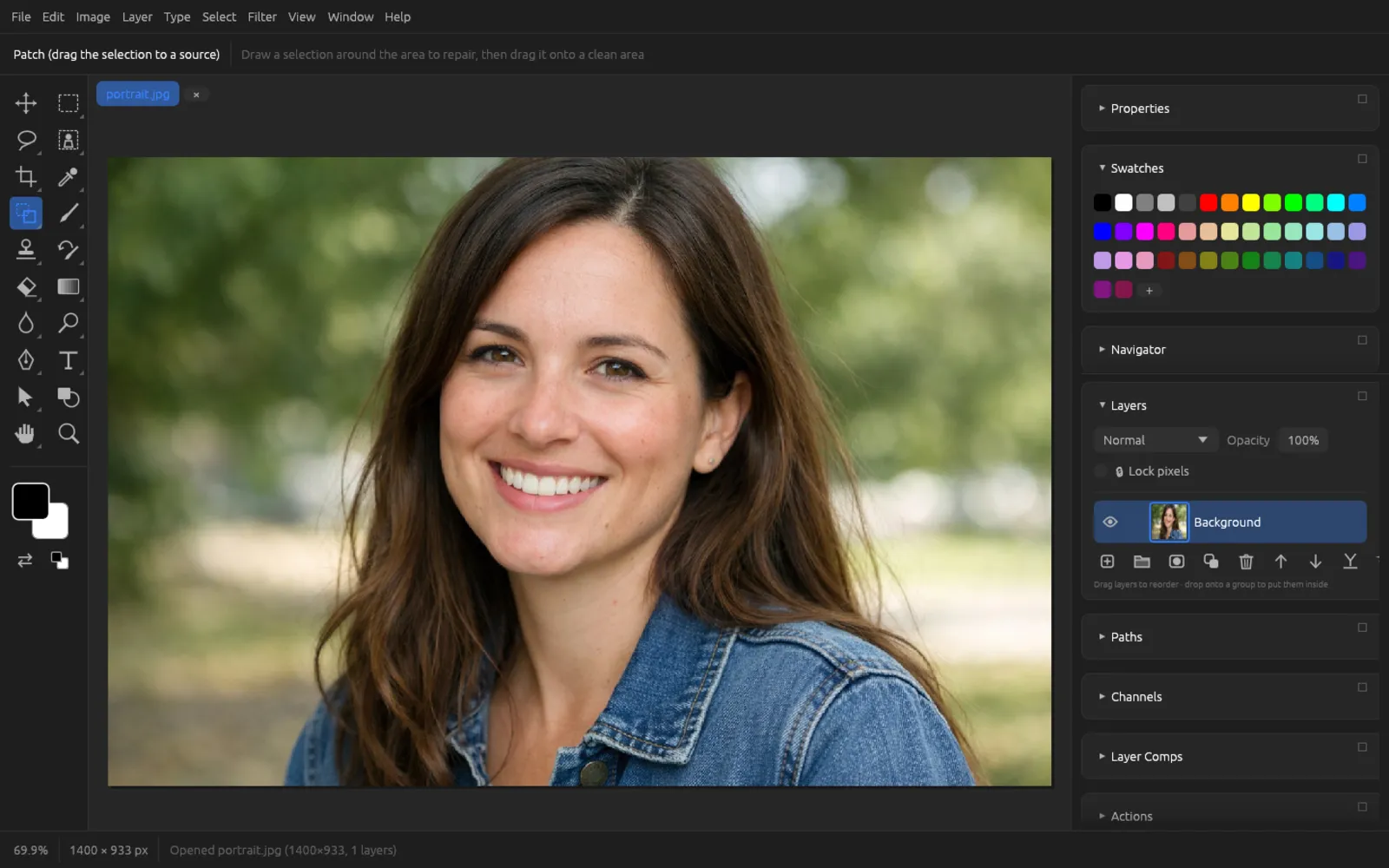
The Patch tool explains how to use it in the options bar. - Draw around the damaged area with the mouse button held down.
- Click inside the selection and drag it onto a clean area with a similar texture.
- Release: the original area is repaired with this texture and its color is matched. Deselect with ⌘ D.
Brush, Pencil and related tools
- Brush (B) paints soft or hard strokes with the foreground color.
- Pencil (N) always paints with a hard edge, without anti-aliasing – good for pixel art.
- Color Replacement replaces the hue, saturation, color or luminosity of similar pixels under the tip with the foreground color (Mode). Tolerance sets how similar; with Sample Once, only the color at the first click counts.
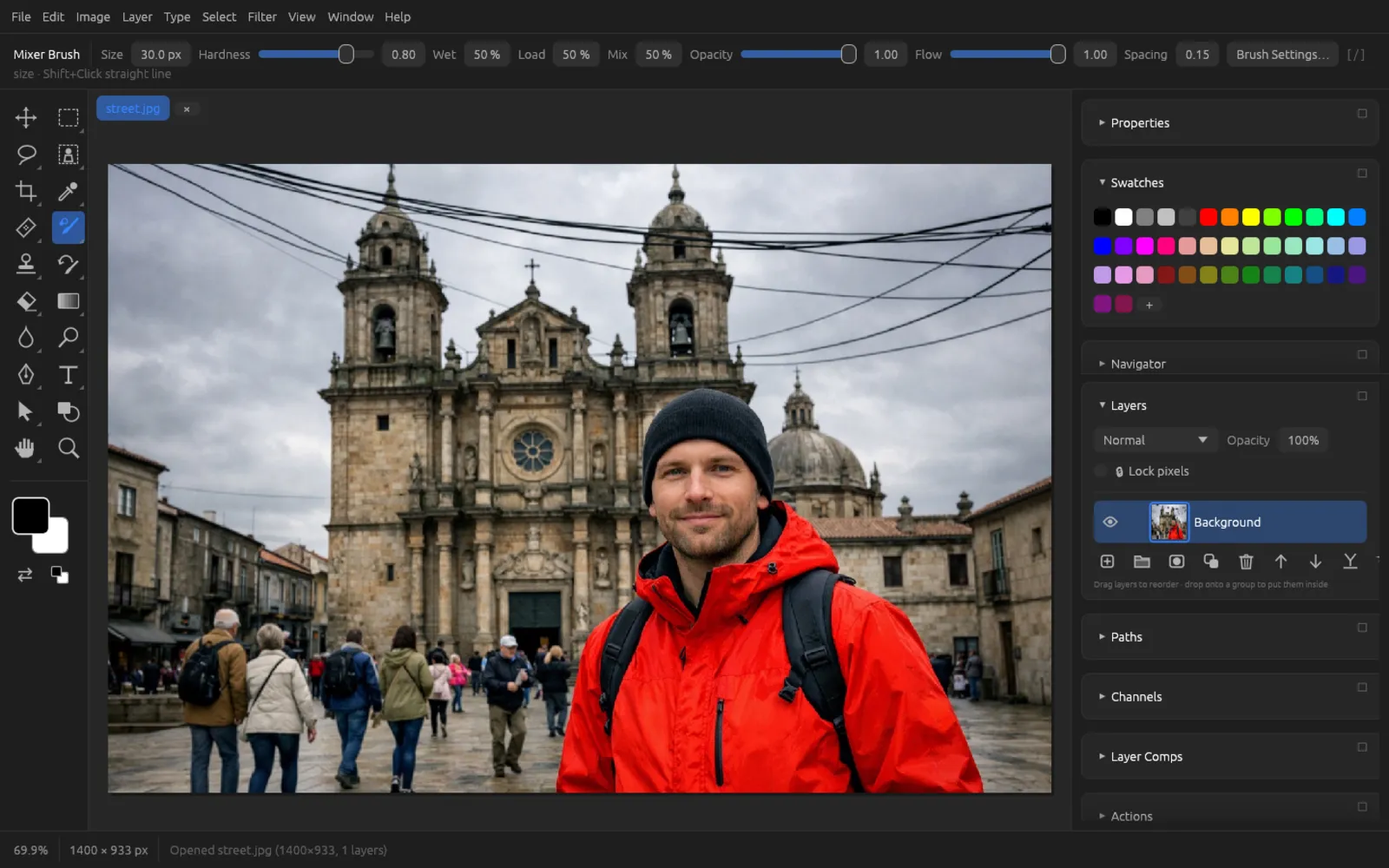
- Mixer Brush mixes the foreground color with the color in the image: Wet (how much image color is picked up), Load (paint supply) and Mix, each in percent.
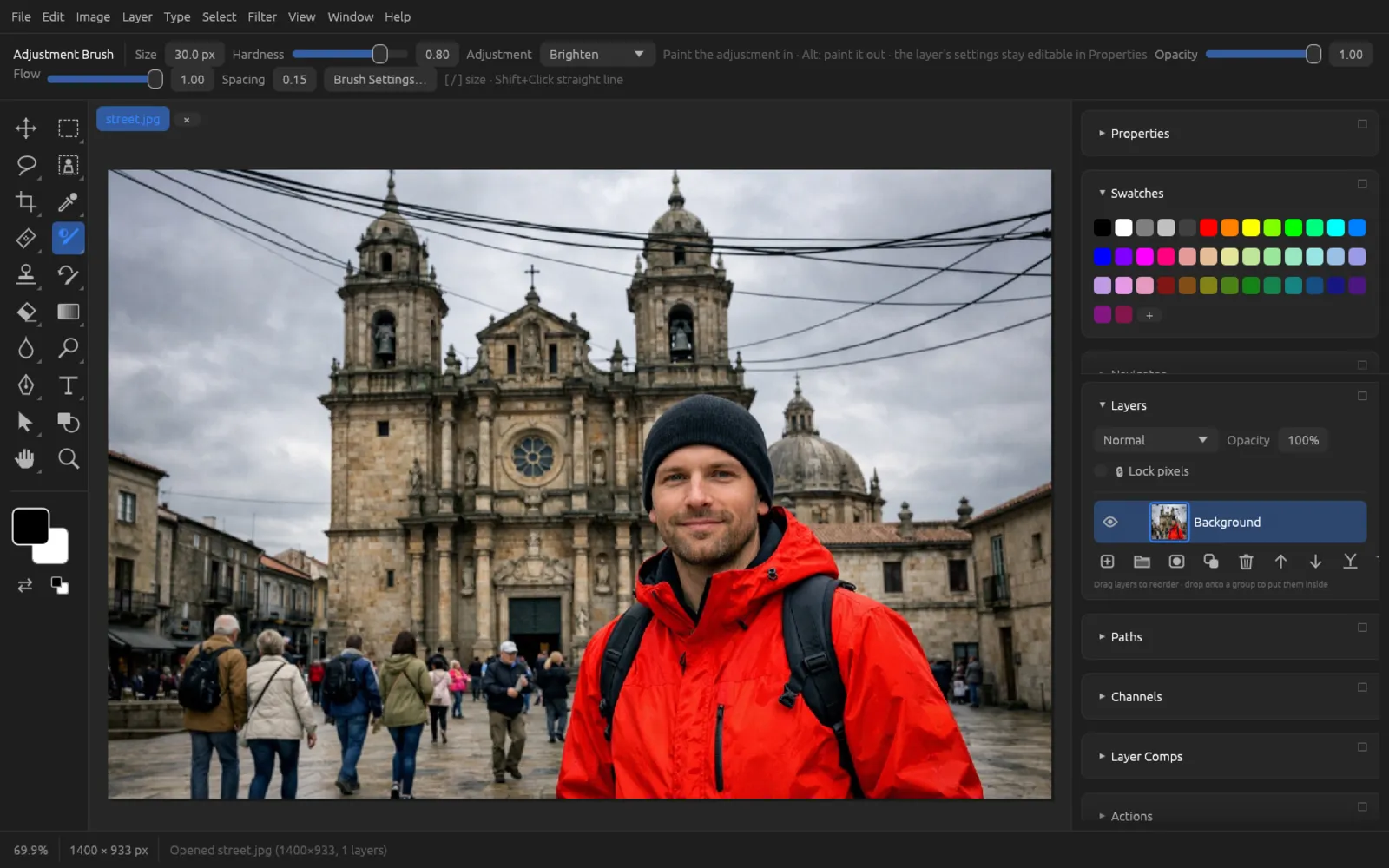
- Adjustment Brush paints an adjustment into the image: the first stroke creates an adjustment layer with a black mask, each stroke paints the mask white, with ⌥ black. Under Adjustment you choose Brighten, Darken, Increase Contrast, Decrease Contrast, Saturate, Desaturate, Warm, Cool, Black & White or Invert. Afterwards you change the layer's values in the Properties panel.
Clone Stamp and Pattern Stamp
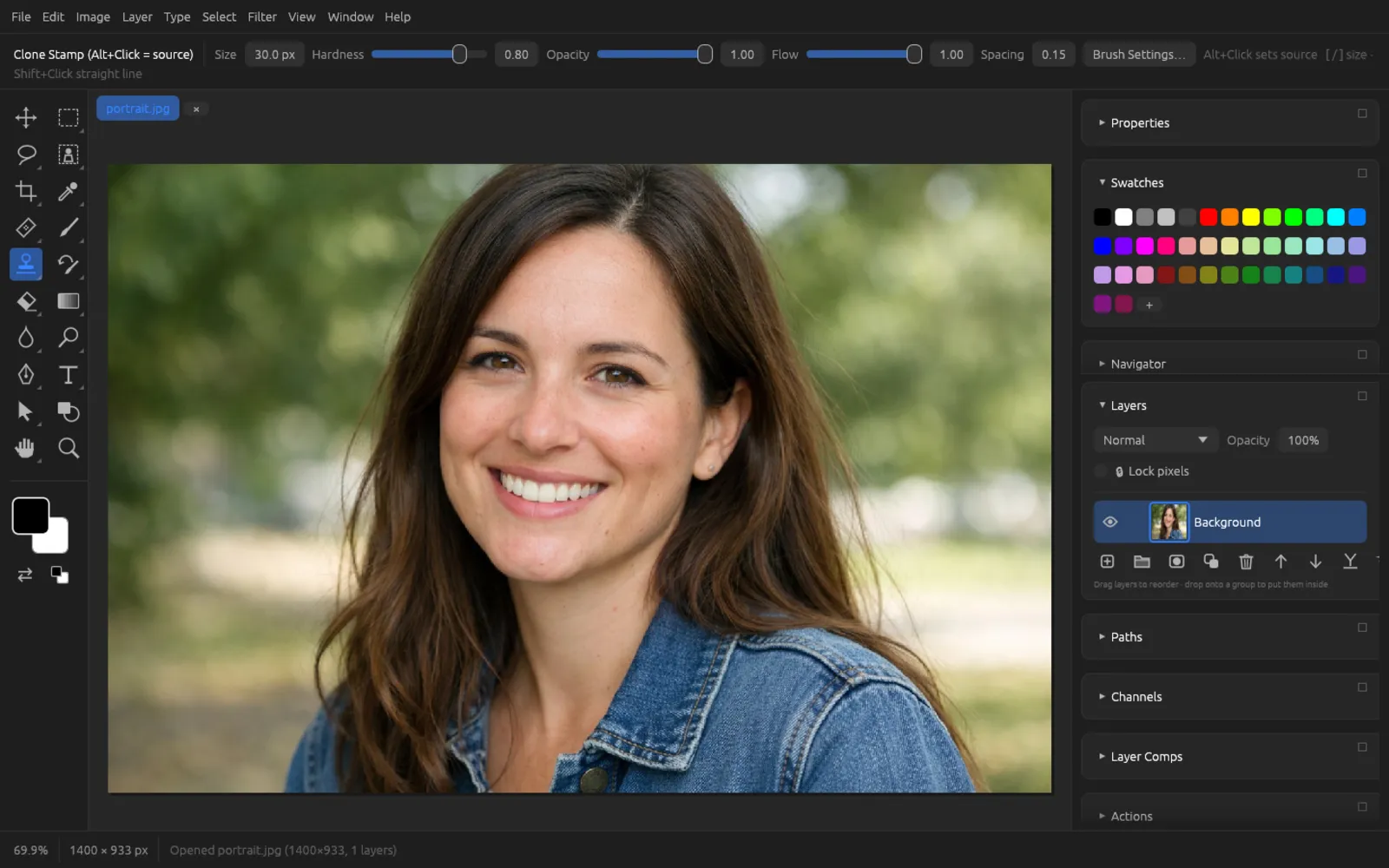
The Clone Stamp (S) transfers parts of the image from a source to another spot without adjusting the color. The Pattern Stamp (⇧ S) paints a pattern that you choose in the options bar under Pattern; you create patterns of your own with .
Retouching with the Clone Stamp
- Choose the Clone Stamp with S. To work non-destructively, create a new, empty layer first.
- Set a suitable Size and a low Hardness so that the edges blend softly.
- Hold down ⌥ and click a clean spot that will serve as the source. The status bar confirms the position.
- Paint over the spot that should disappear. During the stroke, the source moves in parallel with the brush; each new stroke starts again at the source you set.
- If needed, set a new source with ⌥-click so that no patterns repeat.
With the Healing Brush, setting the source works the same way; it also matches the copied pixels to the color and brightness of the target area.
History Brush and Art History Brush
The History Brush (Y) paints an earlier state of the image back in – namely the state you marked with 🖌 in the History panel. This lets you take back a filter in individual spots.
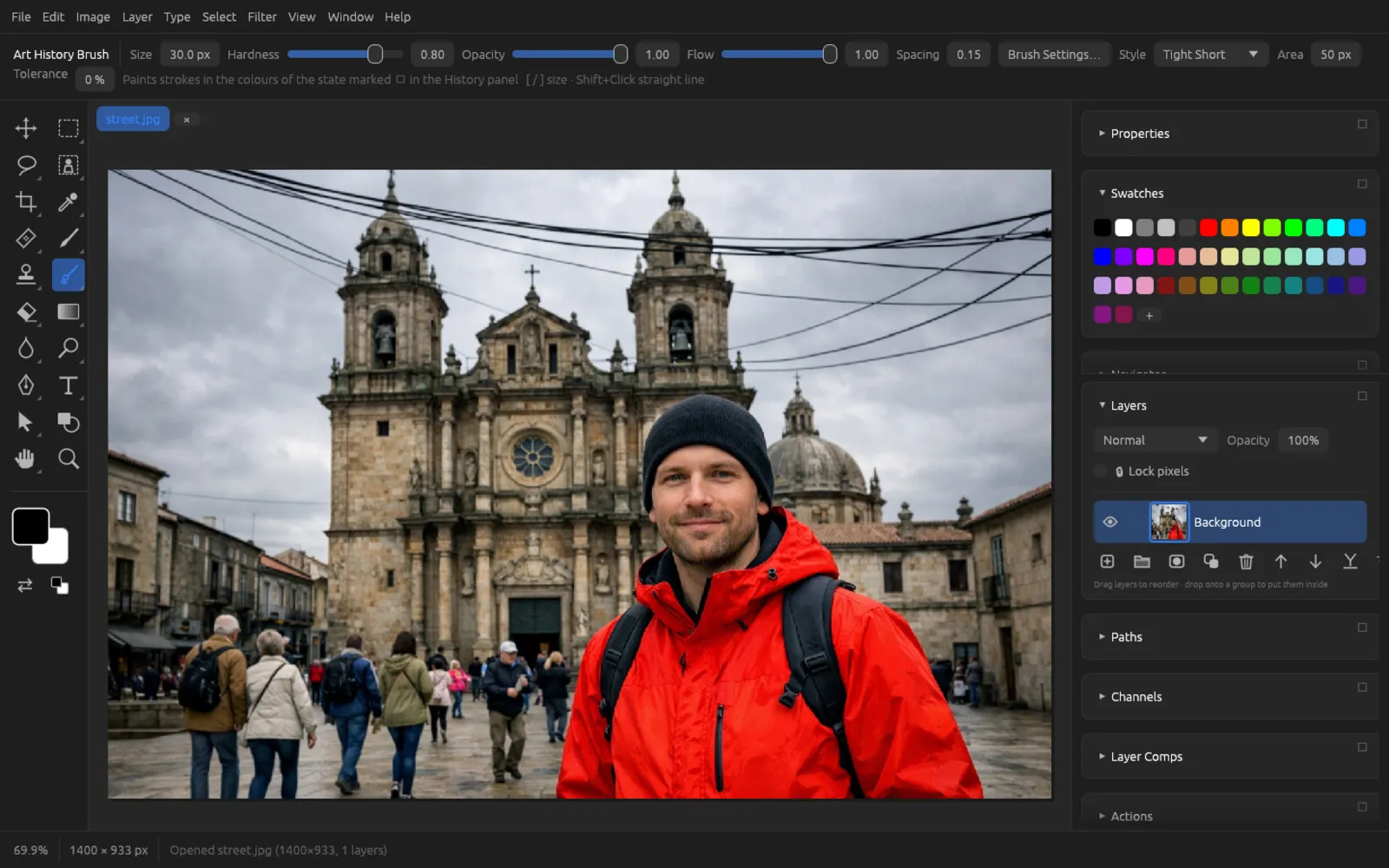
The Art History Brush paints stylized strokes in the colors of that state. Style offers Tight Short, Tight Medium, Tight Long, Loose Medium, Loose Long, Dab, Tight Curl, Tight Curl Long, Loose Curl and Loose Curl Long; Area (1–500 px) determines how far the strokes spread, Tolerance (0–100%) where painting happens.
Erasers
- Eraser (E) makes pixels transparent. It has the same options as the Brush, including Smoothing and Symmetry.
- Background Eraser erases only pixels that resemble the color under the center of the tip – ideal for separating a subject from a plain background. Options: Tolerance, Sample Once.
- Magic Eraser erases all similar pixels with one click, the way the Paint Bucket fills. Options: Tolerance, Opacity, Contiguous, Sample All Layers.
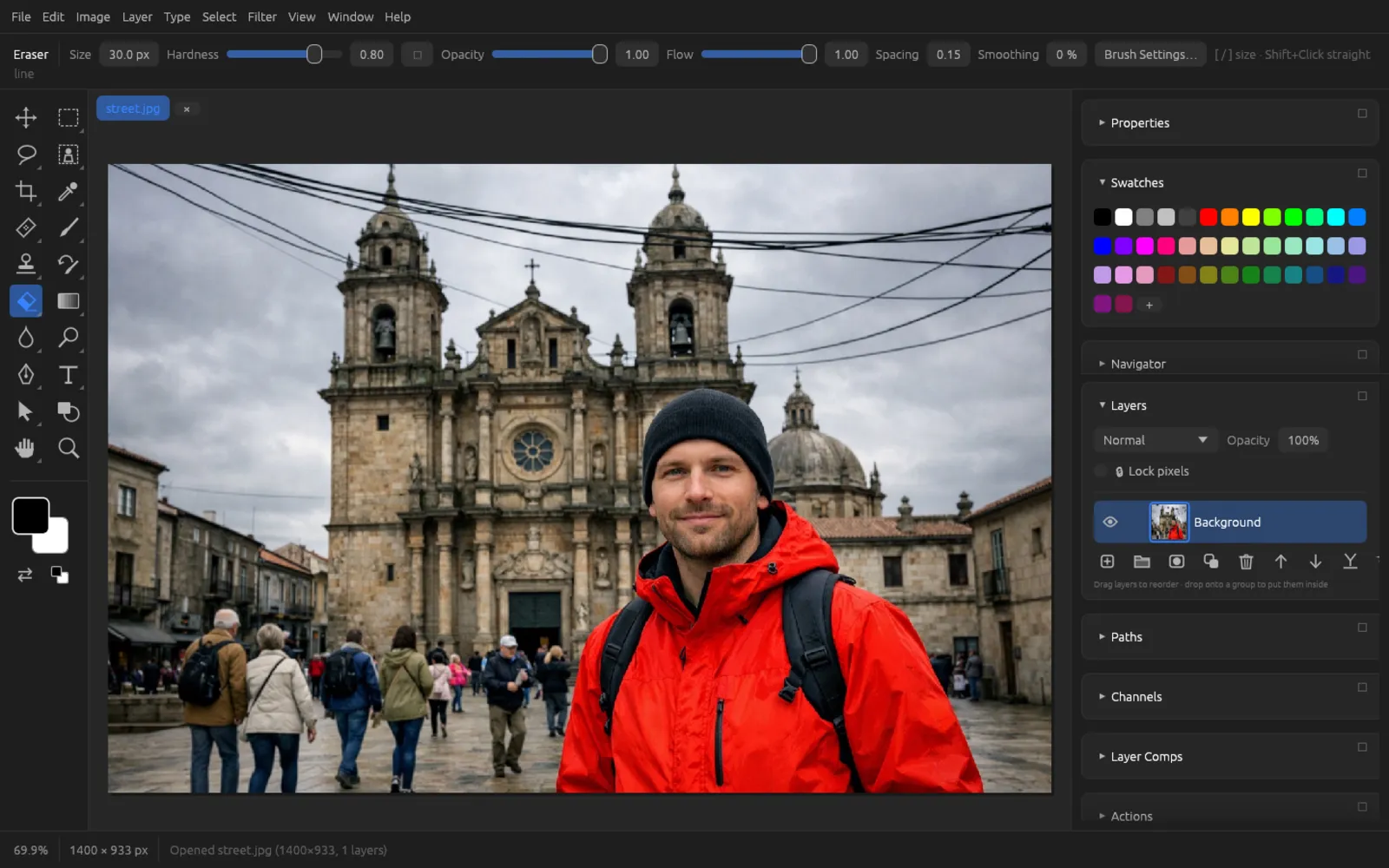
Paint Bucket and Gradient
Paint Bucket
The Paint Bucket (G) fills similar pixels with the foreground color in one click. Options: Tolerance (0–255), Opacity, Contiguous and Sample All Layers. For fills with a pattern or a content-aware fill, use .
Gradient
With the Gradient tool (⇧ G) you drag a line: its start and end determine where the gradient begins and ends. ⇧ keeps the line in 45° steps.
| Option | Meaning |
|---|---|
| Linear, Radial, Angle, Reflected, Diamond | Shape of the gradient |
| Reverse | Colors in reverse order |
| Live | creates a gradient fill layer that stays editable on the canvas: drag its ends and color stops, ⇧-click the line to add a stop, ⌥-click a stop to give it the foreground color, drag a stop away to remove it |
| Opacity | Coverage of the gradient |
| Gradient field | A click opens the Gradient Editor |
| Gradient Presets ⏷ | List of saved gradients |
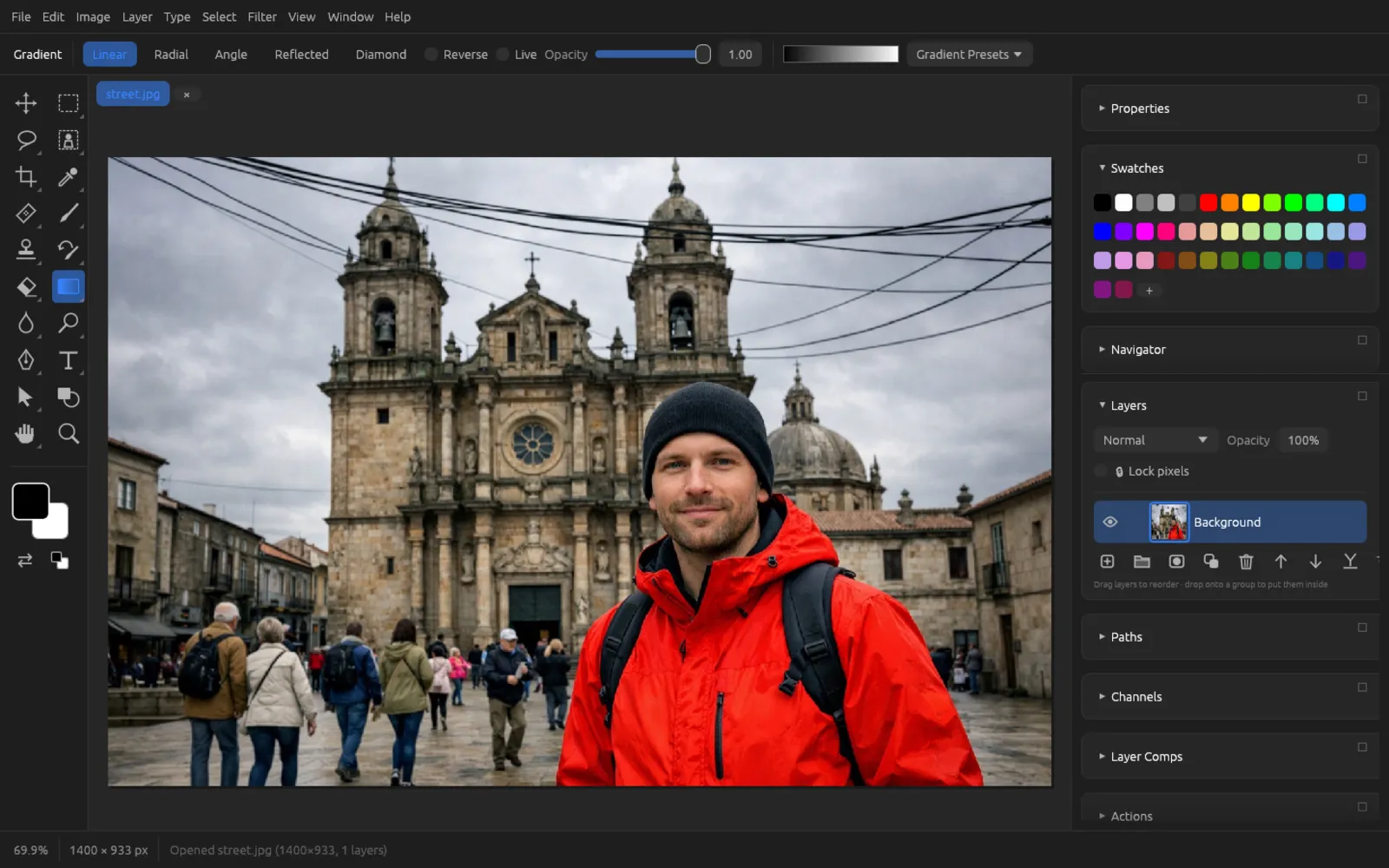
The Gradient Editor
Clicking the gradient field opens the Gradient Editor window. The Presets are at the top; a click applies one of them. Below them you edit the current gradient:
- Gradient Type: a gradient made of color stops, or Noise – a random gradient with Roughness, Color Model with ranges, Restrict Colors, Add Transparency and Randomize.
- Below the color ramp are the color stops. A click below the ramp adds one, dragging moves it, dragging it down and away removes it.
- For the selected stop you set the Color (Foreground, Background or Custom), Location and Opacity. Delete Stop removes it (at least two remain).
- With Name and New you save the gradient as a preset. You delete presets of your own with a right-click › Delete Gradient.
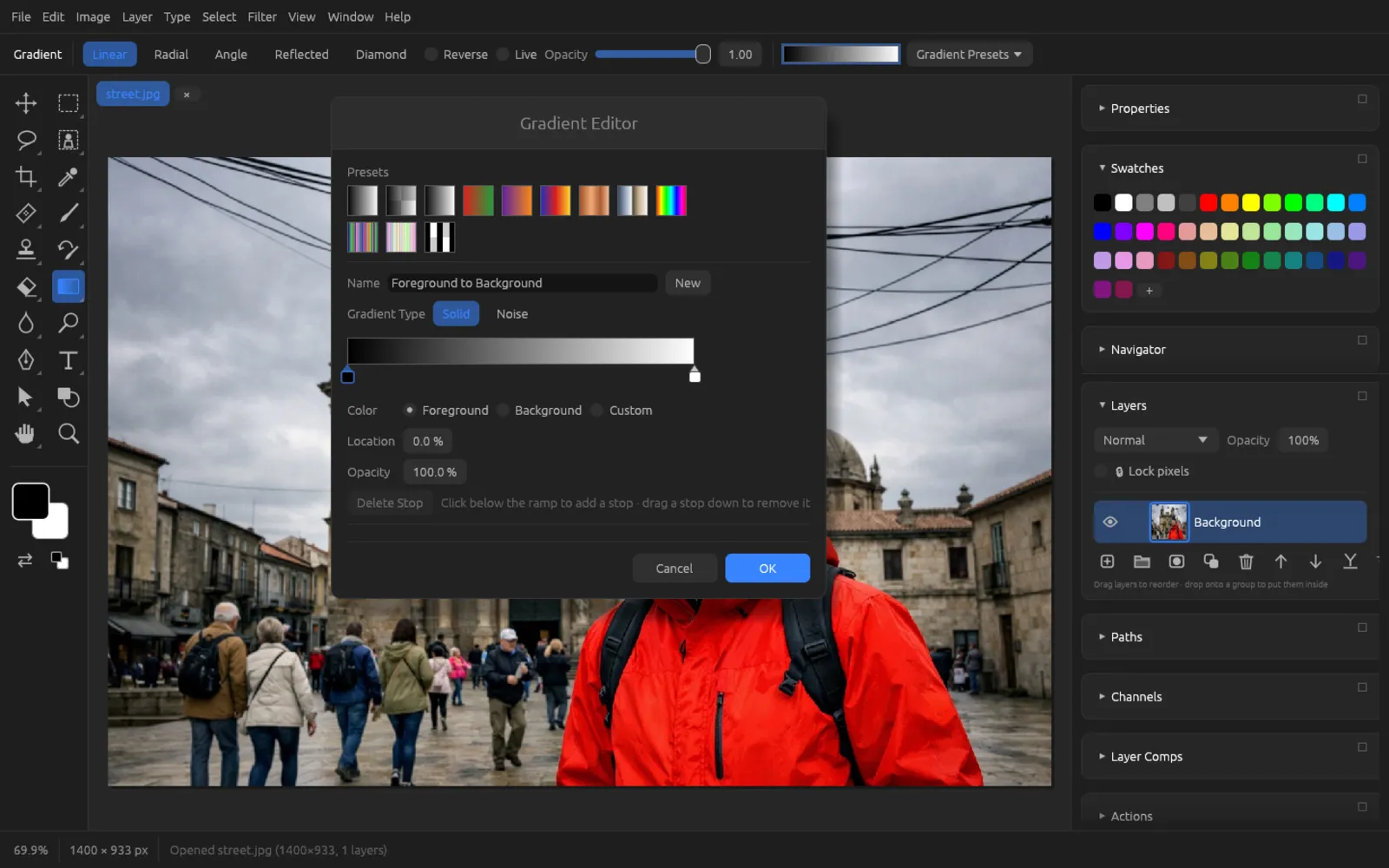
Creating a gradient
- Create a new layer so that the gradient doesn't overwrite the photo.
- Choose the Gradient tool with ⇧ G and, in the options bar, the shape, e.g. Linear.
- Click the gradient field. In the editor, click the left color stop, choose Custom and a color; do the same with the right one.
- Click below the color ramp to add a third color in the middle, and set its Location.
- Enter a Name, click New to save the gradient as a preset, and close with OK.
- On the canvas, drag from the start point to the end point. Hold ⇧ if the line should be exactly horizontal or vertical.
A gradient you want to change later belongs in a gradient fill layer: turn on Live or choose (see Layers).
Blur Brush, Sharpen and Smudge
- Blur Brush (R) softens the areas you paint over.
- Sharpen increases sharpness there – use it sparingly, or noise appears.
- Smudge smears the color in the direction of the stroke; Strength (0–1) determines how far.
All three have the basic options of the brush engine.
Dodge, Burn and Sponge
- Dodge (O) lightens the areas you paint over.
- Burn (⇧ O) darkens them.
- Sponge (⌥ O) reduces saturation.
The Exposure option (0.01–1) determines how strongly each stroke works. A low exposure and several strokes give the most natural results.
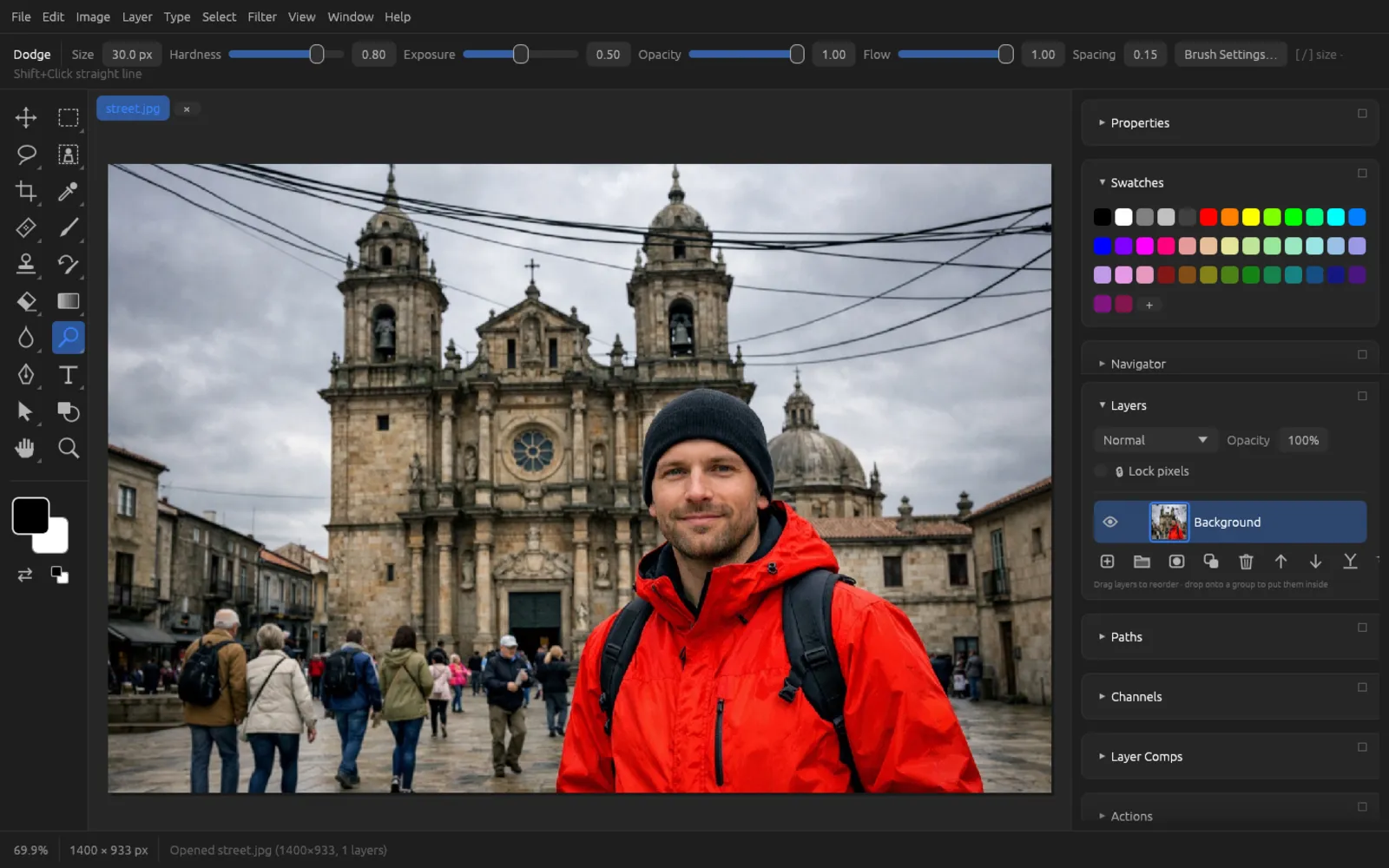
Type, pens, path selection and shapes
These tools create type, shape and path objects that stay editable. They are described in detail in the chapter Type, Shapes & Paths:
- Type, Vertical Type, Horizontal and Vertical Type Mask (T)
- Pen, Freeform Pen and Curvature Pen (P)
- Path Selection and Direct Selection (A)
- Shape (U) with rectangle, rounded rectangle, ellipse, polygon/star and line
Hand, Rotate View and Zoom
- Hand (H): dragging pans the view. With the Space bar held down, this works with any tool.
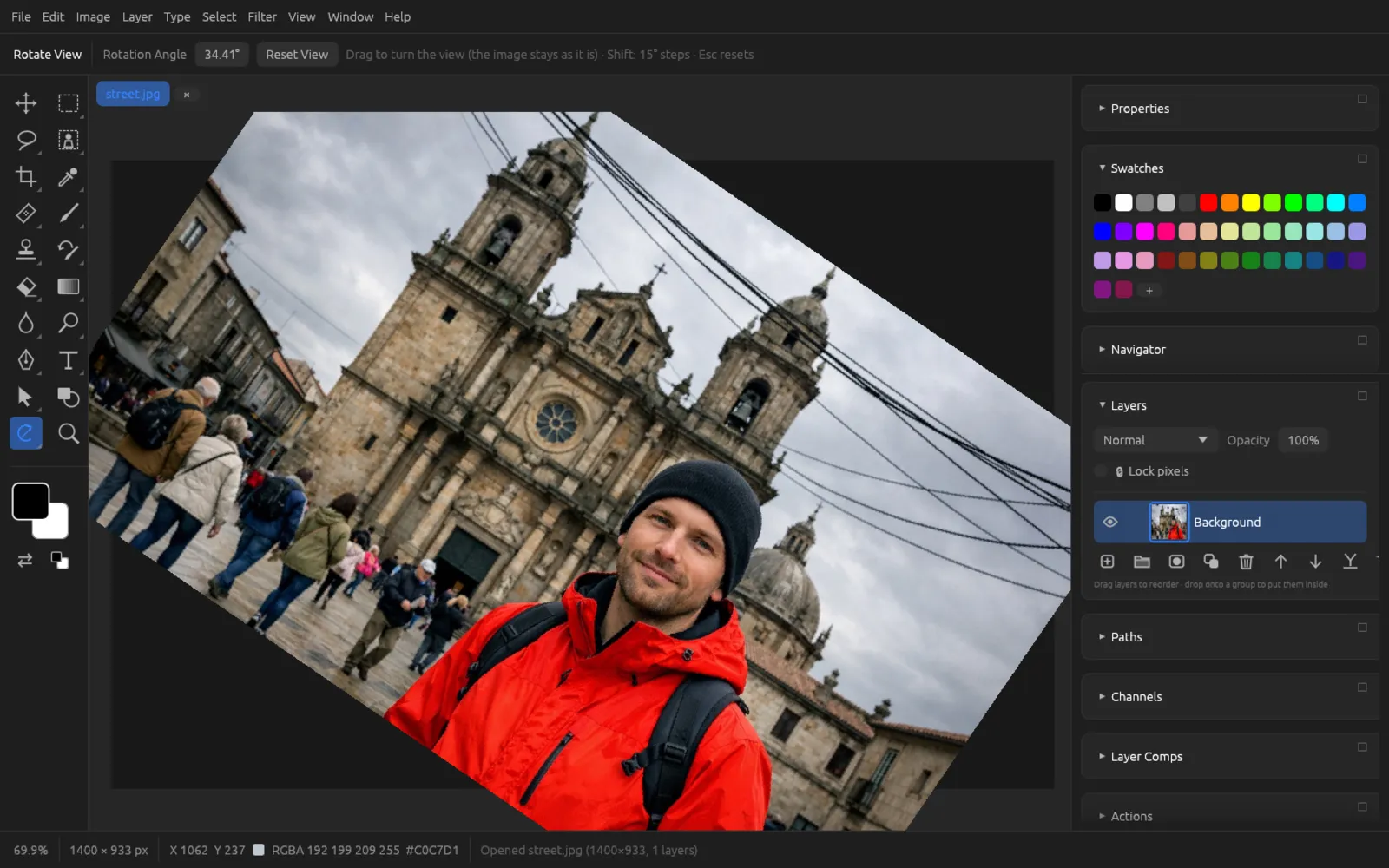
- Rotate View (⇧ H): dragging rotates the view like a sheet of paper on a drawing table – the image itself stays unchanged. ⇧ rotates in 15° steps. In the options bar you enter the exact Rotation Angle; Reset View or Esc straightens it again.
- Zoom (Z): a click zooms in at the clicked spot, ⌥-click zooms out. ⌘ + scrolling or the two-finger gesture also works everywhere.
You'll find more about navigation in the chapter Interface.