Type, Shapes and Paths
Type, shape and path objects stay editable: you can change the font, size and color at any time, recolor shapes and adjust paths point by point. This chapter shows the type tools and type panels, the Shape tool, the pens and the Paths panel.
The type tools
The type group in the toolbar (T, cycle through with ⇧ T) contains four tools:
| Tool | Result |
|---|---|
| Type | horizontal type on a new type layer |
| Vertical Type | type running vertically, characters stacked one below the other |
| Horizontal Type Mask | not a layer, but a selection in the shape of the type |
| Vertical Type Mask | as above, vertical |
You change the direction of existing type with or , or with the ⇅ button (Toggle Text Orientation) in the options bar.
Point type and paragraph type
- Point type: click on the canvas with the Type tool and start typing. The line gets as long as the text; you start new lines with Return.
- Paragraph type: drag out a frame. The text wraps automatically at the edge of the frame. Only paragraph type has Justify, Hyphenate and the choice of composer.
- Type on a path: if you click on a path with the Type tool (drawn with the Pen, see below), the type runs along that path.
Clicking an existing type layer places the insertion point in the text so you can keep writing.
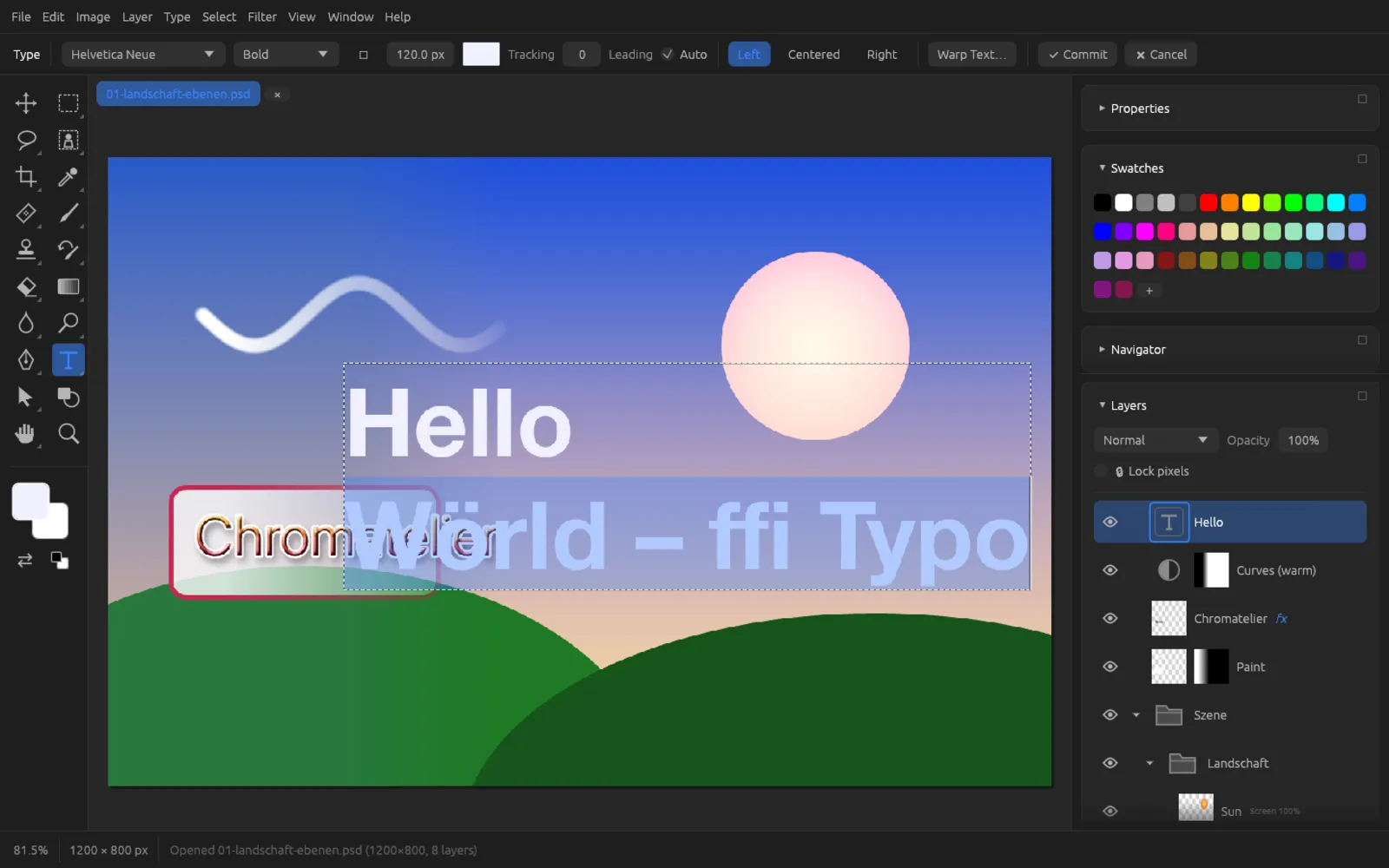
Entering and editing type
| Key | Effect |
|---|---|
| ⌘ Return or ✔ Commit | finish editing (one step in the history) |
| Esc or ✖ Cancel | discard changes; a new, empty text disappears |
| Return | new line |
| ← → ↑ ↓, with ⌥ word by word | move the insertion point |
| ⇧ + arrow key, dragging with the mouse | highlight characters |
| Home / End, with ⌘ | start / end of line, with ⌘ start / end of text |
| ⌘ A | highlight all text |
| ⌥ ⌫ | delete word |
Formatting applies to the highlighted characters if you have highlighted any – that way you can make individual words bold or colored. Without highlighting, the change applies to the whole type layer. If no type layer is active, the settings determine the look of the next new text; the text color is then the foreground color.
Put a headline on a photo
- Choose the Type tool with T.
- In the options bar, choose the font (the list has a search field at the top), the font style, the size in pixels and the text color.
- Click where the text should start and type the headline.
- If you like, highlight a word and give it a different color or style.
- Finish with ⌘ Return. Afterwards, use the Move tool (V) to position the text.
Type mask tools
With the two type mask tools you type as usual; when you commit, the text becomes a selection instead of a type layer. You can use this to cut a photo out in the shape of letters, for example, or to create a layer mask in the shape of type (see Selections).
Formatting characters
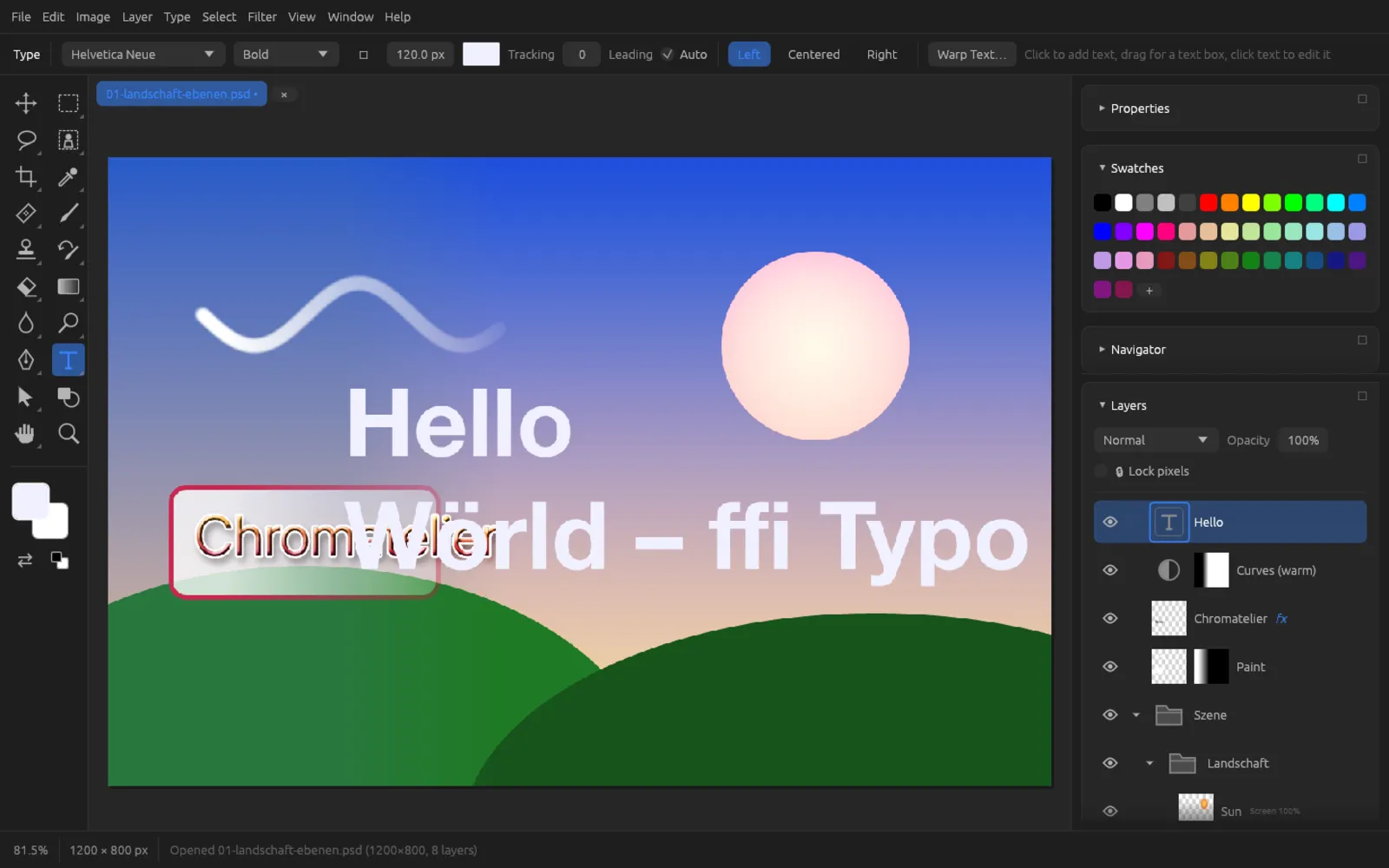
The most important character settings are in the Type tool's options bar, and all of them together are in the Character panel ( or ). The Typography workspace shows the Character and Paragraph panels directly on the right.
| Setting | Meaning |
|---|---|
| Font family | list of installed fonts with a search field. If a font is missing (for example in a file from someone else), Font missing appears and a substitute is shown. |
| Font style | the styles of the family, named the way the font names them |
| ⇅ | Toggle Text Orientation (horizontal/vertical) |
| Size | font size in pixels (1–5000 px) |
| Text Color | color swatch; also becomes the foreground color |
| Tracking | spacing between all characters (−1000 to 10,000, in thousandths of the font size) |
| Leading | Auto or a fixed value in pixels |
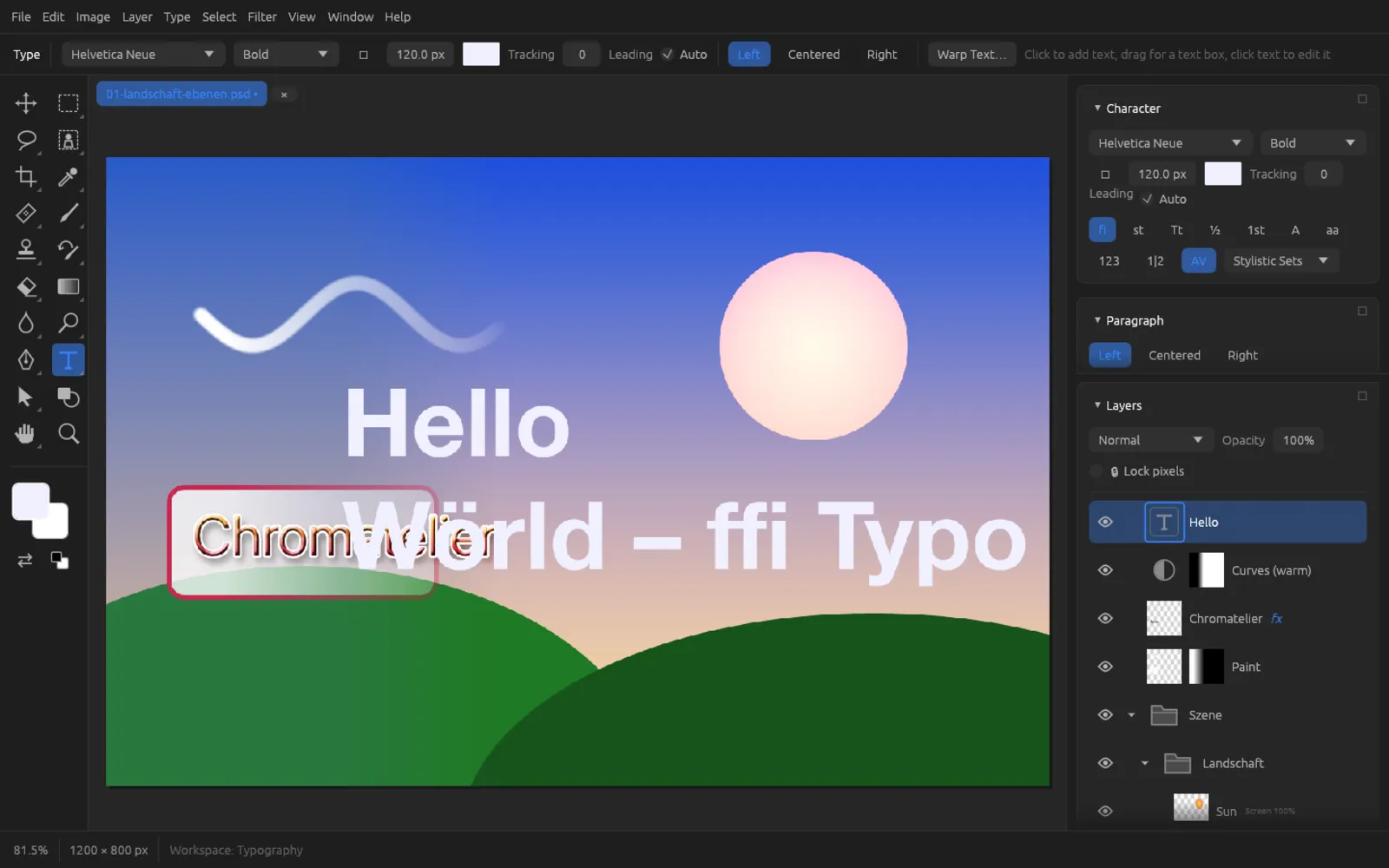
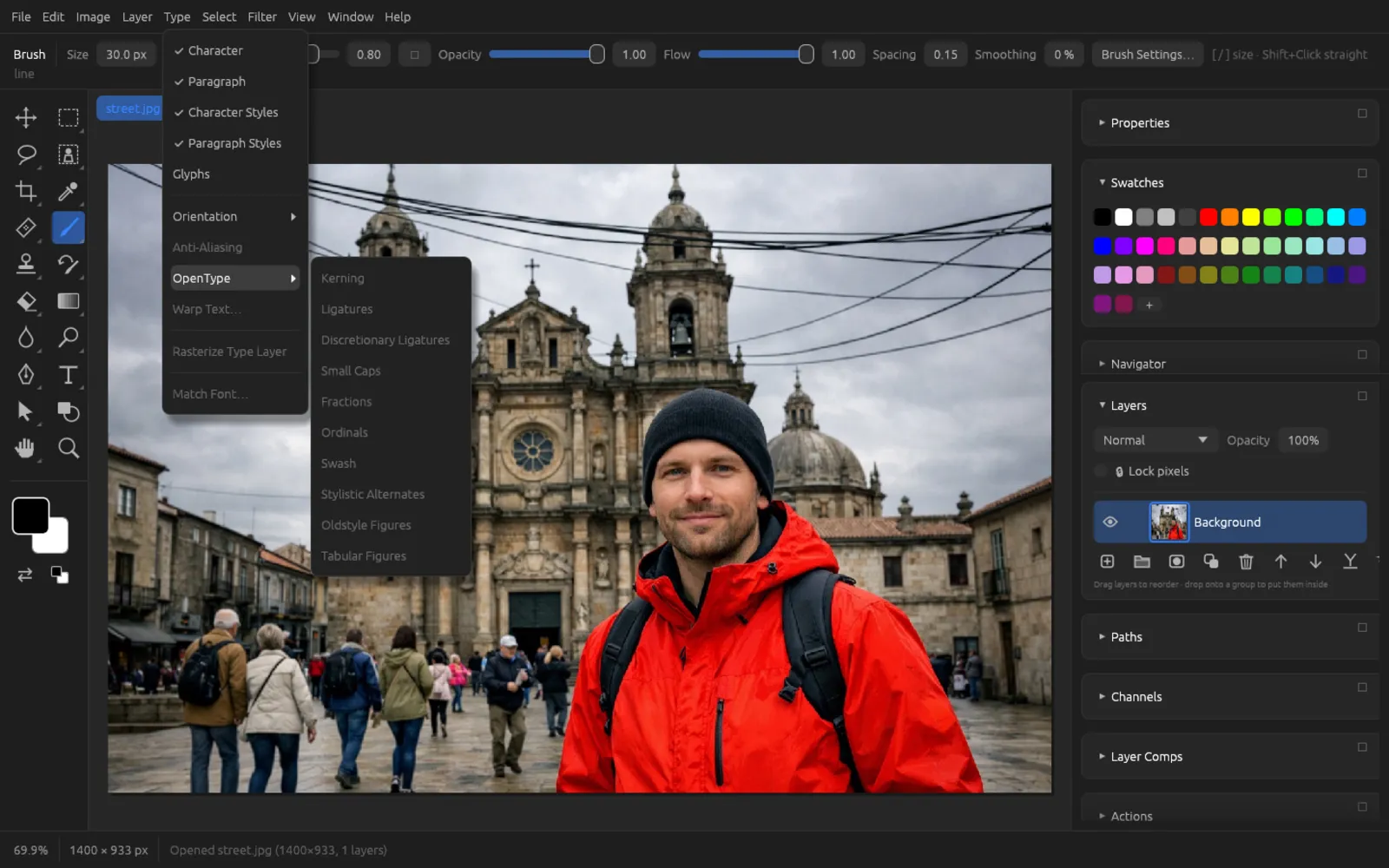
OpenType features
Many fonts contain variants of their characters. In the Character panel you turn them on with a row of small buttons, and from the menu with :
| Button | Menu item | Effect |
|---|---|---|
| AV | Kerning | adjust character pairs according to the font's kerning data |
| fi | Ligatures | standard ligatures such as fi, fl |
| st | Discretionary Ligatures | decorative ligatures |
| Tt | Small Caps | lowercase letters as small capitals |
| ½ | Fractions | 1/2 becomes a true fraction |
| 1st | Ordinals | superscript ordinal endings |
| A | Swash | decorative forms |
| aa | Stylistic Alternates | alternative character forms |
| 123 | Oldstyle Figures | figures with ascenders and descenders |
| 1|2 | Tabular Figures | figures of equal width for tables |
Next to these, in the Stylistic Sets list you turn the sets ss01 to ss20 on and off individually. Which features actually take effect depends on the font.
Variable fonts
With a variable font, sliders for its axes appear under Variable font – for example weight, width or optical size. The weight axis sets the stroke thickness continuously; the other axes carry the names the font gives them.
Anti-Aliasing
turns edge smoothing on or off for the active type layer. Without anti-aliasing, the letter edges stay pixel-hard, which can be useful for very small type in pixel graphics.
Paragraphs, hyphenation and composers
The Paragraph panel () and the options bar offer the alignments Left, Centered, Right and – for paragraph type only – Justify.
For paragraph type, the Paragraph panel also contains:
- Hyphenate: breaks long words at the end of a line. You choose the language next to it: Interface Language, German, English, French, Spanish, Italian, Dutch or Portuguese.
- Single-line Composer or Every-line Composer: the Single-line Composer breaks each line on its own. The Every-line Composer looks at the whole paragraph and distributes the line breaks so that the lines become more even – especially visible with justified text.
Character styles and paragraph styles
Styles are named sets of formatting that are saved with the document. They let you give several type layers a consistent look.
- Character Styles (): a click applies the style to the highlighted characters, or, without highlighting, to the whole type layer. [No Character Style] removes the highlighted characters' own formatting.
- Paragraph Styles (): they contain alignment, leading and the character attributes, and always apply to the whole type layer.
In both panels, New creates a style from the formatting of the text at the insertion point (or from the settings in the options bar). Redefine copies the current formatting into the selected style, Delete removes it. You change the name in the field below the list.
Give several texts a consistent look with a paragraph style
- Format one type layer the way all of them should look: font, size, color, alignment, leading.
- Open and, with the type layer active, click New. Give the style a name in the name field.
- In the Layers panel, select the next type layer and click the style in the list.
- If you change the first layer later, click Redefine and apply the style to the other layers again.
Glyphs
The Glyphs panel () shows all characters of the current font style. While you are typing in a text with the Type tool, clicking a character inserts it at the insertion point. With the search field you find a character directly or by its code (for example U+00E9 or e9). The characters you used last are shown at the top under Recently Used.
Warp Text
When a type layer is active or being edited, the Type tool's options bar shows the Warp Text… button. It opens a box with these settings:
- Style: None, Arc, Arc Lower, Arc Upper, Arch, Bulge, Shell Lower, Shell Upper, Flag, Wave, Fish, Rise, Fisheye, Inflate, Squeeze, Twist
- Horizontal or Vertical
- Bend, Horizontal Distortion and Vertical Distortion, each −100 % to 100 %
The warp stays editable: you can keep changing the text, and the style None removes the warp again.
Set type in an arc
- Select the type layer in the Layers panel and choose the Type tool (T).
- In the options bar, click Warp Text….
- Next to Style, click None and choose Arc.
- Set the Bend, for example 50 %. Negative values bend the text downward.
- Click outside the box to close it.
Vertical type
With the Vertical Type tool, the characters are stacked one below the other. All character settings work as they do for horizontal type.
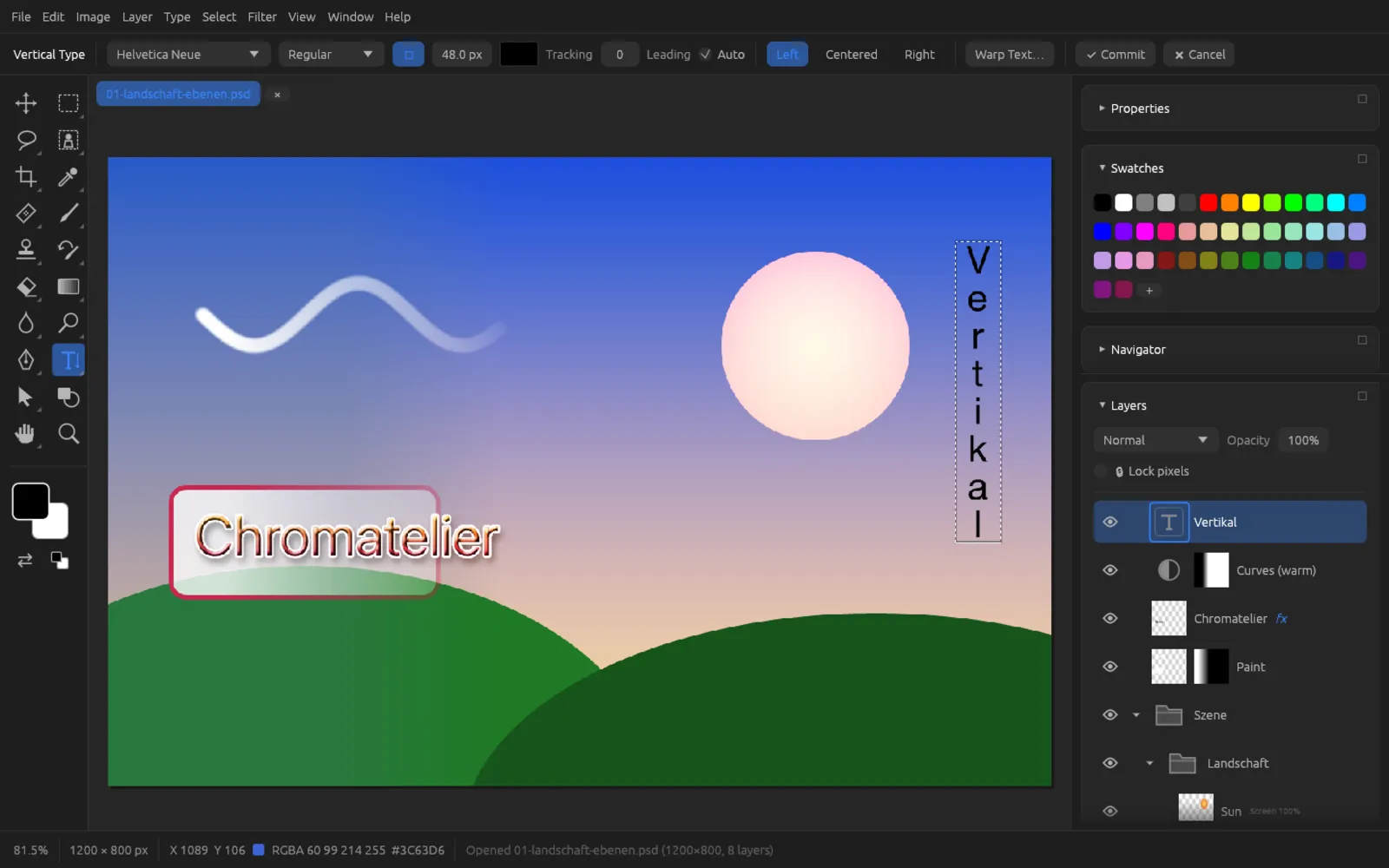
Rasterize Type Layer
converts the type layer into a normal pixel layer. Afterwards you can paint on it, apply filters or distort it – but you can no longer edit the text. Free Transform, rotating and scaling also work without rasterizing; for distorting and for perspective you have to rasterize.
Match Font
recognizes the font in a photo or scan. To use it, draw a tight selection around the text with the Rectangular Marquee and choose the command. The cropped area is sent to OpenAI's image model, which names the font; Chromatelier then looks for matching fonts on your computer. The window shows Recognised and Similar fonts on this computer. Clicking a font sets it for the Type tool and the active type layer.
This feature needs your own OpenAI key, which you enter in the preferences under Generative AI. More on this in the chapter Generative AI.
Shapes and shape layers
The Shape tool (U) draws rectangles, rounded rectangles, ellipses, polygons and stars, as well as lines. Drag the shape out on the canvas:
- ⇧ keeps the proportions (square, circle); for lines, the direction snaps in 45° steps.
- ⌥ draws from the center.
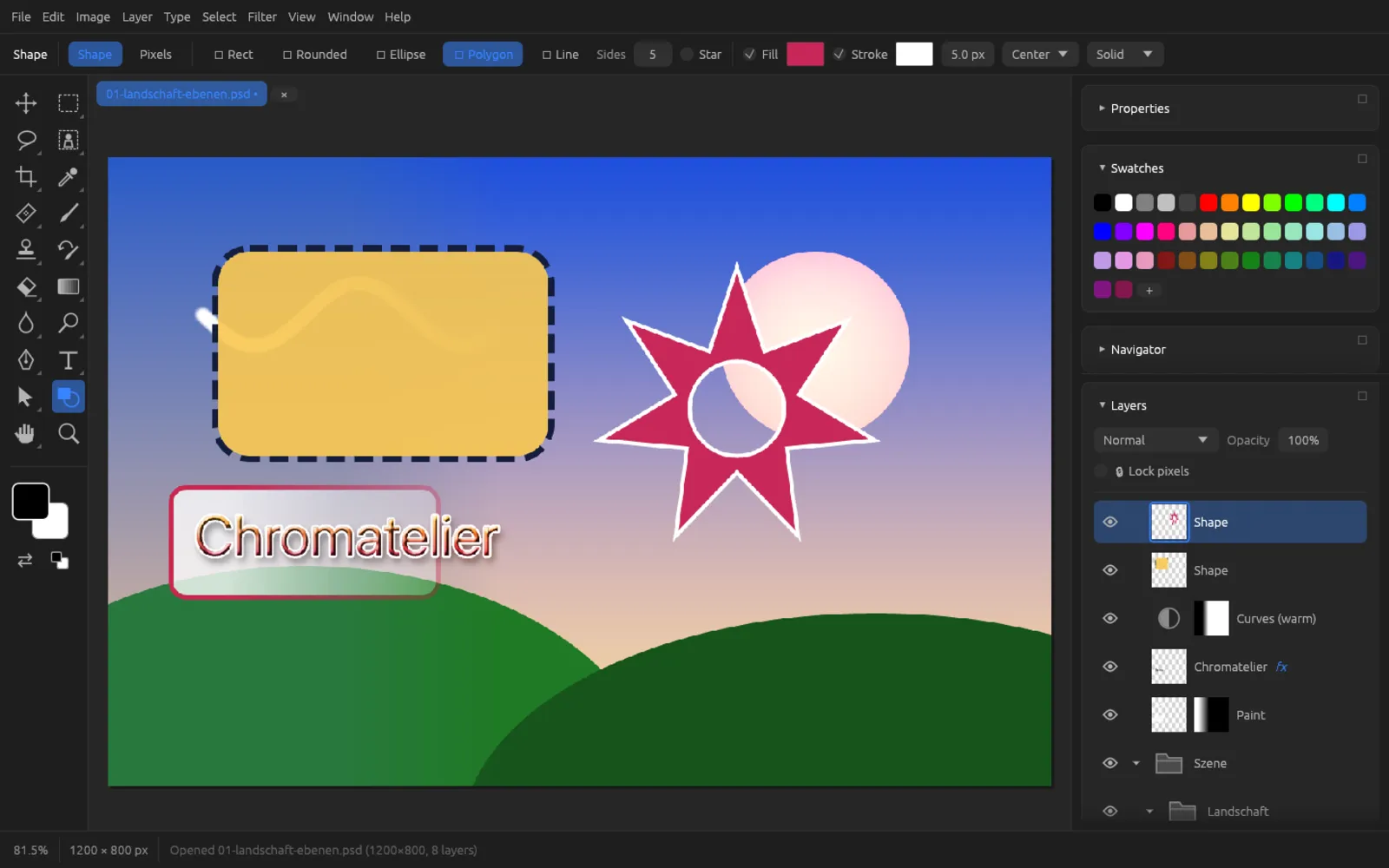
Shape tool options
| Option | Meaning |
|---|---|
| Shape / Pixels | Shape creates a shape layer (vector, stays editable). Pixels paints the shape directly onto the active layer; with New Layer, onto a new one. |
| Rectangle, Rounded, Ellipse, Polygon, Line | the kind of shape |
| Radius | corner radius for the rounded rectangle |
| Sides, Star | number of corners of the polygon (3–100); with Star and the percentage value, how deeply the points are indented |
| Fill | fill on/off and its color |
| Stroke | stroke on/off, color, width (0.1–500 px), position Inside, Center or Outside, line type Solid, Dashed or Dotted |
New shapes get the foreground color as their fill color and the background color as their stroke color.
Changing shape layers afterwards
When a shape layer is active, the options bar doesn't show the defaults for new shapes but the settings of this shape: fill, stroke, width, position and line type change the layer immediately. Shapes drawn with the Shape tool also stay live shapes: under Selected shape: you change the radius of a rectangle, the number of sides and the star setting of a polygon, or the thickness of a line – and the shape is recalculated.
The outlines of a shape layer are a path. With Direct Selection (see below) you move individual anchor points; with the Pen you add more subpaths to the shape (with ⌥ they are subtracted, which creates holes).
Shape layers stay sharp when you scale them. To paint on a shape layer, convert it to pixels with .
Draw a star with a stroke
- Choose the Shape tool with U, and in the options bar choose Shape and Polygon.
- Set Sides to 5, turn on Star and set the percentage to about 50 %.
- Choose the fill color in the color swatch next to Fill, turn on Stroke and enter a width, for example 6 px, position Outside.
- Hold down ⇧ and drag on the canvas.
- As long as the shape layer is active, you can keep changing the color, stroke and number of points in the options bar.
Pens
With the pens (P, cycle through with ⇧ P) you draw paths made of anchor points and Bézier curves. They work on the path selected in the Paths panel, otherwise on the path of the active shape layer or the vector mask of the active layer. If there is none of these, a Work Path is created.
| Tool | How to use it |
|---|---|
| Pen | A click places a corner point, dragging places a smooth point with handles. A click on the first point closes the path. A click on an existing point removes it, a click on a segment adds a point. Return ends an open path. |
| Freeform Pen | Drag freely; when you let go, the line is converted into Bézier curves. Curve Fit (0.5–10 px) determines how precisely. If you end at the start, the path is closed. |
| Curvature Pen | Each click places a point that a smooth curve passes through; ⌥-click places a corner point. You move points by dragging, and the curve follows. A click on the first point closes the path, Return ends it. |
If you hold down ⌥, a new subpath starts as an area to subtract.
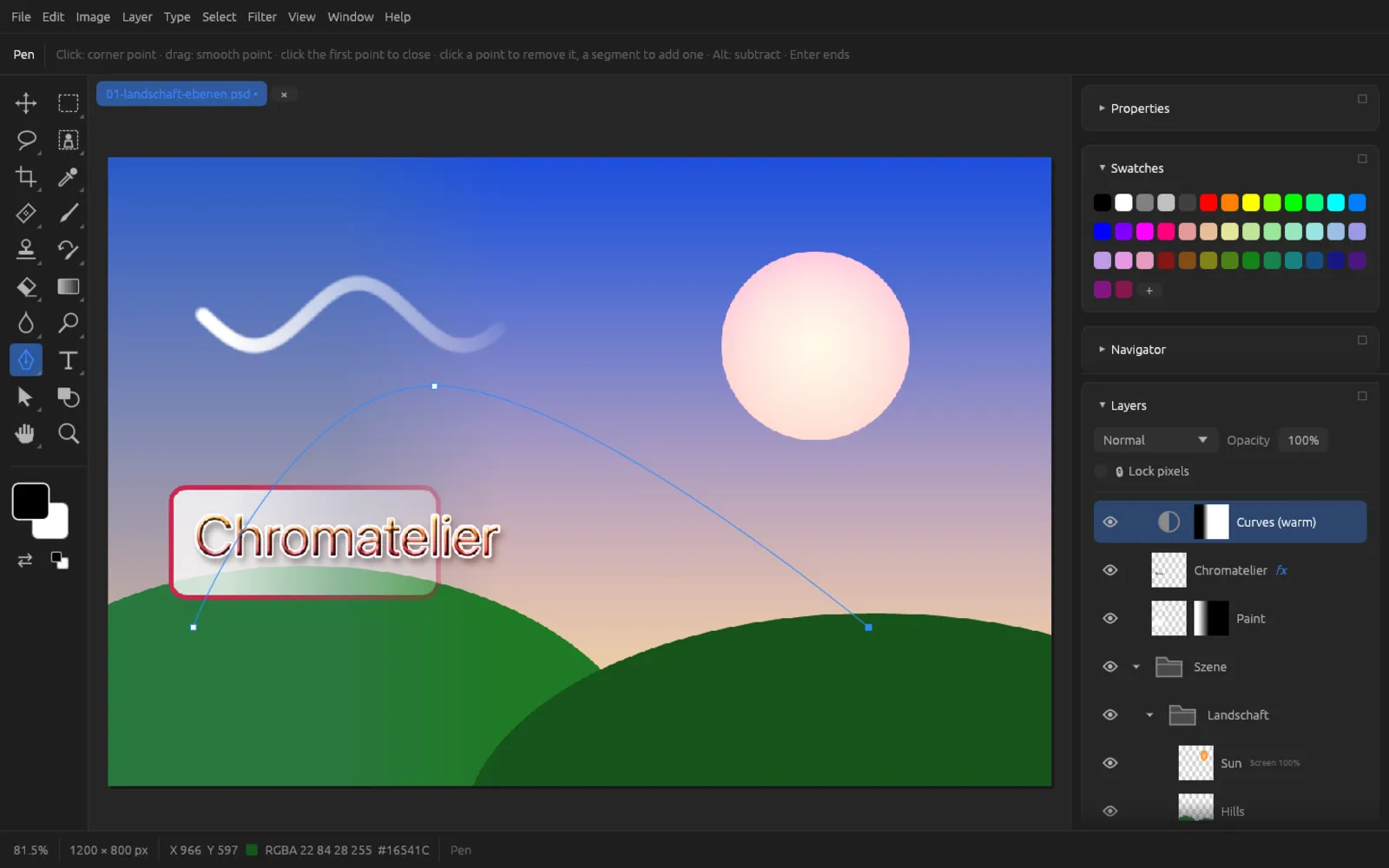
Draw an arc with the Pen
- Choose the Pen with P.
- Click on the left of the canvas: the first corner point is created.
- Click in the middle, hold the mouse button and drag horizontally: a smooth point is created, and the handles shape the curve.
- Click on the right for the end point and press Return to finish the path as an open path.
- The path now appears as Work Path in the Paths panel. Double-click it to save it.
Path Selection and Direct Selection
- Path Selection (A, black arrow): click a subpath or drag a frame around it to select it; ⇧ adds to the selection. Dragging moves the selected subpaths, ⌫ deletes them.
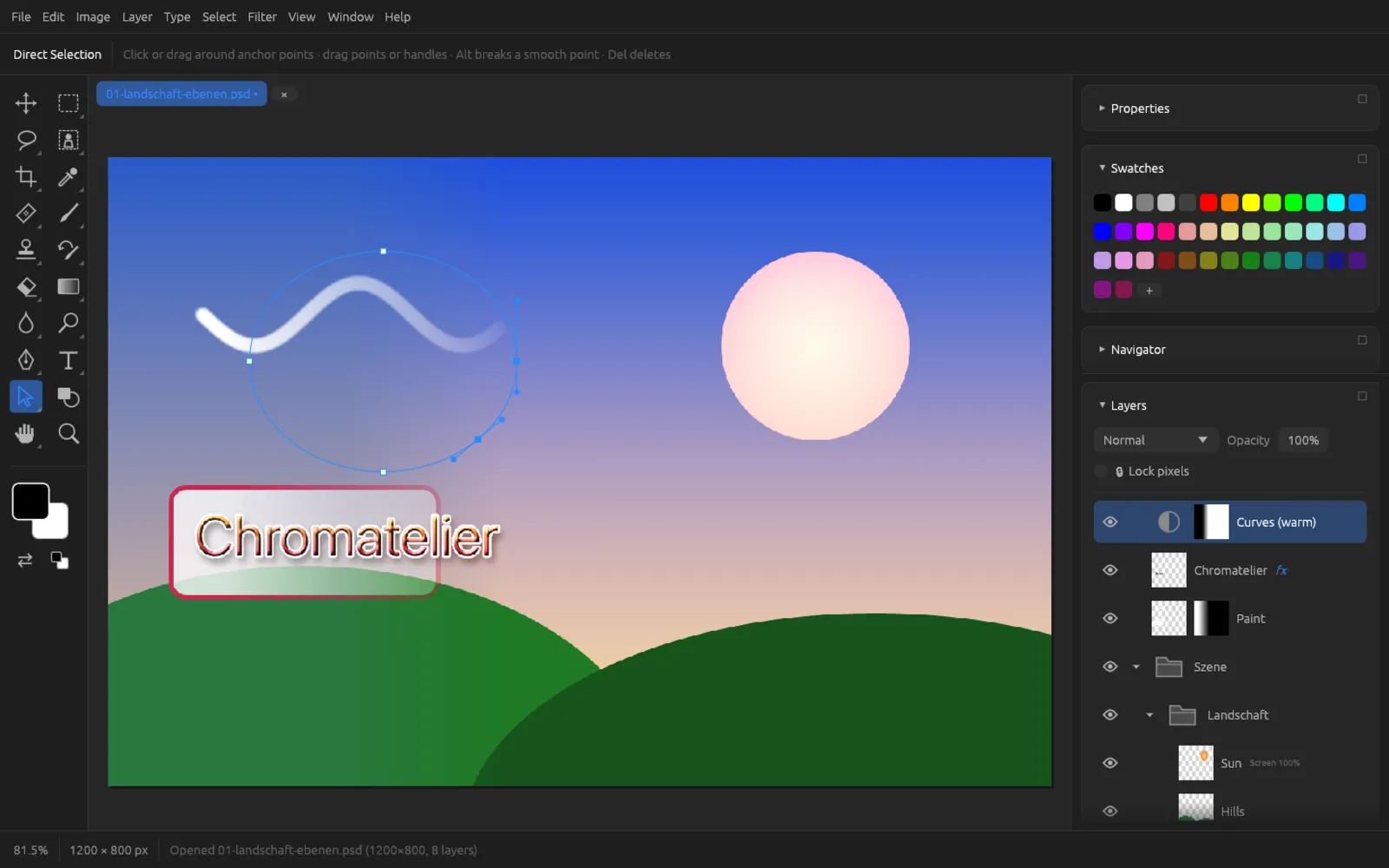
- Direct Selection (⇧ A, white arrow): click anchor points or drag a frame around them. Drag points or their handles; with ⌥ you break the handles of a smooth point apart so that a corner is created. ⌫ deletes the selected points.
The Paths panel
The Paths panel () lists the paths of the document. If a shape layer is active, its shape path appears in italics at the very top. The work path is also shown in italics.
- A click selects a path (a second click deselects it).
- Double-clicking the Work Path saves it as a permanent path; double-clicking a saved path renames it.
| Button | Effect |
|---|---|
| Fill | fill the path with the foreground color |
| Stroke | stroke the path with the foreground color at the current brush size |
| → Selection | load the path as a selection |
| ← Selection | create a work path from the current selection |
| New | create a new, empty path |
| Delete | delete the selected path |
Cut out an object precisely with the Pen
- Zoom in close and trace around the object with the Pen: clicks on straight edges, dragging on curves.
- Finally, click the first point to close the path.
- Correct individual points with Direct Selection (⇧ A).
- In the Paths panel, click → Selection. The path becomes a selection.
- Create a layer mask from it or copy the object to a new layer (see Selections).
Vector masks
A vector mask hides parts of a layer with a path instead of pixels. You create one via : Reveal All, Hide All or Current Path (from the path selected in the Paths panel). Disable turns it off temporarily, Delete removes it. If the active layer has a vector mask, the Pen, Path Selection and Direct Selection edit its path. More on this in the chapter Layers.
You can also use paths for filters, for example (see Filters), and you can trace a selection with .