Getting Started
Here you install Chromatelier, create your first document, open images and save your work. By the end of this chapter you will know the way from a photo to a finished file.
Installation
Chromatelier runs natively on macOS, Windows and Linux, each for Intel and ARM processors. You can download the current version from the website's home page.
| System | Package | How to install it |
|---|---|---|
| macOS | DMG | Open the DMG and drag Chromatelier into the “Applications” folder. The app is notarized by Apple and starts without a warning. |
| Windows | ZIP | Unzip the ZIP and start Chromatelier.exe. If SmartScreen shows a warning, click “More info” and then “Run anyway”. |
| Linux | Archive | Unpack the archive and start ./chromatelier. ./install.sh also adds an entry to your applications menu. |
Next to the program you will find the file THIRD-PARTY-NOTICES.txt with the licenses of all included components, and the small helper program chromatelier-raw, which decodes camera RAW files. Keep both in the same folder as the app.
If you used an earlier version under the name “FrenchPhoto”, Chromatelier takes over its settings, AI models and presets the first time it starts.
The start screen
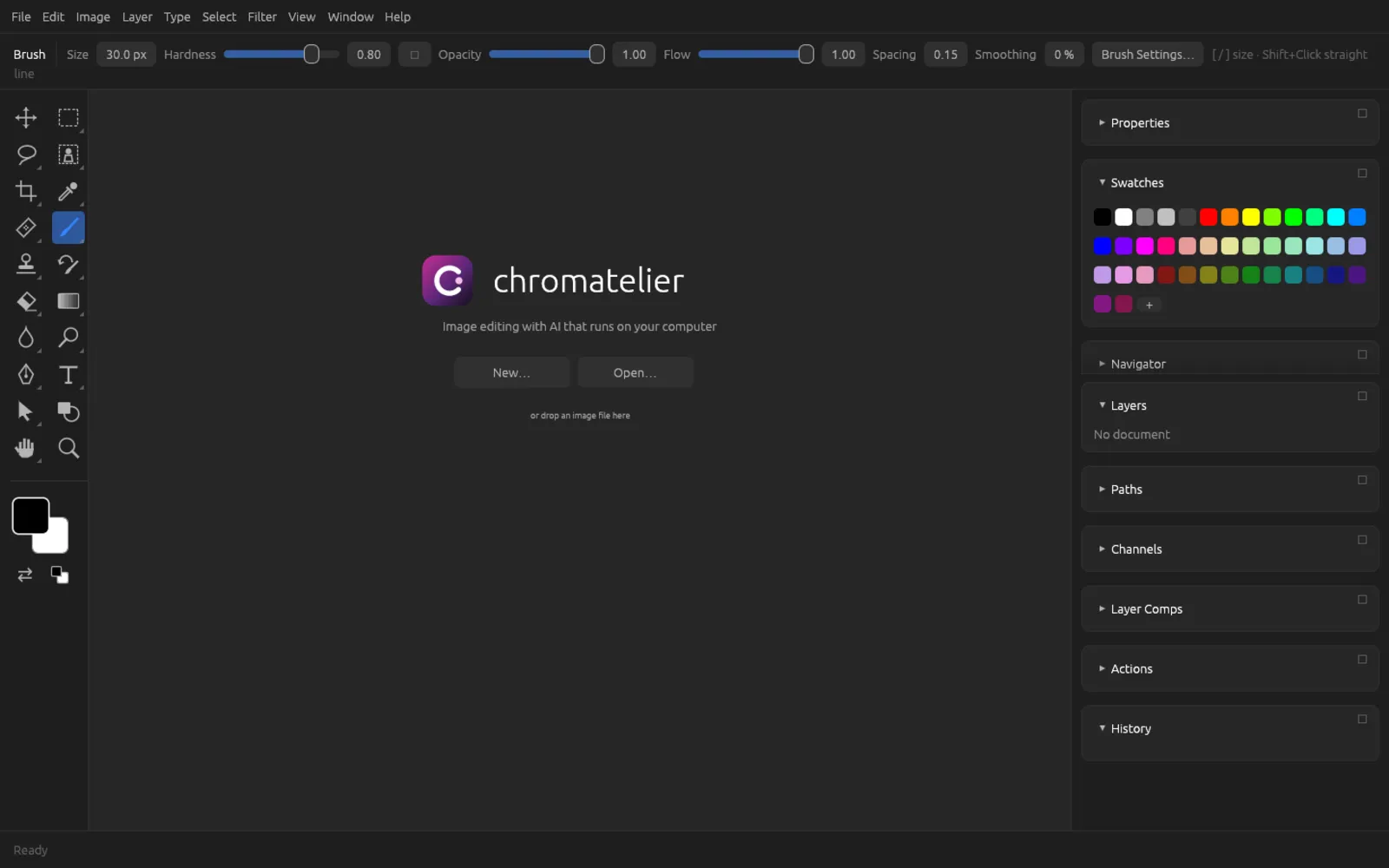
When no document is open, the canvas area shows the start screen. New… creates an empty document, Open… lets you choose image files. Once you have opened or saved files, they also appear here under Recent files (the last eight) and can be reopened with one click. You can also simply drag image files from the Finder or Explorer onto the window.
Creating a new document
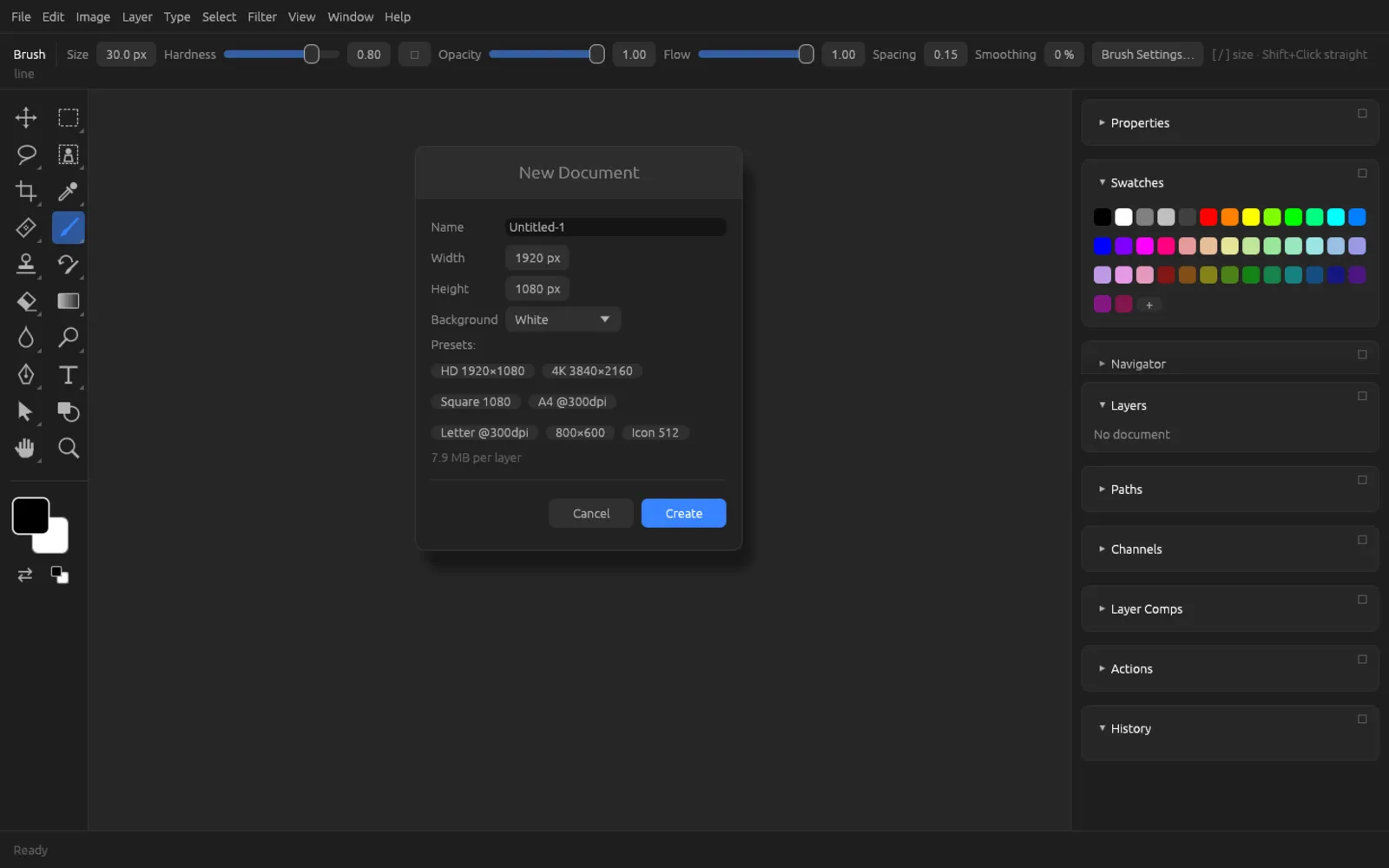
Choose (⌘ N). The New Document dialog asks only for the essentials:
| Field | Meaning |
|---|---|
| Name | The name of the tab; the default is “Untitled-1”, “Untitled-2” and so on. When you save, Chromatelier suggests it as the file name. |
| Width, Height | The size in pixels, each from 1 to 30,000 px. If there is an image on the clipboard, the dialog uses its size; otherwise 1920 × 1080 px. |
| Background | White, Transparent, Background Color (the current background color in the toolbar) or Black. |
| Presets | One click sets the width and height: HD 1920×1080, 4K 3840×2160, Square 1080, A4 @300dpi (2480 × 3508 px), Letter @300dpi (2550 × 3300 px), 800×600 and Icon 512. |
Below the presets you can see how much memory one layer of this size takes up. Create opens the document in a new tab.
New documents are RGB documents with 8 bits per channel in the sRGB color space. You change the color mode (CMYK, Lab, Grayscale …), bit depth (16 or 32 bits) and color profile afterwards in the menu – more on this in the chapter Color, RAW & HDR. You set a print resolution only when you print.
Opening images
Choose (⌘ O). In the file dialog you can select several files at once; each opens in its own tab. You can narrow the list down to all supported formats, Chromatelier projects, PSD/PSB, Camera RAW or 32-bit HDR.
Other ways to open files:
- lists the files you opened or saved most recently. You set how many there are (0 to 30, default 10) in the Preferences under File Handling. Clear Recent File List empties the list.
- Drag files from the Finder or Explorer into the window. If you drop an image on a frame, it goes into that frame (see Layers).
Which files Chromatelier opens
| Kind | Formats | Note |
|---|---|---|
| Projects | .fpd | The app's own project format; it keeps everything. |
| Layered files | PSD, PSB, layered TIFF, PDF with embedded layers | With layers, masks, styles, text and Smart Objects. |
| Photos and graphics | JPEG, PNG, WebP, HEIC/HEIF, TIFF, GIF, BMP, TGA, QOI, ICO | Embedded color profiles are kept, and photos are rotated the way the camera was held. 16-bit PNGs and TIFFs open as 16-bit documents, grayscale images in Grayscale mode, CMYK TIFFs as CMYK documents. |
| Camera RAW | DNG, CR2, CR3, NEF, ARW, RAF, ORF, RW2, PEF and many more | Opens the RAW development first (see Color, RAW & HDR). |
| 32-bit HDR | OpenEXR (.exr), Radiance (.hdr) | As a 32-bit document. |
| Vectors | SVG, SVGZ, PDF | A dialog first asks for the size, page and resolution. |
| Medical | DICOM (.dcm) | Several images in one file become layers. |
| Video | MP4, MOV, M4V | As a video layer (see Video & Animation). |
A detailed list of everything Chromatelier can read and write is in the chapter Saving, Export & Printing.
Importing SVG and PDF
SVG and PDF files are vector and page formats. That is why opening one brings up the Import SVG or Import PDF dialog: for PDFs you choose the Page, then the Resolution in ppi, or the Width and Height in pixels directly (with Constrain proportions). PDFs that Chromatelier itself saved with layers, on the other hand, open directly with all their layers.
Place Embedded
brings another image into the current document. It is inserted as a Smart Object: centered, scaled down if needed so that it fits entirely on the canvas, and scalable without loss of quality, because the original is kept inside the document. You can place raster images, PSD/PSB, Chromatelier projects, SVG and PDF.
If a frame is selected, the same command puts the image into the frame. The chapter Layers explains how to edit and transform Smart Objects and add Smart Filters to them.
Working with several documents
Each open document has a tab above the canvas. Clicking the name brings the document to the front; the × next to it closes it. A dot after the name (e.g. “street.jpg •”) indicates unsaved changes.
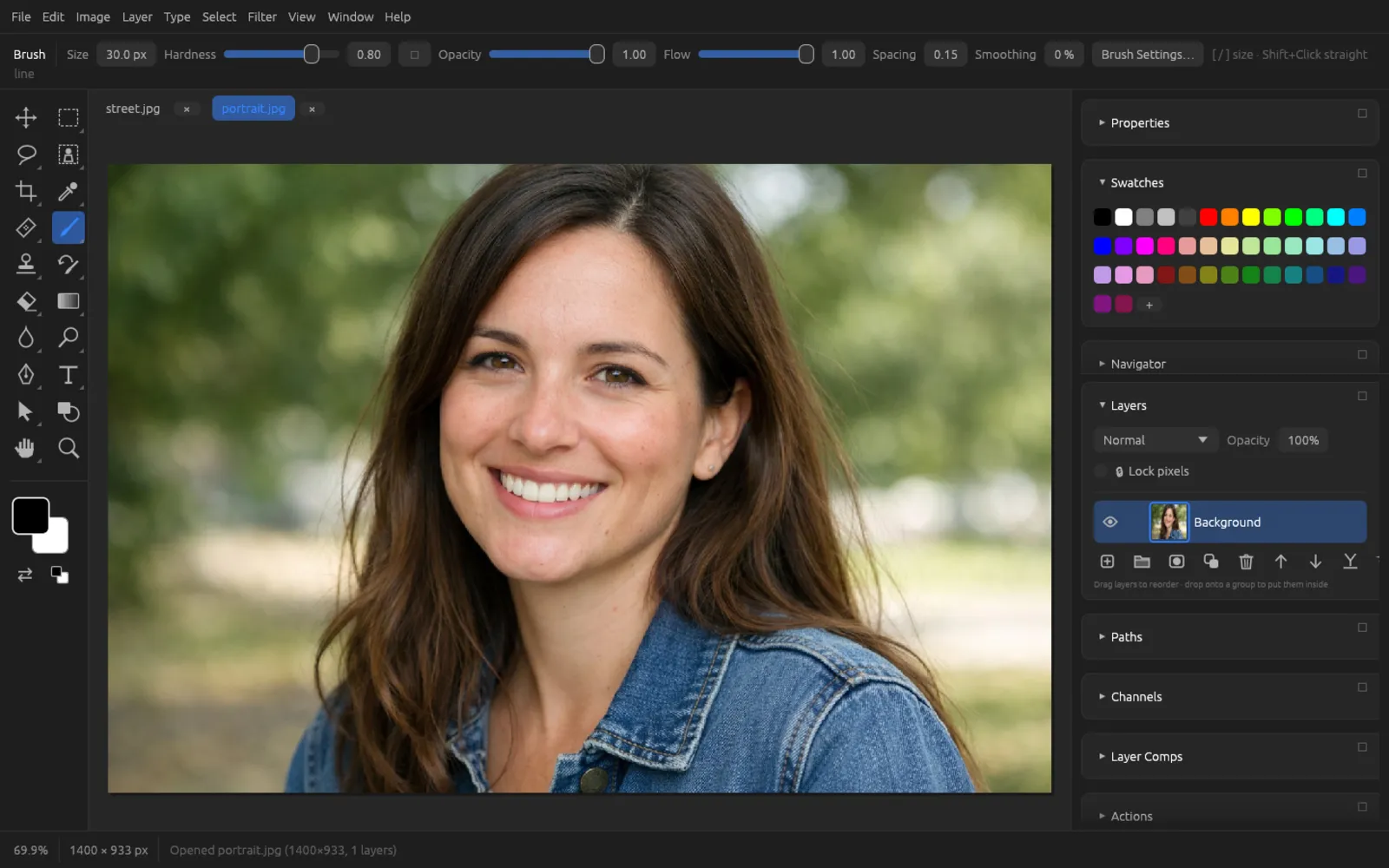
While a dialog is open, the current document stays in front – close the dialog first before you switch tabs. To see several documents side by side, use ; see Interface.
Saving
Chromatelier distinguishes between saving (keeping the document with all its layers) and exporting (creating a finished, flat image for the web, a presentation or sharing). There are three commands for saving:
| Command | Shortcut | What it does |
|---|---|---|
| ⌘ S | Writes the document back to its file if it is a Chromatelier project, a PSD or a layered PDF (for 32-bit documents also OpenEXR/Radiance). If it came from a JPEG, PNG or another flat format, or if it is new, Save As opens instead – so you never accidentally overwrite an original with a flat copy. | |
| ⌘ ⇧ S | Saves under a new name or in a different layered format. Afterwards you keep working in the new file. | |
| ⌘ ⌥ S | Writes a copy (suggested: “Name copy.fpd”). The document itself stays unchanged – with its name, its file and its unsaved changes. |
.fpd or .psd?
In the save dialog you choose one of these layered formats:
- Chromatelier project (.fpd) – the app's own format. It keeps everything Chromatelier knows about: layers, masks, styles, Smart Objects, paths, channels, layer comps, guides, slices, color mode and profile, file info, character and paragraph styles, notes, counts, measurement scale, video and sound. Use it for anything you want to keep working on. If there is no extension, Chromatelier adds
.fpd. - PSD – the widespread exchange format for layered files, with layers, masks, styles, text and Smart Objects. Use it when someone is going to open the file in another program.
- Layered TIFF and layered PDF – an image that any program can display and that Chromatelier still reopens with all its layers. Note: Save (⌘ S) writes back directly only to .fpd, .psd and .pdf; for a TIFF it asks via Save As.
- OpenEXR and Radiance HDR are also available for 32-bit documents.
For JPEG, PNG, WebP and other flat formats, use . The chapter Saving, Export & Printing describes all the ways to export.
Closing and quitting
(⌘ W) or the tab's × closes the current document. If there are unsaved changes, Chromatelier asks “Save changes to "…" before closing?” and offers Save…, Don't Save and Cancel.
(⌘ Q) closes the program. If there are still changes pending, Chromatelier warns “There are unsaved changes. Quit anyway?”; only Quit without saving discards them.
Undo, Redo and History
You can take back every step:
- (⌘ Z) takes back the last step; pressing it repeatedly goes further back.
- (⌘ ⇧ Z) restores a step you undid.
- The History panel () lists all the steps of the document. Clicking an entry jumps to that state; this is also where you create snapshots.
How many steps are remembered is set by History States in the Preferences under Performance (2 to 1000, default 60). Snapshots, the History Brush and are explained in the chapter Retouching & Transforming.
Automatic recovery
Chromatelier regularly saves changed documents in the background to a recovery folder in its settings. You won't notice it; your work isn't interrupted. When you save or close a document, its backup disappears, and when you quit normally, the whole folder is emptied.
If the program crashes or the power fails, the Recover Documents dialog appears the next time you start it: “Chromatelier did not quit properly last time. These documents were saved automatically:”. For each document you can see how many minutes ago it was saved.
- Open or Open All brings the documents back – under their old names and with their old locations, marked as changed. Then save them as usual.
- Discard or Discard All deletes the backups.
- Later keeps them for the next start.
You set the interval under › File Handling › Automatically Save Recovery Information Every (0 to 120 minutes, default 10; 0 turns the backup off). If two Chromatelier windows are running at the same time, they don't get in each other's way.
Recovery is no substitute for saving: it only helps after a crash and restores at most the state of the last backup.
Language and theme
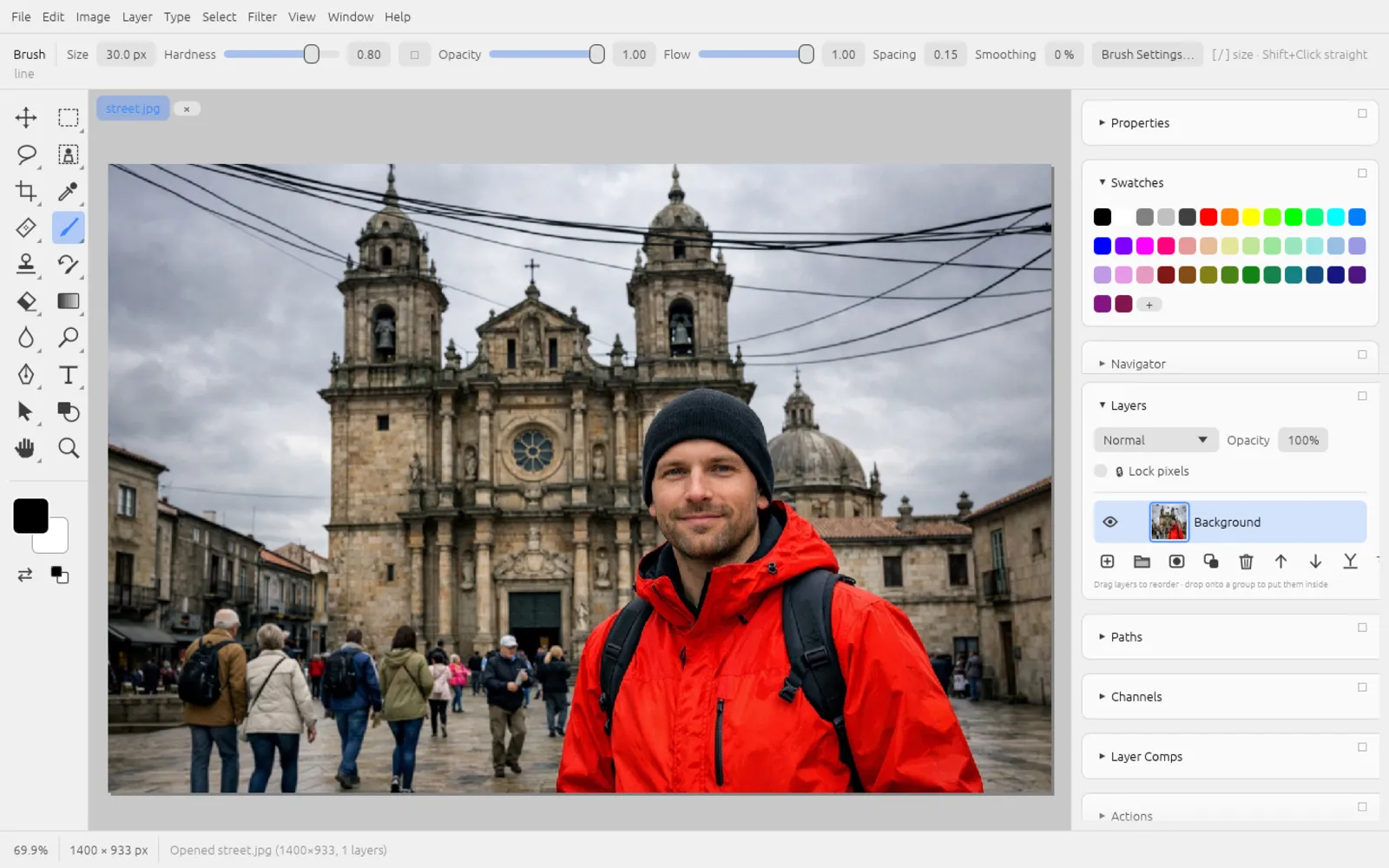
The interface is available in German, English, French and Spanish, with a dark and a light theme.
- Language: or › General › Language. The change takes effect immediately.
- Light or dark: switches immediately; to make it permanent, set it in the Preferences under Color Theme.
- Size of the interface: UI Scaling in the Preferences (50 to 300%) enlarges text and controls, for example on high-resolution screens.
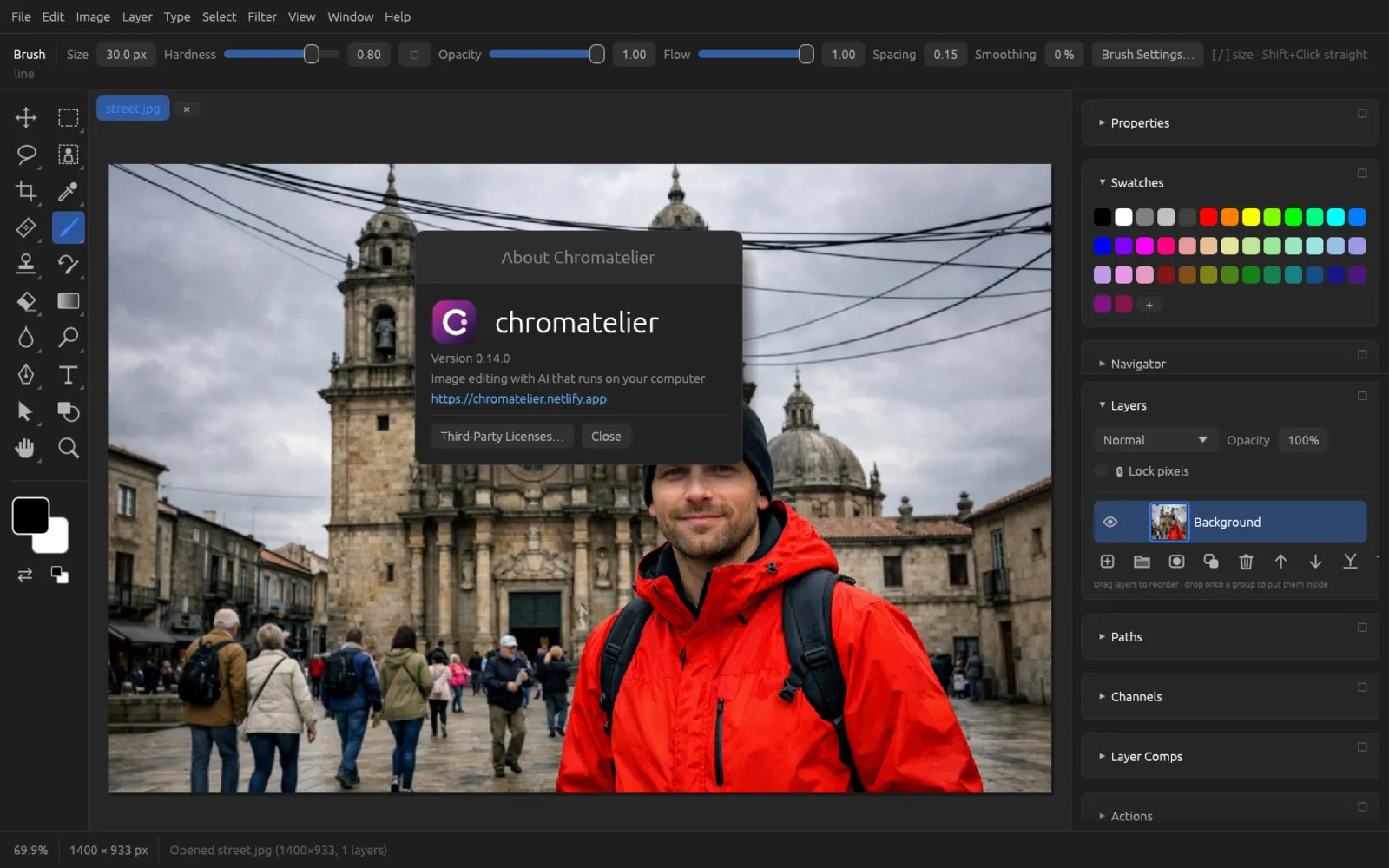
About Chromatelier
shows the version number and the link to the website. From there and via you can reach the licenses of all included components, fonts and AI models.
Editing and saving your first image
- Start Chromatelier and click Open… on the start screen (or press ⌘ O). Choose a photo, for example a JPEG, and confirm. The image opens in a tab; the status bar at the bottom shows the zoom level and size.
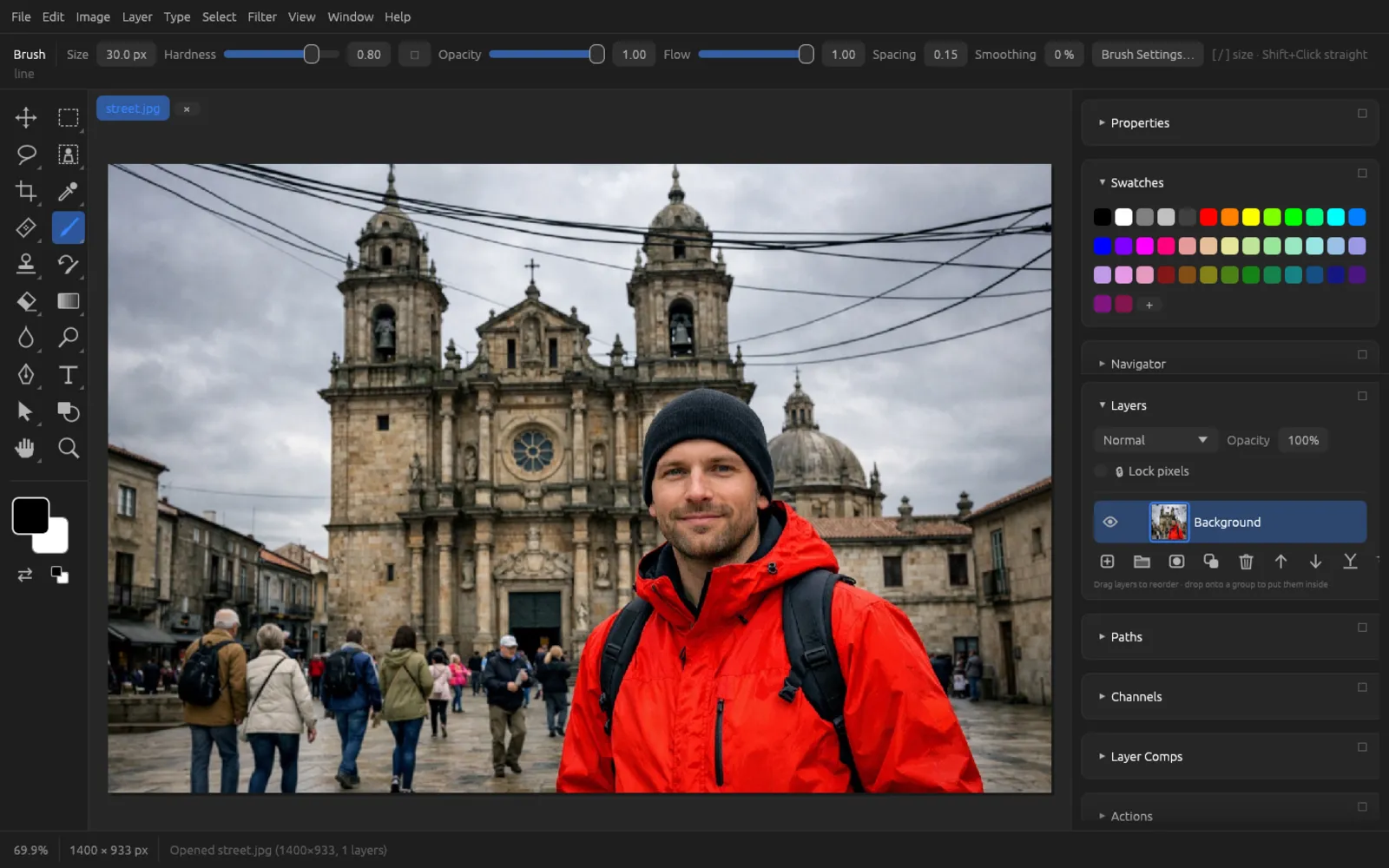
The opened photo in the main window. - Create an adjustment layer for the correction so the original stays untouched: . Drag the middle of the curve up a little to brighten the image. (, ⌘ M, works directly on the pixels.)
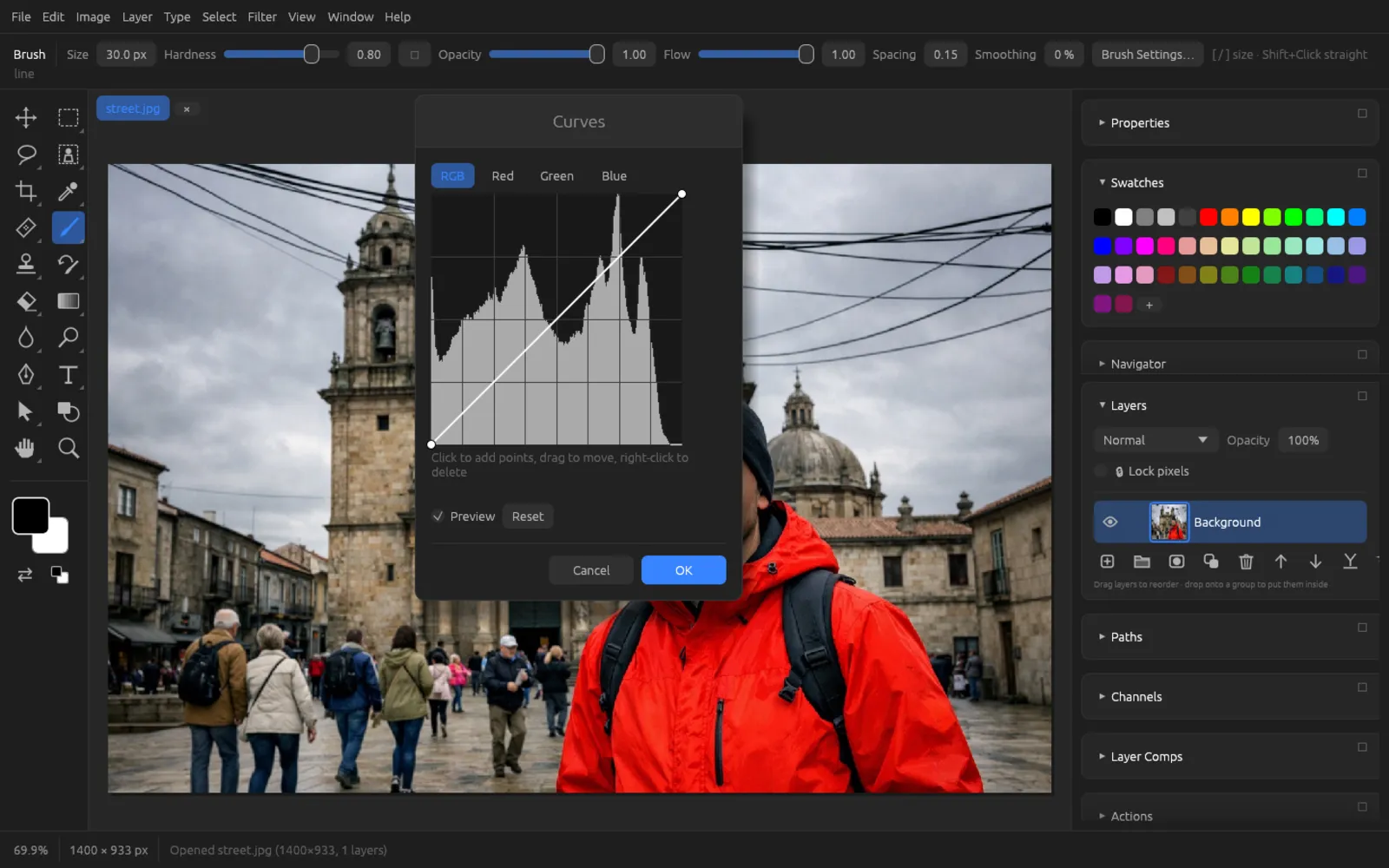
The Curves dialog: click the diagonal line and drag the point upward. - If you didn't like a step, take it back with ⌘ Z.
- Save your work with all its layers: . Keep the suggested format Chromatelier project (.fpd) and save. From now on, ⌘ S is enough.
- To share it, export a flat copy: . Under Format choose JPEG, set the Quality and click Export….
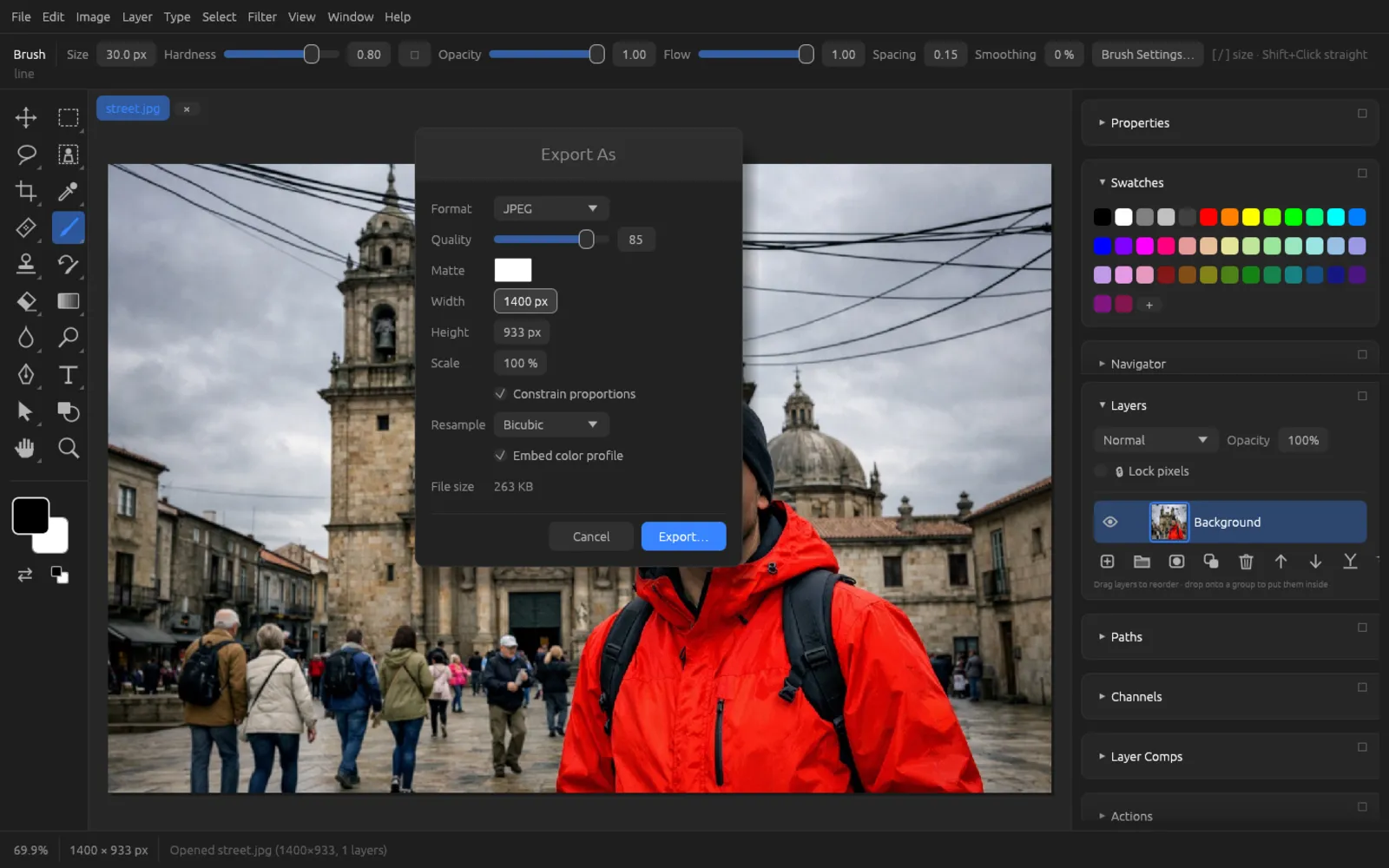
Exporting as JPEG with quality 85; the expected file size is shown at the bottom. - Close the document with ⌘ W. You can reopen the .fpd file at any time and keep editing it.