Layers
Layers are like transparent sheets stacked on top of each other: each one carries part of the image, and you can move, hide, mask and blend them individually without touching the others. This chapter explains the Layers panel, the menu and every kind of layer – from a simple pixel layer to a smart object with smart filters.
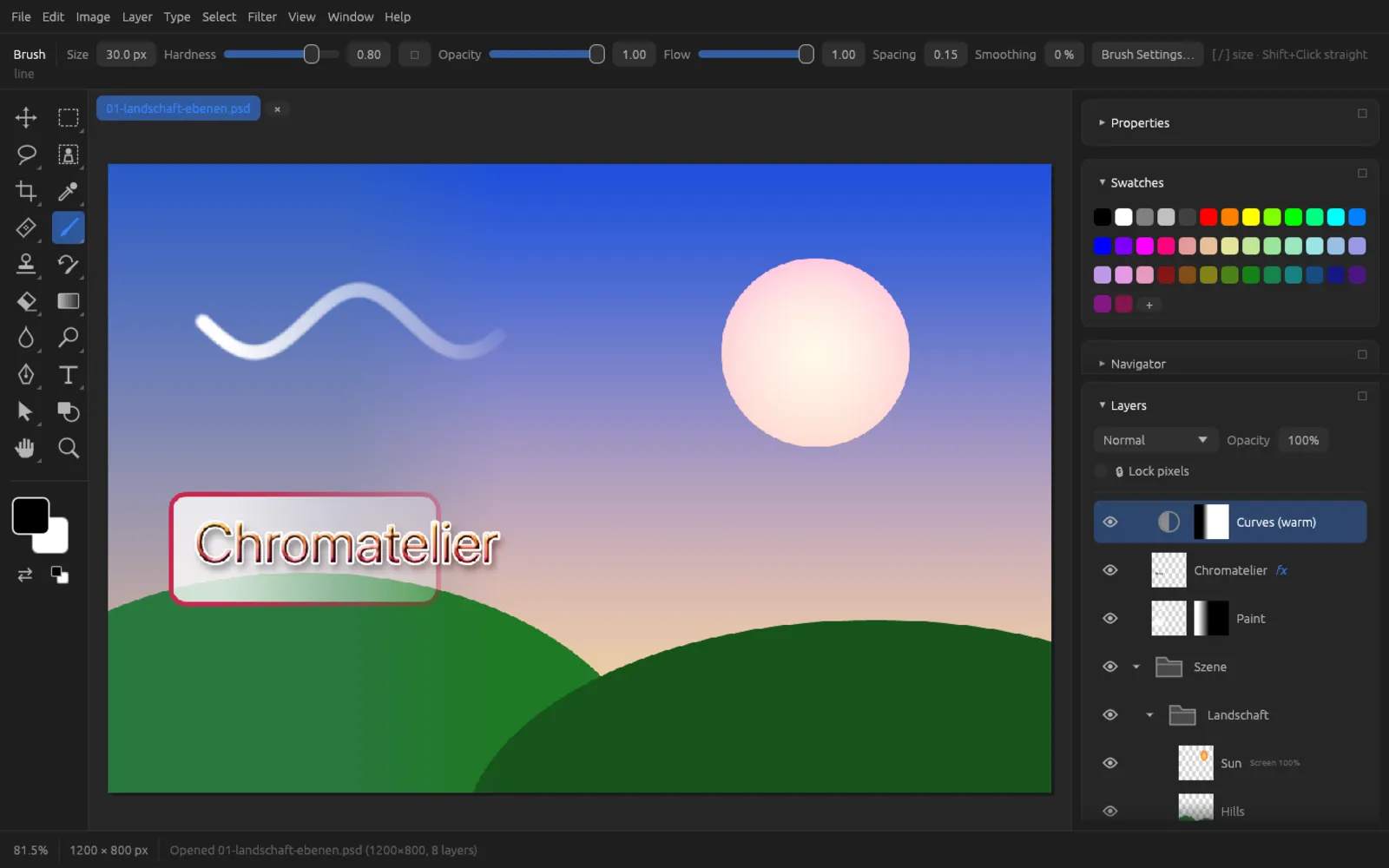
Layer types at a glance
Chromatelier has several kinds of layers. The thumbnail in the Layers panel tells you which kind you are looking at.
| Layer type | How to recognize it | What it is for |
|---|---|---|
| Pixel layer | Thumbnail of its content | Painted, pasted or photographed pixels. The only kind you can paint on directly. |
| Group | Folder icon with an arrow to expand and collapse it | Bundles layers so you can hide, move or mask them together. |
| Adjustment layer | Half-circle icon with a mask next to it | A color or tonal correction that affects all layers below it and can be changed at any time. |
| Fill layer | Color, gradient or pattern preview with a mask next to it | An area of solid color, gradient or pattern that you can set up again at any time. |
| Text layer | “T” instead of a thumbnail | Editable text (see Text, Shapes & Paths). |
| Shape layer | Thumbnail with a vector mask | Vector shapes with fill and stroke. |
| Smart object | Small badge at the bottom right of the thumbnail | Embedded content that does not lose quality when scaled and can carry smart filters. |
| Frame | Pixel or smart object layer with a rectangular or elliptical vector mask | A placeholder you put a picture into. |
| Video layer | Thumbnail of the current frame | A video clip in the timeline (see Video & Animation). |
The Layers panel
You show and hide the Layers panel with or F7. It has three parts: at the top, the properties of the active layer; in the middle, the layer list (the top row is the topmost layer in the image); and at the bottom, a bar of buttons.
Blend mode, opacity and locking
- Blend mode (drop-down list at the top left, initially Normal): sets how the layer is combined with what lies below it. All modes are explained in the section Blend modes. Groups also have Pass Through.
- Opacity (0–100 %): how visible the layer is, including its layer styles. Dragging the value counts as a single step in the history.
- 🔒 Lock pixels: protects the layer’s pixels from painting, erasing and filters. A locked layer shows a lock icon after its name.
You set the fill opacity (only the pixels, not the layer styles) in the Layer Style dialog or in the Properties panel. If several layers are selected, a change to the blend mode, opacity or lock applies to all of them.
A layer row
From left to right, each row shows:
- Eye – a click hides or shows the layer. Hidden layers appear gray.
- Indent – layers inside groups are indented; layers clipped to a clipping mask carry a bent arrow pointing down.
- Thumbnail – a click makes the layer active; a blue frame shows that you are painting on its pixels. A double-click opens the matching dialog for the kind of layer: adjustment layer → adjustment dialog, fill layer → fill options, text layer → edit text, smart object → edit contents, group → expand and collapse, pixel layer → layer style.
- Mask thumbnail and vector mask thumbnail, if there are any (see Layer masks). A red cross means the mask is disabled.
- Name – double-click to rename (Return confirms, Esc cancels). The name of a layer that other layers are clipped to is underlined.
- Icons – lock (locked), chain link (linked), fx (layer style; a click opens the dialog) and, if they are not Normal/100 %, the blend mode and opacity in small type.
A smart object lists its smart filters in rows of their own beneath it.
Selecting several layers
- ⌘-click on a row adds it to the selection or removes it.
- ⇧-click selects all rows between the active one and the one you click.
- (⌘ ⌥ A) selects all layers.
Selected layers have a lighter background, the active one the lightest. Many commands act on all selected layers: duplicate, delete, group, link, align, clipping mask, blend mode and opacity. When several layers are selected, is called .
Reordering layers by dragging
Drag a row up or down with the mouse. A blue line shows where the layer will land. If you release it over the middle of a group, a frame appears around the group – the layer then goes inside it. You can move whole groups with their contents this way, too. Without the mouse, use (⌘ ]) and (⌘ [).
The buttons at the bottom
| Button | Effect |
|---|---|
| New layer | Empty pixel layer above the active one (⌘ ⇧ N). |
| New group | Empty group above the active layer. |
| Add layer mask | Mask from the current selection; without a selection, a white mask that shows everything. |
| Duplicate layer / group | Copy of the selected layers. |
| Delete layer / group | Removes the selected layers. |
| Move up / Move down | One step up (⌘ ]) or down (⌘ [) in the stack. |
| Merge down | Merges with the layer below; for a group, merges the group (⌘ E). |
| Flatten image | Turns all layers into a single opaque layer. |
| Layer style (fx) | Opens the Layer Style dialog. |
| New adjustment layer | Opens the list of adjustment layers. |
The Layer menu
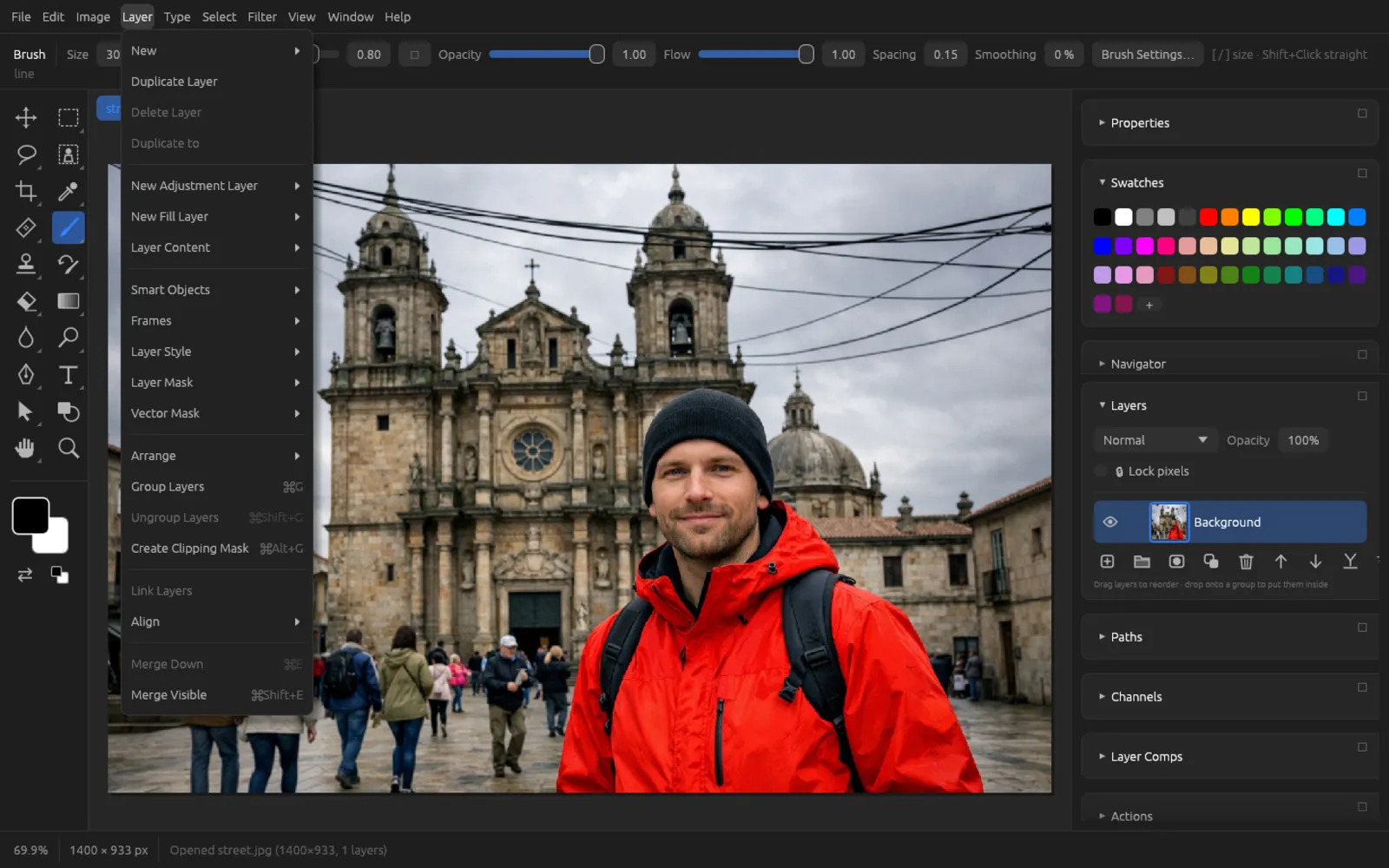
Creating new layers
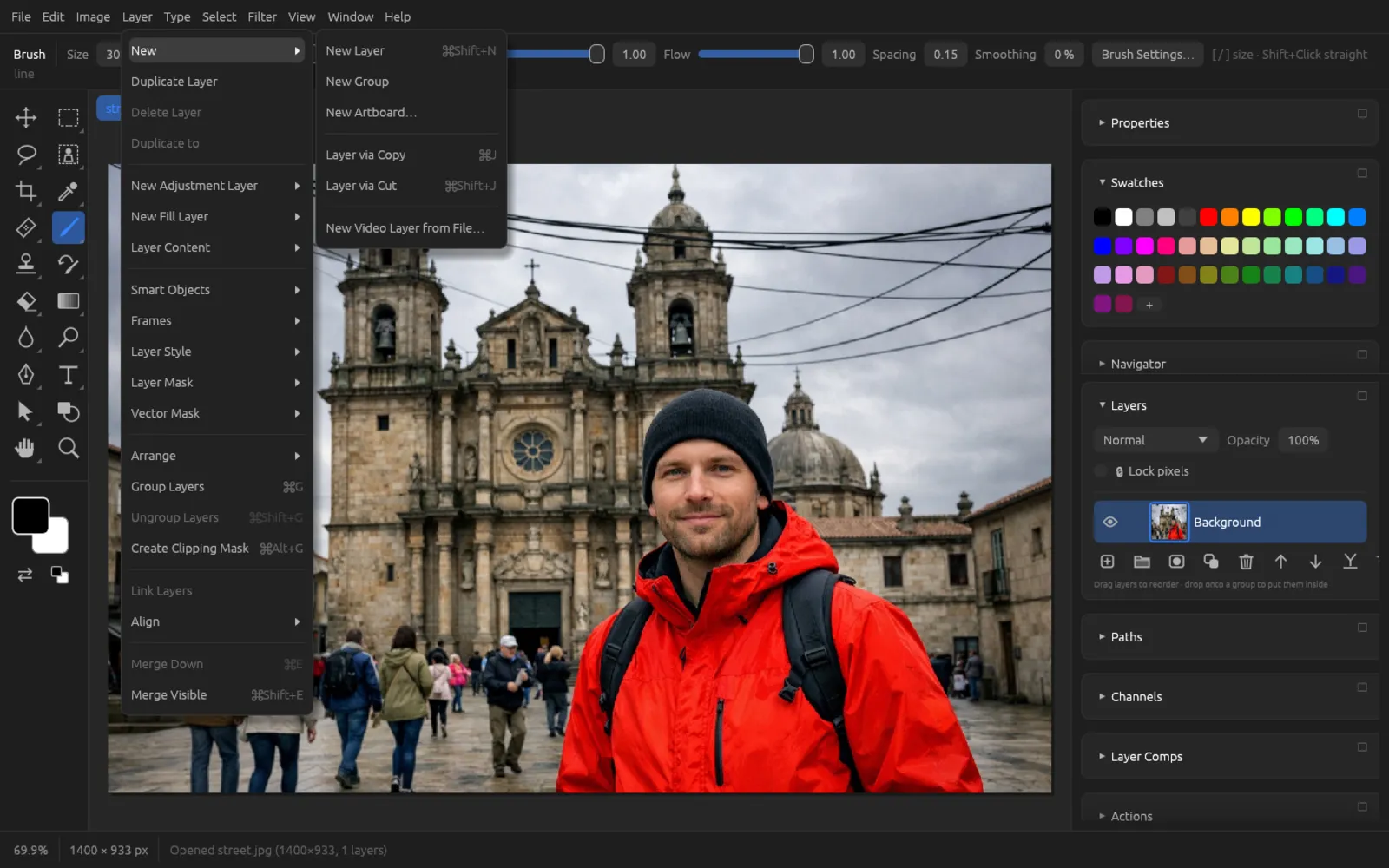
| Command | Shortcut | Effect |
|---|---|---|
| ⌘ ⇧ N | Empty, transparent pixel layer “Layer N”. | |
| Empty group “Group N”. | ||
| See Artboards. | ||
| ⌘ J | Copies the selected area of the active layer to a new layer. Without a selection, the whole layer is duplicated – a text layer stays text and a smart object stays a smart object. | |
| ⌘ ⇧ J | Like the above, but removes the area from the original layer. Works only on pixel layers – rasterize other layers first. | |
| Brings a video clip (MP4, M4V, MOV) into the document as a layer. More in the chapter Video & Animation. |
Duplicating, deleting, sending to another document
- copies all selected layers (groups with their contents).
- removes the selected layers. You cannot delete the last layer of a document.
- lists the other open documents; a click copies the active layer there. If only one document is open, the entry is gray. If documents are shown side by side (), you can also drag a layer onto another document with the Move tool.
Layer content and rasterizing
Under you find:
- – opens the adjustment dialog of the active adjustment layer (just like a double-click on its thumbnail).
- – opens the settings of a fill layer.
- – turns a smart object or a fill, text, shape or video layer into an ordinary pixel layer. You can then paint on it, but its special properties (editing text, changing the fill, lossless scaling) are gone. A video layer keeps the frame it is currently showing.
Groups
Groups keep the Layers panel tidy and can be treated like a single layer: hidden, moved, masked, and given a blend mode and opacity.
- (⌘ G) puts all selected layers into a new group.
- (⌘ ⇧ G) dissolves the active group; its contents are kept.
- Click the arrow in front of the folder icon to expand and collapse the group; a double-click on the folder icon does the same.
- Drag layers into a group or out of it (see Reordering).
New groups have the blend mode Pass Through: the layers inside blend as if the group were not there – an adjustment layer in the group then also affects everything below it. If you set the group to Normal or another mode, its contents are first composited on their own; adjustment layers inside it then only affect the group.
Blend modes
The blend mode determines how the colors of a layer (the “top”) are combined with what is visible below it (the “bottom”). You choose it at the top of the Layers panel. You find the same list in tools, layer styles and dialogs such as .
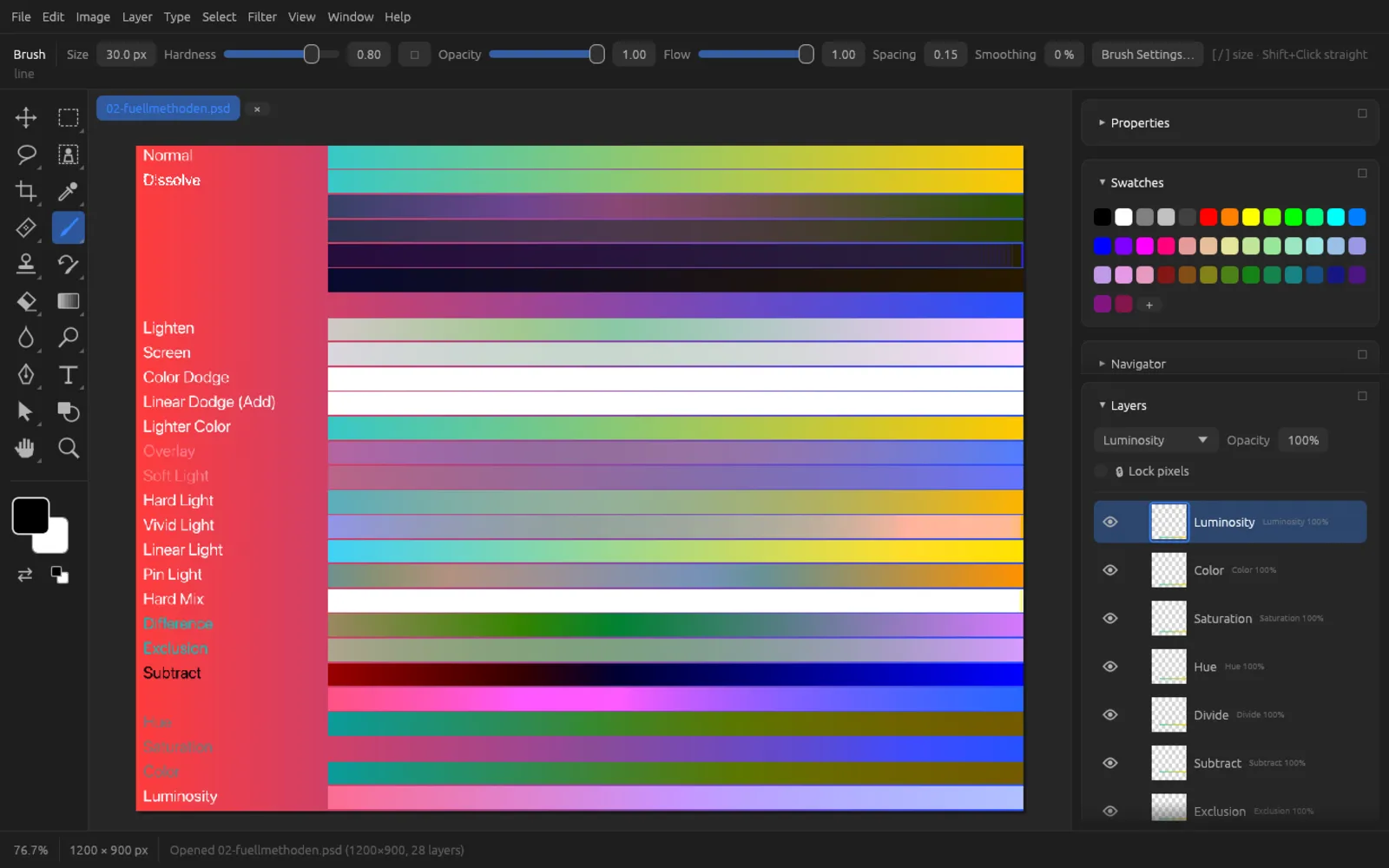
| Blend mode | Effect |
|---|---|
| Normal | The top color covers the bottom one; only opacity and transparency let anything through. |
| Dissolve | Semi-transparent areas are shown either fully or not at all at random – a grainy transition. |
| Darken | In each channel, the darker value wins. |
| Multiply | Multiplies the colors: the result is always darker, and white changes nothing. Good for shadows and line drawings on paper. |
| Color Burn | Darkens strongly while increasing contrast and saturation. |
| Linear Burn | Darkens by reducing brightness; harsher than Multiply. |
| Darker Color | Shows, per pixel, whichever of the two colors is darker overall (not channel by channel). |
| Lighten | In each channel, the lighter value wins. |
| Screen | The counterpart to Multiply: the result is always lighter, and black changes nothing. Good for highlights and glows. |
| Color Dodge | Lightens strongly and reduces contrast; light areas blow out easily. |
| Linear Dodge (Add) | Adds the brightness values – stronger than Screen. |
| Lighter Color | Shows, per pixel, whichever of the two colors is lighter overall. |
| Overlay | Boosts contrast: dark areas at the bottom are multiplied, light ones are screened. 50 % gray at the top changes nothing. |
| Soft Light | A gentle version of Overlay, like diffuse light. |
| Hard Light | Like Overlay, but the top layer decides the direction – like a harsh spotlight. |
| Vivid Light | Combines color dodge and color burn depending on the top brightness; very strong. |
| Linear Light | Combines linear dodge and linear burn. |
| Pin Light | Replaces dark or light areas depending on the top brightness; for special effects. |
| Hard Mix | Each channel goes fully on or fully off – strong posterization in primary colors. |
| Difference | Subtracts the lighter color from the darker one. Identical image areas turn black – handy for aligning two photos. |
| Exclusion | Similar to Difference, but with less contrast. |
| Subtract | Subtracts the top color from the bottom one. |
| Divide | Divides the bottom color by the top one; usually lightens strongly. |
| Hue | Hue from the top, saturation and brightness from the bottom. |
| Saturation | Saturation from the top, hue and brightness from the bottom. |
| Color | Hue and saturation from the top, brightness from the bottom – ideal for tinting. |
| Luminosity | Brightness from the top, color from the bottom. |
Groups also have Pass Through (see Groups).
Layer masks
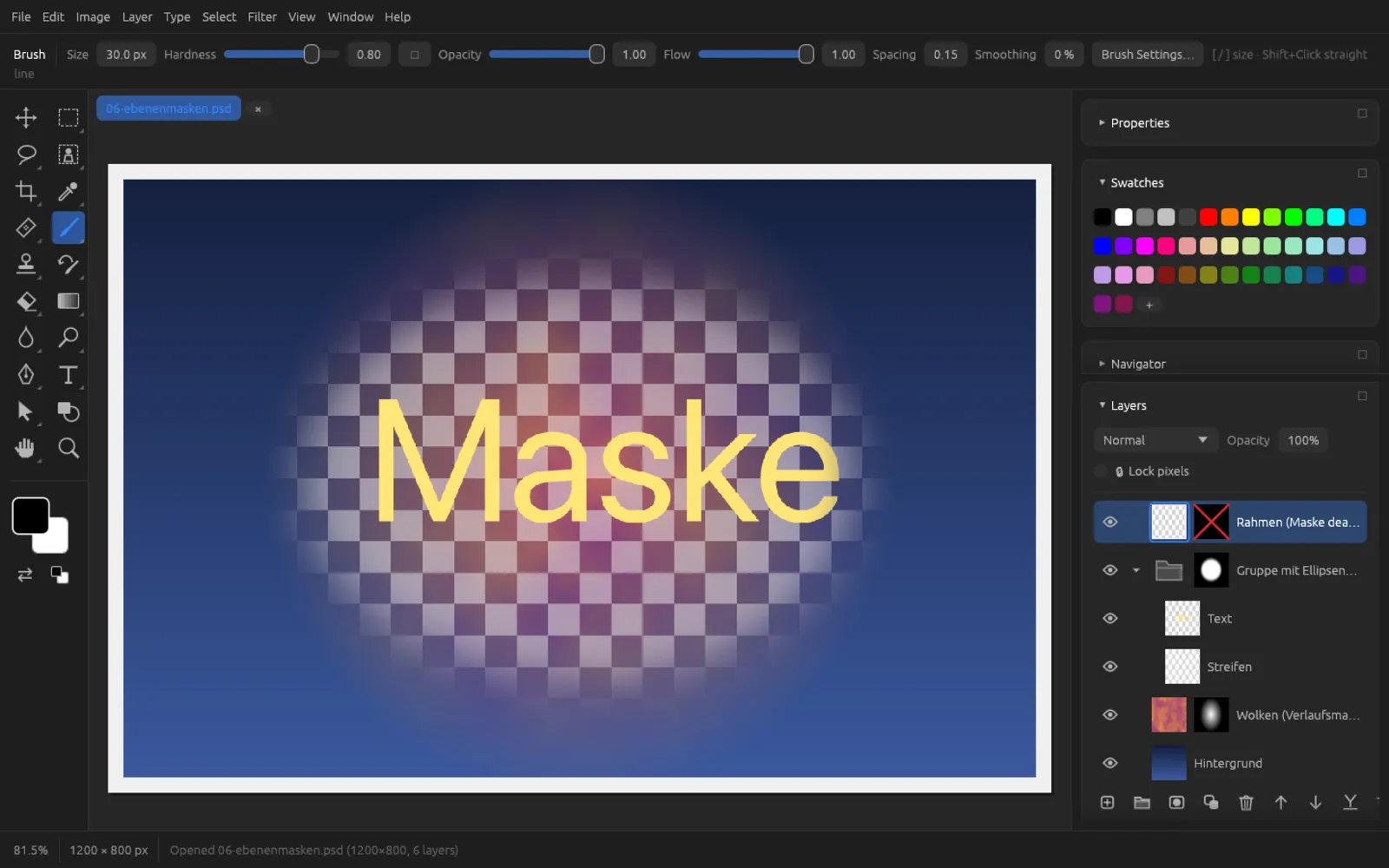
A layer mask hides parts of a layer without deleting any pixels. It is a grayscale image: white reveals, black conceals, and shades of gray let the layer show through partially. You can touch up the mask at any time – which makes it the most important tool for composites.
The commands under Layer › Layer Mask
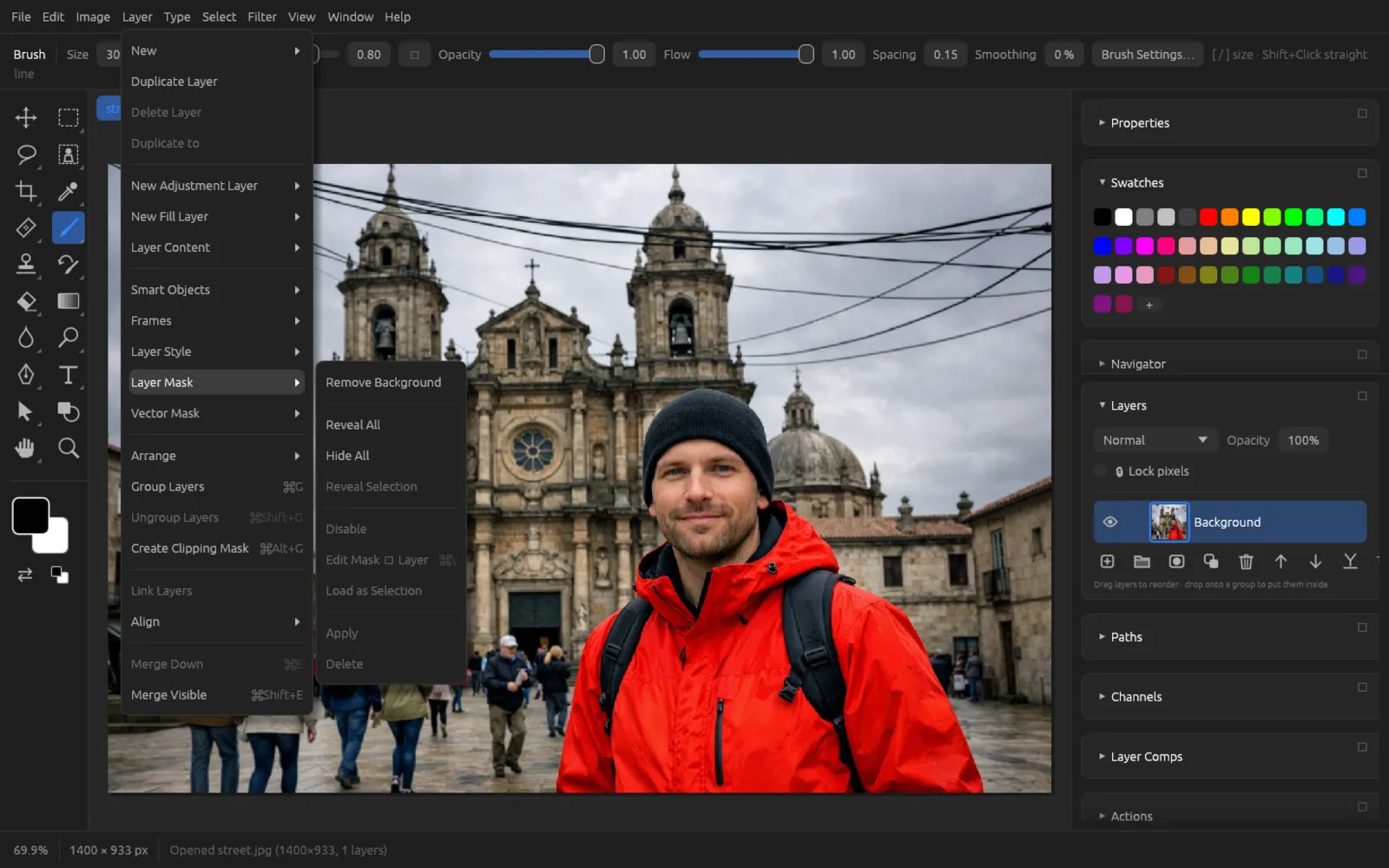
| Command | Effect |
|---|---|
| Detects the subject with a local AI model and creates a matching mask (see AI on your computer). | |
| New white mask – the layer stays fully visible at first. | |
| New black mask – the layer is invisible at first; you paint with white to bring out what should appear. | |
| New mask from the current selection: the selected area stays visible, the rest is hidden. The selection is removed in the process. | |
| / | Temporarily switches off the mask’s effect; its thumbnail then shows a red cross. |
| (⌘ \) | Switches whether brushes and filters act on the mask or on the layer’s pixels. |
| Turns the mask into a selection. | |
| Bakes the mask into the pixels (hidden areas become transparent) and removes it. Not available for groups. | |
| Removes the mask without applying it. |
A layer has at most one layer mask; the commands for adding one are gray as long as a mask already exists.
Editing the mask or editing the layer
The blue frame around the corresponding thumbnail shows whether you are painting on the mask or on the layer. As long as the mask is the target, the status bar at the bottom shows ◼ EDITING MASK.
| Click on the mask thumbnail | Effect |
|---|---|
| Click | Edit the mask. |
| ⇧-click | Disable / enable the mask. |
| ⌥-click | Show the mask itself as a black-and-white image on the canvas (⌥-click again: back to the image). |
| ⌘-click | Load the mask as a selection. |
A click on the layer thumbnail switches back to editing the pixels. With adjustment and fill layers you always paint into the mask, because they have no pixels of their own.
Blending two pictures with a layer mask
- Open the first photo and bring in the second one as a layer above it with or by copying and pasting.
- Select the top layer in the Layers panel and click Add layer mask at the bottom. A white mask appears next to the thumbnail; it is selected for editing right away.
- Choose the Gradient tool (G), set a linear gradient in the options bar and press D for the default colors black and white.
- Drag a line across the canvas through the area where the pictures should blend into each other. Where the mask turns black, the lower picture shows through. A short drag gives a hard transition, a long one a soft transition.
- Touch up with the brush (B): black hides more of the top layer, white brings it back, and X swaps the colors.
- Check the result with ⇧-click on the mask thumbnail (mask off and on again). The pixels of the top layer are unchanged – you can keep working on the mask at any time.
Vector masks
A vector mask limits the layer with a path instead of pixels. It stays crisp when scaled and can be reshaped with the path tools. A layer can have a vector mask in addition to its layer mask; its thumbnail sits to the right of it.
| Command under | Effect |
|---|---|
| Empty vector mask that shows everything. | |
| Empty vector mask that hides everything. | |
| Turns the path selected in the Paths panel into the vector mask. | |
| / | Switches the vector mask off or on. |
| Removes the vector mask. |
A click on the vector mask thumbnail makes its path editable with the path tools; ⇧-click switches it off and on. Shape layers already have their shape as a vector mask, so these commands are not available there. More about paths in the chapter Text, Shapes & Paths.
Clipping masks
With a clipping mask, a layer is visible only where the layer directly below it (the base layer) has content. This lets you fill text with a photo, for example, or make a correction affect just one layer.
- (⌘ ⌥ G) clips the selected layers to the layer below. If the active layer is already clipped, the command is called .
- It is quicker to ⌥-click the layer’s name in the Layers panel.
- Several clipped layers stacked on top of each other share the same base layer.
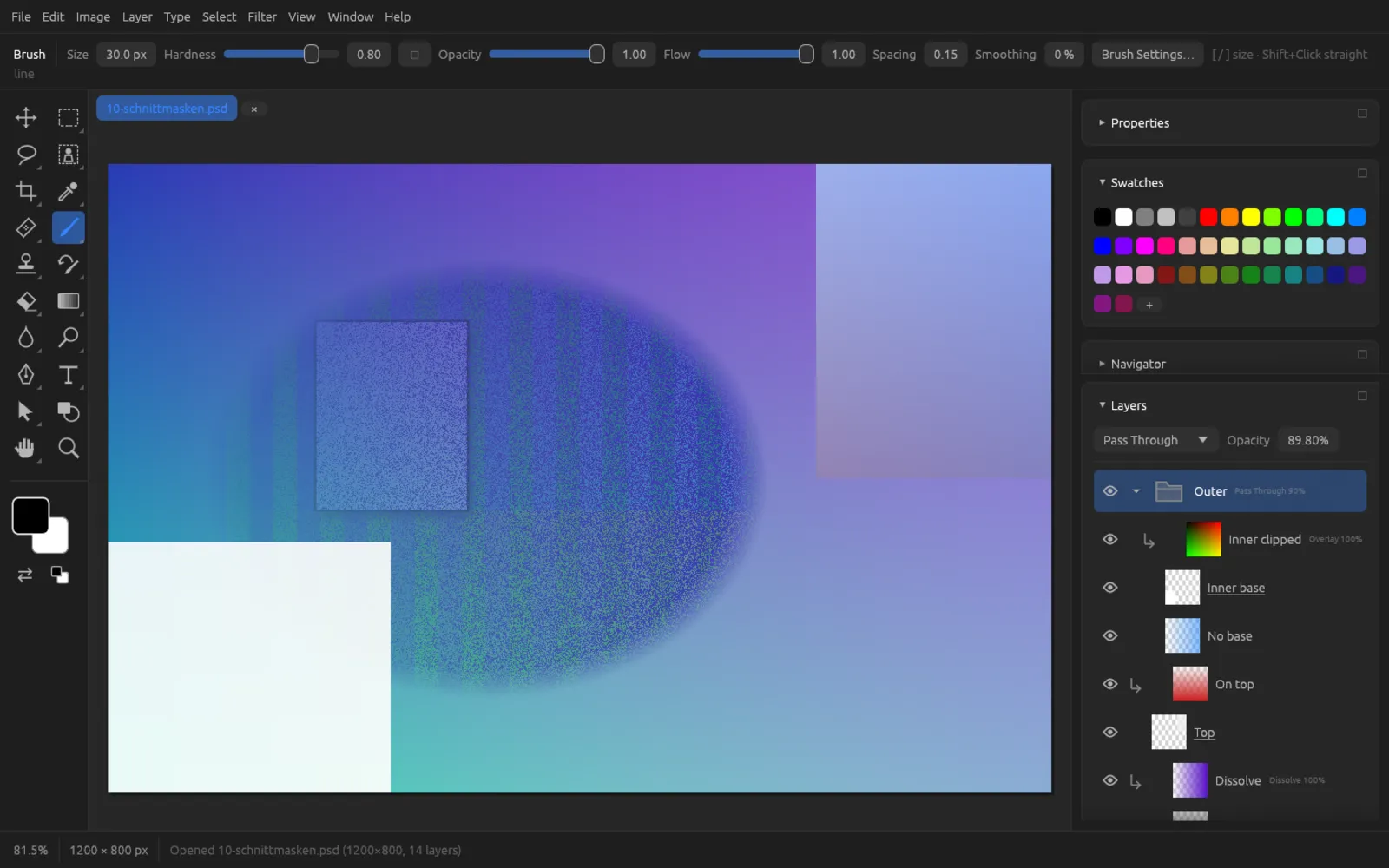
Making an adjustment layer affect just one layer
- In the Layers panel, select the layer you want to correct – for example a pasted object whose colors don’t match the background.
- Click New adjustment layer at the bottom and choose, for example, Hue/Saturation. The new adjustment layer sits directly above the selected layer, and its dialog is open.
- Confirm the dialog with OK for now. At this point the correction still affects all layers below.
- Hold down ⌥ and click the adjustment layer’s name – or choose . The row is indented and shows the arrow pointing down.
- Double-click the adjustment layer’s thumbnail and fine-tune the correction. Now only the layer below changes; the rest of the image stays as it is.
Adjustment layers
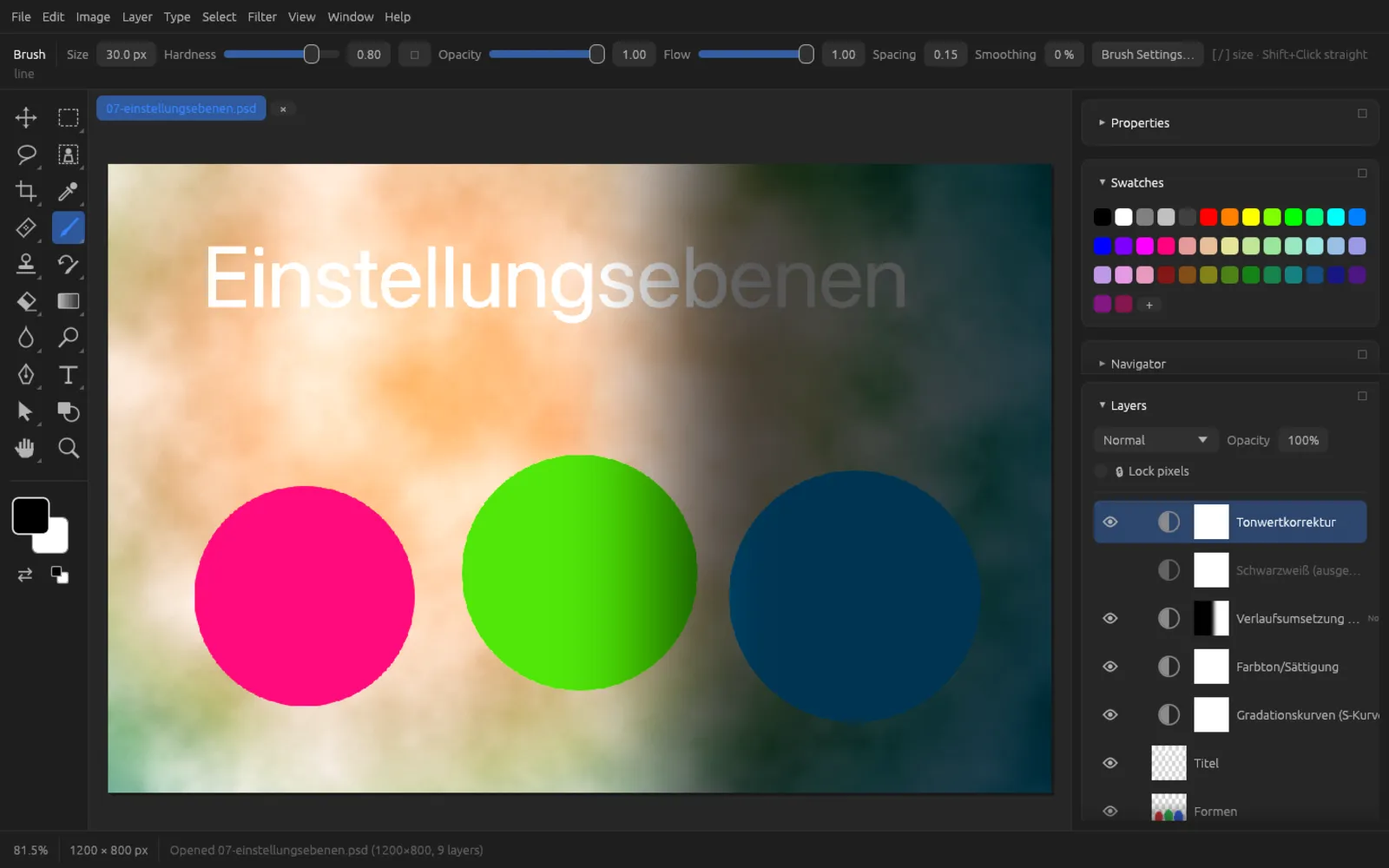
An adjustment layer contains no pixels, but a correction that affects everything below it. Unlike the commands of the same name under , it does not change the image permanently: you can change the values at any time, hide the layer, lower its opacity or limit it to parts of the image with its mask.
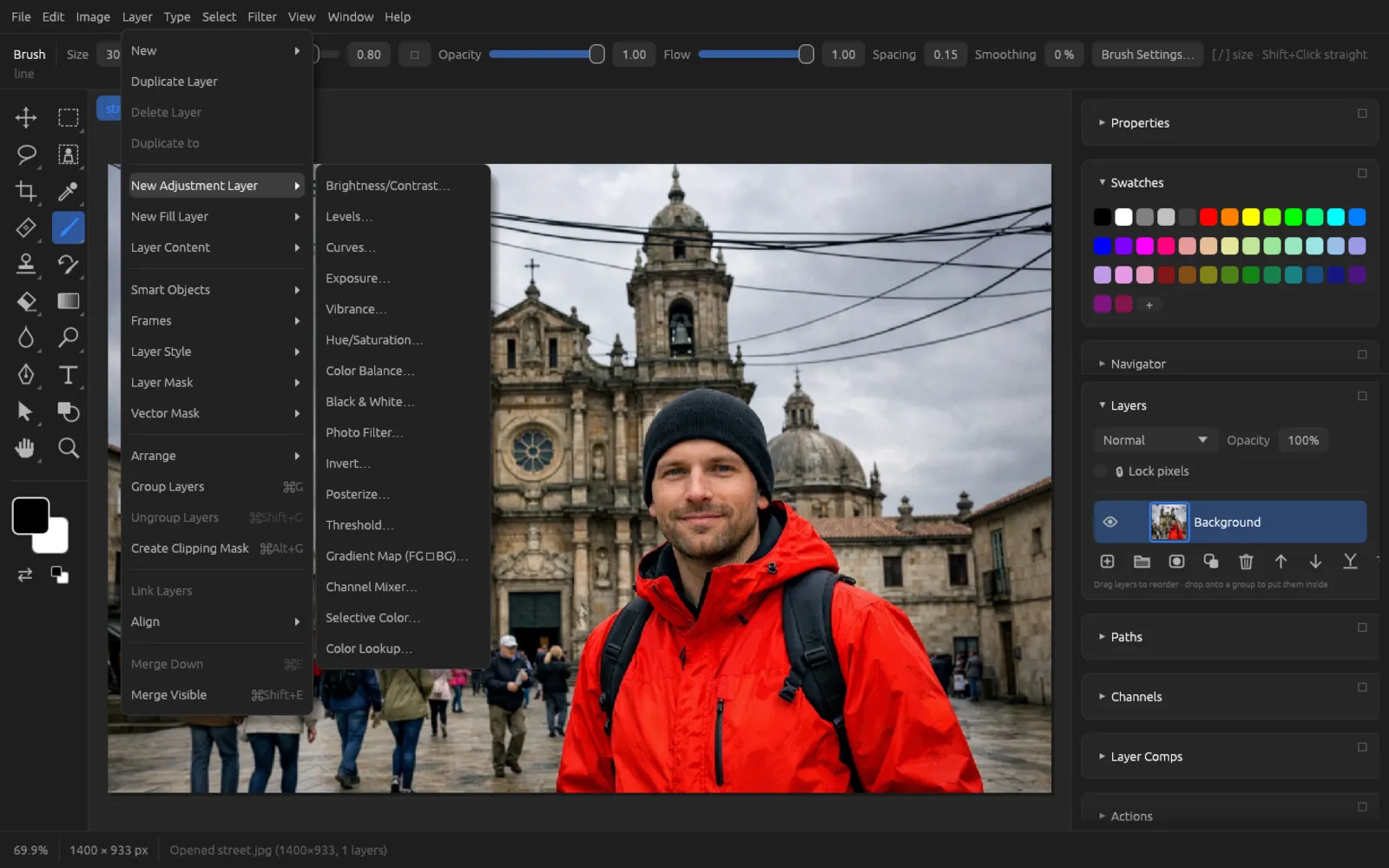
These 16 adjustment layers are available: Brightness/Contrast, Levels, Curves, Exposure, Vibrance, Hue/Saturation, Color Balance, Black & White, Photo Filter, Invert, Posterize, Threshold, Gradient Map (FG→BG), Channel Mixer, Selective Color and Color Lookup. What each adjustment does is explained in the chapter Adjustments.
Working with adjustment layers
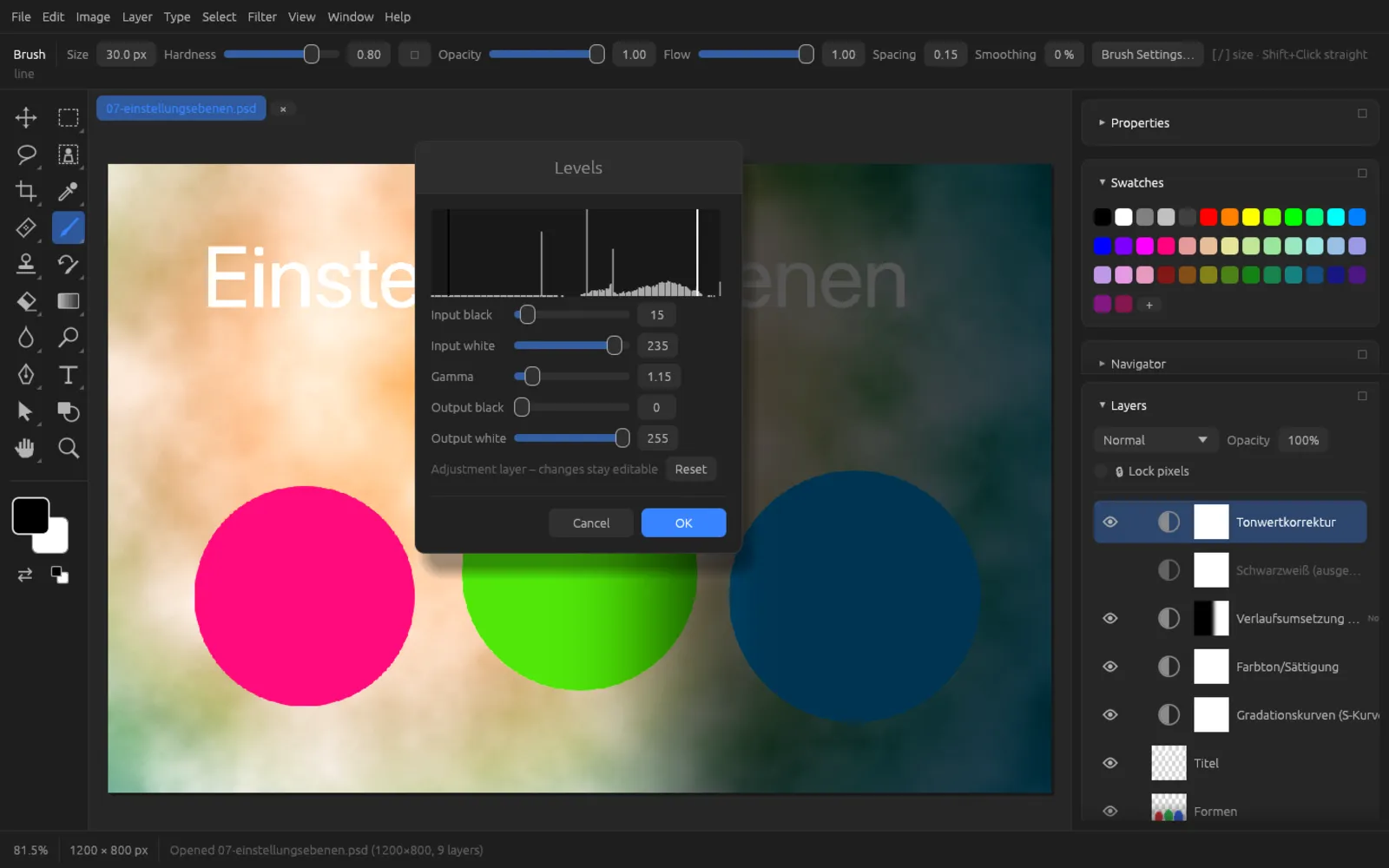
- A new adjustment layer appears above the active layer, and its dialog opens right away. The preview in the image is live.
- To change it, double-click the thumbnail or choose .
- In the Properties panel () the sliders of the active adjustment layer are available directly, with the Adjustment Properties… button below them. Adjustments with their own interface (such as Curves) show the note Its settings are in its dialog there.
- Painting with black into the mask takes the correction back in those areas.
- (⌘ E) bakes an adjustment layer into the pixel layer below it.
Fill layers
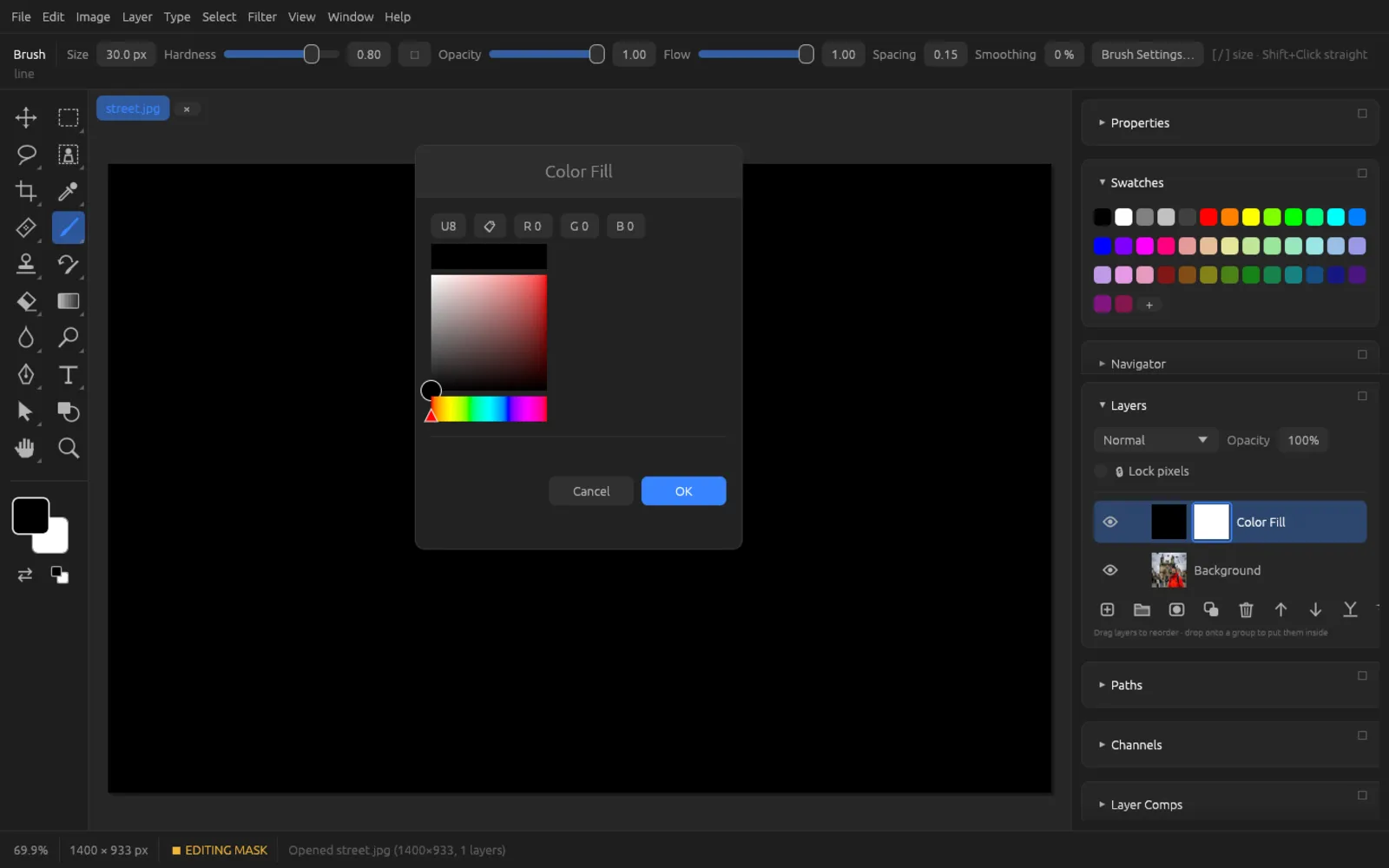
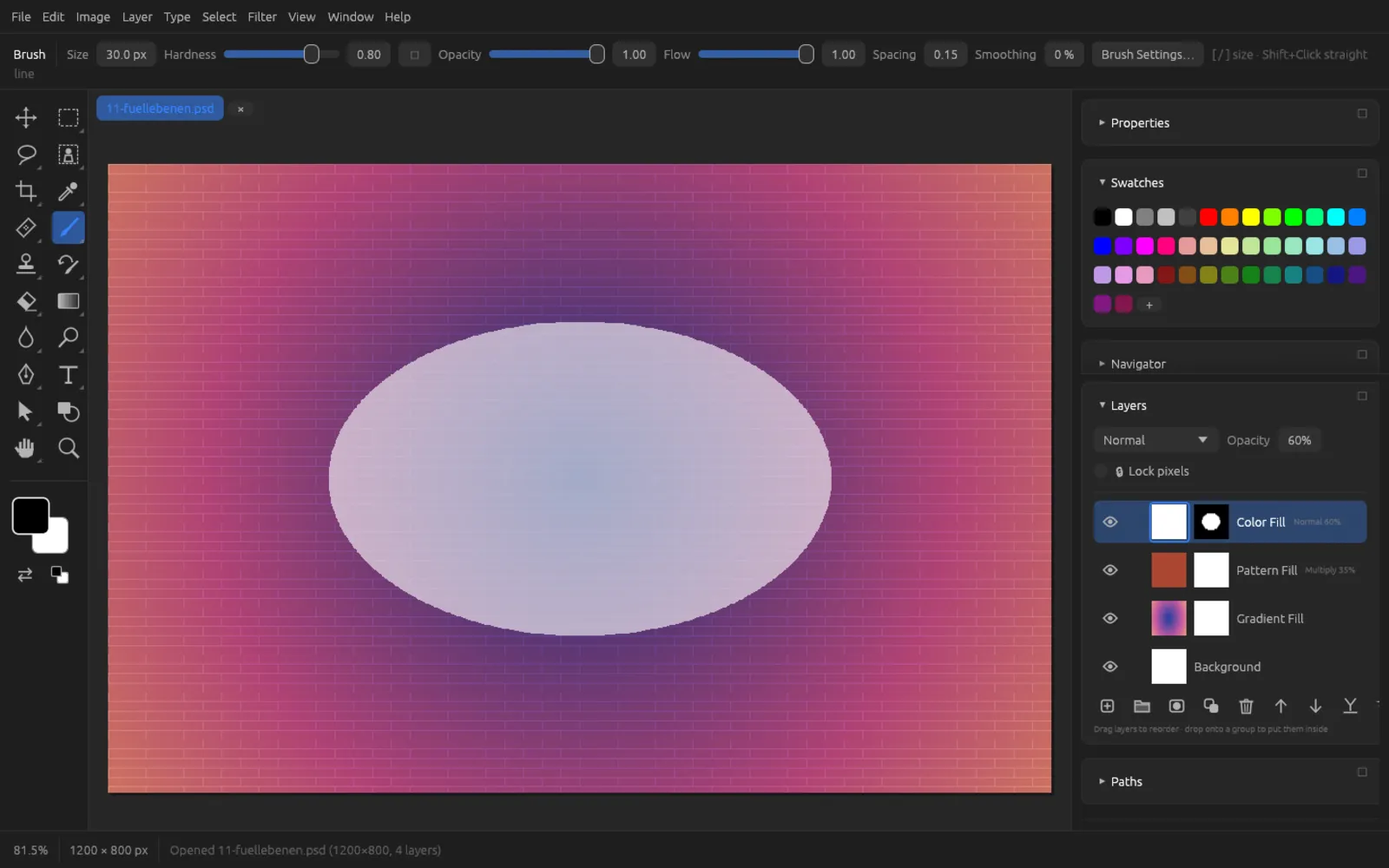
Fill layers are areas whose content you can set up again at any time. Like adjustment layers, they have a mask; if a selection is active, it becomes the mask, and the fill then appears only there.
| Command | Settings |
|---|---|
| A color from the color picker. It starts with the foreground color. | |
| Color stops with positions, Style (Linear, Radial …), Angle, Scale and Reverse. It starts with foreground to background color. | |
| A pattern from the pattern list and the Scale. You create your own patterns with . |
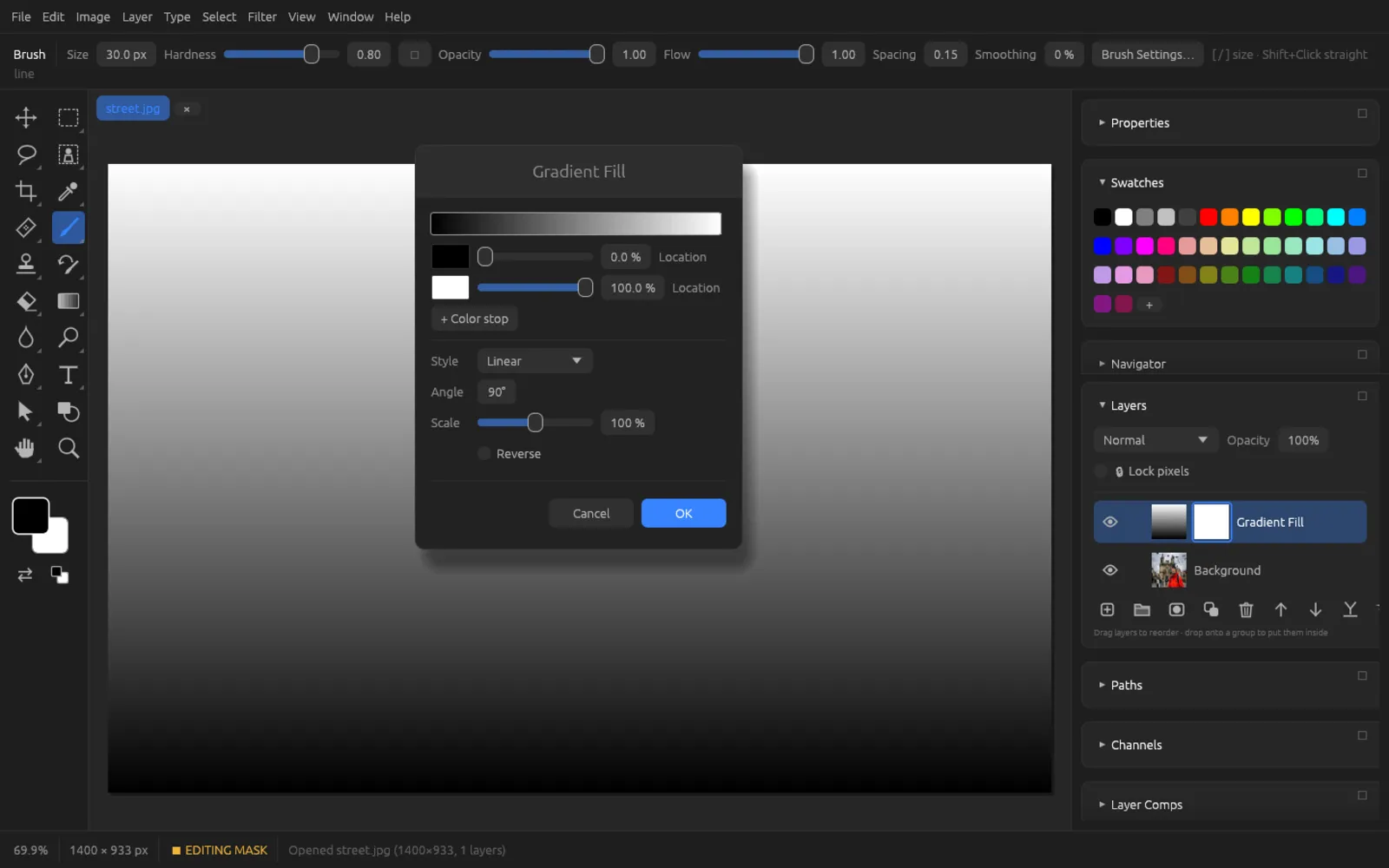
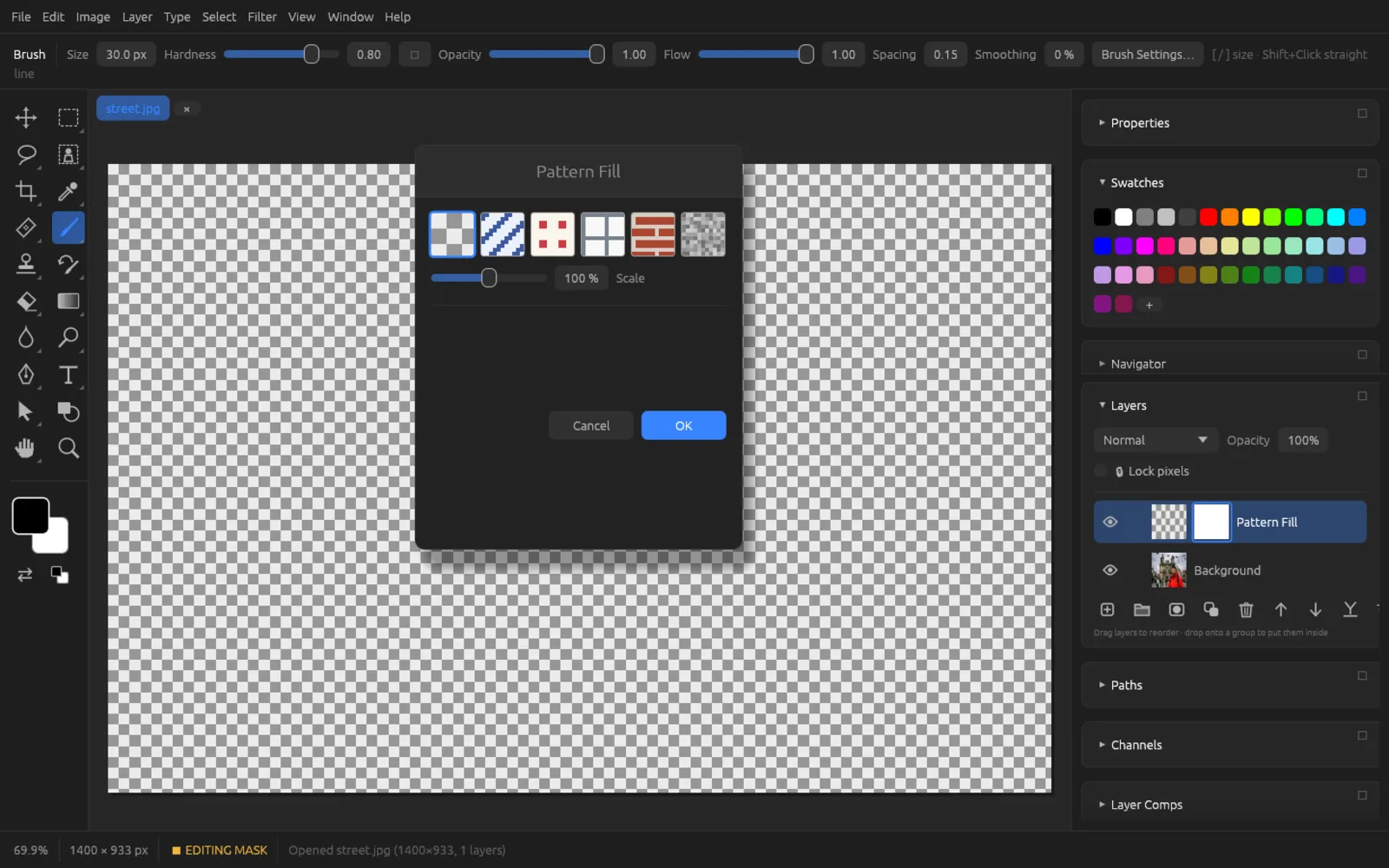
To change it later, double-click the fill layer’s thumbnail or choose . turns it into a normal pixel layer.
A gradient you want to edit directly on the canvas is made with the Gradient tool and its Live option – see Tools.
Smart objects
A smart object wraps one or more layers together with their original resolution. You can scale, rotate and distort it as often as you like without losing quality, because everything is always calculated from the original. Filters on a smart object become smart filters, which you can change or remove later.
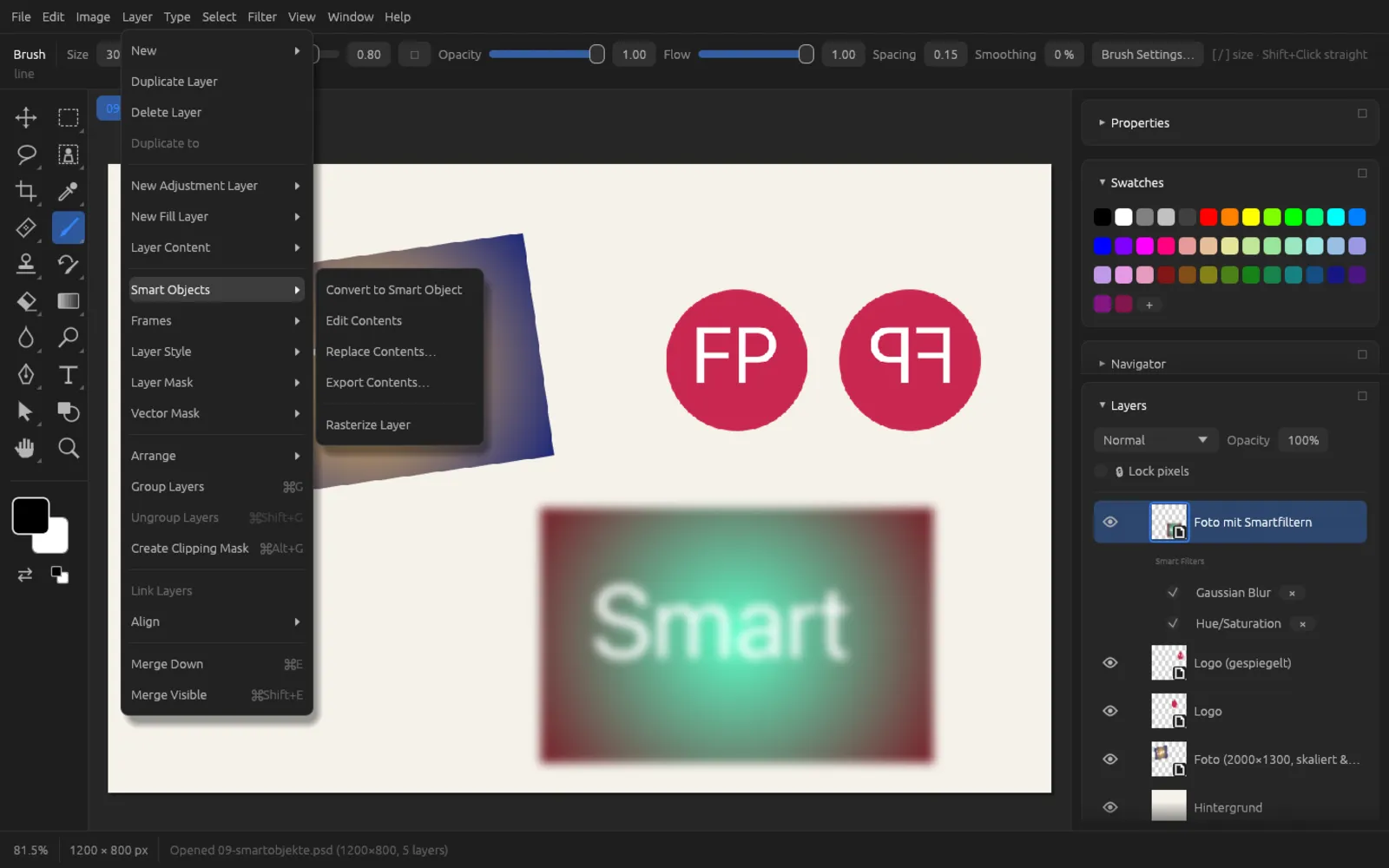
| Command | Effect |
|---|---|
| Turns the active layer (or a group with its contents) into a smart object. Blend mode and opacity move to the smart object. Not possible for adjustment layers. | |
Opens the contents in a document tab of their own (name ending in .psb). Edit them and save with ⌘ S – the smart object in the original document updates. A double-click on the thumbnail does the same. | |
| Swaps the contents for another image file (also a PSD or a Chromatelier project). Position, transformation and smart filters are kept. | |
Saves the contents as a Chromatelier project (.fpd), PSD or PNG. | |
| Turns the smart object into a pixel layer; smart filters are baked in. |
Smart objects are also created when you bring a file into the document with .
Smart filters
If you apply a filter from the menu to a smart object, its contents stay unchanged: the filter appears as a row under Smart Filters in the Layers panel.
- The checkmark in front of the name switches the smart filter on and off.
- A double-click on the name opens the filter dialog with the previous values (this also works for Liquify and Puppet Warp).
- The × on the right deletes the smart filter.
The Lens Blur filter reads the layer mask as a depth map and therefore cannot be applied as a smart filter – rasterize the smart object first.
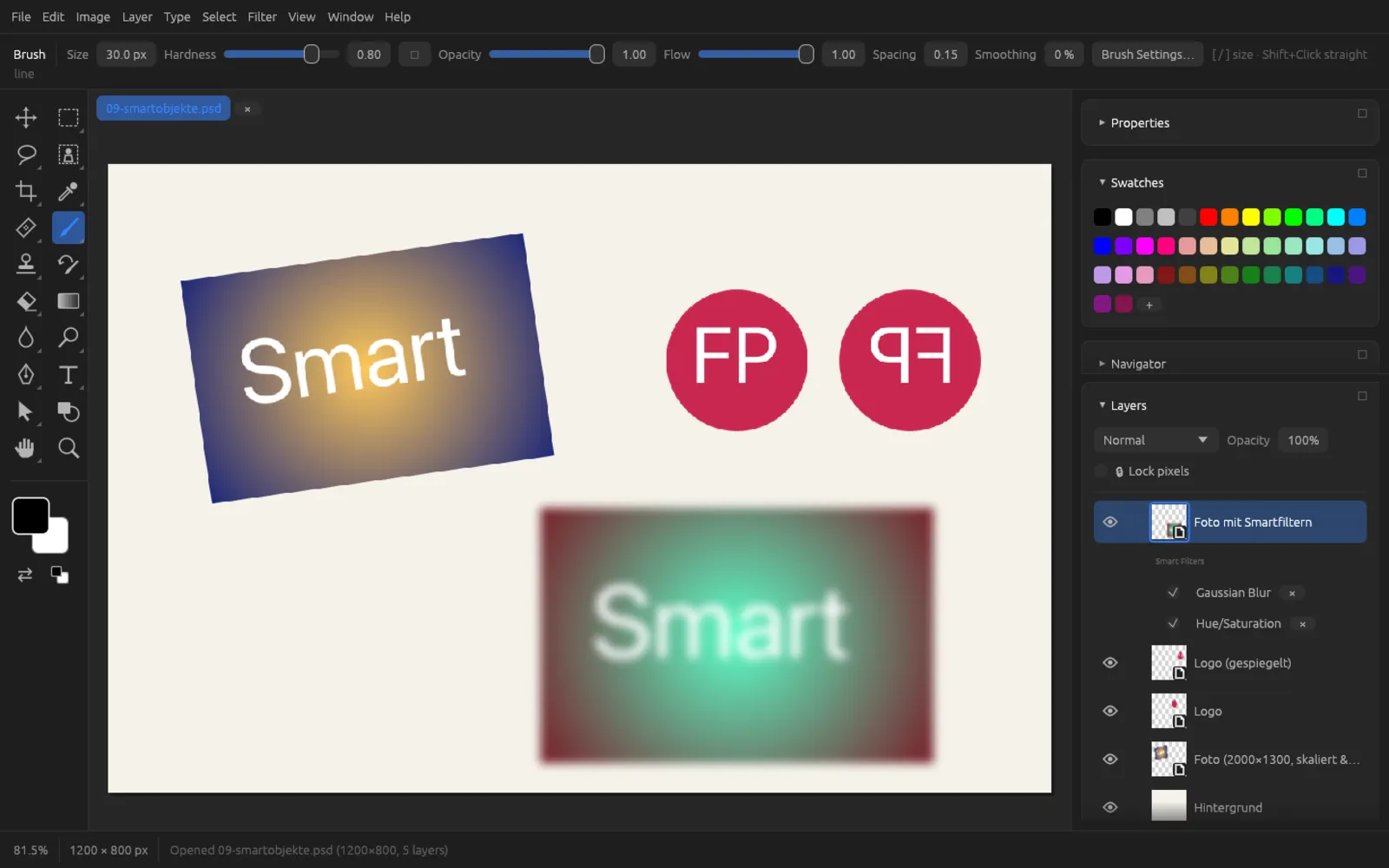
Blurring a smart object with a smart filter
- Select the layer you want to blur and choose . The smart object badge appears on the thumbnail.
- Choose , set the radius and confirm with OK.
- Below the layer you now see Smart Filters and, beneath it, the Gaussian Blur.
- If you no longer like the strength, double-click the filter name and change the radius. To compare, briefly remove the checkmark.
- You can still scale the smart object with (⌘ T); the filter is recalculated afterwards.
Frames
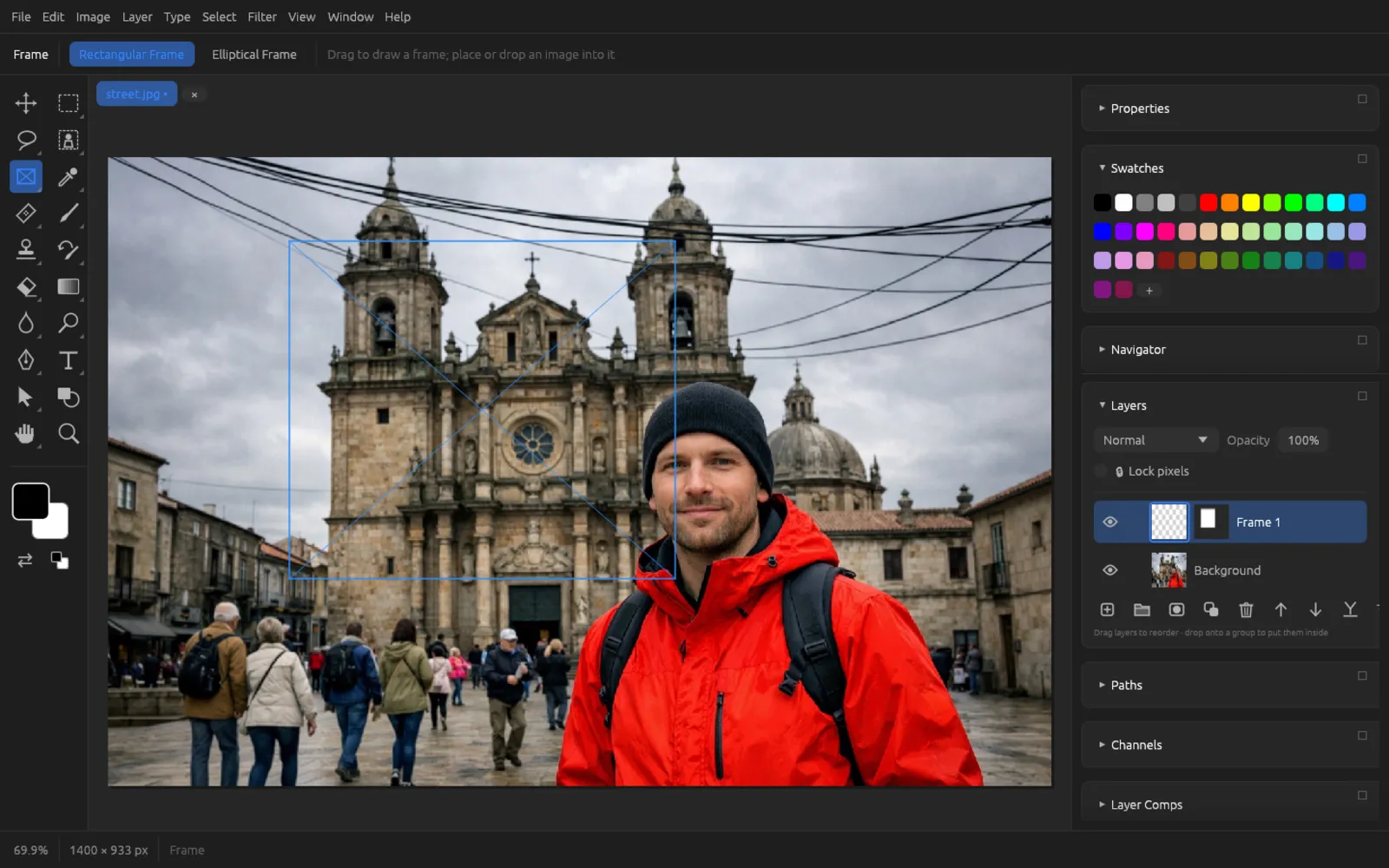
A frame is a rectangular or elliptical placeholder that you put a picture into later. Technically it is a layer with a vector mask in its shape; the picture you place becomes a smart object and fills the frame.
- Frame tool (K): choose Rectangular Frame or Elliptical Frame in the options bar and drag on the canvas. This creates an empty frame layer “Frame 1”.
- turns a pixel layer or a smart object without a vector mask into a rectangular frame the size of its content.
- lets you choose an image file and puts it into the active frame. You can also drag a file straight from the Finder onto the frame.
- removes the picture again.
- In the Properties panel you choose Fill Frame (the picture covers the frame and is cropped on two sides) or Fit in Frame (the whole picture is visible); you also find Place Image… and Clear Frame there.
If you move or transform the frame layer, the frame and its picture move along with it.
Layer styles
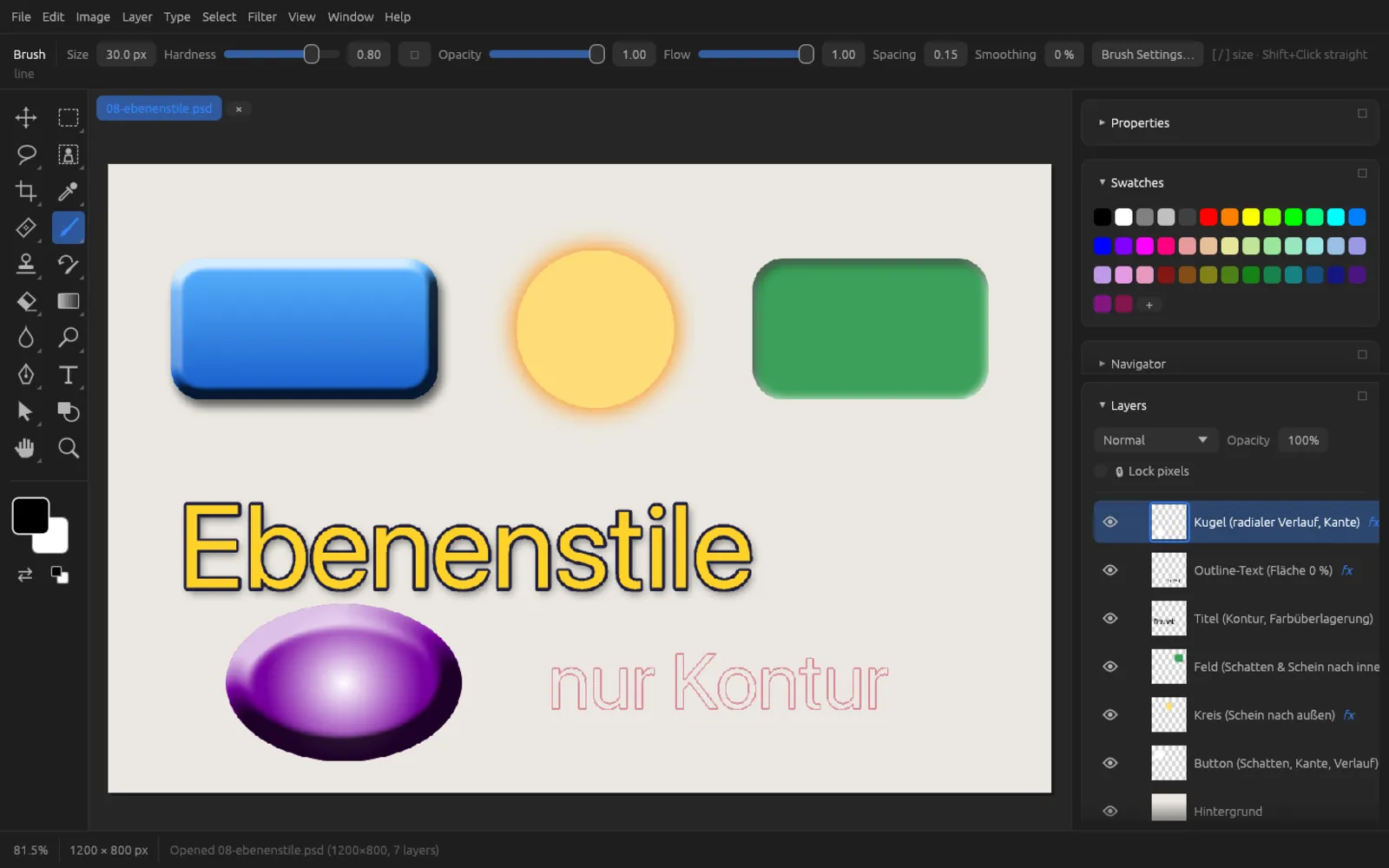
Layer styles are effects such as a drop shadow, stroke or emboss that “stick” to the shape of a layer: if you change the content, the effects follow. They do not change the pixels and can be adjusted at any time. Layers with a style carry an fx in the Layers panel.
The Layer Style dialog
You open it with , the fx button at the bottom of the Layers panel, a click on fx in a layer row, or a double-click on the thumbnail of a pixel layer. On the left are Blending Options, Fill opacity and the list of effects; on the right, the settings of the selected entry. The image shows every change immediately.
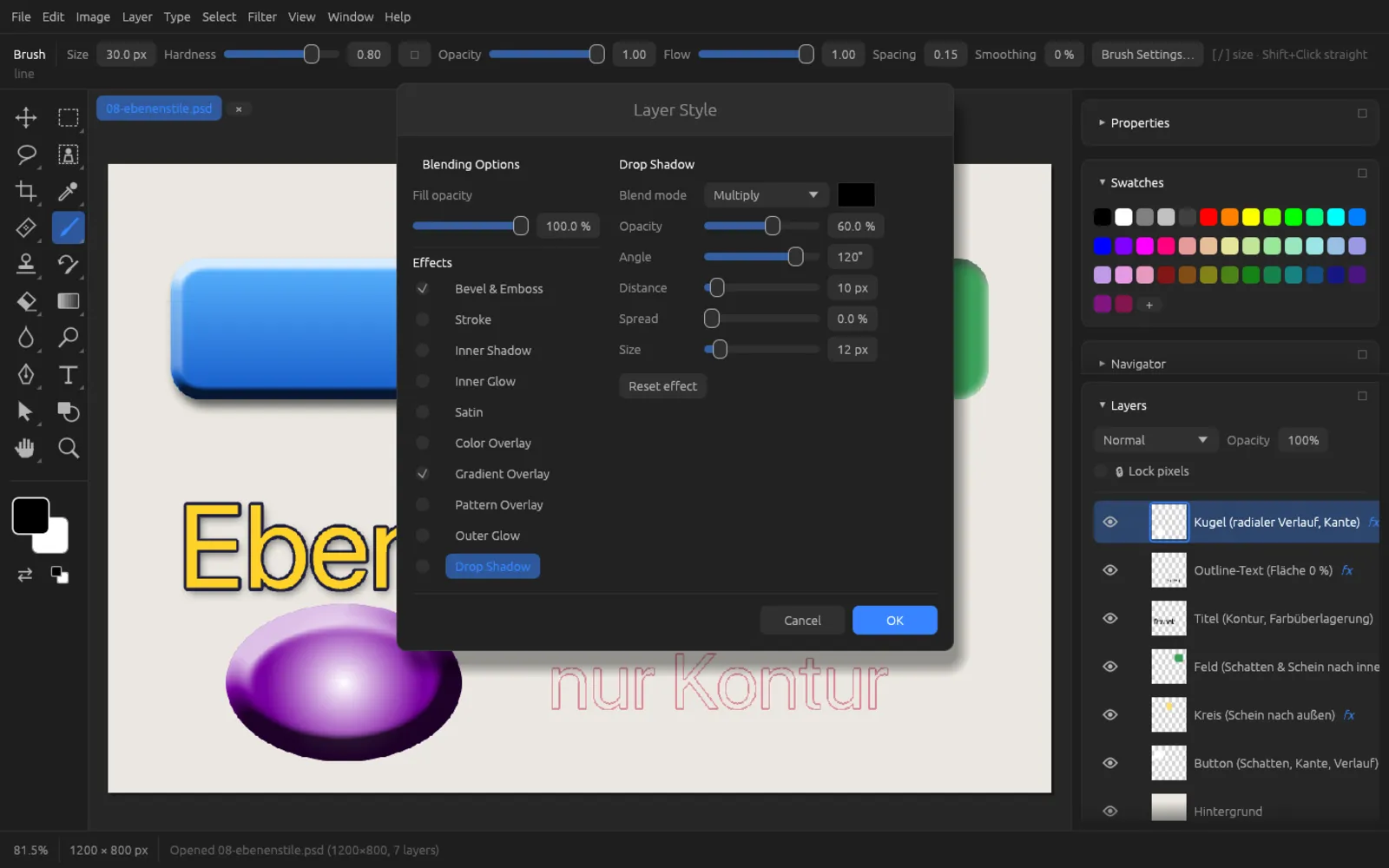
- The box in front of an effect switches it on or off. A click on its name shows its settings and switches it on at the same time.
- Fill opacity (0–100 %) fades only the layer’s pixels, not the effects. At 0 %, for example, only the stroke or the shadow of a text remains visible.
- Reset effect restores the default values of the effect currently shown.
- Groups and adjustment layers only have the blending options; the effects need a layer with pixels.
The effects
| Effect | What it does | Settings |
|---|---|---|
| Bevel & Emboss | Makes the layer look three-dimensional with light and shadow along its edges (inner bevel). | Depth (1–1000 %), Direction (Up/Down), Size, Soften, Angle, Altitude (0–90°), Highlight and Shadow, each with blend mode, color and opacity |
| Stroke | A colored line along the edge. | Size (up to 100 px), Position (Outside/Inside/Center), blend mode and color, opacity |
| Inner Shadow | A shadow inside the shape, as if it were punched out. | Blend mode and color, opacity, Angle, Distance, Choke, Size |
| Inner Glow | A glow toward the inside. | Blend mode and color, opacity, Choke, Size, Source (Edge or Center) |
| Satin | Soft, silky, glossy shading inside. | Blend mode and color, opacity, Angle, Distance, Size, Invert |
| Color Overlay | Tints the layer with a single color. | Blend mode and color, opacity |
| Gradient Overlay | Lays a gradient over the layer. | Blend mode, opacity, Gradient (two colors or the color stops of a PSD file, which Two colours simplifies), Reverse, Style (Linear, Radial, Angle, Reflected, Diamond), Angle, Scale (10–150 %) |
| Pattern Overlay | Lays a pattern over the layer. | Blend mode, opacity, Pattern, Scale (1–1000 %) |
| Outer Glow | A glow around the shape. | Blend mode and color, opacity, Spread, Size |
| Drop Shadow | A shadow behind the layer. | Blend mode and color, opacity, Angle (−180…180°), Distance (up to 200 px), Spread, Size (up to 150 px) |
Choke and Spread make the edge of the shadow or glow harder before it is blurred; Size determines how soft it becomes.
Blending options
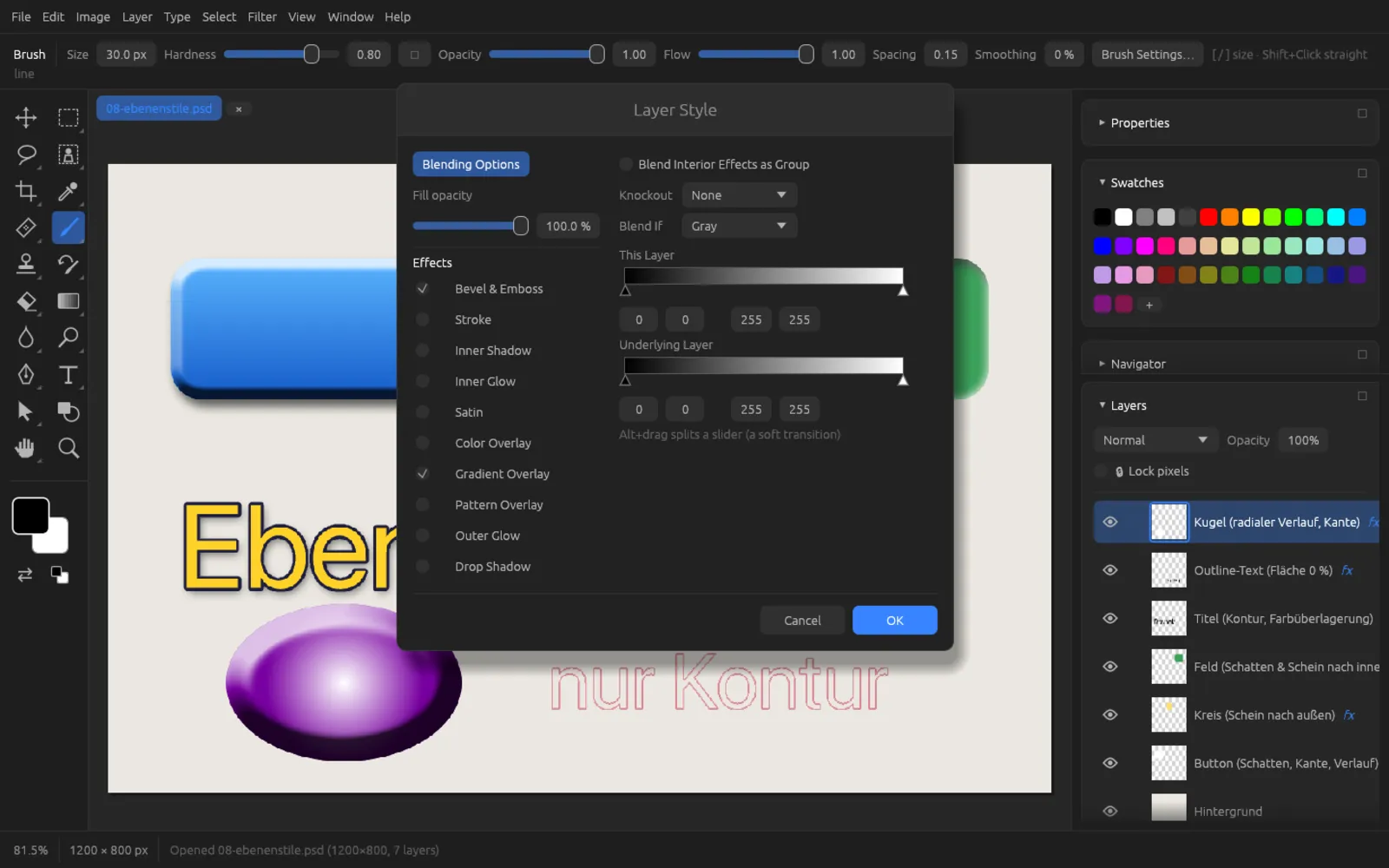
- Blend Interior Effects as Group: color, gradient and pattern overlay, satin, inner glow and inner shadow, and bevel blend with the layer’s own pixels instead of with what lies below. This matters when the layer has a blend mode other than Normal.
- Knockout (None, Shallow, Deep): the layer punches a hole through the layers below it. Shallow reaches to the end of the enclosing group, Deep all the way to the background. The effect is most visible together with a low fill opacity.
- Blend If: with the sliders under This Layer you hide dark or light areas of the layer; with the sliders under Underlying Layer you let dark or light areas of the layers below show through. The drop-down list chooses the channel (Gray, red, green, blue). ⌥-dragging splits a slider into two halves – which gives a soft transition.
Adding a drop shadow
- Select the layer that should cast a shadow – for example a cut-out object or a text layer. The layer needs transparent areas, otherwise the shadow will not be visible.
- Click fx at the bottom of the Layers panel. The Layer Style dialog opens.
- Click Drop Shadow on the left; its checkbox is ticked and the settings appear on the right.
- Set the Angle (which direction the light comes from), the Distance (how far the shadow is offset) and the Size (how soft it is). Opacity determines how dark it gets; the color swatch next to Multiply changes its color.
- Confirm with OK. fx appears in the layer row; a click on it opens the dialog again.
Copying, pasting, clearing and rasterizing styles
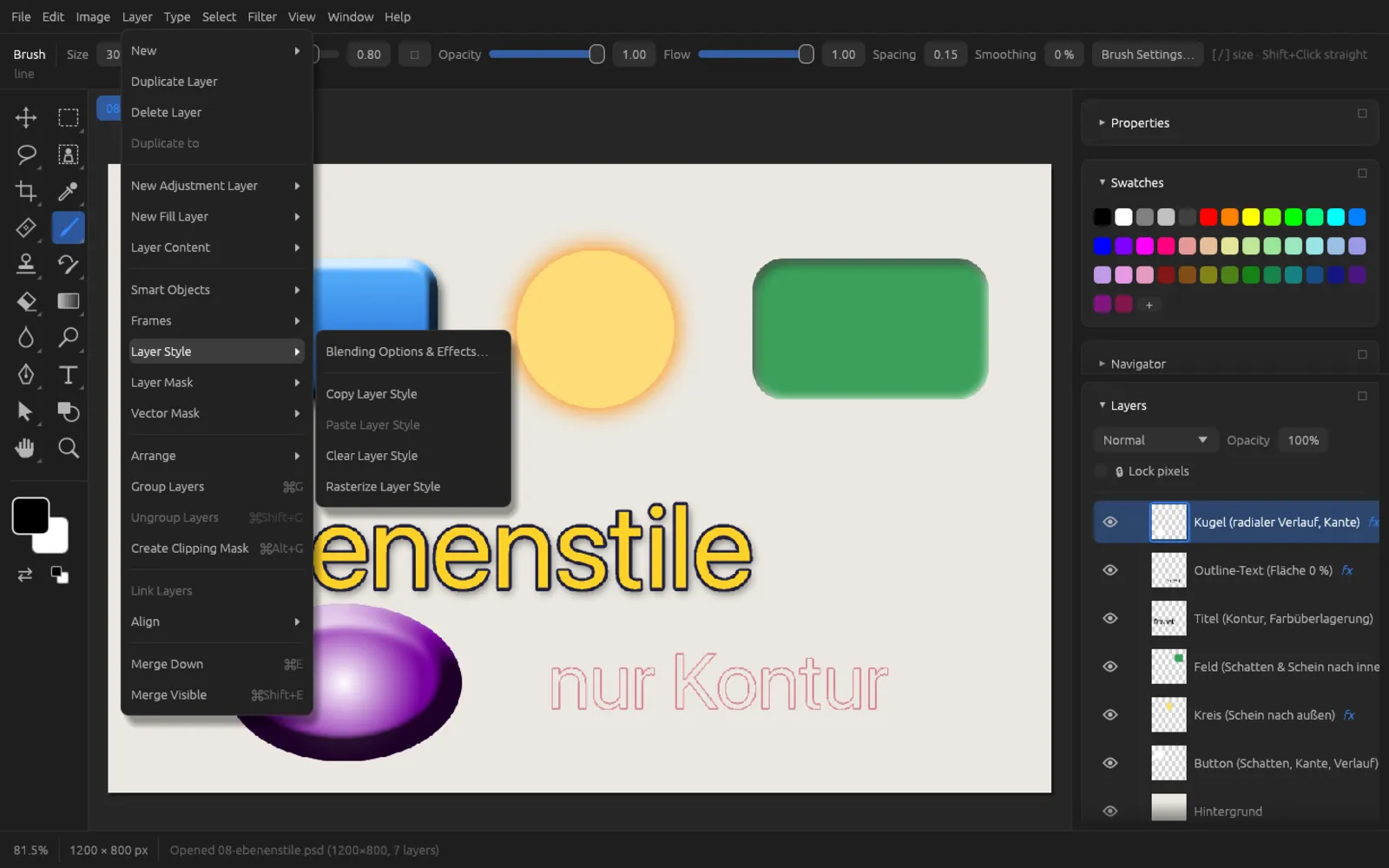
| Command | Effect |
|---|---|
| Remembers the style of the active layer. | |
| Gives the active layer the remembered style (replacing its own). | |
| Removes all effects and blending options from the layer. | |
| Combines the layer and its effects into a pixel layer. After that, the effects can no longer be changed individually. |
The Styles panel and ASL files
holds ready-made styles as small preview images. A click gives the active layer that style (its previous style is replaced). Styles work on pixel, text, shape, fill and smart object layers as well as on groups, but not on adjustment layers.
- New Style saves the active layer’s style as a preset of your own.
- Clear Style removes the active layer’s style.
- Import… loads style libraries in
.aslformat; the styles are added to your own. - Export… saves your own styles (or, if you have none, all of them) as an
.aslfile. - Right-clicking one of your own styles lets you rename it or remove it with Delete Style. Built-in styles cannot be deleted.
You can also load ASL files with .
Aligning, distributing and linking
aligns the selected layers with each other. If there is a selection on the canvas, even a single layer is aligned to its edge.
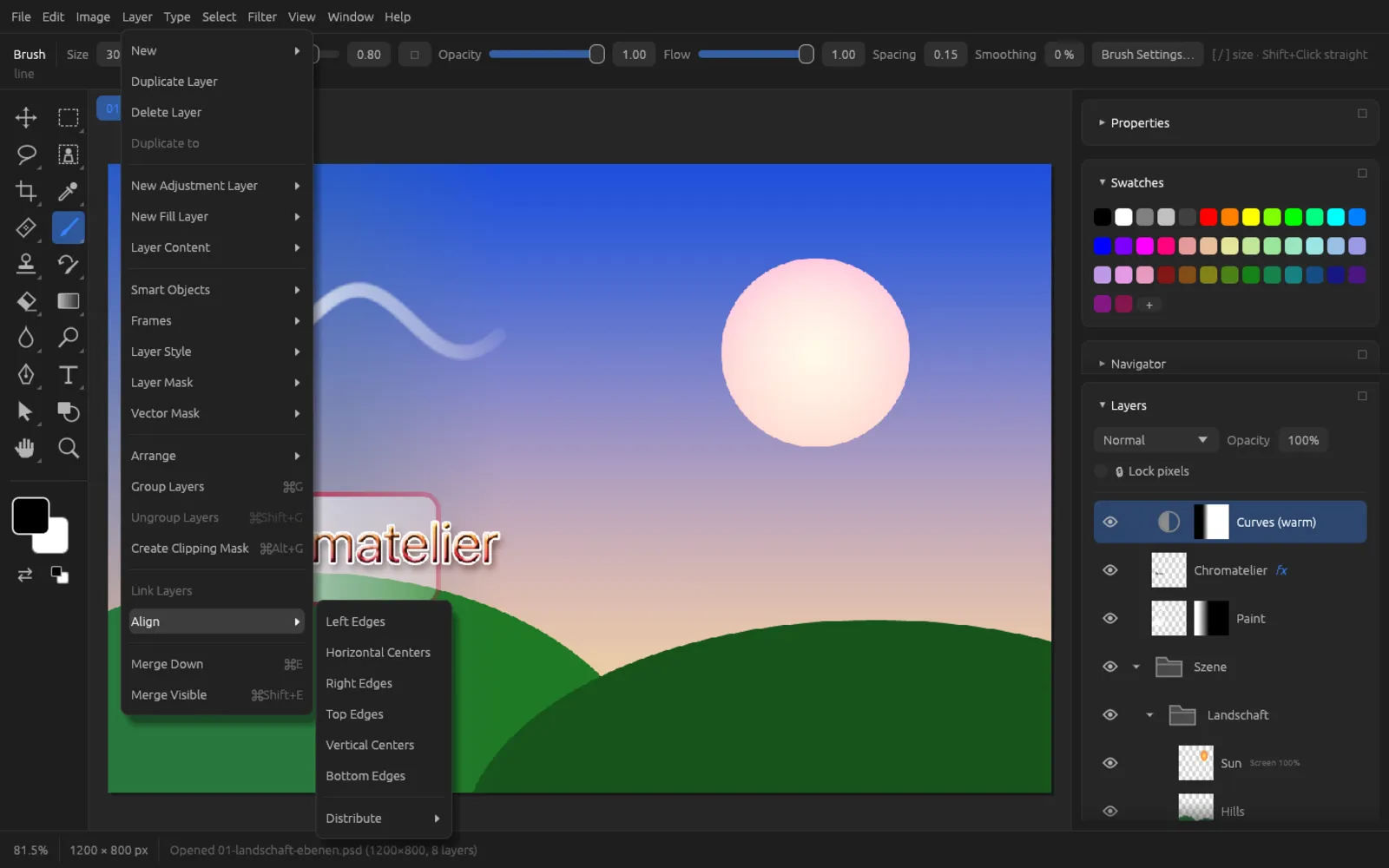
- Align: Left Edges, Horizontal Centers, Right Edges, Top Edges, Vertical Centers, Bottom Edges. These need two or more layers, or one layer and a selection.
- Distribute: the same six reference lines plus Horizontal Spacing and Vertical Spacing (equal gaps between the layers). These need three or more layers.
The same commands are available as icons in the options bar of the Move tool (V).
links the selected layers: when you move one of them, the others move along. Linked layers carry a chain icon. If the active layer is linked, the command is called .
Merging and the background layer
| Command | Shortcut | Effect |
|---|---|---|
| ⌘ E | Merges the active layer with the pixel layer directly below it (in the same group). The lower layer must not be hidden or locked. Effects are baked in. If a group is active, the command is called ; with several layers selected, . | |
| ⌘ ⇧ E | Combines all visible layers into one layer “Merged”. Hidden layers are kept. | |
| Combines all layers into a single layer “Background”. Transparent areas turn white. |
Merged layers can only be separated again with or the history. Save a version with layers first if you may want to change something later.
Artboards
Artboards are several work areas in one document – for example the same design for smartphone, tablet and desktop. Each artboard is a group with its own size; its name appears above it on the canvas.
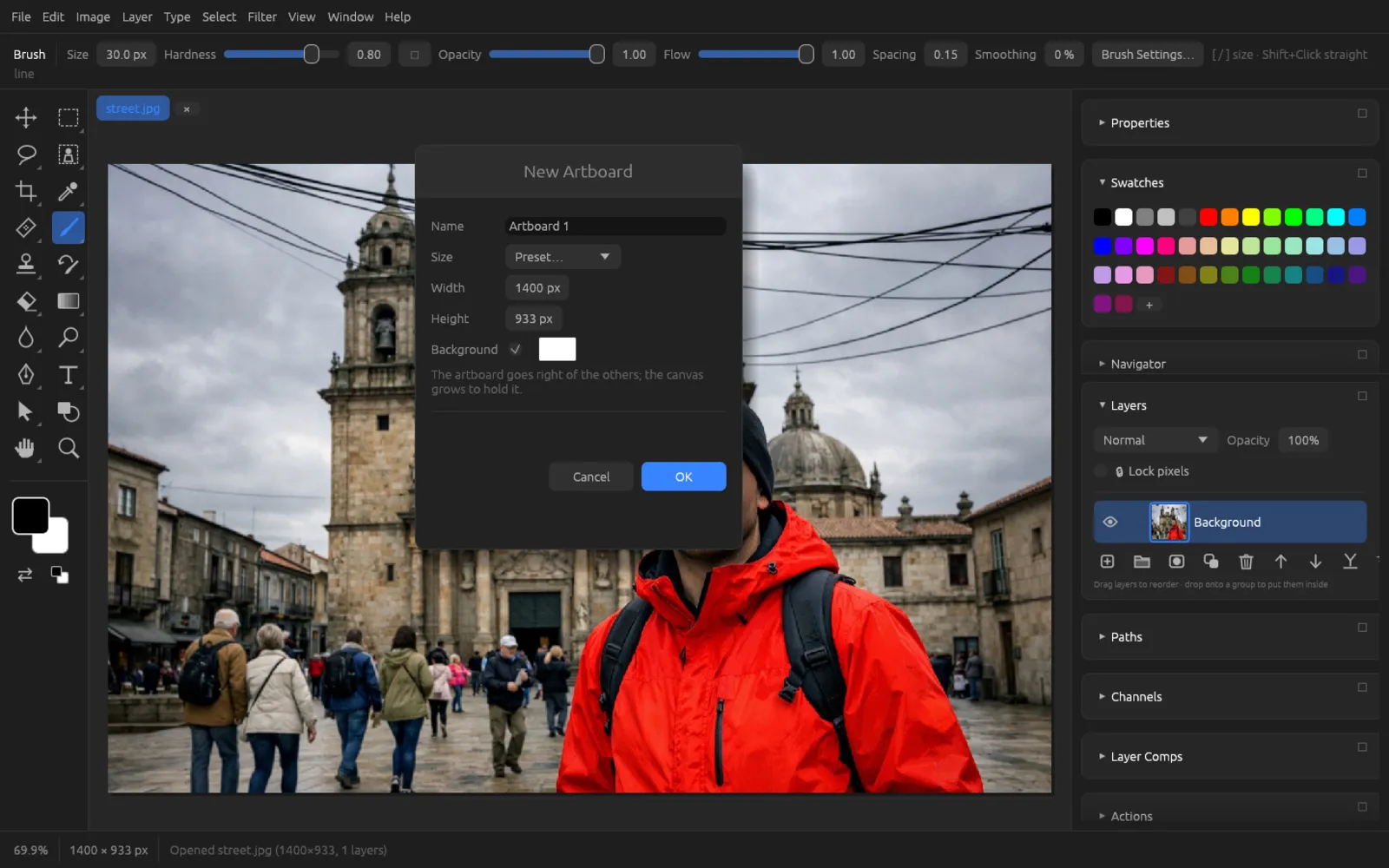
- Choose . If there is a selection, the dialog suggests its size; otherwise the size of the canvas.
- Enter a Name and choose a preset under Size (such as Web 1920 × 1080, iPhone 15, Instagram post 1080 × 1350, Square or A4 at 150 ppi), or enter the Width and Height yourself.
- Set a color under Background, or remove the checkmark for a transparent background.
- Confirm with OK. The new artboard is placed to the right of the existing ones; the canvas grows to fit.
saves each artboard as a file of its own (see Saving, Export & Printing).
Layer comps
A layer comp remembers a state of the Layers panel so you can switch quickly between variants – for example one version with text and one without. You open the panel with .
- New Layer Comp saves the current state as “Layer Comp N”.
- A click on an entry restores that state; ◀ and ▶ step through all comps.
- Right-clicking an entry opens its settings: the name, and what the comp remembers – Visibility, Position and Appearance (Layer Style). There you also find Update Layer Comp (takes over the current state) and Delete Layer Comp.
Comps are saved with the document. Layers whose content would leave the canvas when a comp is applied are not moved; the status bar tells you about it. saves each comp as an image of its own.
Video layers
brings a video clip (MP4, M4V or MOV) into your document as a layer. The layer shows the frame at the current position of the timeline and, like other layers, can be masked, corrected with adjustment layers and blended. turns it into a pixel layer with the frame currently shown. Everything else – timeline, keyframes, sound and export – is described in the chapter Video & Animation.