Selections
A selection determines which part of the image is affected by brushes, filters, adjustments and commands. This chapter shows you how to create, combine, refine and save selections – from a simple rectangular selection to “Select and Mask”.
Basics
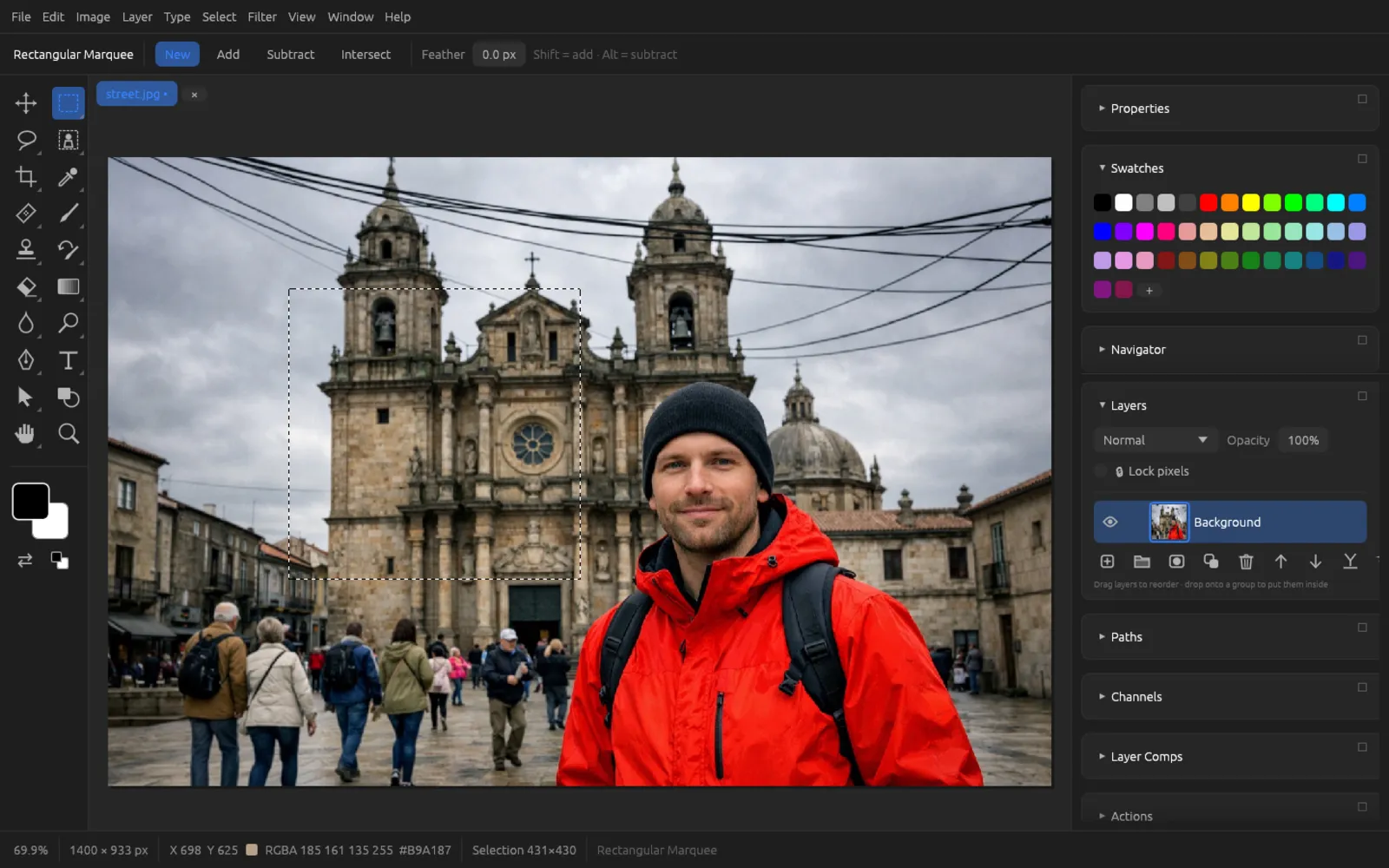
You can recognize an active selection by its dashed, moving outline (“marching ants”). Everything inside it is selected; painting, erasing, filling and filters then only take effect there. Without a selection, they affect the whole layer. The status bar shows the size of the bounding rectangle, for example Selection 431×430.
Internally, a selection is a grayscale mask: it can also contain partly selected pixels – at a soft edge, for example. That is why you can turn it into a layer mask at any time, and the other way round.
Selection tools
The tools for selecting sit at the top of the toolbar. The chapter Tools describes them in detail with all their options; here is an overview:
| Tool | Shortcut | Selects … |
|---|---|---|
| Rectangular Marquee | M | … a rectangle (with ⇧, a square). |
| Elliptical Marquee | ⇧ M | … an ellipse (with ⇧, a circle). |
| Single Row Marquee / Single Column Marquee | ⇧ M | … one row or column of pixels. |
| Lasso | L | … a freehand area. |
| Polygonal Lasso | ⇧ L | … an area made of straight lines. |
| Magnetic Lasso | ⇧ L | … an area whose outline snaps to edges in the image. |
| Magic Wand | W | … similarly colored pixels with a click (Tolerance, Contiguous). |
| Object Selection | ⇧ W | … an object you drag a rectangle around or that the object finder outlines. |
| Quick Selection | ⇧ W | … areas you paint over; the selection grows out to the edges. |
Selection modes and feathering
In the options bar of the selection tools you set how a new selection interacts with an existing one:
| Mode | Modifier key | Effect |
|---|---|---|
| New | – | The new selection replaces the old one. |
| Add | ⇧ while dragging | The new selection is added to the old one. |
| Subtract | ⌥ while dragging | The new area is removed from the old selection. |
| Intersect | – | Only what lies in both the old and the new selection stays selected. |
Feather (0–250 px) softens the edge of the next selection right as you create it. For a selection that already exists, use .
All, Deselect, Inverse
| Command | Shortcut | Effect |
|---|---|---|
| ⌘ A | Selects the whole canvas. | |
| ⌘ D | Removes the selection; after that, everything affects the whole layer again. | |
| ⌘ ⇧ I | What was selected is deselected, and vice versa. Without a selection, everything is selected. |
It is often easier to select the opposite: for an object against an even sky, select the sky with the Magic Wand and then invert the selection.
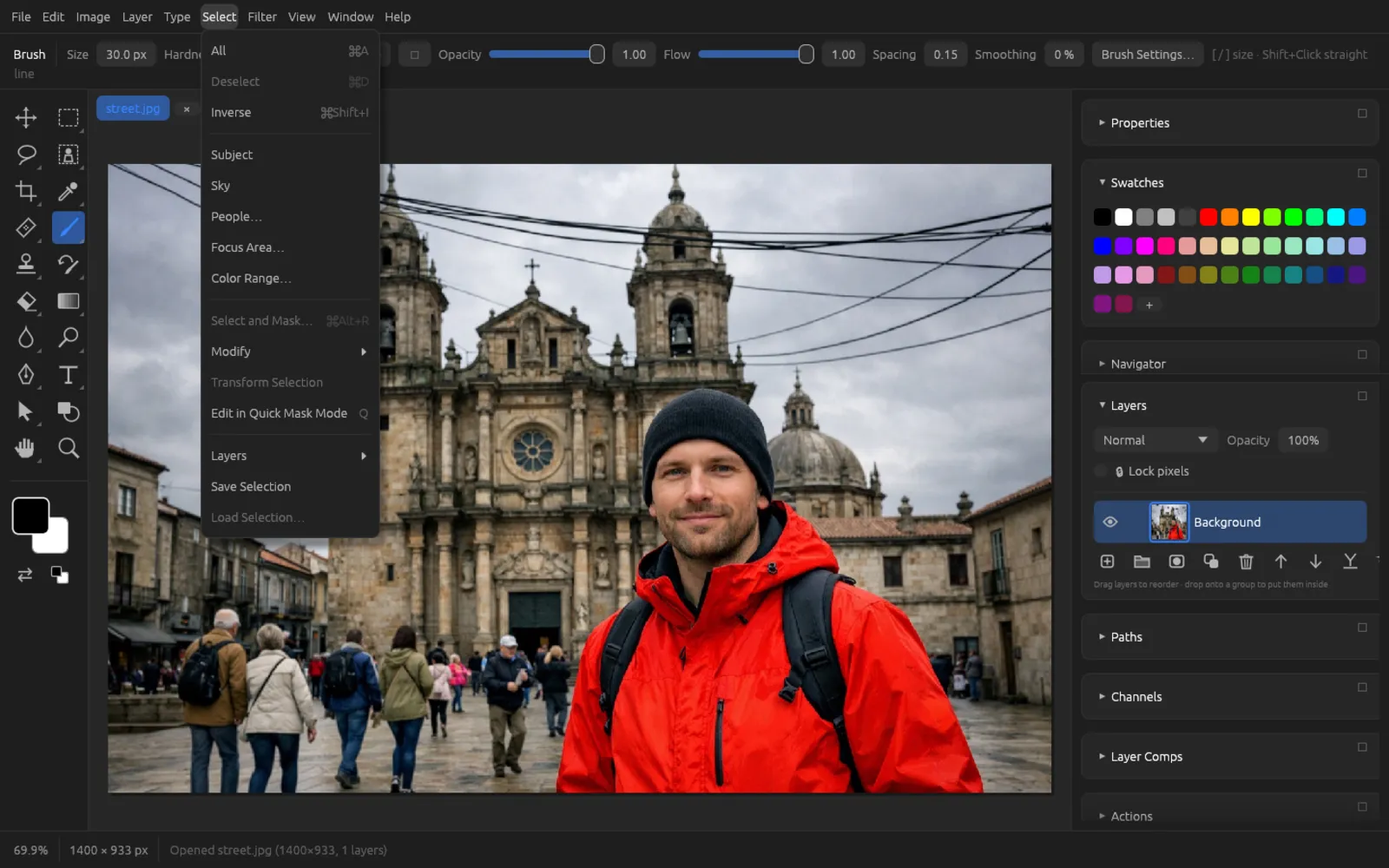
Subject, Sky and People
These three commands recognize content in the image and select it with one click. They work on the composite image of all visible layers.
- selects the main subject – such as a person, an animal or a product. If the local AI model “Subject & Background” is installed, Chromatelier uses it and delivers precise edges, even around hair. Without the model, a simpler method looks for the most prominent area (color contrast with its surroundings and the image border) and cuts it out along its edges; this works for photos where the subject stands out clearly. If it finds nothing, the status bar tells you so.
- selects the sky: starting from the top edge of the image, a light or bluish, even area is selected. With the local depth model, the distant part of the image is taken into account as well, which helps with building edges and trees.
- opens the Select People dialog: tick what should be selected – Hair, Facial Skin, Body Skin, Clothes, Accessories – and use Only the main person to choose whether only the largest person in the image is meant. This command needs local AI models.
The calculation runs in the background; a progress bar at the bottom of the window shows how far it has got, and Cancel stops it.
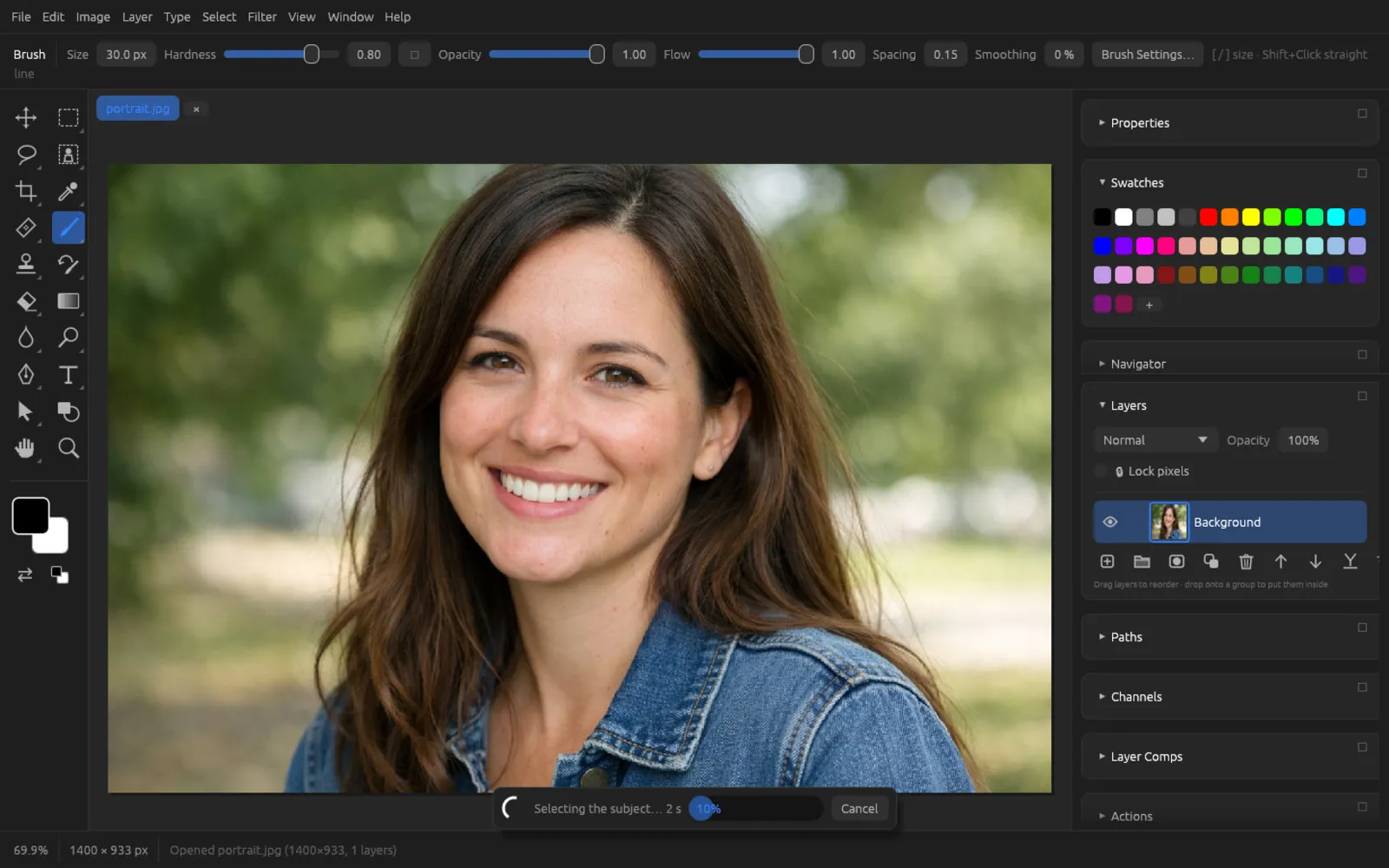
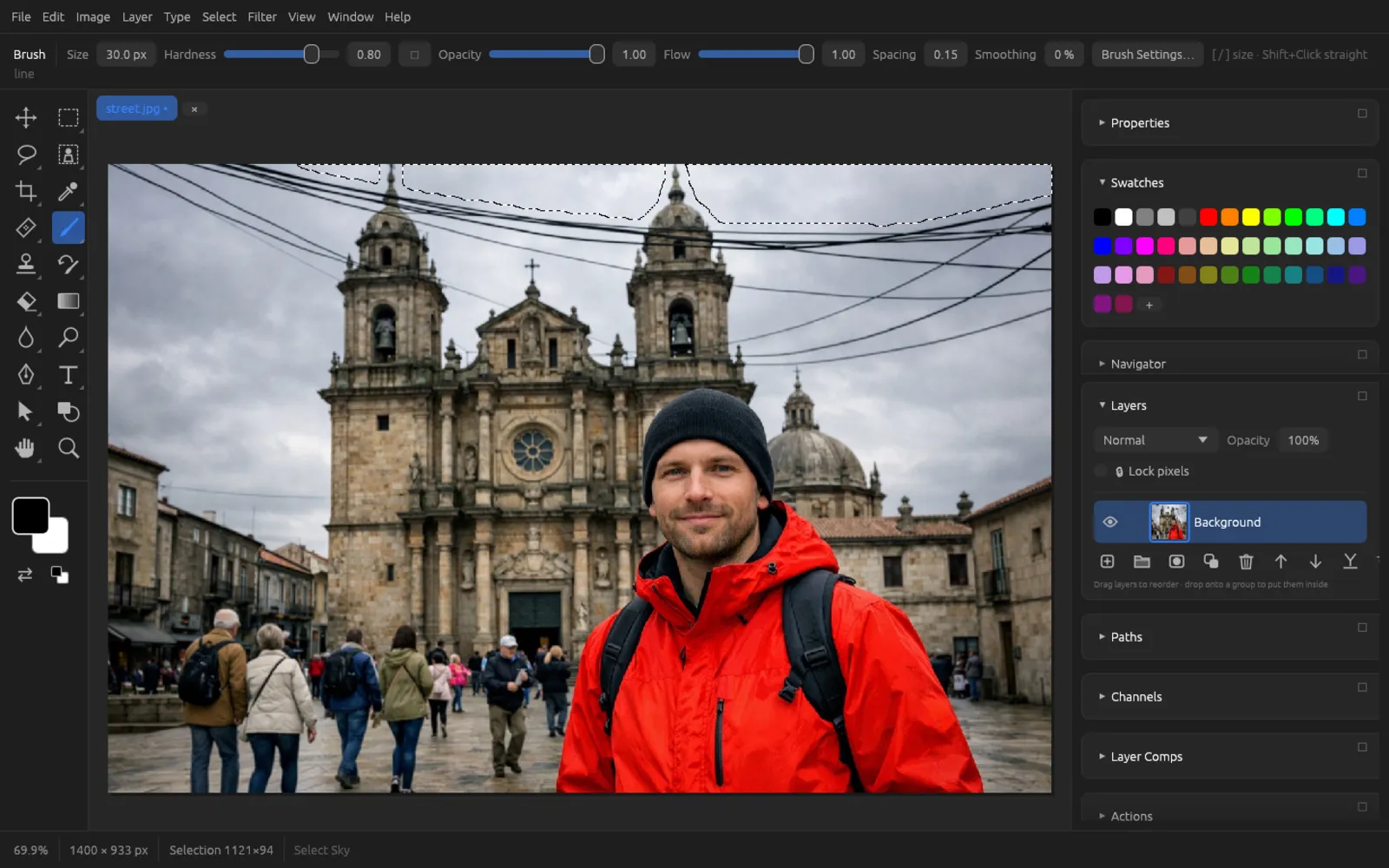
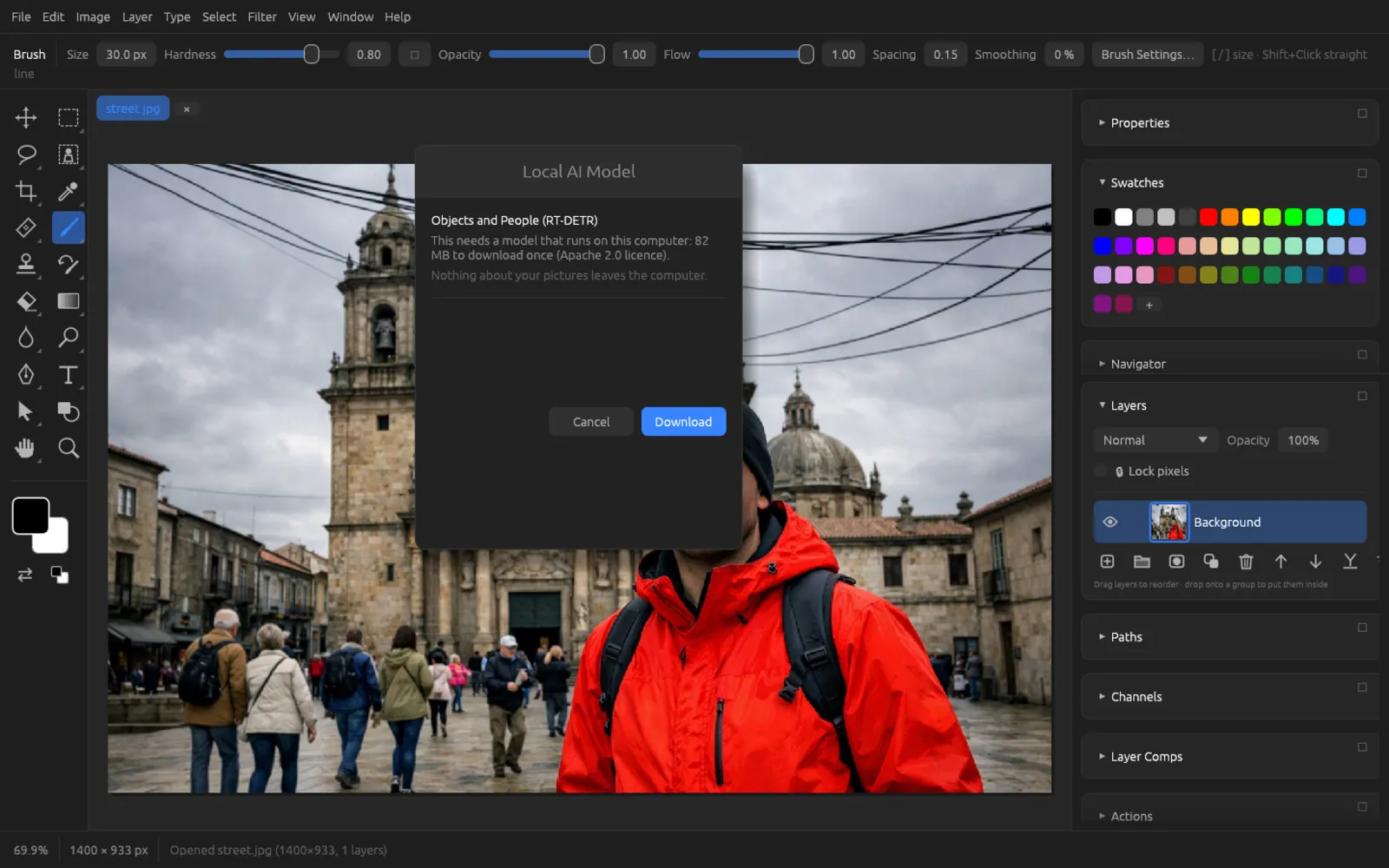
The AI models run entirely on your computer; your images never leave it. If a model is missing, Chromatelier asks the first time you use the command whether it should be downloaded – with its name, size and license. The chapter AI on your computer explains how to install and manage models.
Focus Area
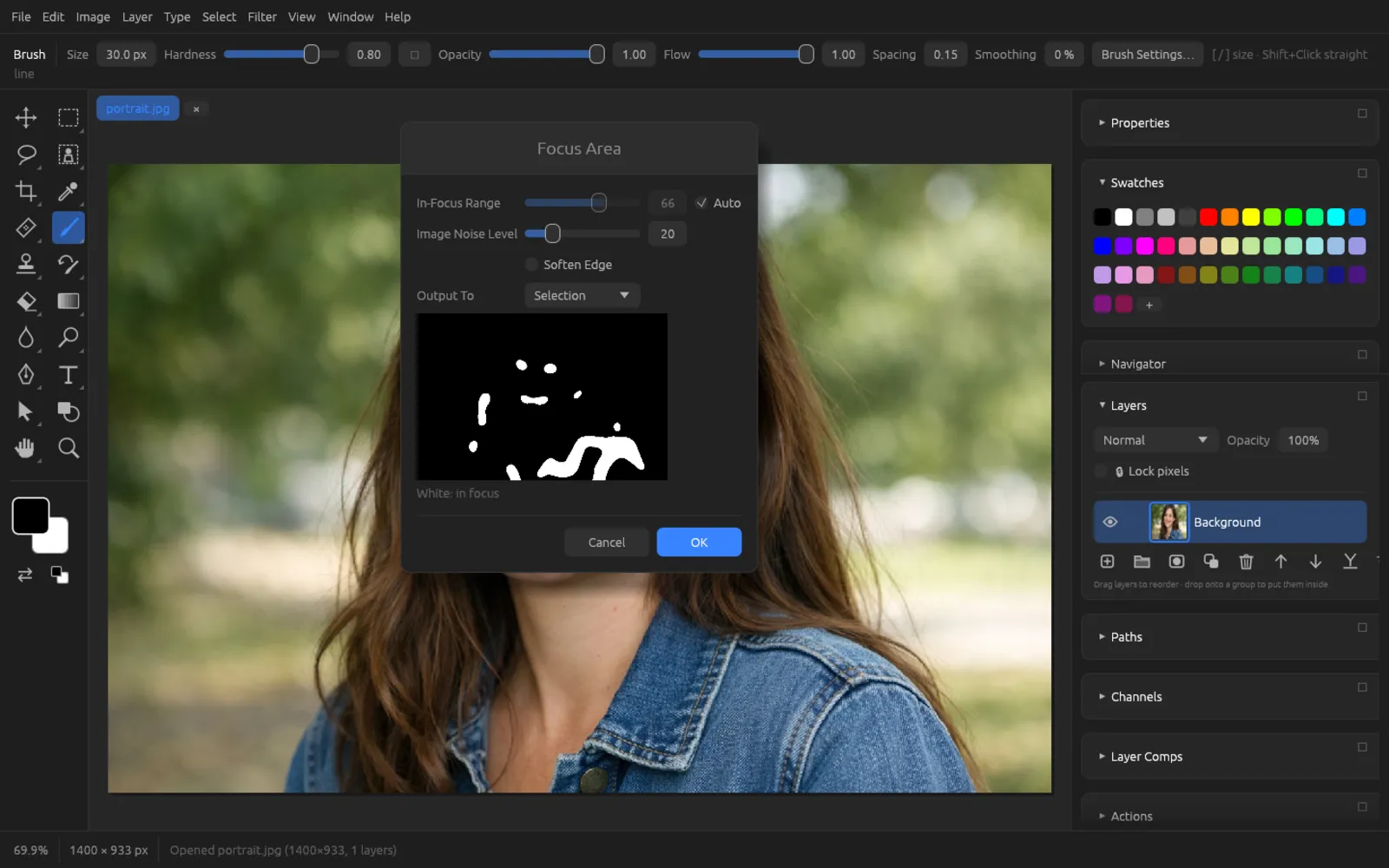
selects the sharp parts of a photo – handy for portraits with a blurred background. The preview in the dialog shows the selection as a black-and-white image (White: in focus).
| Setting | Meaning |
|---|---|
| In-Focus Range (0–100) | How sharp an area has to be to get selected. Higher values take in more of the image. With Auto, Chromatelier determines the value itself. |
| Image Noise Level (0–100) | Raise it for noisy photos so that noise does not count as sharpness. |
| Soften Edge | A soft transition at the edge of the selection. |
| Output To | Selection, Layer Mask of the active layer, or New Layer with Layer Mask (a copy of the layer with a mask). |
Color Range
selects all pixels of one color or one tonal range across the whole image – for example all reds, or only the highlights.
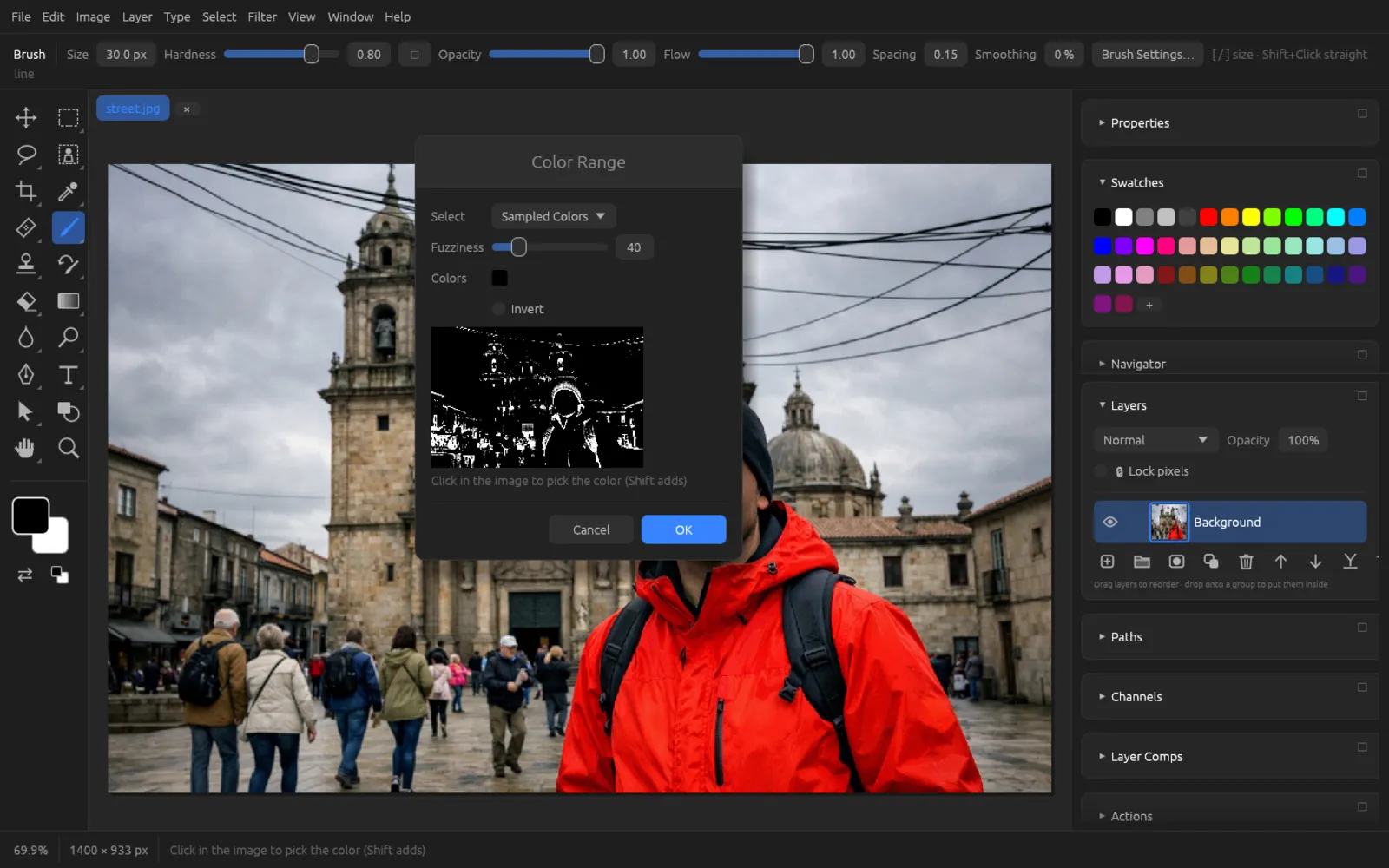
- Select: Sampled Colors, Reds, Yellows, Greens, Cyans, Blues, Magentas, Highlights, Midtones, Shadows or Skin Tones.
- With Sampled Colors, click into the image while the dialog is open to sample a color; ⇧-click adds more. The sampled colors appear as small swatches under Colors. At the start, the foreground color is sampled.
- Fuzziness (0–200) determines how far a color may differ and still be selected.
- Invert selects everything except the color range.
Selecting and changing a color in the image
- Choose and leave Select set to Sampled Colors.
- Click the color in the image that you want to change – the red jacket, for example. ⇧-click to add lighter and darker areas of the same color.
- Raise the Fuzziness until the jacket is white in the preview, but as little of the rest as possible.
- Confirm with OK. The selection is now active.
- Choose and shift the hue until the color is right. The correction only affects the inside of the selection. If you want to be able to change it later, first copy the area to a layer of its own with ⌘ J and correct that layer.
Select and Mask
(⌘ ⌥ R) refines the edge of an existing selection: it smooths jagged edges, makes the edge softer or harder, shifts it inward or outward, and follows fine structures in the image as it does so. The command needs an active selection – without one, the status bar shows Make a selection first.
The preview
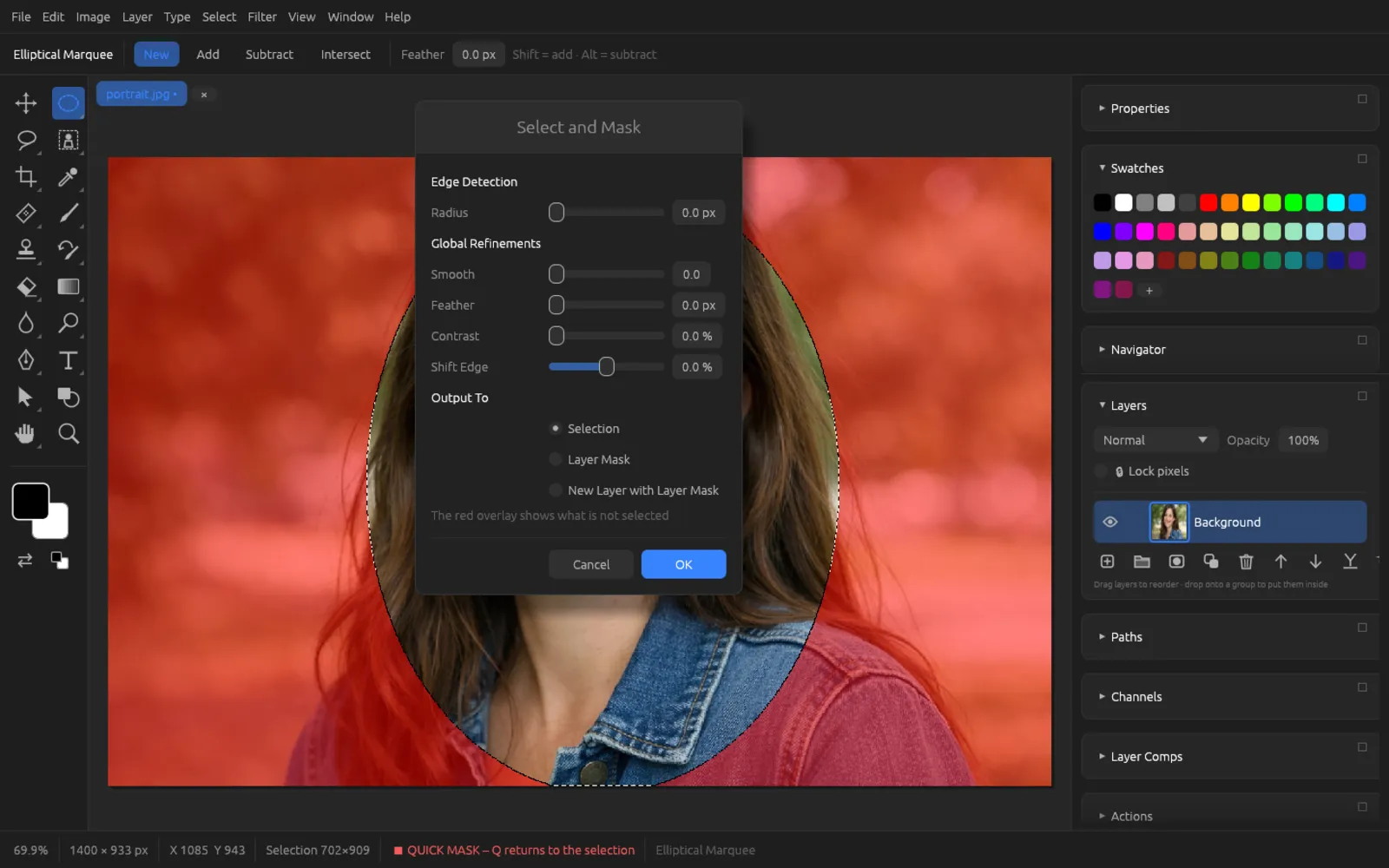
While the dialog is open, Chromatelier shows the refined selection as a red overlay on the image: red is not selected, clear is selected, and semi-transparent red stands for partly selected pixels. Every change to a slider shows up immediately.
Edge Detection and Global Refinements
| Slider | Range | Effect |
|---|---|---|
| Edge Detection | ||
| Radius | 0–250 px | Width of the band along the selection edge in which Chromatelier recalculates the edge from the brightness of the image. Small values for sharp edges, larger ones for hair and fur. |
| Global Refinements | ||
| Smooth | 0–100 | Smooths uneven, jagged edges. |
| Feather | 0–250 px | Blurs the transition. |
| Contrast | 0–100 % | Makes soft transitions harder and crisper again. |
| Shift Edge | −100 to +100 % | Negative values shrink the selection (removing color fringes from the background), positive values enlarge it. |
Output
Under Output To you choose what is created when you confirm:
- Selection – the refined selection replaces the old one.
- Layer Mask – the active layer gets the selection as its mask; the selection is removed.
- New Layer with Layer Mask – a copy of the active layer (name with “copy”) with the mask; the original stays unchanged.
Cutting out a person and refining the edge
- Open a portrait and make a rough selection of the person – with , the Quick Selection tool or, as in the picture, the Elliptical Marquee.
- Choose . Everything outside the selection is covered in red.
- Raise the Radius until the edge hugs the hair and shoulders.
- Use Smooth to even out rough areas and add one or two pixels of softness with Feather. If a light fringe from the old background shows up, push Shift Edge slightly into the negative.
- Under Output To, choose New Layer with Layer Mask and click OK.
- Hide the original layer with its eye icon. The cut-out person now sits on a layer of its own; you can keep touching up the mask with the brush (see Layer masks).
The settings are recorded along with an action recording, so you can apply them to many images (see Automation).
Modifying a selection
The commands under change an existing selection.
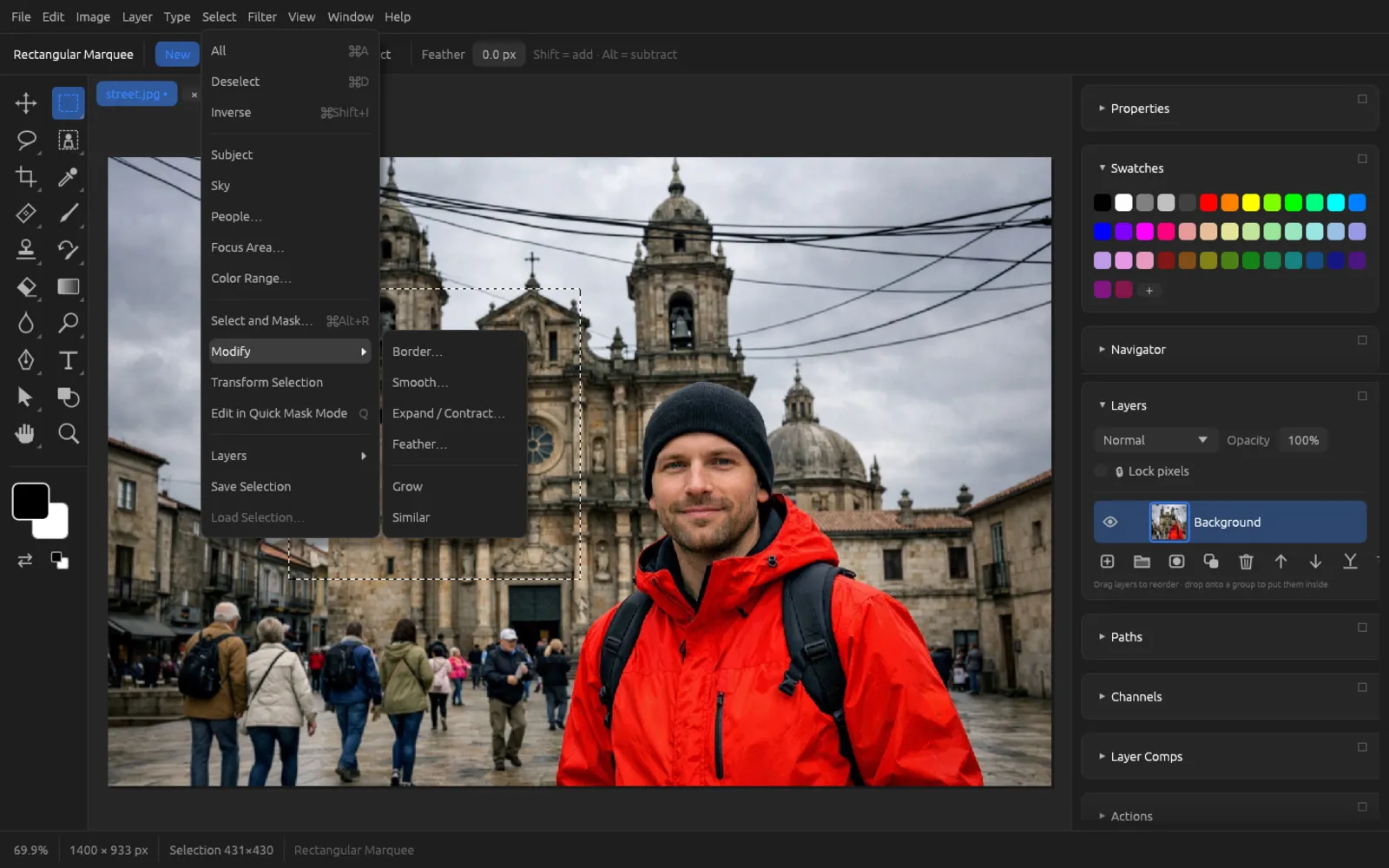
| Command | Dialog and range | Effect |
|---|---|---|
| Border Selection, Width (px) 1–200 | Replaces the selection with a band along its edge – for a frame, for example, or to work on the edge only. | |
| Smooth Selection, Radius (px) 1–200 | Rounds corners and smooths jagged edges. | |
| Expand / Contract Selection, Pixels (negative = contract) −100 to +100 | Enlarges the selection by the given number of pixels, or shrinks it with negative values. | |
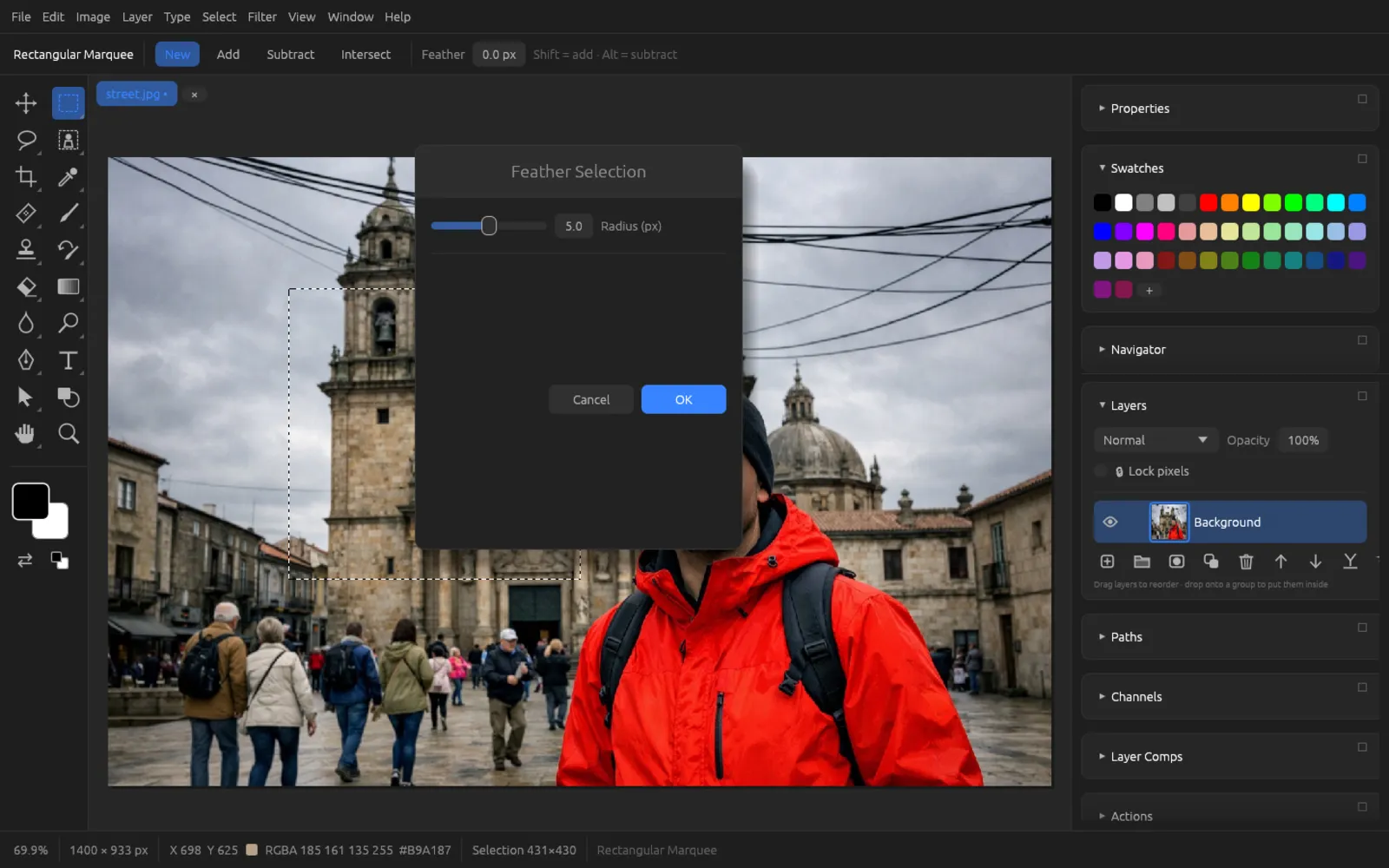
| Feather Selection, Radius (px) 0.1–250 | Softens the edge of the selection so that changes fade out gently. | |
| – | Adds neighboring pixels of a similar color. | |
| – | Adds all pixels of a similar color across the whole image, including ones that are not adjacent. |
How similar a color must be for and is set by the Tolerance in the options bar of the Magic Wand.
Transforming a selection
changes the shape of the selection without touching the pixels beneath it. A frame with handles appears around the selection; in the Transform Selection dialog you choose the kind (Free, Skew, Distort, Perspective), enter the position (X, Y), width and height in percent and an Angle, or rotate and flip with the buttons.
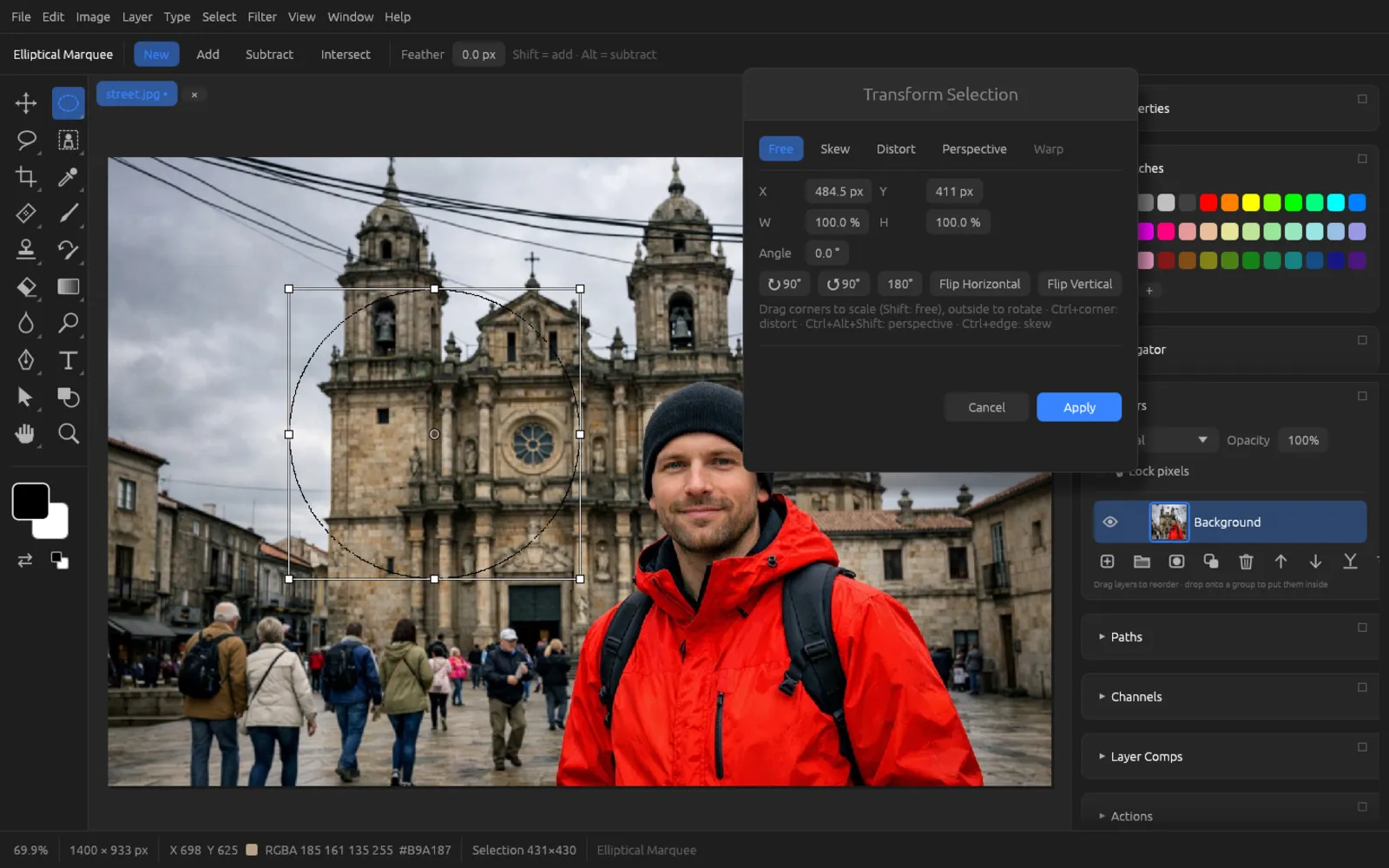
- Drag the corners to scale (with ⇧, freely), and drag outside the frame to rotate.
- Return or Apply accepts the change, Esc or Cancel discards it.
If you want to transform the selected pixels themselves, use (⌘ T); see Retouching & Transforming.
Quick Mask mode
In Quick Mask mode you edit a selection with painting tools. or the Q key turns the selection into a red overlay: red covers everything that is not selected. The status bar shows ◼ QUICK MASK – Q returns to the selection.
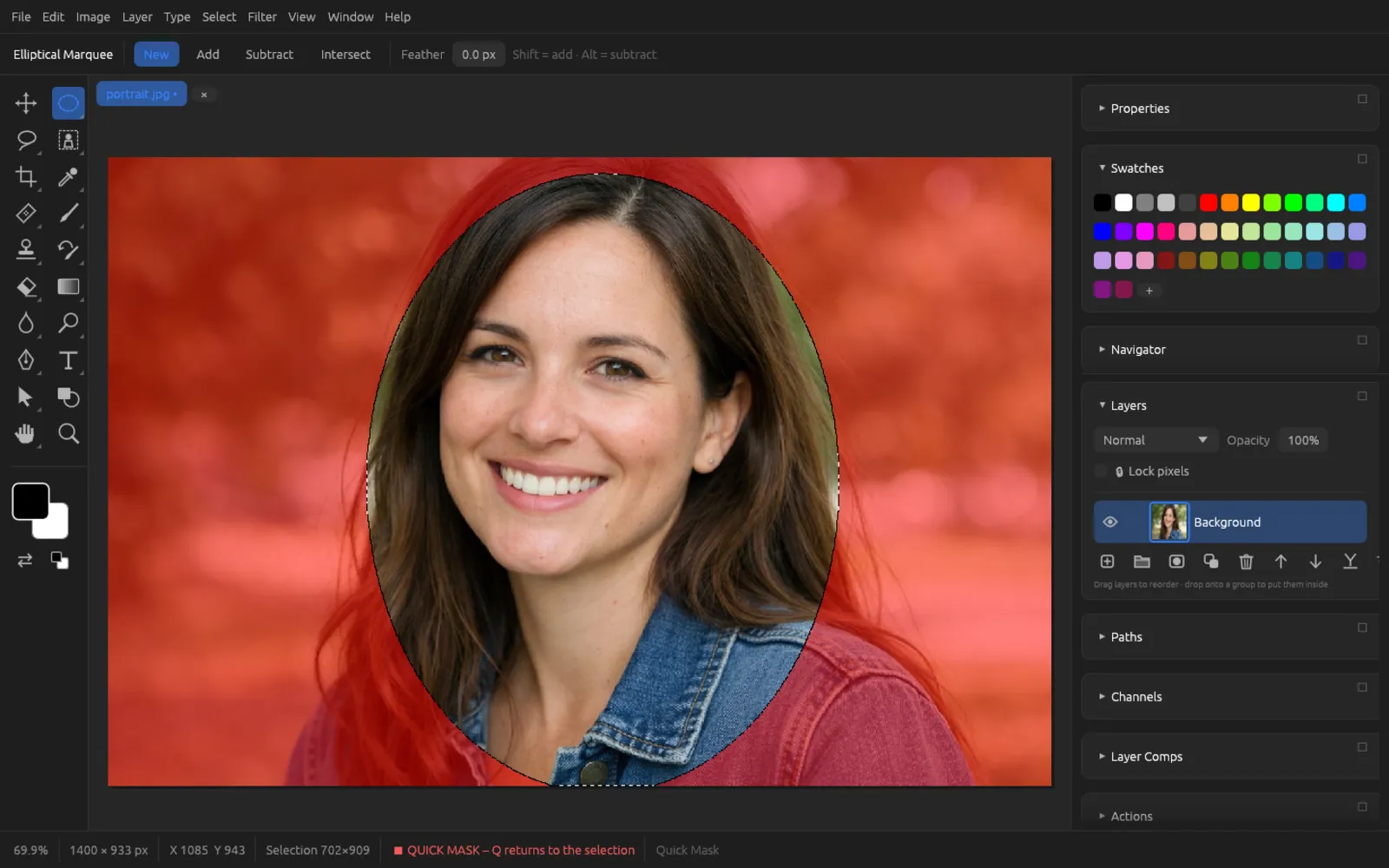
- Paint with white to add areas to the selection (the red disappears there).
- Paint with black to deselect areas (they turn red).
- Shades of gray and soft brushes produce partly selected areas – ideal for soft transitions.
When you press Q again (the menu entry is now called ), the overlay becomes a selection with marching ants again. While it is on, Quick Mask mode appears as a row of its own in the Channels panel.
Touching up a selection in Quick Mask mode
- Make a rough selection, for example with the Elliptical Marquee around a face.
- Press Q. Everything outside the selection turns red.
- Choose the brush (B) with a soft tip and press D for black and white as the default colors.
- Paint with white over areas that are still missing (such as hair that extends beyond the edge of the ellipse). Press X to switch to black and remove extra areas.
- Press Q again. The improved selection is active.
Selections from layers
- selects all non-transparent pixels of the active layer – semi-transparent pixels are partly selected. Handy, for example, for putting a stroke around a cut-out object.
- (⌘ ⌥ A) selects all layers in the Layers panel (not a pixel selection).
- You load a layer mask as a selection with ⌘-click on its thumbnail or with .
- You turn a path into a selection in the Paths panel (see Text, Shapes & Paths).
Saving and loading a selection
A selection you will need again later is saved as an alpha channel. Alpha channels are saved with the document.
- creates a new alpha channel “Alpha 1”, “Alpha 2” … from the current selection.
- opens the Load Selection dialog. The entry is gray as long as the document has no alpha channel.
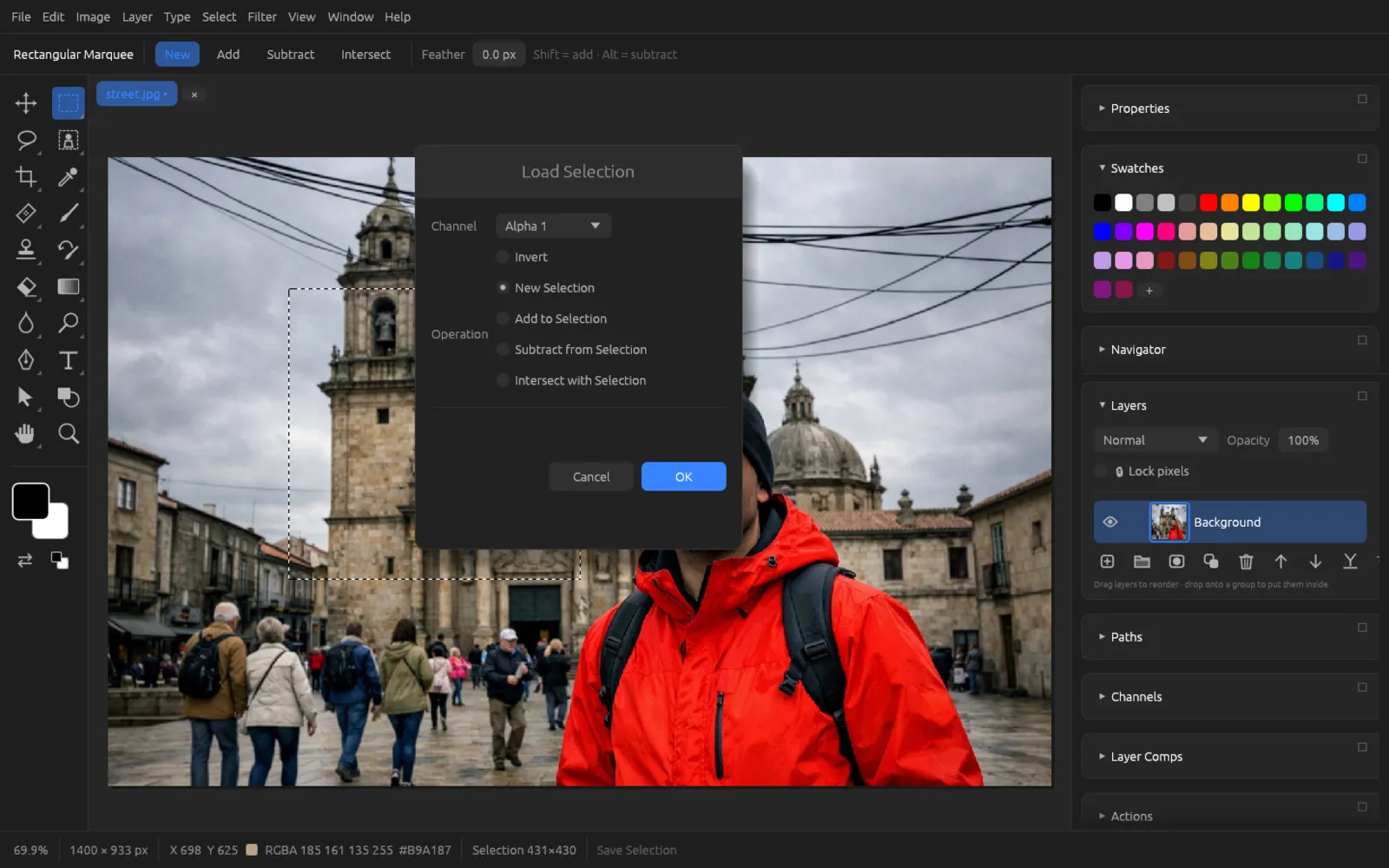
| Setting | Meaning |
|---|---|
| Channel | Which alpha channel is loaded. |
| Invert | Loads the opposite of the channel. |
| Operation | New Selection replaces the current selection; Add to Selection, Subtract from Selection and Intersect with Selection combine the channel with it. |
Alpha channels in the Channels panel
The Channels panel () shows the color channels of the image, below them the alpha channels and – when it is on – Quick Mask mode.
- A click on an alpha channel shows it as a black-and-white image and makes it editable with painting tools. A click on the top row (the composite channel, such as RGB) takes you back to the image.
- ⌘-click loads the channel as a selection; a double-click renames it.
- The buttons at the bottom: Save Selection (new alpha channel), → Selection (load the selected channel as a selection) and Delete (remove the selected alpha channel).
More about color channels, spot color channels and channel calculations is in the chapter Color, RAW & HDR.
Keeping an elaborate selection and reusing it
- Create the selection, for example with and some touching up in Quick Mask mode.
- Choose . “Alpha 1” appears in the Channels panel.
- Keep working; you can now safely deselect (⌘ D) and save the document.
- When you need the selection again, choose , pick “Alpha 1” under Channel and click OK. With Invert you get the background instead.
What you can do with a selection
| Goal | Command |
|---|---|
| Copy to a layer of its own | (⌘ J) |
| Use as a layer mask | |
| Fill with color or outline | , |
| Remove content and fill in | (see Retouching) |
| Crop the image to the selection | |
| Keep working on it as a path | Paths panel (see Text, Shapes & Paths) |